

 Haris Khan
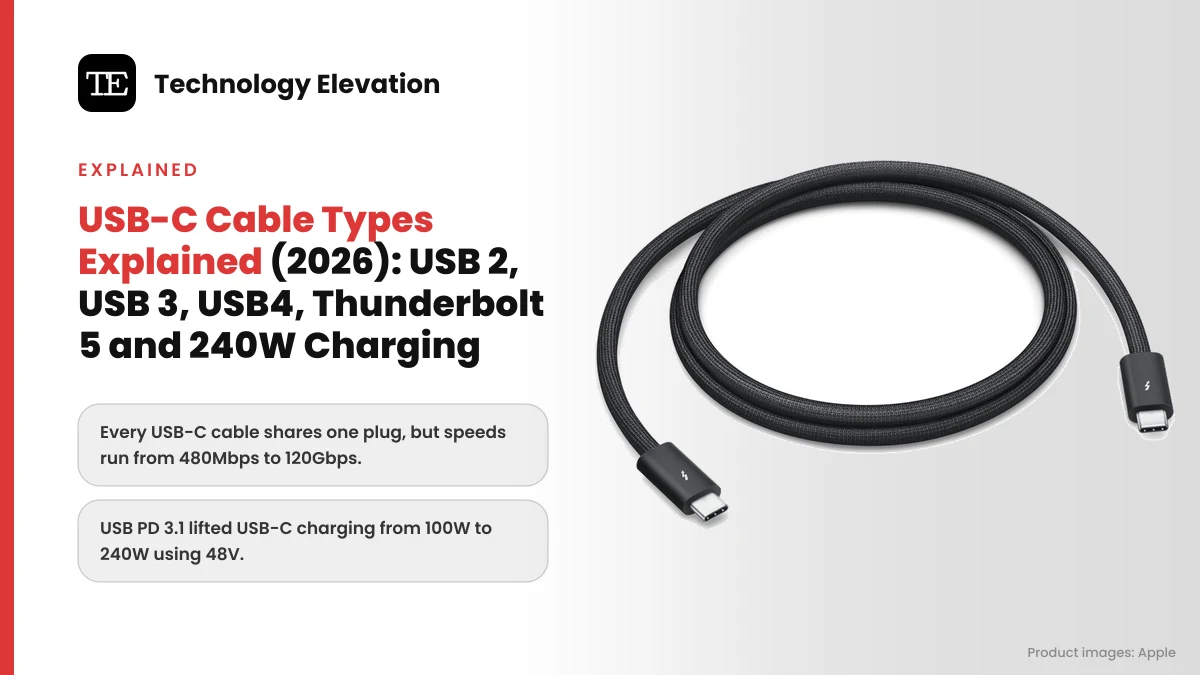
Open any kitchen drawer and you will find three or four USB-C cables that look identical. One charges a laptop at full speed, one crawls when you copy photos, and one refuses to put a picture on a monitor. Same plug, same rubbery cord, very different wiring inside.
That gap is the whole story of USB-C cable types explained in one line: the oval plug tells you nothing about speed or power. USB-IF, the group that runs the standard, says it plainly in its language guidelines: USB Type-C is not USB 3.2 or USB4, and it is not USB Power Delivery either. Those are separate features a cable may or may not carry.
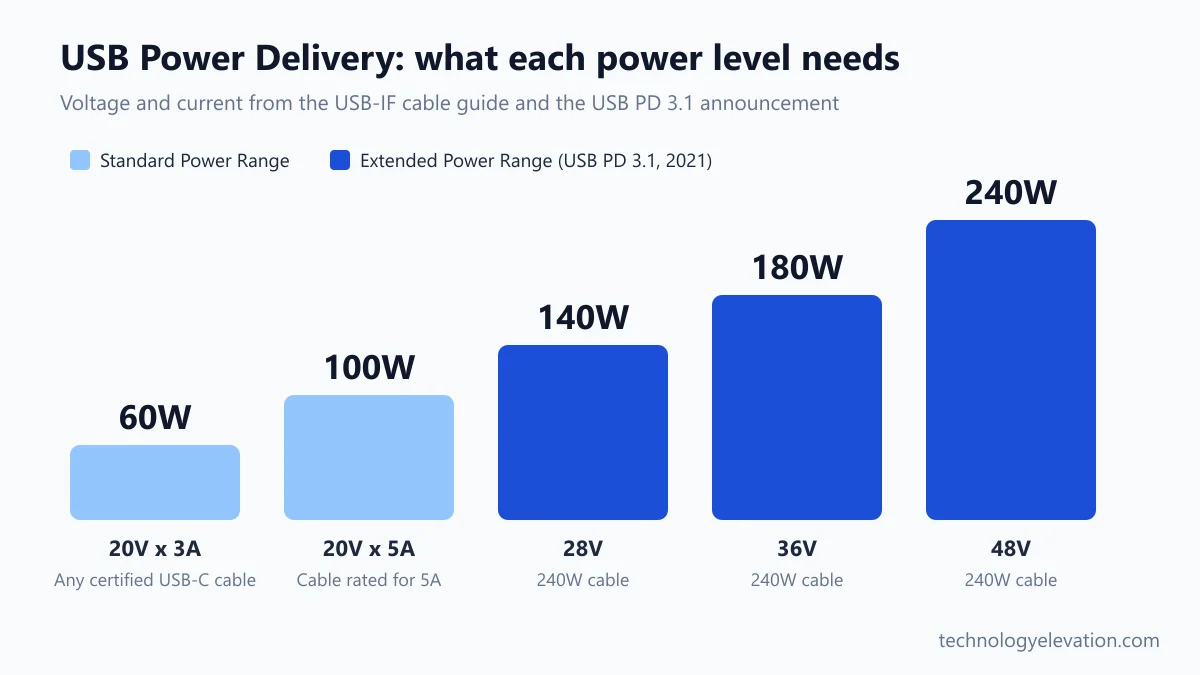
Charging limits have moved a lot too. The USB Power Delivery 3.1 update raised the ceiling from 100W to 240W over a USB-C cable, which is enough for large gaming laptops. Only cables built and certified for 240W can carry it.
Below we sort every USB-C cable you can buy in November 2026 into five groups, decode the logos USB-IF prints on certified cables, and match a cable to each job, from phone charging to an 80Gbps dock.
USB-C cable types come down to data speed and power rating
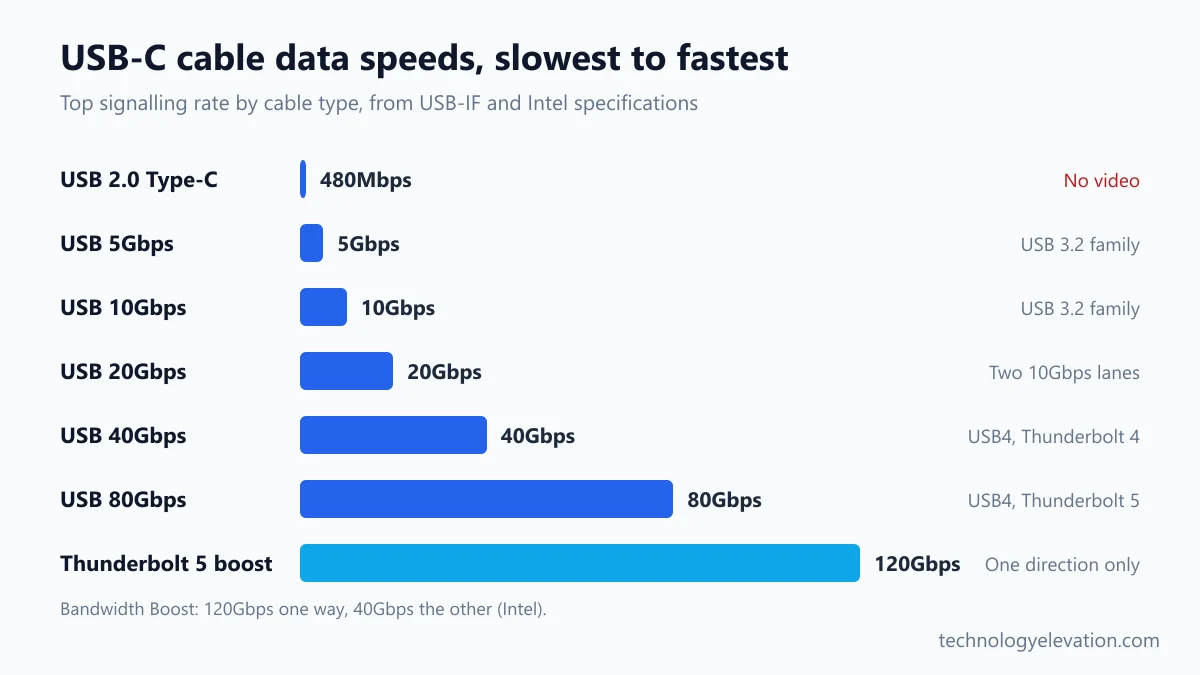
Every USB-C cable has two ratings: a data speed (480Mbps up to 80Gbps, or 120Gbps for Thunderbolt 5) and a power rating (60W or 240W). The plug is the same on all of them. A certified cable prints both numbers on its logo, so read the logo, not the shape.
The five types you will meet in shops:
- USB 2.0 USB-C cables: up to 480Mbps data, no video, 60W or 240W charging.
- USB 5Gbps, 10Gbps and 20Gbps cables: the USB 3.2 family, fine for SSDs and many monitors.
- USB 40Gbps cables: USB4 cables for docks, fast drives and displays.
- USB 80Gbps cables: the newest USB4 speed tier.
- Thunderbolt cables: Thunderbolt 4 at 40Gbps and Thunderbolt 5 at 80Gbps, with a 120Gbps boost mode.
| Cable type | Name on the logo | Top data speed | Video | Power rating |
|---|---|---|---|---|
| USB 2.0 Type-C | 60W or 240W only | 480Mbps | No | 60W or 240W |
| USB 3.2 family | USB 5Gbps, 10Gbps, 20Gbps | 20Gbps | Yes, with DisplayPort Alt Mode devices | 60W or 240W |
| USB4 | USB 40Gbps or USB 80Gbps | 80Gbps | Yes | 60W or 240W |
| Thunderbolt 5 | Thunderbolt 5 (Intel certified) | 80Gbps, 120Gbps boost | Yes, up to dual 8K | Up to 240W |
Power and speed are separate choices. You can buy a 240W cable that moves data at USB 2 speed, and a fast 40Gbps cable rated for only 60W. Most of the frustration with USB-C comes from mixing those two up.
USB 2.0 USB-C cables charge well but move data slowly
USB 2.0 USB-C cables top out at 480Mbps and carry no video at all. USB-IF says they physically cannot carry USB 3.2, USB4 or Alt Mode signals, because those wires are simply not inside. They still handle charging, at 60W or 240W.
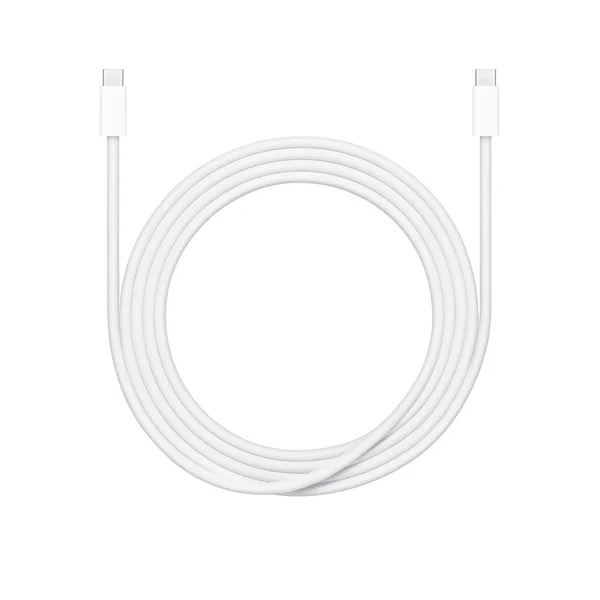
Cables packed in phone boxes are often this type. Apple’s own support page says the cable included with a USB-C iPhone supports “charging and USB 2 speeds.” Apple’s 240W USB-C Charge Cable (2 m), listed at $29, is the same story: up to 240 watts of charging and data at USB 2 rates.
For a phone, earbuds or a power bank, that is perfectly fine. You lose nothing when the only job is charging.
Where it hurts is anything with a screen or a big file. Plug a portable monitor into a laptop with one of these and you get a blank screen, because the video lanes are missing. Copy a 4K video from a fast phone and you wait at 480Mbps, about 20 times slower than a 10Gbps cable.
USB-IF’s own rule makes these easy to spot once you know it. Certified USB 2.0 cables show only a wattage (60W or 240W) on their logo, with no Gbps number at all.
USB 5Gbps, 10Gbps and 20Gbps cables replace the old USB 3.2 names
USB 3.2 cables come in three speeds: 5Gbps, 10Gbps and 20Gbps. USB-IF now tells brands to sell them as USB 5Gbps, USB 10Gbps and USB 20Gbps, and to stop using spec names like USB 3.2 and SuperSpeed Plus on packaging, because shoppers could not tell them apart.
You will still see the old names on spec sheets. Apple, for one, describes the USB-C port on the iPhone 15 Pro through iPhone 18 Pro as USB 3.2 Gen 2, “up to 10Gbit per second.” The plain-English name for that is simply USB 10Gbps.
The 20Gbps tier works by running two 10Gbps lanes at once. USB-IF notes that USB-C cables were designed from the start to carry two lanes.
For most people, 10Gbps is the sweet spot. It suits a portable SSD, a phone that supports USB 3, and many USB-C monitors. Apple adds that you need a USB 3 cable rated for 10Gbit/s to get those speeds on an iPhone Pro, since the cable in the box will not do it.
Drives are where a slow cable shows first. A USB 2.0 cable caps even the fastest external SSD at 480Mbps, which turns a one-minute copy into a long coffee break.
USB4 cables carry 40Gbps or 80Gbps for docks and displays
USB4 cables run at 40Gbps or 80Gbps and handle data, video and charging at the same time. USB-IF says USB4 reaches up to 80Gbps over 80Gbps certified cables, works with USB 3.2, USB 2.0 and Thunderbolt 3 devices, and is built on Intel’s Thunderbolt protocol.
On the box, look for “USB 40Gbps” or “USB 80Gbps.” USB-IF lists USB4 Version 1.0 and USB4 Version 2.0 as spec names that should not appear on consumer packaging, so the speed number is the label that counts.
The real benefit of USB4 shows up with one-cable desks. A single cable from the laptop to a dock or monitor can carry the screen, a wired network, a few USB devices and charging all at once. That is the setup most USB-C hubs and docking stations are built around.
One quirk: a USB4 laptop only has to reach 20Gbps to use the name, according to Intel’s comparison table. A 40Gbps cable will not make a 20Gbps port any faster, so check the laptop’s spec sheet for the port speed before paying more for the cable.
Thunderbolt 5 cables are the fastest USB-C cables you can buy
Thunderbolt 5 doubles Thunderbolt 4. Intel lists 80Gbps in both directions, a Bandwidth Boost mode that sends up to 120Gbps one way for big displays while keeping 40Gbps the other way, 64Gbps of PCIe data for external drives, and support for dual 8K displays.
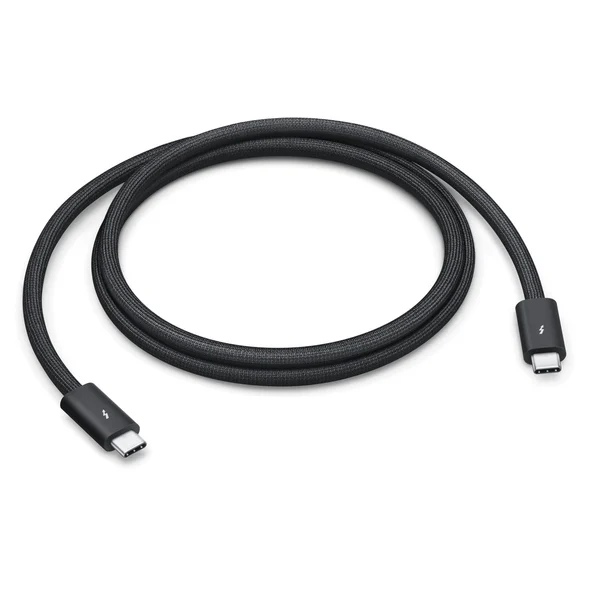
Key facts: Thunderbolt 5 PCs must offer charging up to 140W and can offer up to 240W. Accessory ports supply 15W. Intel’s certified Thunderbolt 5 cables carry up to 120Gbps at lengths up to 2 meters, and certification is mandatory for computers, accessories and cables.
Thunderbolt 4 ports start at 40Gbps, double the 20Gbps minimum for USB4. That minimum is why a Thunderbolt logo has always been the safer bet on a laptop: you know the floor, not just the ceiling.
Apple’s Thunderbolt 5 (USB-C) Pro Cable (1 m) shows how well these cables cover older gear. Apple says it supports Thunderbolt 5 at up to 120Gb/s, Thunderbolt 3, Thunderbolt 4 and USB4 at up to 80Gb/s, USB 3 at up to 10Gb/s, DisplayPort 2.1 video and charging up to 240W. Its list price is $69.
On Windows, Intel says Thunderbolt 5 needs Windows 11 version 23H2 or later. On a Mac, Apple’s port guide shows the Thunderbolt symbol next to the ports that support it, which matters on machines where only some ports are Thunderbolt. Port types are one of the real differences when deciding which MacBook to buy.
USB Power Delivery decides how many watts a cable can carry
USB Power Delivery is the charging protocol, and the cable sets the ceiling. A 60W cable carries 20V at 3A. Cables rated for 5A carried up to 100W under the old rules. USB PD 3.1, announced on 26 May 2021, added 28V, 36V and 48V for 140W, 180W and 240W.
Those new voltages form what the industry calls the Extended Power Range, or EPR. Everything up to 100W at 20V is the Standard Power Range. Charger and device negotiate the voltage first, and the USB Promoter Group says the protocol for the higher range is much more stringent so that the extra power is used safely.
The cable is the weak link people forget. Plug a 140W laptop charger into a laptop with a 60W cable and you charge at no more than 60W, however strong the brick. A 240W cable works at every lower level too, so buying 240W for everything is a simple rule if you charge laptops.
Phones are far less demanding. A phone charging at 25W is well inside what any 60W cable carries. For a Qi2 or MagSafe charger, the power adapter behind it matters far more than the cable.
The USB-IF logo on a certified cable shows its speed and watts
Certified USB-C to USB-C cables must carry a USB-IF logo printed or embossed on the plug housing. The logo combines a data rate and a power rating, such as 40Gbps and 240W. USB 2.0 cables show only the wattage, 60W or 240W.
USB-IF’s cable logo guide gives a worked example: a USB 20Gbps cable that supports 20V at 3A must be marked with the combined 20Gbps/60W logo. The trademark list in the same guide pairs 5Gbps, 20Gbps, 40Gbps or 80Gbps with either 60W or 240W, plus the plain 60W and 240W logos for USB 2.0 cables.
Read the plug, then the box. On packaging, the same certified logo includes the word “certified.” USB-IF says the logos may only be used on products that passed its compliance testing and appear on its Integrators List, a public database of certified products.
A missing logo does not prove a cable is bad. USB-IF recommends certification rather than requiring it, so many cables on sale never go through it. But an unmarked cable leaves you guessing, and the guessing is exactly what the logos were made to end.
Thunderbolt cables follow Intel’s own certification instead. Look for the Thunderbolt symbol on the plug, which Apple notes differs from other symbols that share the same port shape, and the generation number in the product name.
Which USB-C cable to use for each job
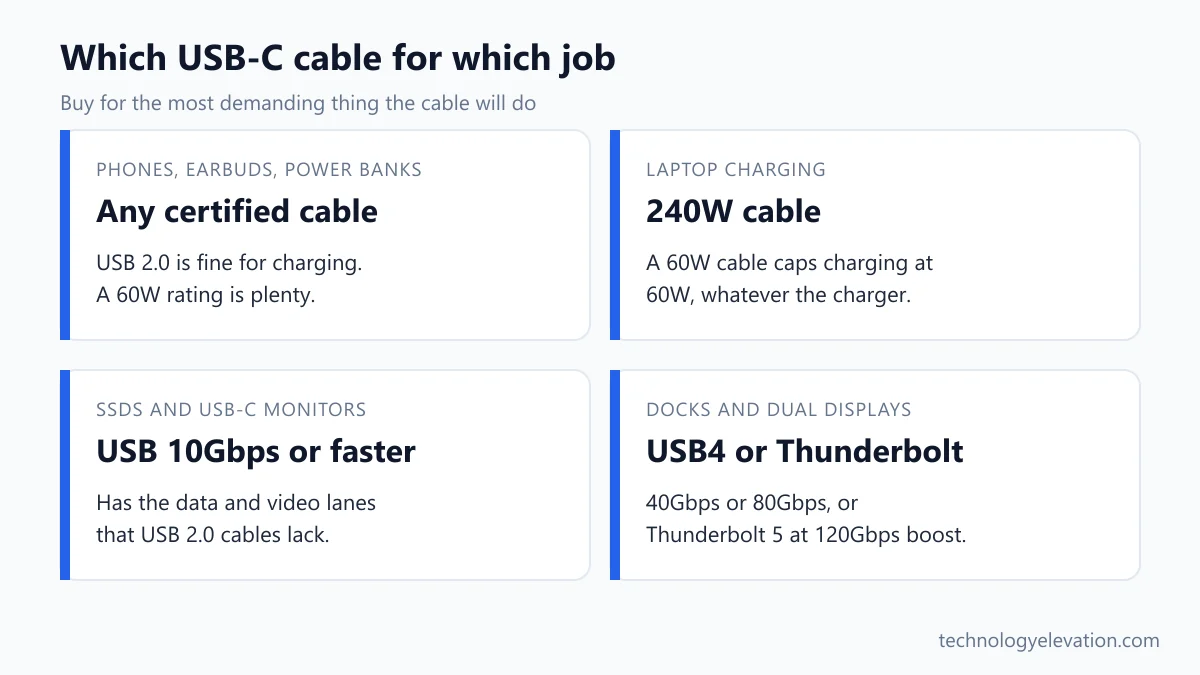
Match the cable to the most demanding job it will do. Charging a phone needs any certified cable. Charging a laptop needs a 240W cable. A monitor, SSD or dock needs a data cable rated at 10Gbps or more, and a Thunderbolt dock needs a Thunderbolt cable.
- Phones, earbuds and power banks: any certified cable, including USB 2.0. A 60W rating is plenty.
- Laptop charging: a 240W cable, so a 100W or 140W charger is never held back.
- Portable SSDs and iPhone Pro file transfers: a USB 10Gbps cable or faster.
- Portable and desk monitors over USB-C: a full-featured cable (USB 5Gbps or faster) so the video lanes are present. A USB 2.0 cable gives a blank screen.
- USB4 docks and fast external enclosures: a USB 40Gbps or 80Gbps cable.
- Thunderbolt docks, eGPUs and dual high-resolution displays: a certified Thunderbolt 4 or Thunderbolt 5 cable.
For a travel kit, one 240W charge cable plus one short 40Gbps or Thunderbolt cable covers nearly everything. Label them with a strip of coloured tape and you stop playing cable roulette in hotel rooms.
Flying with a battery as well? Power bank airline rules limit the battery’s capacity, not the cable, so pack whichever cables you like.
Video over USB-C needs the right cable and the right port
USB-C video works through DisplayPort Alt Mode, USB4 or Thunderbolt, and both the port and the cable must support it. USB 2.0 Type-C cables lack the wires for Alt Mode, so they never carry video, even when the monitor and laptop both support it.
So the cable is the first suspect when a USB-C monitor stays dark. Swap in the cable that came with the monitor, or any USB 10Gbps or faster cable, before you blame drivers. Many portable monitors list DisplayPort Alt Mode on their USB-C ports, and that only works over a full-featured cable.
The port matters just as much. Some laptops and tablets only output video from certain USB-C ports, and Apple’s port guide marks the display-capable ones on its own machines. Phones vary too: a phone that charges over USB-C may still have no video output at all, which is why connecting a phone to a TV often works better wirelessly.
For a TV or a games console with HDMI, a USB-C to HDMI adapter or cable is the bridge. The HDMI side then follows HDMI rules, so the HDMI cables for gaming you pick still matter.
Cheap and unmarked USB-C cables cause most of the trouble
Most USB-C problems trace back to one of three cables: a charge-only USB 2.0 cable used for data or video, a 60W cable feeding a high-watt laptop, or an unmarked cable of unknown quality. Buying certified, labelled cables avoids all three.
Watch for listings that bury the specs. “Fast charging” with no wattage, or “high speed” with no Gbps number, usually means the cable sits at the bottom of both scales. A certified cable has no reason to hide the numbers, because the logo shows them anyway.
Length matters more on fast cables. Intel’s certified Thunderbolt 5 cables run up to 2 meters, and very long cables that promise top speeds deserve a second look at the fine print.
And keep the old ones sorted. A drawer full of mystery cables is fine for charging earbuds. For a docking station or an SSD, use the cable you know.
Frequently asked questions about USB-C cables
Are all USB-C cables the same?
No. All USB-C cables share the same plug, but their data speed ranges from 480Mbps to 80Gbps, or 120Gbps for Thunderbolt 5, and their power rating is either 60W or 240W. Some cannot carry video at all.
How can I tell what a USB-C cable supports?
Look at the USB-IF logo on the plug or the packaging. Certified cables show a data rate such as 40Gbps and a power rating such as 240W. USB 2.0 cables show only the wattage.
Do I need a 240W cable to charge my laptop?
You need a cable rated above 60W if your laptop and charger work above 60W. A 60W cable limits charging to 60W, while a 240W cable works with every charger up to 240W, so it is the safe choice for laptops.
Why will my USB-C cable not connect to a monitor?
The cable is probably a USB 2.0 Type-C cable, which has no wires for video. Use a USB 10Gbps, USB4 or Thunderbolt cable, and check that the laptop port supports video output.
Is Thunderbolt 5 the same as USB4?
No, but they are closely related. Thunderbolt 5 is Intel’s certified standard with 80Gbps in both directions and a 120Gbps boost mode, while USB4 is the USB-IF standard built on Intel’s Thunderbolt protocol. Thunderbolt 5 cables also work with USB4 devices.
Can I use a Thunderbolt cable for normal USB-C charging?
Yes. Thunderbolt cables work with ordinary USB-C devices for charging and data. Apple’s Thunderbolt 5 Pro Cable, for example, also supports USB 3 data and charging up to 240W.
Last checked and sources
Last checked on 19 November 2026 by Haris Khan. We compared the cable rules in USB-IF’s specifications and logo guidelines with Intel’s Thunderbolt comparison and Apple’s product and support pages, and kept only what those sources state.
- USB-IF: USB Charger (USB Power Delivery) page and the USB PD Revision 3.1 announcement of 26 May 2021
- USB-IF: USB4 and USB 3.2 technology pages
- USB-IF: USB Type-C Cable Logo Usage Guidelines, USB Performance Logo Usage Guidelines, USB Data Performance Language Usage Guidelines, and USB Type-C Language, Product and Packaging Guidelines
- Intel: Thunderbolt technology overview and the Thunderbolt 5 vs Thunderbolt 4 vs USB4 comparison
- Apple: Thunderbolt 5 (USB-C) Pro Cable and 240W USB-C Charge Cable product pages, iPhone USB-C support article, and Identify the ports on your Mac
- Texas Instruments: USB Type-C and USB Power Delivery application note on the Extended Power Range
We update this guide when USB-IF or Intel publish new cable speeds, power levels or logo rules.

GIPHY App Key not set. Please check settings