

 Haris Khan
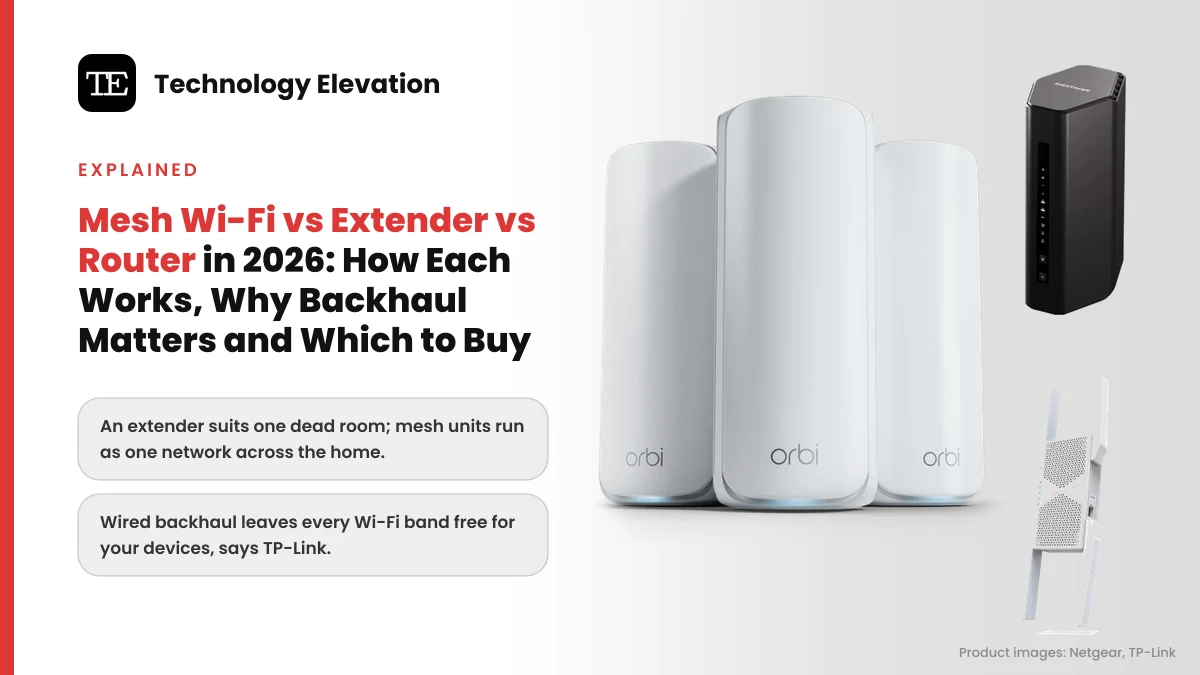
Stand next to the router and a speed test flies. Walk to the back bedroom, the garden office or the kid’s room above the garage, and the same phone shows one bar and a video call that freezes every few seconds. Most people then face the same choice: mesh Wi-Fi vs extender, or a better router.
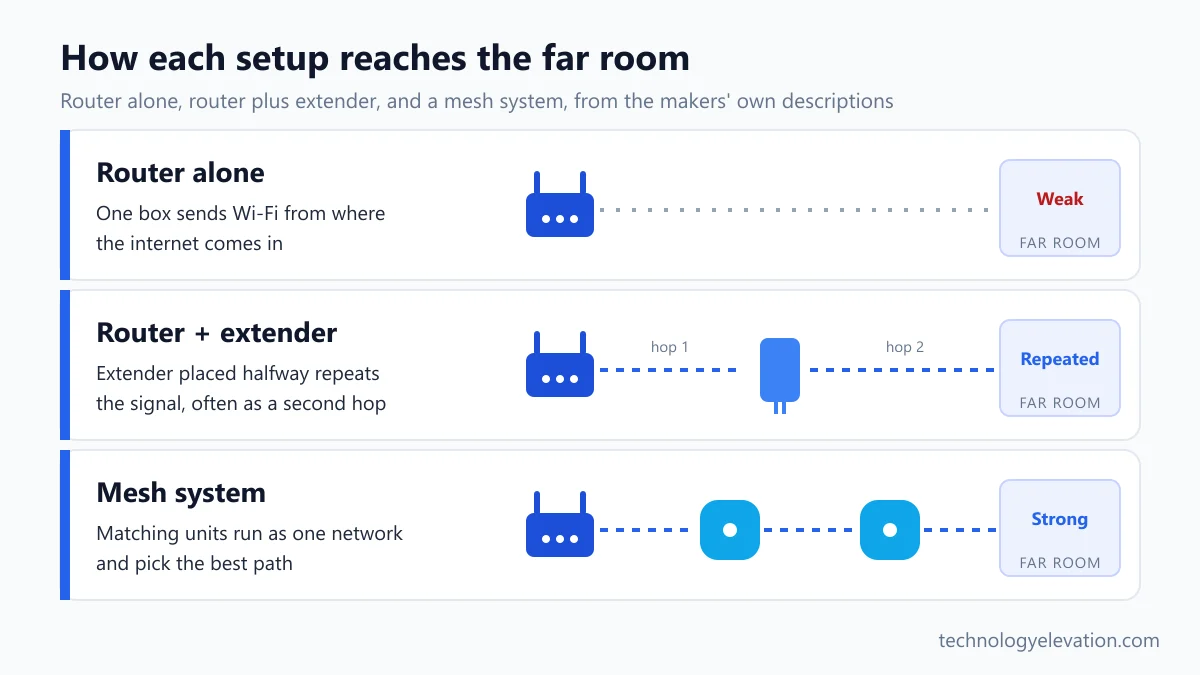
All three fix weak Wi-Fi, but in very different ways. A router sends the signal from one spot. An extender catches that signal and repeats it. A mesh system spreads two or three matching units around the house and runs them as one network. Netgear, which sells all three, puts the extender’s limit plainly: Wi-Fi extenders create a second network that devices join when they are too far from the main router.
The part most guides skip is backhaul, the link that carries your data between the units. Backhaul decides whether the far room gets real speed or a slow trickle, and it is the single biggest difference between a cheap extender and a good mesh kit.
Below, we explain how each option works, how backhaul changes the result, and which one fits which home. Every spec comes from the makers’ own pages, checked on 19 November 2026.
Mesh Wi-Fi beats an extender for whole homes, and a router alone suits small ones
For a home with more than one weak room, mesh Wi-Fi is the better choice than an extender. An extender suits one dead spot on a tight budget. A single good router is enough for most apartments and compact homes, so upgrade the router before buying anything else.
| Setup | How it works | Best for | Main catch |
|---|---|---|---|
| Single router | One box sends Wi-Fi from where the internet enters the home | Apartments and homes up to about 2,500 sq ft on one or two floors | Walls and floors weaken the signal with distance |
| Range extender | Picks up the router’s signal and rebroadcasts it further | One dead room, a garage or a porch | A wireless extra hop that shares airtime |
| Mesh system | Two or more matching units run as one network with one name | Large, long or multi-floor homes and several weak rooms | Costs more, and wireless backhaul still shares bandwidth |
The 2,500 square foot figure is Netgear’s own coverage rating for its tri-band Nighthawk RS300 router. Treat every coverage claim as a best case: brick, plaster and a concrete floor all cut into it.
A router sends Wi-Fi from one spot, so distance and walls decide your signal
A router is the box that creates your home network and sends Wi-Fi out from wherever the internet line comes in. Its signal weakens with every wall, floor and metre of distance, so the rooms farthest from it are always the slowest, whatever the router costs.
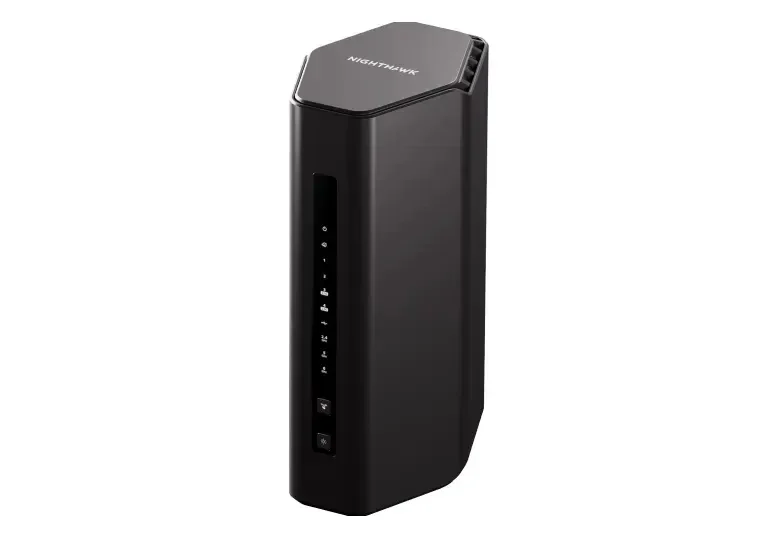
Location is the router’s real problem. The internet usually arrives at an awkward spot: a cable outlet in the living room, a closet by the front door, a corner of the basement. A router in a cupboard at one end of a long house is working against physics before you even switch it on.
A newer router still helps. Tri-band Wi-Fi 7 models add the 6 GHz band, a fast, quiet lane for newer phones and laptops, plus multi-gig ports for faster plans. Just don’t expect 6 GHz to reach the garden: Netgear’s own spec sheets note that the band is limited to indoor range.
Before you buy anything, move the router. Out of the cupboard, up off the floor and closer to the middle of the home is free, and it fixes more weak rooms than most people expect.
A Wi-Fi extender repeats your router’s signal from halfway down the hall
A Wi-Fi extender is a small plug-in box that connects to your router by Wi-Fi, then rebroadcasts that signal into the weak area. Netgear’s advice is to place it halfway between the router and the dead zone, where it still gets a strong signal to repeat.
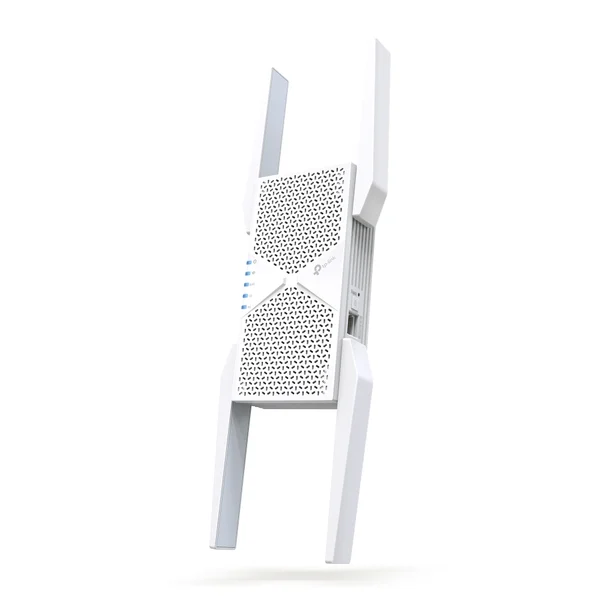
Placement is everything with an extender. Put it in the dead room itself and it repeats a weak signal, so you get a strong-looking connection to a slow source. Put it too close to the router and it adds almost nothing.
The hidden cost is the extra wireless hop. A basic extender uses its radios both to talk to your router and to talk to your devices, so every piece of data crosses the air twice. TP-Link makes the point from the other side when it describes cabled mesh units: a wired link means “no bandwidth loss from a wireless hop.”
Older extenders also made you switch networks by hand. Netgear says extenders create a second network, and many older models show up as a separate Wi-Fi name. Newer ones fix this. Netgear’s Wi-Fi 7 EXS27 uses one Wi-Fi name and password with what it calls Smart Roaming, works with any router, covers up to 1,500 square feet and has a 2.5 GbE port. TP-Link’s tri-band RE655BE shares one Wi-Fi name with EasyMesh routers and can also run as an access point.
That last option is worth knowing. In access point mode, the extender connects to the router by Ethernet cable instead of Wi-Fi, which removes the wireless hop completely. If a cable already runs to the room, an extender in access point mode beats one in extender mode every time.
Mesh Wi-Fi uses matching units that work as one network
A mesh Wi-Fi system is a set of two or more units, one acting as the router and the rest as satellites, that share one network name. Your phone moves between them as you walk around, and the system picks the best path for your data.
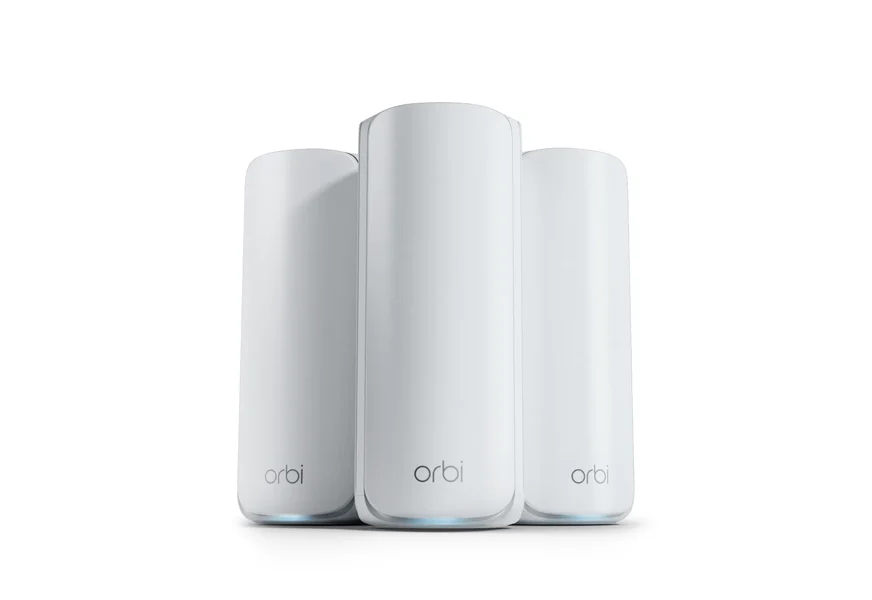
The difference from an extender is coordination. An extender only knows about the router it repeats. Mesh units talk to each other all the time. eero says its TrueMesh technology has every eero connect wirelessly to every other eero in range, which creates many possible paths for traffic and lets the system route around a weak link.
The Wi-Fi Alliance, the body that certifies Wi-Fi products, has its own standard for this called Wi-Fi EasyMesh. It describes EasyMesh networks as multiple access points that work together to form a unified network, guide devices to the best access point and allow access points from more than one brand.
Coverage is where mesh earns its price. eero rates each eero 7 unit for 2,000 square feet. Netgear rates an Orbi 770 three-pack for up to 8,000 square feet and an Orbi 970 three-pack for up to 10,000. Those are big numbers, and in a sprawling ranch or a three-floor townhouse they are the only realistic way to get strong Wi-Fi everywhere.
Mesh also grows with you. Start with two units, and add a third when the loft conversion is finished. For specific kits, the best mesh Wi-Fi systems compares six of them by home size and internet speed.
Backhaul is the link between units, and it decides real mesh speed
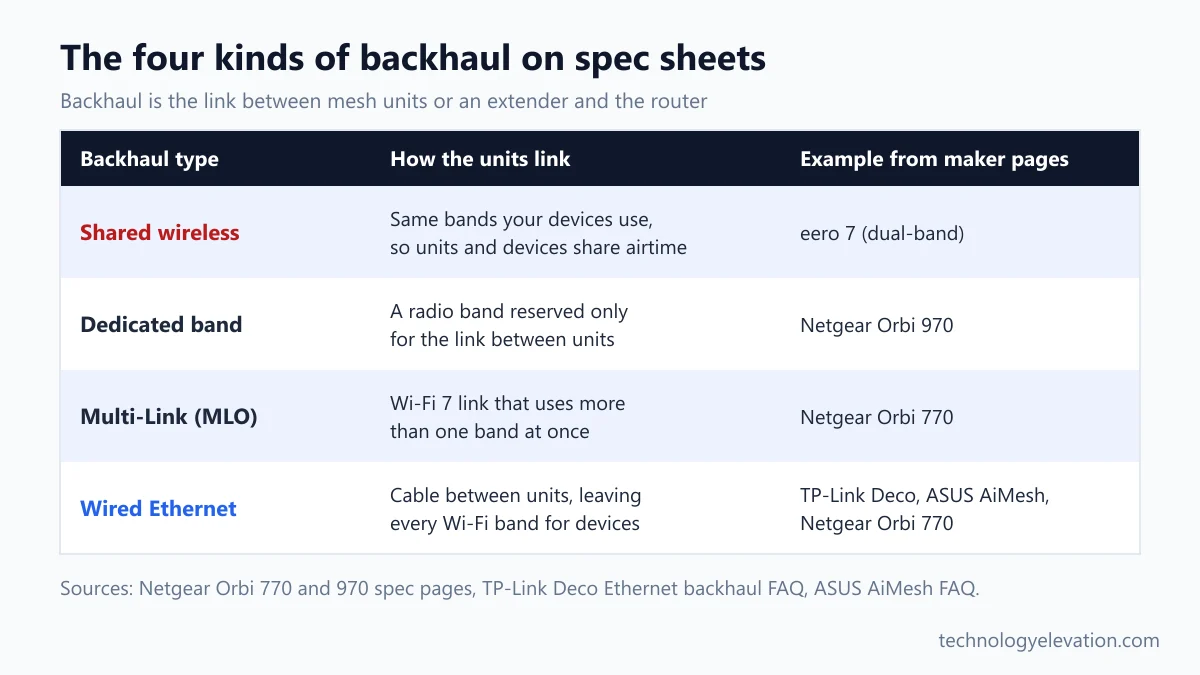
Backhaul is the connection that carries data between the main unit and each satellite or extender. Over Wi-Fi it shares airtime, unless a separate radio band is reserved for it. Over an Ethernet cable it runs at full wired speed and leaves the Wi-Fi free for your devices.
Four kinds of backhaul show up on spec sheets, and they are not equal.
- Shared wireless backhaul. The units talk to each other on the same bands your devices use. Dual-band kits such as the eero 7, which has no 6 GHz radio, work this way unless you add cables.
- Dedicated wireless backhaul. A spare radio band is kept only for the link between units. Netgear says the Orbi 970 has a dedicated backhaul band,, and that a separate band used only for backhaul is exclusive to the 970.
- Multi-Link Operation (MLO). A Wi-Fi 7 feature that lets one link use more than one band at once. Netgear says the tri-band Orbi 770 uses MLO across its bands instead of a dedicated backhaul band.
- Wired (Ethernet) backhaul. A cable between units. TP-Link calls it faster and more reliable than Wi-Fi backhaul, with lower latency for gaming and video streaming.
ASUS shows the trade-off in its own settings. On its tri-band routers, the second 5 GHz band used to be a dedicated backhaul by default. Turn on wired backhaul, and ASUS says you release more wireless bandwidth for your devices.
Extenders face the same question. An extender with an Ethernet port can use a cable to the router, which turns it into a wired access point and gets rid of the shared hop.
Wired backhaul turns any mesh kit into its fastest version
Wired backhaul gives a mesh system its best speed and stability. Set up the units wirelessly first, then run Ethernet cables between them. On most systems the wired link switches on automatically, and you can mix cabled and wireless units in the same network.
TP-Link’s Deco Ethernet backhaul guide gives the steps for its mesh kits:
- Set up all Deco units wirelessly first using the Deco app.
- Place each satellite Deco in the spot where it will live.
- Connect the Deco units together with Ethernet cables.
- Leave the app alone: the Ethernet backhaul activates automatically, with no extra settings.
One wiring rule trips people up. In Router mode, TP-Link says each satellite Deco must connect to a LAN port on the main Deco, or to a switch connected to that port. Do not plug a satellite straight into the modem in front of the main unit. Most network switches work fine in between.
On ASUS AiMesh systems, the setting has a name. Go to AiMesh, then System Settings, and turn on Ethernet Backhaul Mode once every node is cabled. For a mix of wired and wireless nodes, ASUS has you open AiMesh, then Topology, pick the node, open Management and change Backhaul Connection Priority from Auto to the wired option.
No Ethernet in the walls? You do not need to cable every unit. TP-Link says you can mix wired and wireless backhaul in the same network, so even one cabled satellite at the far end of the house takes load off the rest.
Choose a router, extender or mesh in five checks
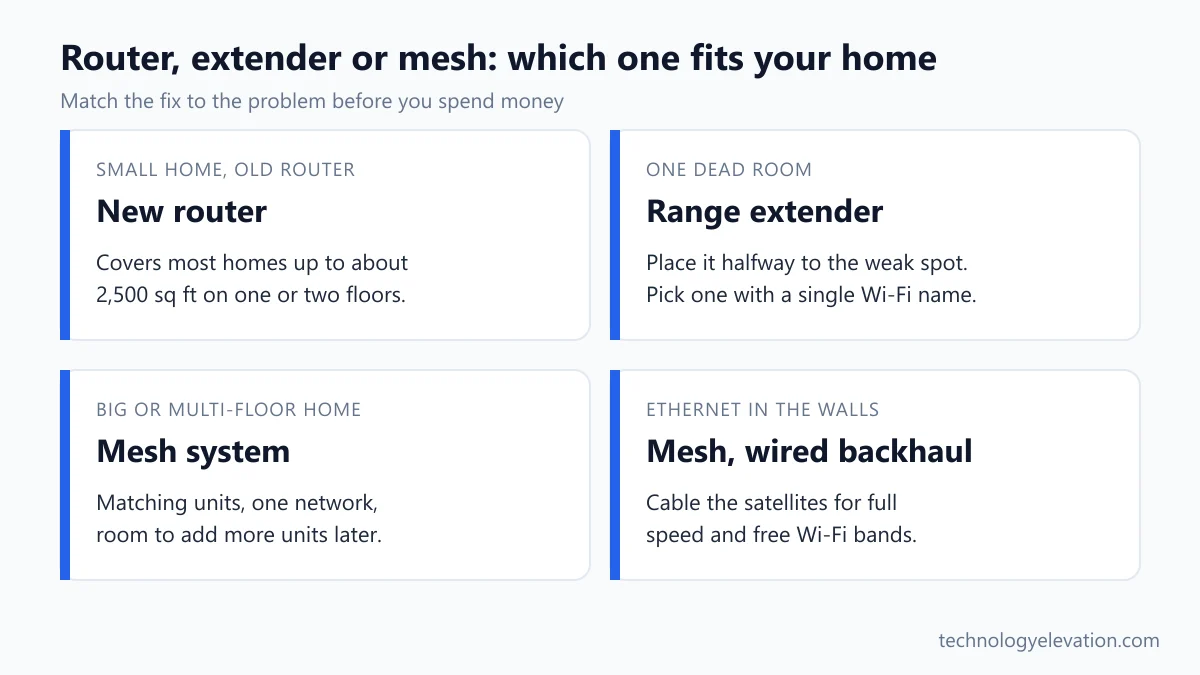
Pick by the problem you actually have. Count the weak rooms, measure the home, check where cables run, then match the hardware to your internet plan. One weak room points to an extender, several point to mesh, and an old router points to an upgrade first.
- Count the weak rooms. One dead spot is an extender job. Two or more, or a whole floor, is a mesh job.
- Check the router’s age. If it is Wi-Fi 5 or older, a new router may fix everything on its own. Start with the best Wi-Fi 7 router picks before you add extra boxes.
- Measure the home. Up to about 2,500 square feet on one or two floors, a good single router usually covers it. Past that, or across three floors, plan on mesh.
- Look for cables. Ethernet jacks or coax outlets in the right rooms make wired backhaul possible, which beats any wireless option.
- Match your internet speed. On a plan faster than 1 Gbps, buy units with 2.5 GbE ports or faster, or the ports become the bottleneck.
A quick test helps before you spend money. Run a speed test next to the router, then in the problem room. If the router itself is slow, no extender or mesh will help: the problem is the plan, the modem or the router.
Extenders still make sense for one room, a porch or a renter’s budget
An extender is still the right buy for one stubborn spot: a home office at the end of the hall, a garage, or a patio. It works with any router, needs no new network and leaves your provider’s equipment in place, which suits renters who cannot swap hardware.
Think about the devices in that room. A smart speaker, a printer or a video doorbell by the front door needs a steady signal, not gigabit speed. An extender handles those easily.
Gaming is different. A console or PC in a far room wants low latency, and an extra wireless hop works against that. A cable, a wired access point or a mesh satellite with wired backhaul serves it better. The routers for PS5 roundup covers the console side, and an older desktop may simply need a better Wi-Fi adapter for gaming.
If an extender is the plan, buy one that supports a single network name and has an Ethernet port. The Wi-Fi extender for Comcast and Spectrum roundup covers models that work with provider routers.
Mixing brands works only when both sides speak the same mesh standard
You can mix an extender or mesh unit with your router only if both support the same mesh system. TP-Link OneMesh, ASUS AiMesh and Wi-Fi EasyMesh each link compatible hardware into one network. Otherwise, the extender works as a basic repeater with fewer smart features.
Each brand has its own approach:
- TP-Link OneMesh links compatible TP-Link routers and extenders into one network with one Wi-Fi name, up to six devices including the router. TP-Link says some existing routers gain it through a firmware update.
- ASUS AiMesh links compatible ASUS routers into one mesh network, with wired or wireless backhaul set per node.
- eero units join other eero units, and each new unit becomes another node in the same network.
- Wi-Fi EasyMesh is the cross-brand standard, and TP-Link lists the RE655BE extender as EasyMesh compatible.
Read the small print on that last one. TP-Link notes on the RE655BE page that the extender “has not obtained the Wi-Fi EasyMesh certification,” even though it is EasyMesh compatible. Compatible and certified are not the same promise, so buying the router and extender from one brand is still the safest path.
Upgrading the router first fixes more problems than people expect
Replace an old router before adding an extender or mesh. A modern tri-band Wi-Fi 7 router adds the 6 GHz band and multi-gig ports, and many can grow into a mesh later. Extending a weak, old router only spreads its weakness to more rooms.
Several current routers keep that door open. The eero Pro 7 joins other eero units, ASUS routers support AiMesh, and some TP-Link Archer models support EasyMesh. So a single router is a safe first step when you are not sure: if one room is still weak after a month, add a unit rather than starting again.
Your internet plan sets the ceiling. A 300 Mbps plan will not get faster with a top-end mesh kit, though that speed will reach more rooms. The Wi-Fi 7 explainer walks through when the new standard actually pays off, and the Wi-Fi 7 router picks list each model’s coverage rating and ports.
Frequently asked questions about mesh Wi-Fi vs extenders
Is mesh Wi-Fi better than an extender?
Yes, for whole-home coverage. A mesh system runs matching units as one network and routes data between them, while an extender only repeats one router’s signal. An extender is fine for a single dead spot.
Do Wi-Fi extenders slow down your internet?
A wireless extender can lower speeds in the extended area because data crosses the air twice: once from the router and once to your device. Connecting the extender by Ethernet cable in access point mode removes that extra hop.
What is backhaul in mesh Wi-Fi?
Backhaul is the link that carries data between the mesh units. It can run over shared Wi-Fi, a dedicated radio band or an Ethernet cable. Wired backhaul is the fastest and leaves every Wi-Fi band free for your devices.
Can I use an extender with a mesh system?
Only if the extender supports the same mesh system, such as TP-Link OneMesh or Wi-Fi EasyMesh. Otherwise, add another unit from the same mesh brand, which keeps one network and full mesh features.
Do I need mesh Wi-Fi for a 2,000 square foot house?
Usually not. A good single router covers most homes of that size on one or two floors, and eero rates each eero 7 unit for 2,000 square feet. Thick walls or three floors can still call for mesh.
Where should I put a Wi-Fi extender?
Put it halfway between the router and the dead zone, where it still gets a strong signal. Netgear gives this advice for its extenders. An extender placed inside the dead zone only repeats a weak signal.
Does mesh Wi-Fi replace my router?
Yes. One mesh unit acts as the router and plugs into your modem, and the other units spread the signal. Some mesh kits can also run in access point mode behind your provider’s router.
Last checked and sources
Last checked on 19 November 2026 by Haris Khan. We compared how routers, extenders and mesh systems work using the makers’ own product pages, support articles and the Wi-Fi Alliance’s EasyMesh page, and took every coverage figure and setting name from those sources.
- Netgear, Wi-Fi range extenders page and EXS27 extender specs (netgear.com)
- Netgear, Orbi 770 and Orbi 970 mesh system specs (netgear.com)
- Netgear, Nighthawk RS300 router specs (netgear.com)
- TP-Link, Ethernet Backhaul for Deco support article (tp-link.com)
- TP-Link, OneMesh page and RE655BE extender specs (tp-link.com)
- ASUS, AiMesh Ethernet Backhaul Mode support article (asus.com)
- eero, TrueMesh technology page and eero 7 specs (eero.com)
- Wi-Fi Alliance, Wi-Fi EasyMesh overview (wi-fi.org)
We update this guide when makers launch, discontinue or significantly change their routers, extenders or mesh systems.


GIPHY App Key not set. Please check settings