

 Haris Khan
Put two phones side by side, scroll the same web page on both, and one looks like it glides while the other looks like a flip book. Same text, same speed, same thumb. The difference is how often each screen redraws itself, and once you notice it you tend to keep noticing it.
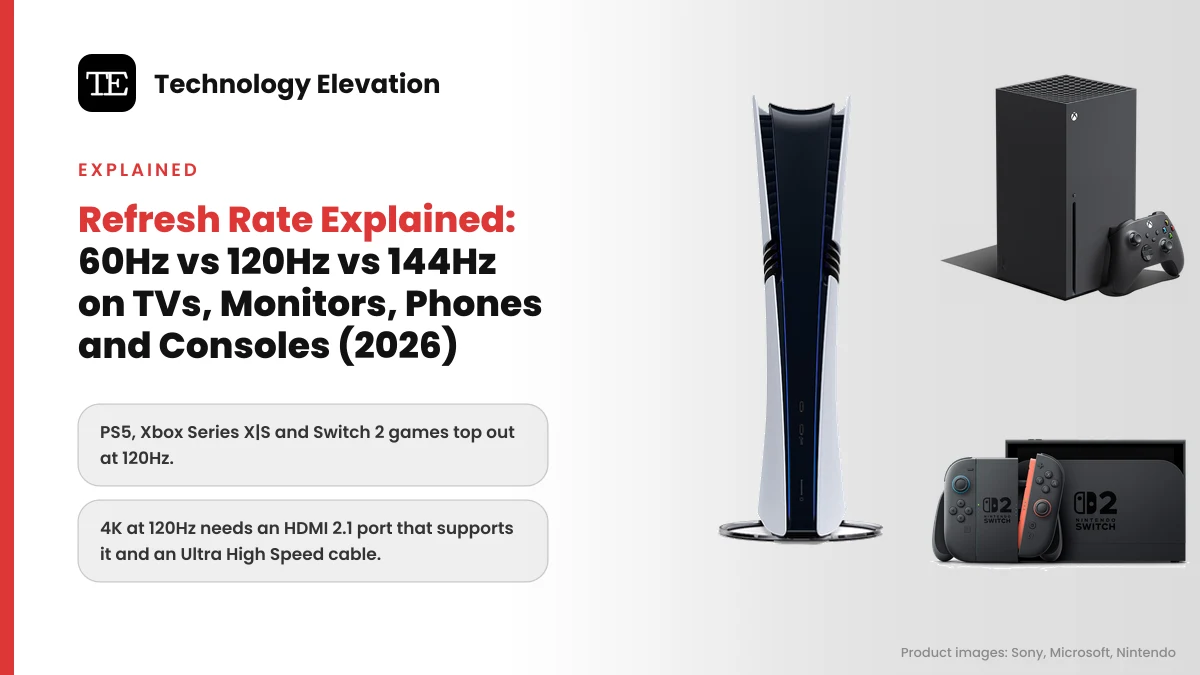
That number is the refresh rate, and this is refresh rate explained without the marketing: what 60Hz, 120Hz and 144Hz really mean on a TV, a monitor and a phone, and when paying for a higher number gets you anything. The short answer for console players is that the PS5 and Xbox Series X stop at 120Hz. Sony’s own support page says the PS5 supports the HDMI 2.1 specification and 4K 120Hz video output.
Above 120Hz, the extra headroom mostly helps PC gamers. Below it, the feature that does the most for games that wobble between frame rates is VRR, and that one is easy to miss on a spec sheet.
We read the console makers’ support pages, the HDMI Forum’s specification pages and the TV, monitor and phone makers’ spec sheets on 19 November 2026, and kept only what they state.
Refresh rate explained: how many times per second the screen redraws
Refresh rate is how many times per second a screen draws a new image, measured in hertz (Hz). A 60Hz screen redraws 60 times a second, 120Hz redraws 120 times, and 144Hz redraws 144 times. More redraws make motion look smoother and controls feel quicker.
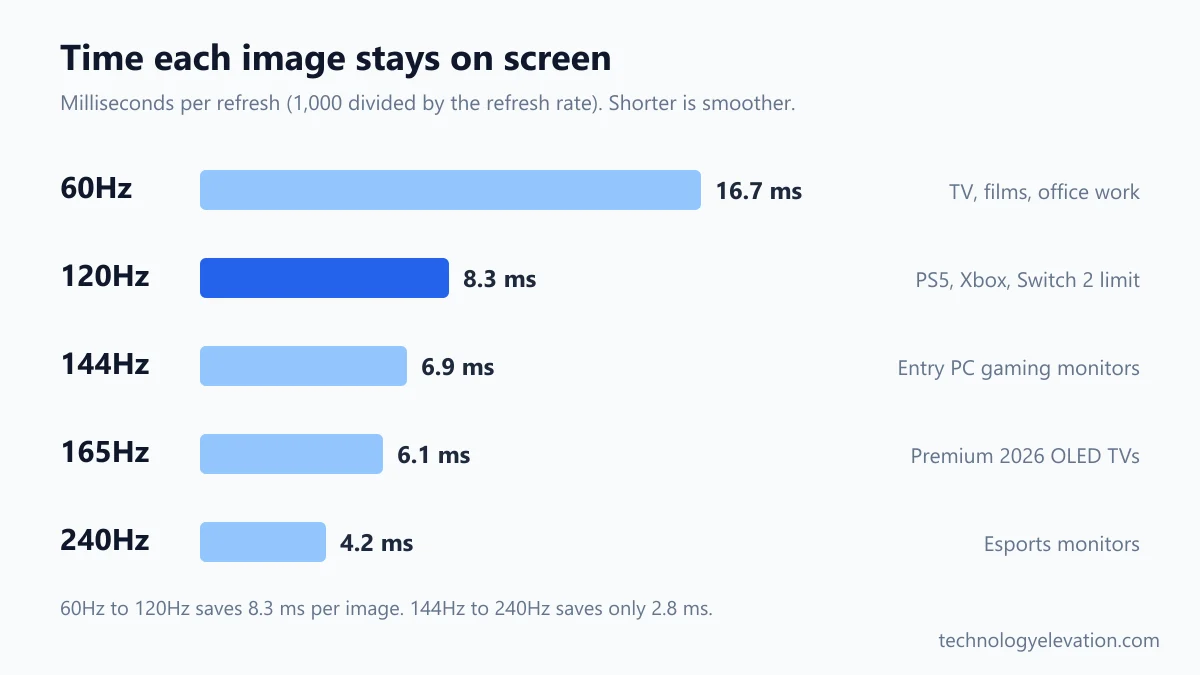
The easiest way to feel the difference is in milliseconds. Divide 1,000 by the refresh rate and you get how long each image stays on screen:
- 60Hz: a new image every 16.7 milliseconds. The long-time standard for TVs, budget monitors and older phones.
- 120Hz: every 8.3 milliseconds. The ceiling for PS5, Xbox Series X|S and Nintendo Switch 2 games.
- 144Hz: every 6.9 milliseconds. The classic entry point for PC gaming monitors.
- 165Hz: every 6.1 milliseconds. Found on some 2026 OLED TVs and many PC monitors.
- 240Hz: every 4.2 milliseconds. Aimed at competitive PC players.
Look at the gaps. Going from 60Hz to 120Hz saves 8.3 milliseconds per image. Going from 144Hz to 240Hz saves only 2.8. Each step up buys you less than the one before, which is why 60 to 120 is the jump almost everyone notices.
Frame rate and refresh rate are two different numbers
Frame rate is how many images the game, video or app produces each second (frames per second, or fps). Refresh rate is how many the screen can show. You only see the full benefit when both numbers are high: a 30fps game looks like 30fps on a 144Hz monitor.
Think of the screen as a window and the game as someone holding up pictures behind it. The window can open 120 times a second, but if only 60 new pictures arrive, half the openings show the same picture again.
That is why “120Hz TV” on the box does not guarantee smooth games. The game has to offer a 120fps mode, the console has to output 120Hz, and the cable and HDMI port have to carry it. Plenty of console games still offer a 30fps or 60fps quality mode alongside a faster performance mode.
Video is the exception that works in your favour. Films are shot at 24 frames per second, and 120 divides by 24 exactly five times. So a 120Hz screen can show each film frame for an even length of time, while 60Hz cannot (60 divided by 24 is 2.5), which is where the slight stutter in slow camera pans on some TVs comes from.
60Hz vs 120Hz vs 144Hz: what you actually notice
Moving from 60Hz to 120Hz is the upgrade most people can see straight away, in scrolling, mouse movement and fast games. The step from 120Hz to 144Hz is small and mostly matters on a PC. Past 240Hz, only practised competitive players tend to feel a difference.
| Refresh rate | Time per image | Where you find it | Who benefits |
|---|---|---|---|
| 60Hz | 16.7 ms | Budget TVs and monitors, some phones | TV, films, office work |
| 120Hz | 8.3 ms | Mid-range and better TVs, most flagship phones, portable monitors | Console gamers, everyone who scrolls |
| 144Hz | 6.9 ms | Entry gaming monitors, some TVs | PC gamers |
| 165Hz | 6.1 ms | 2026 premium OLED TVs, gaming monitors | PC gamers using a TV as a monitor |
| 240Hz and up | 4.2 ms or less | Esports monitors | Competitive shooter players |
Motion clarity is the other half of the story. On an LCD, each image is held on screen until the next one arrives, so your eye smears it slightly as you track a moving object. A faster refresh rate shortens that hold time, which is why text in a scrolling page stays readable on a 120Hz phone and turns to mush on a 60Hz one.
A mouse cursor is the simplest test. Drag it in a quick circle on a 60Hz screen and you see a trail of separate arrows. On 144Hz the arrows sit closer together and the circle looks almost continuous.
TVs: 120Hz matters for consoles, 144Hz and 165Hz are for PCs
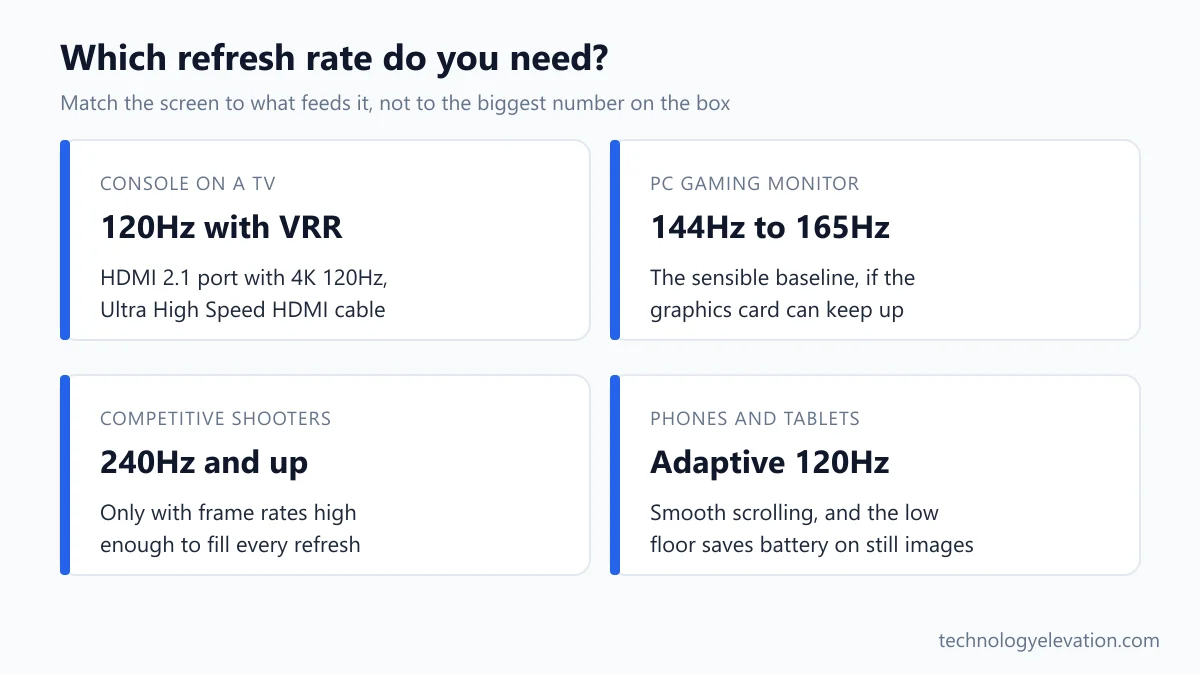
For a TV, a native 120Hz panel is the number to look for if you play on a PS5 or Xbox Series X, because both consoles top out at 4K 120Hz. TVs rated at 144Hz or 165Hz only use that extra speed when a gaming PC is plugged in.
The 2026 premium OLEDs show how this plays out. LG says its C6 supports 4K at 165Hz with VRR, and the cheaper B6 runs at 120Hz. For a console owner, those two panels behave the same in every game. The gap only appears if you sit a 42 or 48-inch C6 on a desk and drive it from a graphics card.
Read the spec sheet for the native refresh rate, not a branded motion number. Some boxes print processing scores that sound like refresh rates but describe motion smoothing, the “soap opera effect” feature that many film fans switch off on day one.
If you are shopping now, our picks for the best OLED TV for gaming and films list the refresh rate and HDMI 2.1 port count for every model, which are the two numbers console players should compare first. For older and cheaper LCD sets, the best 4K TVs roundup covers the budget end.
Monitors: 144Hz is the gaming baseline, 240Hz and higher is for competitive play
For a PC monitor, 144Hz or 165Hz is the sensible gaming baseline, and it costs far less than it used to. Buy 240Hz or more only if you play fast competitive shooters and your graphics card can reach those frame rates in the games you actually play.
The graphics card is the catch people forget. A 240Hz monitor needs 240 frames per second to look its best, and most cards only reach that in lighter esports titles at 1080p or 1440p. In a demanding single-player game, a 144Hz screen and a 240Hz screen will often show the same frame rate.
Office and creative work are different. A 60Hz or 75Hz monitor is fine for spreadsheets, though 120Hz makes long scrolling sessions noticeably easier on the eyes. A budget gaming monitor under $400 now covers both jobs at 144Hz or more.
Portable monitors have caught up too. ASUS’s ZenScreen MB16QHG runs at 120Hz, and its ROG Strix XG17AHPE lists a refresh range of 48 to 240Hz over HDMI and USB-C, with Adaptive-Sync. Our pick list for the best portable monitor notes which models suit a console or a Switch 2 and which are built for laptops.
Phones and tablets: adaptive 120Hz is about smooth scrolling and battery life
Most flagship phones now run at up to 120Hz and change the rate on the fly: fast while you scroll or play, slow when the screen shows a still image. That adaptive range is what keeps a 120Hz phone from draining its battery faster than a 60Hz one.
Google lists the Pixel 10’s Smooth Display at 60 to 120Hz and the Pixel 10 Pro’s at 1 to 120Hz. The lower floor matters for always-on displays, where the screen barely changes and dropping to 1Hz saves power.
Apple calls its version ProMotion. The iPhone 17’s spec page now lists ProMotion with adaptive refresh rates up to 120Hz, a feature Apple used to keep for Pro models. The iPhone 17e and iPhone 16, which Apple still sells, do not list ProMotion. If you scroll social feeds for an hour a day, that line in the spec sheet is worth more than an extra camera mode.
For gaming on a phone, the rate matters only when the game supports it. Plenty of mobile games cap at 60fps, and some unlock 90 or 120fps modes on specific phones. The best gaming phones lean on high refresh screens for exactly that reason.
Handhelds follow the same rule. Nintendo lists VRR up to 120Hz on the Switch 2’s 7.9-inch 1080p screen, and the best handheld gaming PC picks run at 120Hz or 144Hz.
VRR fixes tearing and stutter when the frame rate falls short
VRR (variable refresh rate) lets the screen wait for the next frame instead of redrawing on a fixed clock. When a game drops from 60fps to 48fps, the TV drops with it, so you get no tearing and far less stutter. For console players it often matters more than 120Hz.
Without VRR, the screen and the game fall out of step. If a new frame arrives halfway through a redraw, you see the top of one image and the bottom of another, split by a visible line. That is screen tearing. The usual fix, V-Sync, makes the game wait, which swaps tearing for stutter and extra lag.
The HDMI Forum says VRR lets a console or computer deliver frames as fast as it can, and that it reduces or eliminates lag, judder and frame tearing. Sony describes the same thing for PS5: on HDMI 2.1 VRR-compatible TVs and monitors, VRR syncs the display’s refresh rate to the console’s output.
PC monitors use brand names for the same idea. AMD FreeSync and NVIDIA G-Sync Compatible displays both offer variable refresh, and NVIDIA’s full G-Sync tier adds its own processor inside the monitor. AMD’s tier table lists low framerate compensation for all three FreeSync tiers, with Premium Pro adding HDR.
Every VRR screen has a range. The ROG Strix XG17AHPE’s 48 to 240Hz range means VRR works as long as the game stays above 48fps. Below the floor, low framerate compensation repeats frames to stay in range, if the screen supports it.
HDMI 2.1 is what carries 4K at 120Hz from a console to a TV
To get 4K at 120Hz from a PS5 or Xbox Series X, the TV needs an HDMI 2.1 port that supports 4K 120Hz, and you need an Ultra High Speed HDMI cable. Without that, the console falls back to a lower setting.
The HDMI Forum’s HDMI 2.1 page lists 4K120 and 8K60 among the supported formats, plus gaming features including VRR, Auto Low Latency Mode (ALLM) and Quick Frame Transport. It also says the Ultra High Speed HDMI cable, introduced with HDMI 2.1, is the one for systems that run at up to 48Gbps.
Here is the trap. A port labelled HDMI 2.1 does not have to support every feature. Sony’s PS5 support page answers “Do all TVs with HDMI 2.1 have ALLM?” with a plain no. Check the TV’s manual for 4K 120Hz and VRR by name, and check which ports have them, because many TVs offer only one or two full-speed inputs.
Cables cause more trouble than they should. Use the cable that came in the console box, or one of the certified HDMI cables for gaming. When a PS5 shows a blank screen or falls back to 1080p 120 Hz, Sony’s troubleshooting list starts with the TV’s capability, its firmware, the cable and whether a receiver sits in between.
How to turn on 120Hz and VRR on a PS5, Xbox and Switch 2
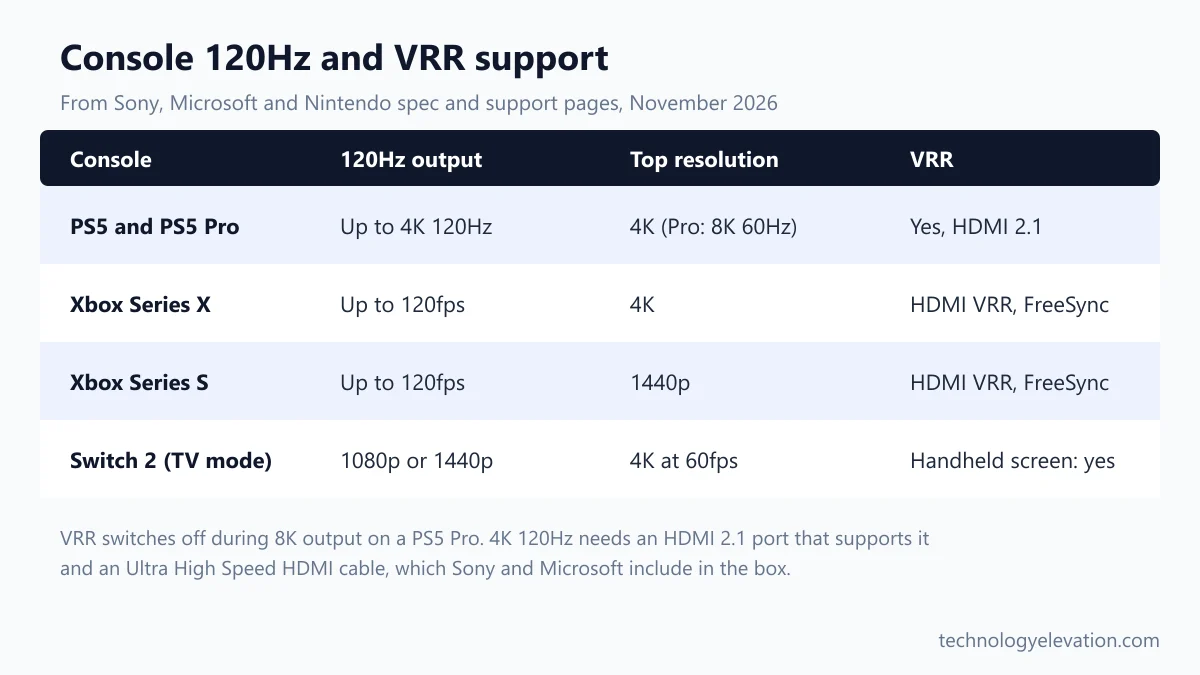
On a PS5, go to Settings, Screen and Video, then Video Output, and switch on 120 Hz Output and VRR. Xbox Series X|S consoles support 120fps and HDMI VRR on their HDMI 2.1 port. A docked Switch 2 needs 1080p or 1440p selected for 120fps.
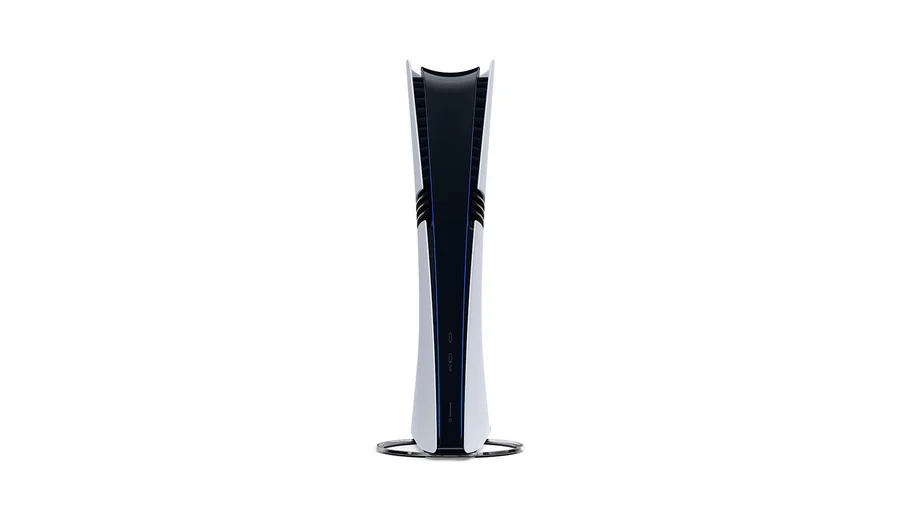
Sony’s PS5 steps, from its video output support page:
- Plug the PS5 into an HDMI 2.1 port on the TV, using the cable from the box or an Ultra High Speed HDMI cable.
- Update the TV’s firmware and turn on any HDMI 2.1 setting the TV needs for that port, since Sony notes some TVs require it.
- On the PS5, go to Settings, then Screen and Video, then Video Output.
- Set Resolution to Automatic or 2160p.
- Turn on 120 Hz Output.
- Turn on VRR. You can also turn on Apply to Unsupported Games, and turn it off again if a game looks wrong.
- Check Information for the Connected HDMI Device, which shows the current resolution, VRR and HDR status.
Two PS5 details are worth knowing. If your TV supports 1440p, the same menu lets you test 1440p output at 60 Hz or 120 Hz with VRR. And on a PS5 Pro, VRR switches off during 8K output.
Xbox lists ALLM, HDMI VRR and AMD FreeSync on both the Series X and Series S spec pages, with up to 120fps. The Series X aims at 4K and the Series S at 1440p. Both ship with an Ultra High Speed HDMI cable in the box. If you play mostly on Xbox, the monitors for Xbox Series X are a cheaper route to 120Hz than a new TV.
On the Switch 2, Nintendo’s specs list TV mode output at up to 4K at 60fps, and 120fps when 1920 x 1080 or 2560 x 1440 is selected. In other words, a docked Switch 2 trades resolution for speed. The handheld screen itself is 1080p with VRR up to 120Hz.
When a higher refresh rate is not worth paying for
Skip the higher refresh rate if you mostly watch TV and films, play slower games at 30 or 60fps, or game on a console with a TV that already does 4K 120Hz. A 165Hz TV or a 360Hz monitor only pays off with a PC fast enough to feed it.
A few more cases where the money is better spent elsewhere:
- Your graphics card is the limit. A 240Hz monitor on a card that manages 90fps looks like a 90fps monitor.
- Your TV lacks VRR. A 120Hz TV without VRR still tears or stutters when a game dips. VRR is the better feature to pay for.
- Your setup runs through a receiver or soundbar. Sony warns that a receiver or other box between the console and TV can affect the 4K 120Hz signal, so plug the console straight into the TV.
- You want a bigger or better picture. For films, contrast and HDR change what you see far more than refresh rate does.
If you game on a console and stream films, the sweet spot is a 120Hz TV with VRR, at least one HDMI 2.1 port that supports 4K 120Hz, and good HDR. That combination covers every console on sale in 2026, and the best OLED TV picks all meet it.
For a laptop user who wants a second screen, 60Hz is fine for work and 120Hz is a pleasant bonus. The portable monitor picks cover both, from cheap 1080p screens to 240Hz gaming panels.
Frequently asked questions about refresh rate
Is 120Hz worth it over 60Hz?
Yes, for most people. The jump from 60Hz to 120Hz halves the time each image stays on screen, from 16.7 to 8.3 milliseconds, and almost everyone notices it in scrolling and fast games. For films and regular TV, 60Hz is still fine.
Can the human eye see 144Hz?
Most people can tell 144Hz from 60Hz, especially when moving a mouse or tracking fast motion in a game. The difference between 120Hz and 144Hz is much smaller, and only the time saved per image (about 1.4 milliseconds) separates them.
Does the PS5 support 144Hz?
No. The PS5 outputs up to 120Hz, at 4K or lower resolutions, through its HDMI 2.1 port. A 144Hz or 165Hz TV or monitor will still run PS5 games at up to 120Hz, so the extra speed only helps a PC.
Do I need HDMI 2.1 for 120Hz?
You need an HDMI 2.1 port with 4K 120Hz support and an Ultra High Speed HDMI cable for 4K at 120Hz. At lower resolutions the bar is lower: a docked Switch 2 reaches 120fps only at 1080p or 1440p, and the PS5 can test 1440p at 120 Hz.
What is the difference between VRR and refresh rate?
Refresh rate is the maximum number of times per second a screen can redraw. VRR lets that rate change in real time to match the game’s frame rate, which removes tearing and reduces stutter when the frame rate drops below the maximum.
Does a higher refresh rate drain phone battery?
A higher refresh rate uses more power while the screen is moving, which is why modern phones use adaptive rates. Google’s Pixel 10 Pro drops as low as 1Hz on still images, which helps the always-on display use less power.
Last checked and sources
Last checked on 19 November 2026 by Haris Khan. We read each console maker’s support and spec pages, the HDMI Forum’s specification pages and the display makers’ published specs, and kept only what they state.
- PlayStation Support: PS5 video output and 4K resolution guide; PlayStation Blog: VRR rollout announcement and PS5 FAQ
- Xbox: Xbox Series X and Xbox Series S spec pages
- Nintendo: Switch 2 tech specs
- HDMI Forum (hdmi.org): HDMI 2.1 specification and Variable Refresh Rate pages
- LG: 2026 TV pricing and availability press release (C6 and G6)
- ASUS: ZenScreen MB16QHG and ROG Strix XG17AHPE spec pages
- Apple: iPhone 17, iPhone 17e and iPhone 16 tech specs; Google Store: Pixel 10 and Pixel 10 Pro specs
- AMD: FreeSync tier specifications; NVIDIA: G-Sync monitor tiers
We update this guide when consoles, TVs or display standards change what refresh rates they support.

GIPHY App Key not set. Please check settings