

 Haris Khan
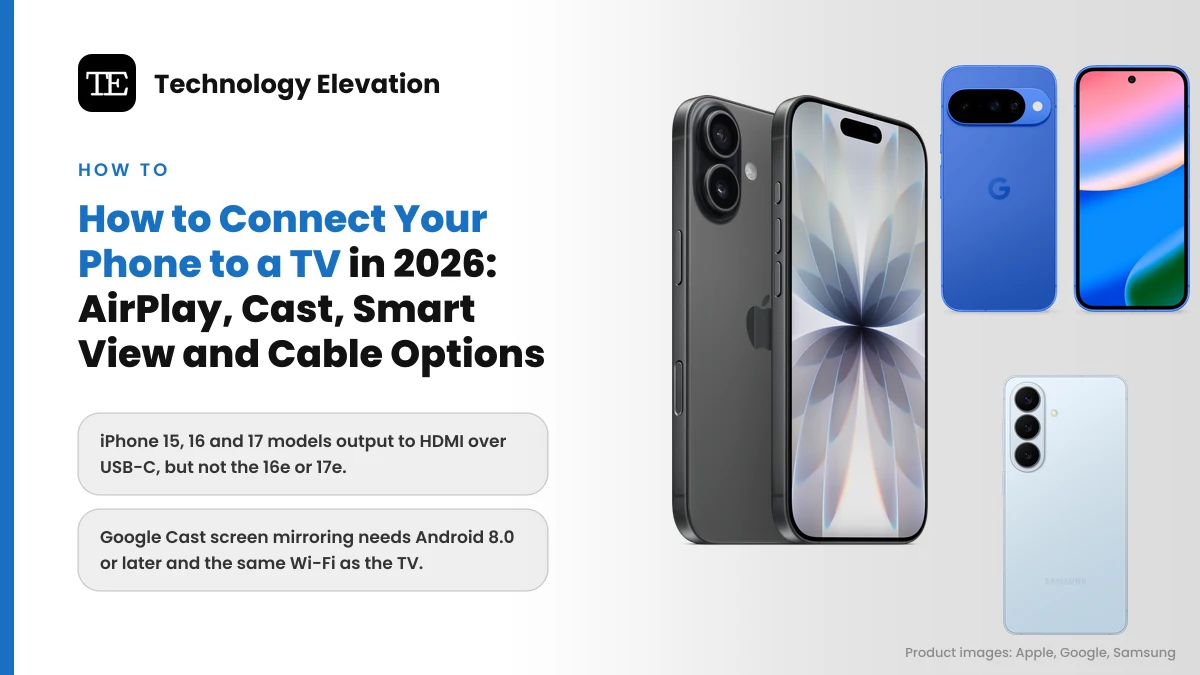
Someone always has the video on their phone. A wedding clip, a holiday slideshow, a match highlight. Then six people lean over a 6-inch screen while a 55-inch TV sits dark on the wall. That is the classic phone to TV problem.
Knowing how to connect your phone to a TV fixes that in under a minute, and you rarely need to buy anything. Most phones sold in the last few years can send their screen to a TV over Wi-Fi, and recent flagships can do it with one cable. The catch is that Apple, Google and Samsung each use a different system, with different menu names.
Cables are less universal than people expect. Apple’s own support page says iPhone 15, 16 and 17 models can drive an HDMI TV through USB-C, but the iPhone 16e and iPhone 17e cannot. Android phones vary even more, so the wired section below names the exact models.
Every step in this guide comes from the maker’s current support pages, checked on 15 November 2026.
The right way to connect depends on your phone and your TV
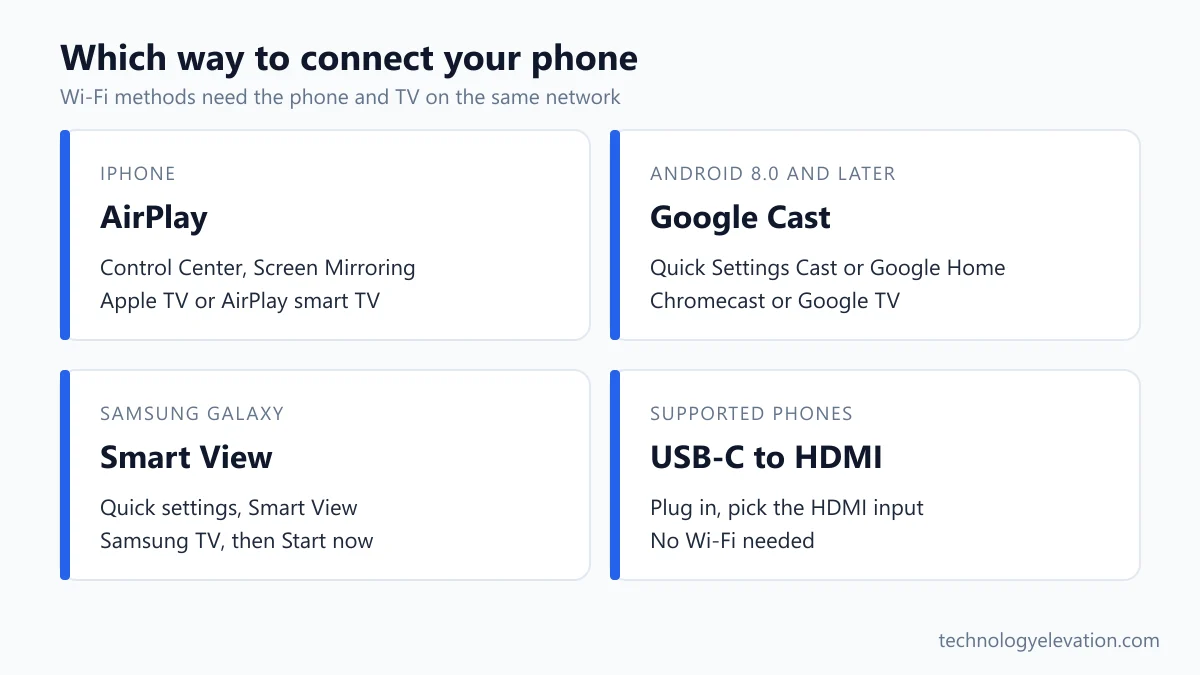
Use AirPlay for an iPhone, Google Cast for most Android phones and Smart View for a Samsung Galaxy phone. All three work over Wi-Fi with both devices on the same network. A USB-C to HDMI cable works on newer iPhones, Pixel 8 and later, and most Galaxy flagships.
The four options, in the order most people should try them:
- AirPlay: iPhone to an Apple TV or an AirPlay-compatible smart TV.
- Google Cast: Android phone to a Chromecast, a Google TV or a TV with Chromecast built in.
- Smart View: Samsung Galaxy phone to a Samsung TV, plus other TVs that accept screen mirroring.
- USB-C to HDMI cable: any supported phone to any TV with an HDMI port, no Wi-Fi needed.
| Method | Phones | TV needs | Wi-Fi needed |
|---|---|---|---|
| AirPlay | iPhone | Apple TV or AirPlay-compatible TV | Yes, same network |
| Google Cast | Android 8.0 and later | Chromecast, Google TV or Chromecast built-in | Yes, same network |
| Smart View | Samsung Galaxy | Samsung TV or a mirroring-capable TV | Yes, same network |
| USB-C to HDMI | iPhone 15 and later (not 16e or 17e), Pixel 8 and later, Galaxy S8 and later | A free HDMI port | No |
Wi-Fi is easier on the sofa. A cable is steadier for a long film or a presentation, and it keeps working in a hotel room where the TV sits on a different network.
How to mirror an iPhone to a TV with AirPlay
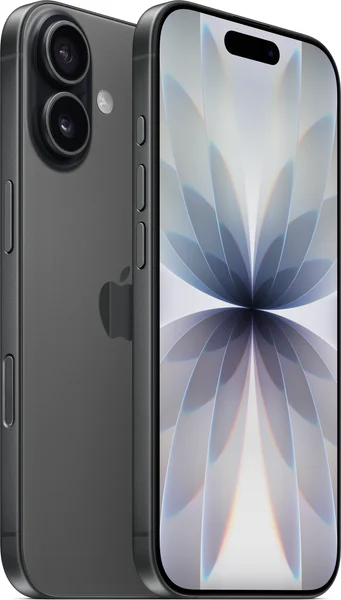
To mirror an iPhone, join the same Wi-Fi network as the TV, open Control Center, tap Screen Mirroring and pick the TV. Enter the passcode if one appears on the TV. AirPlay works with Apple TV and with smart TVs that list AirPlay support.
Apple’s steps, word for word on the menu names:
- Connect your iPhone to the same Wi-Fi network as your Apple TV or AirPlay-compatible smart TV.
- Open Control Center. On iPhone X or later, swipe down from the upper-right corner of the screen.
- Tap the Screen Mirroring button.
- Select your TV from the list.
- If an AirPlay passcode appears on the TV, enter it on your iPhone.
To stop, open Control Center, tap Screen Mirroring, then tap Stop Mirroring.
For a single video, skip mirroring. Open the video, tap the AirPlay button in the app and choose your TV. In Photos, tap Share first, then AirPlay. Your phone stays free for messages while the video plays.
Samsung says AirPlay 2 is built into select Samsung TV models from 2018 to 2025, but you may need to switch it on. Samsung’s path is Settings (All Settings), then General or Connection depending on the model year, then Apple AirPlay Settings.
How to cast an Android phone to a TV with Google Cast
To cast an Android phone, put it on the same Wi-Fi as the Chromecast or Google TV, then open the Cast option in Quick Settings or the Google Home app and pick the TV. Google says screen casting needs Android 8.0 or later.
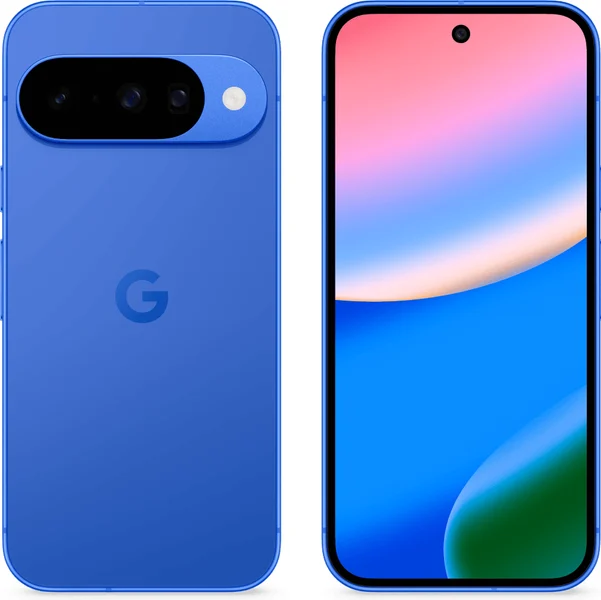
On a Pixel phone, Google lists this route in the Settings app:
- Open your phone’s Settings app.
- Tap Connected devices, then Connection preferences, then Google Cast.
- Choose to cast a single app or your entire screen.
- Tap the TV where you want to show your screen.
The faster way on a Pixel is Quick Settings: swipe down twice from the top of the screen and tap Cast. To stop, swipe down once and tap Disconnect on the Cast notification.
Other Android phones can use the Google Home app. Turn on microphone permission for Google Play Services, open Google Home, tap Favorites or Devices, then tap and hold the TV’s tile. Tap Cast, then Cast my screen, or Cast one app if you only want one app on the TV. Tap and hold the same tile and tap Stop mirroring when you finish.
How to use Smart View on a Samsung Galaxy phone
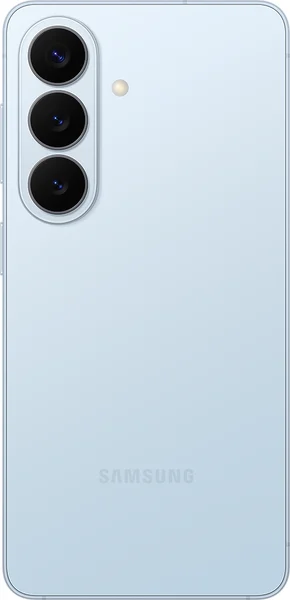
On a Galaxy phone, swipe down from the top right to open Quick settings, tap Smart View, choose your TV and tap Start now. Smart View is built into the phone, so there is no app to download, and both devices need the same Wi-Fi.
- Turn on the TV and make sure it uses the same Wi-Fi network as your phone.
- Swipe down from the top right of the screen to open the Quick settings panel.
- Tap Smart View.
- Select your TV from the list of available devices, then tap Start now.
- If prompted, enter a PIN or allow access on the TV.
When you are done, tap the Smart View icon again and tap Disconnect.
Samsung’s SmartThings app offers a second route. Open SmartThings, select the TV, tap More options (the three dots), then tap Mirror screen (Smart View). Samsung notes that compatibility with non-Samsung TVs varies, so a Galaxy phone and a Samsung TV is the smoothest pairing.
Phone screens are taller than a TV, so the picture can look small with black bars. Fix it from the Smart View icon: tap More options, Settings, then Phone aspect ratio. Samsung says most TVs look best at 16:9.
A USB-C to HDMI cable works on some phones, not all
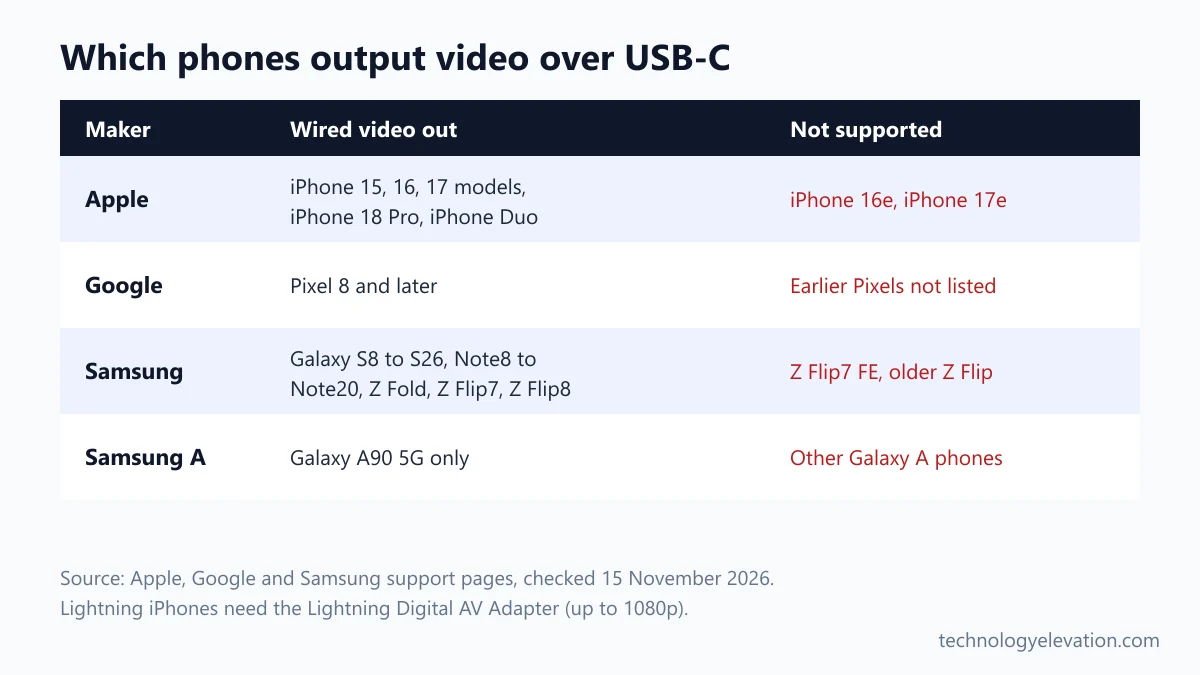
A USB-C to HDMI cable mirrors your phone with no Wi-Fi, but only if the phone outputs video through its port. iPhone 15 and later (except 16e and 17e), Pixel 8 and later, and Galaxy S8 and later flagships do. Most Galaxy A phones do not.
The supported phones, from each maker’s own pages:
| Maker | Phones with wired video out | Not supported |
|---|---|---|
| Apple | iPhone 15 models, iPhone 16 models, iPhone 17 models, iPhone 18 Pro models, iPhone Duo | iPhone 16e, iPhone 17e |
| Pixel 8 and later | Models before Pixel 8 are not listed | |
| Samsung | Galaxy S8 to S26 series, Note8 to Note20 series, Fold and Z Fold models, Z TriFold, Z Flip7, Z Flip8, Galaxy A90 5G | Z Flip7 FE and earlier Z Flip models, other Galaxy A phones |
Older iPhones with a Lightning port still work with a cable. Apple says you need an HDMI adapter with the same connector as the phone, so a Lightning phone needs the Lightning Digital AV Adapter, which Apple rates at up to 1080p, plus a normal HDMI cable.
Setup is simple. Plug the HDMI end into the TV, plug the USB-C end into the phone, then switch the TV to that HDMI input. A Pixel shows a Mirror display dialog to tap. A Galaxy phone may start Samsung DeX, a desktop-style view, and Samsung lets you switch to plain mirroring from the notification panel.
On an iPhone, Apple says adapters and cables that support HDMI 2.0 can output 4K at 60Hz. Apple’s USB-C Digital AV Multiport Adapter also passes HDR10 and Dolby Vision when the TV supports them, and it has a USB-C port for a charging cable, which matters during a long film. A USB-C hub with an HDMI port does the same job and adds a few USB ports.
If you are still deciding which USB-C accessories your phone can use, everything USB-C can do on iPhone 15 and iPhone 15 Pro covers charging, storage and audio as well as displays.
Casting beats mirroring for films and shows
Casting sends just the video to the TV, which then streams it from the internet, while mirroring copies your whole screen. Casting leaves your phone free for other things. Mirroring is better for photos, apps without a Cast button and presentations.
Samsung describes the difference neatly: with casting, the phone acts like a remote control, and you can close the app and do other things without stopping the video. With mirroring, whatever you do on the phone shows on the TV, including notifications.
Look for the Cast icon in apps such as YouTube and Netflix, or the AirPlay icon on an iPhone. Google’s steps are short: open the app, tap Cast, choose the TV, and the icon changes colour once you are connected.
When mirroring fails, these fixes solve most problems
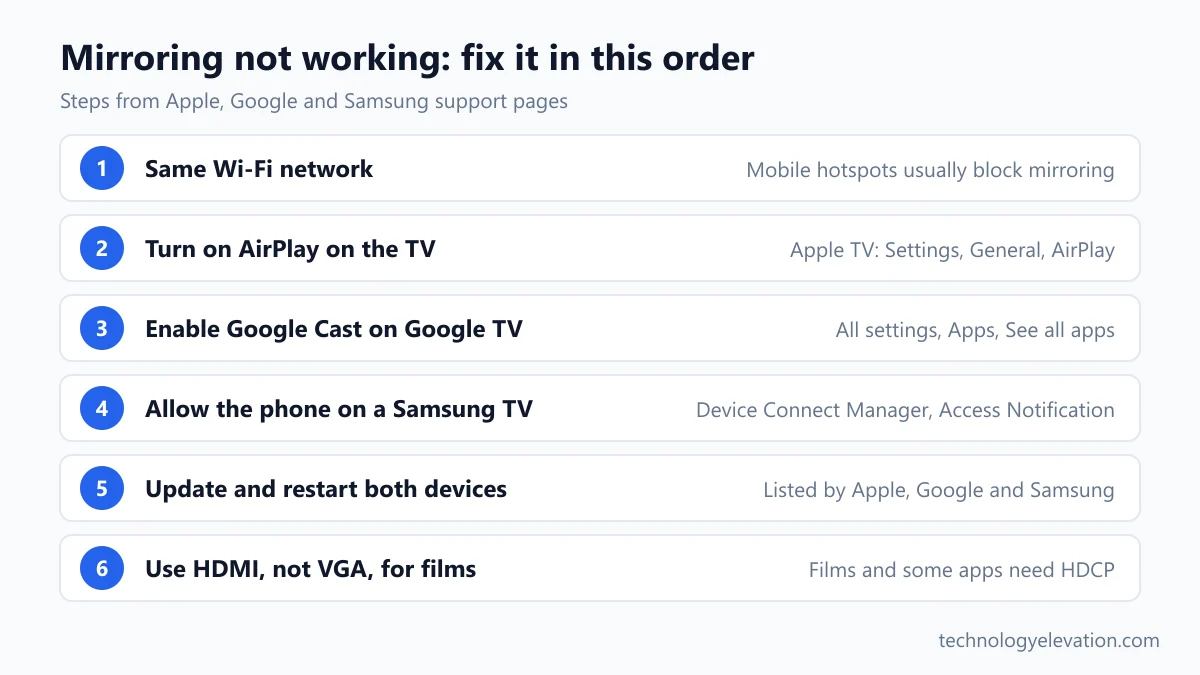
Most mirroring failures come from the phone and TV sitting on different Wi-Fi networks, a TV setting that blocks new devices, or out-of-date software. Check the network first, then the TV’s permission setting, then restart both devices. An HDCP alert over a cable points to copy protection.
Work through these in order:
- Match the network. Both devices must use the same Wi-Fi. Samsung warns that most mobile hotspots block device-to-device traffic, so AirPlay will not work over a hotspot.
- Allow AirPlay on the receiver. On an Apple TV, go to Settings, General, AirPlay, and turn AirPlay on. On an iPhone, open Settings, General, AirPlay & Continuity, tap Automatically AirPlay and choose Ask or Automatic.
- Turn on Google Cast on a Google TV. Go to All settings, Apps, See all apps, and find Google Cast. If it is missing, select Show system apps, then select Enable.
- Clear the Samsung TV permission prompt. If a Galaxy phone will not appear, restart both devices and select Allow on the TV. Samsung’s TV menu path is All Settings, Connections, External Device Manager, Device Connect Manager, Access Notification.
- Update and restart. Apple, Google and Samsung all list software updates and a restart of both devices as a standard fix.
- Turn off the VPN. Samsung says to disconnect a VPN if Smart View shows a VPN setting error.
- Check copy protection on cables. Apple says films, TV shows and some streaming apps need HDCP, so older VGA adapters trigger an alert. Use an HDMI adapter and plug straight into the TV, without converters.
Weak Wi-Fi causes stutter even when the connection works. If the picture freezes every few seconds in a far room, a mesh Wi-Fi system or a cable is the real fix, not another restart.
An older TV needs a streaming player, a cable or a projector
An older TV with an HDMI port but no smart features can still show your phone. Plug in a cable if your phone supports video out, or add a streaming player such as an Android box or Chromecast. Without a suitable TV at all, a projector works.
A streaming player is the cheaper upgrade for most homes. An Android box with Google TV gives an old set full Google Cast support, so the casting steps above work exactly as they do on a new TV.
Projectors suit a different job: garden film nights, a bedroom ceiling, or a room with no TV. The same three routes apply (mirroring, casting or a USB-C cable), and the shortlist of projectors for Samsung phones sorts them by brightness and connection type.
Frequently asked questions about connecting a phone to a TV
Can I connect my phone to a TV without Wi-Fi?
Yes, with a USB-C to HDMI cable, as long as your phone outputs video through its port. iPhone 15 and later (except 16e and 17e), Pixel 8 and later, and Galaxy S8 and later flagships support this. AirPlay, Google Cast and Smart View all need both devices on the same Wi-Fi network.
Why won’t my phone show up on my TV?
The phone and TV are usually on different Wi-Fi networks, or the TV is blocking new devices. Check both use the same network, turn on AirPlay or Google Cast in the TV settings, then restart both. Samsung says most mobile hotspots block devices from talking to each other.
Can I mirror an iPhone to a Samsung TV?
Yes, on select Samsung TV models from 2018 to 2025, which include AirPlay 2. Turn it on under Settings, General or Connection, then Apple AirPlay Settings. Then use Screen Mirroring in Control Center on the iPhone.
Can a Samsung phone mirror to a non-Samsung TV?
Often, but not always. Samsung says Smart View compatibility with non-Samsung TVs varies, so check the TV manual for screen mirroring support. A USB-C to HDMI cable works with any TV that has an HDMI port on supported Galaxy models.
Why does my TV ask for an HDCP-compatible device?
The film or app you are playing needs HDCP copy protection, and your adapter does not support it. Apple says films, TV shows and some streaming apps need HDCP, which VGA adapters lack. Use an HDMI adapter, or the Cast or AirPlay button inside the app.
Does a plain USB cable connect a phone to a TV?
No, a normal USB charging cable does not carry the phone’s screen to a TV. You need a USB-C to HDMI adapter or cable on a phone that supports video out, or a Lightning Digital AV Adapter for a Lightning iPhone.
Can I connect my phone to a TV that is not smart?
Yes, if the TV has an HDMI port. Use a USB-C to HDMI cable on a supported phone, or plug an Android box or Chromecast into the TV and cast to it. With no TV at all, one of the screen projectors for Samsung phones does the same job.
Last checked and sources
Last checked on 15 November 2026 by Haris Khan.
We checked every step, menu name and supported model against the maker’s current support pages, and compared the leading guides on this topic to see what they leave out.
- Apple Support: Use AirPlay to stream video or mirror the screen of your iPhone or iPad
- Apple Support: If screen mirroring or streaming isn’t working on your AirPlay-compatible device
- Apple Support: Charge and connect with the USB-C connector on your iPhone
- Apple Support: Get help with Apple Digital AV Adapters
- Google Pixel Phone Help: Project your Pixel phone’s screen
- Google Chromecast Help: Mirror your Android screen on your TV
- Google TV Help: Cast from a device to Google TV
- Samsung US Support: Screen mirroring to your Samsung TV
- Samsung US Support: How to stream from an iPhone using AirPlay 2
- Samsung US Support: Use the Samsung DeX screen on your Galaxy phone or tablet (DeX and HDMI compatibility list)
- Google Pixel Phone Help, wired display steps for Pixel 8 and later
We update this guide when Apple, Google or Samsung change their menus or add phones to their supported lists.

GIPHY App Key not set. Please check settings