

 Haris Khan
The video call freezes every time you walk into the back bedroom. The phone shows two bars, the laptop shows one, and the smart speaker in the kitchen keeps saying it has lost its connection. Nothing is broken. The signal is simply losing a fight with distance, walls and a router hidden in a cupboard.
Learning how to improve wifi signal at home is mostly about fixing that fight for free before you spend money. Router makers agree on more than you might expect. Apple, for example, tells owners to set the network to one name for every band, with automatic channel selection and automatic firmware updates switched on, and those three settings alone clear up a surprising number of weak spots.
The order matters. Move the router first, then fix the settings, then check whether the problem is Wi-Fi at all, and only then buy hardware. Every step below comes from the current support pages of Apple, eero, TP-Link, Google, Microsoft and CISA, checked on 19 November 2026.
Most of it takes less than an hour. A few steps take five minutes.
How to improve wifi signal: the ten fixes, in the order that works
To improve your Wi-Fi signal, move the router to a central, raised, open spot, keep it away from metal and microwaves, update its firmware, use one network name with automatic channels, and restart the modem and router. If whole rooms stay weak, add mesh, not another single router.
- Move the router out of cupboards and corners to a central spot, raised off the floor.
- Keep it away from microwave ovens, fridges, aquariums, mirrors and metal furniture.
- Install the latest router firmware and switch on automatic updates.
- Give every band (2.4, 5 and 6 GHz) the same network name and turn all bands on.
- Set the channel to Auto, and the 2.4 GHz channel width to 20 MHz.
- Restart the modem and router in the right order.
- Run a wired speed test at the modem to rule out your internet plan.
- Turn off the Wi-Fi on your internet provider’s box, or put it in bridge mode, if you use your own router.
- Plug consoles, TVs and desktop PCs in with Ethernet wherever a cable reaches.
- Add mesh points or a better router only when the free fixes stop helping.
Steps 1 and 2 cost nothing and often make the biggest difference. Step 7 saves the most money, because a slow internet plan feels exactly like weak Wi-Fi.
Router placement matters more than any setting in the app
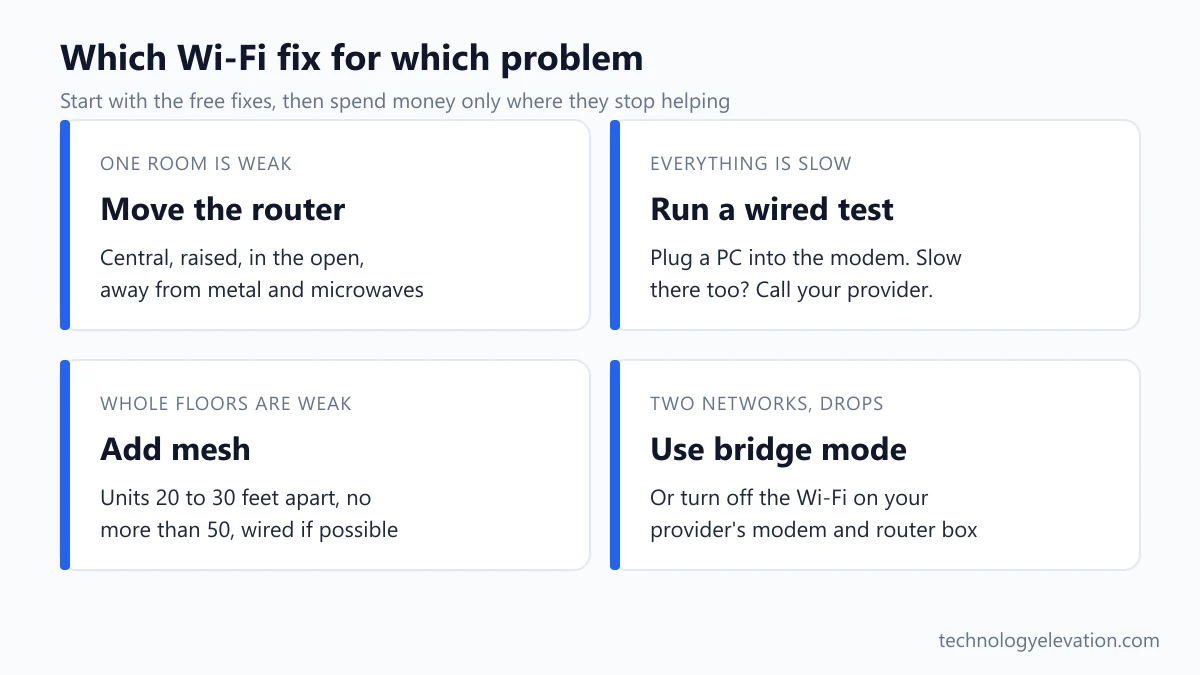
Put the router in the open, roughly in the middle of the home, at a height between the floor and the ceiling. eero recommends halfway between floor and ceiling, and Google suggests eye level in plain view, like a shelf or TV stand. Never hide it in a cabinet.
Most routers end up wherever the internet cable comes into the house. That is usually a front room, a basement or a corner of the hallway, which means half the signal heads out through the outside wall to the neighbours. If the cable allows it, a longer Ethernet run from the wall socket to a central shelf is the cheapest upgrade you will ever make.
eero’s placement advice names the things to keep the router away from:
- Microwave ovens, refrigerators and other appliances
- Metal furniture
- Fluorescent lights
- Mirrors, windows and other glass items
- Containers of water, such as aquariums
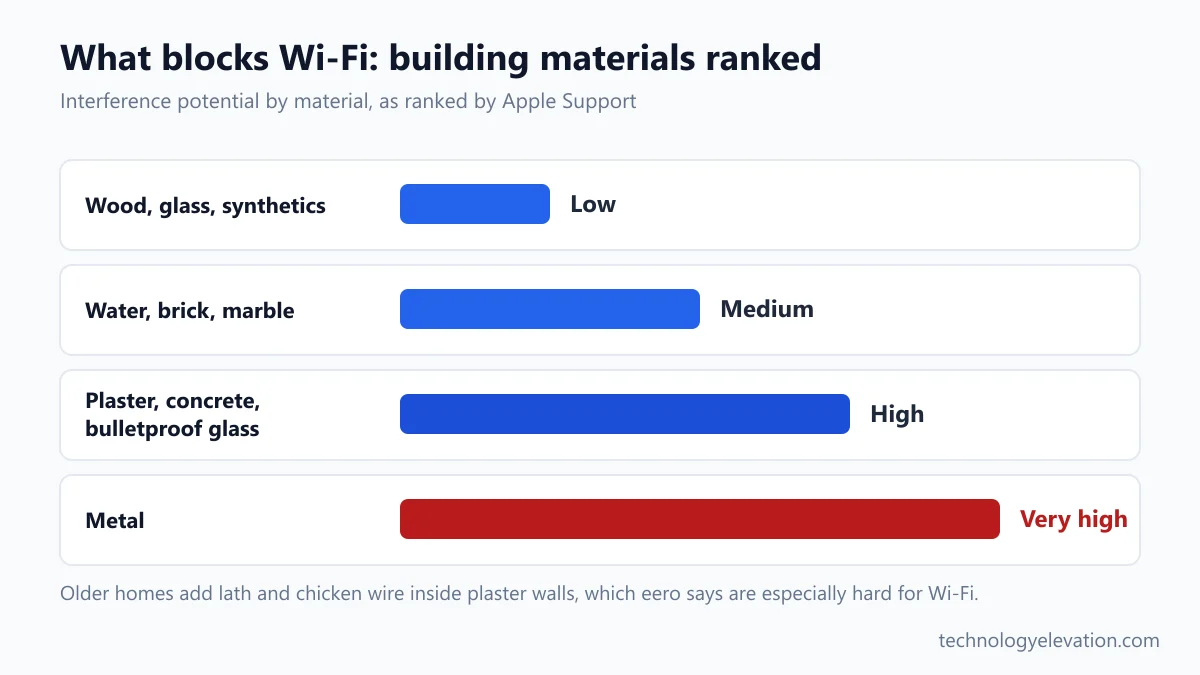
The walls matter too. Apple ranks building materials by how much they interfere with wireless signals. Wood, glass and many synthetic materials cause low interference. Water, brick and marble are medium. Plaster, concrete and bulletproof glass are high, and metal is very high.
Older houses get hit hardest. eero warns that plaster, lath and chicken wire inside old walls are particularly hard for Wi-Fi to pass through, and suggests placing units near doors, since wood is easier for the signal to cross.
A router lying flat on the floor behind the TV is the classic mistake. Lifting it onto the TV stand or a shelf, out in the open, is free and takes two minutes.
The 2.4, 5 and 6 GHz bands trade range for speed
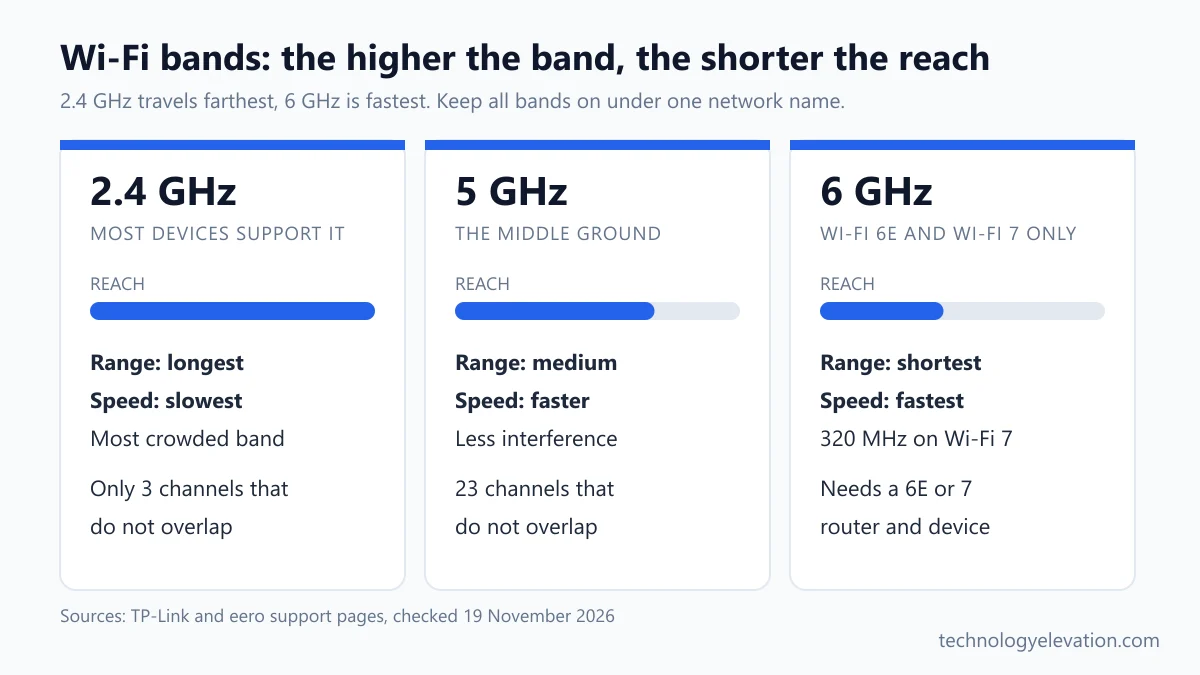
The 2.4 GHz band reaches farthest but is the slowest and most crowded. The 5 GHz band is faster with less range. The 6 GHz band, on Wi-Fi 6E and Wi-Fi 7 routers, is the fastest and has the shortest range. Leave all of them on and let devices choose.
TP-Link explains the reason simply: radio waves fade faster at higher frequencies, so 2.4 GHz travels through more walls. The catch is traffic. TP-Link says 2.4 GHz suffers more interference than 5 GHz, names microwaves and cordless phones as its biggest sources, and notes that it has only three channels that do not overlap, against 23 on 5 GHz.
eero adds that 6 GHz offers even higher connection speeds than 5 GHz, while its range is shorter still. So a laptop two rooms away might sit on 5 GHz, while a phone right beside the router jumps to 6 GHz.
Apple’s advice is to switch on every band your router supports and give them all one network name, so each device can pick the best band itself. Splitting the bands into “Home” and “Home-5G” sounds clever but leaves you choosing the wrong one by hand.
One exception: TP-Link notes that fewer devices support 5 GHz than 2.4 GHz, and some smart plugs and cameras join only 2.4 GHz. If one refuses to connect, check that device’s app before you split your whole network. Smart home gear built on the Matter smart home standard can also use Thread, a separate low-power network, instead of Wi-Fi.
Automatic channels beat manual channel picking in most homes
Leave the router’s channel on Auto. Apple and TP-Link both recommend it, because the router can pick the least crowded channel itself. Set the 2.4 GHz channel width to 20 MHz, and leave 5 GHz and 6 GHz on Auto or all widths.
A channel is a lane inside a band. When your router and the neighbours’ routers share the same lane, they take turns, and everything slows down. Apartment blocks are where this bites hardest, since a phone can easily see a dozen networks at once.
Channel width is how wide that lane is. eero explains that wider channels give faster speeds but shorter range, and that 160 MHz doubles the throughput of 80 MHz. Apple asks for a narrow 20 MHz channel on 2.4 GHz, because the narrower width reduces interference on that crowded band.
TP-Link’s own advice is to leave Channel and Channel Width at their defaults unless you see interference. On most TP-Link routers, the settings sit under Advanced, Wireless, Wireless Settings on the web page, or More, Wi-Fi Settings in the Tether app.
Some 5 GHz channels share airspace with weather radar. These are called DFS (Dynamic Frequency Selection) channels. eero says a router on one of them keeps listening for radar and automatically switches to a non-DFS channel if it detects a signal.
Router firmware updates fix bugs that weaken Wi-Fi
Update your router’s firmware and switch on automatic updates. Apple lists automatic firmware updates as a recommended setting, and CISA tells owners to check the maker’s website for the latest version. Updates fix security holes and Wi-Fi bugs that can cause drops.
Firmware is the software that runs the router itself. Makers release updates that fix Wi-Fi disconnections, add features and close security gaps. A router that has never been updated may be running code that is several years old.
Most routers now update from their phone app. In the eero app, for example, go to Settings, then Software updates, and tap Install now when an update is waiting. The same menu has a Preferred update time setting, so the router can update overnight instead of during a call.
Check while you are in there for one more thing: CISA also tells owners to change the router’s administrator password from the default. A default login is one of the easiest ways into a home network.
If the maker stopped releasing firmware for your router years ago, that is a strong sign to replace it. A current Wi-Fi 7 router gets regular updates and adds the 6 GHz band an old dual-band model lacks.
Restart the modem and router in the right order
Unplug the router, then the modem, and wait. Microsoft says to wait at least 30 seconds; eero suggests 2 to 3 minutes for the modem, because shorter waits may not clear the problem. Plug the modem in first, wait for its lights to settle, then the router.
Microsoft’s Windows Wi-Fi troubleshooting page gives the full order:
- Unplug the power cable for the router from the power source.
- Unplug the power cable for the modem from the power source.
- Wait at least 30 seconds.
- Plug the modem back into the power source.
- Wait for the modem’s lights to stop blinking.
- Plug the router back into the power source.
- Wait a few minutes for the modem and router to fully power on.
Fiber homes may have an ONT (optical network terminal) instead of a modem. eero notes that an ONT with a backup battery, or one in a place you cannot reach, may not power cycle at all. Ask the provider to reset it remotely.
If a single Windows laptop is the problem rather than the whole house, Microsoft also lists a Network reset under Settings. On Windows 11 it sits in Advanced network settings. Try it only after the full restart.
A wired speed test shows whether the problem is Wi-Fi or your plan
Plug a computer straight into the modem with an Ethernet cable and run a speed test. If that result matches your plan but Wi-Fi is slow, the problem is your wireless network. If the wired result is also slow, call your internet provider instead of buying a router.
One test settles most arguments about whose fault the slow internet is. eero’s steps are simple: unplug the cable from your router, plug it into a computer, and run a third-party test such as speedtest.net or fast.com. eero suggests trying at least two different test servers, since one busy server can make a good line look bad.
Then compare the number with the plan on your bill. A 300 Mbps plan will never feel like gigabit, whatever router you buy. If your plan is the limit, a new router changes nothing, and the gap between your plan and what Wi-Fi 7 can actually deliver is worth understanding before you upgrade.
When only one room is slow, test right there with the same device and then beside the router. eero lists the usual suspects: distance, walls and floors, large furniture, dense building materials, nearby appliances, and older devices that cannot reach faster speeds.
Old cables count too. eero notes that Cat5 Ethernet cables are limited to 100 Mbps, so a decade-old cable between the modem and router can cap a fast plan without anyone noticing.
Mesh Wi-Fi beats an extender when more than one room is weak
Choose mesh Wi-Fi when several rooms or a whole floor are weak, and an extender only for one stubborn spot. eero says range extenders reduce throughput, and some broadcast a separate network name. Mesh units share one network name and pass devices between them automatically.
An extender is the simplest fix. TP-Link describes it as a device that picks up the router’s signal and rebroadcasts it further into the home. The trade-off is speed: TP-Link’s own support page admits the signal can look stronger while download speed drops, and tells owners to move the extender closer to the router if its signal light shows a poor connection.
Mesh systems replace the router with two or three units that work as one network. eero’s spacing rule is 20 to 30 feet apart, and no more than 50 feet, with each extra unit about halfway between the main one and the dead zone. The Wi-Fi Alliance’s EasyMesh standard does the same job across brands, and newer TP-Link extenders with OneMesh or EasyMesh join an existing network under one name.
Ethernet makes mesh far better. eero says wired connections between units maximise internet speeds and reduce wireless interference, using Cat5e, Cat6 or Cat6a cable. If your home already has Ethernet ports in a few rooms, use them for the mesh units.
| Option | Best for | Network name | The catch |
|---|---|---|---|
| Move the router | Any home, first | Unchanged | Limited by where the cable enters |
| Range extender | One weak room | Often separate, unless OneMesh or EasyMesh | Lower throughput |
| Mesh system | Several weak rooms or floors | One name | Costs more than an extender |
| Ethernet to the device | Consoles, TVs, desktops | Not needed | Needs a cable run |
For homes over two floors, compare the kits in the best mesh Wi-Fi systems before you buy a second extender. A single plug-in Wi-Fi extender for Comcast and Spectrum homes is still the cheapest fix for one garden office or back bedroom.
Your internet provider’s box may be fighting your own router
If you plug your own router or mesh into the provider’s modem and router combo, turn off the provider box’s Wi-Fi or put it in bridge mode. eero says two networks with the same name nearby cause conflicts, and bridge mode makes the provider’s box work only as a modem.
Many internet providers supply a combined modem and router, often called a gateway. Add your own router behind it, and you now have two routers handing out addresses and two Wi-Fi networks shouting over each other. Devices hop between them and drop calls.
eero describes bridge mode as switching off a device’s routing and Wi-Fi so it works only as a modem or access point. Its steps for a gateway are:
- Set up your own router or mesh first.
- Log in to the gateway’s web interface, usually found through your provider’s website.
- Find the option to enable bridge mode. The gateway should reboot; if it does not, restart it.
- Unplug all devices from the gateway’s LAN ports.
- Plug your own router into LAN port 1 and power it on.
- Connect wired devices to your router, or to a switch plugged into it.
Some gateways do not offer bridge mode. eero’s fallback is to turn off the Wi-Fi on the provider’s equipment instead. If your network and the provider’s network share a name, eero recommends renaming the provider’s network, so your own devices stay connected.
Your provider can also enable bridge mode for you. A five-minute call is often faster than hunting through a gateway menu.
Ethernet and better adapters fix what Wi-Fi cannot
Plug in anything that sits still and uses a lot of data: games consoles, smart TVs, streaming boxes and desktop PCs. A cable removes that device from the Wi-Fi traffic entirely, which frees airtime for phones and laptops. Use Cat5e or better cable.
Every device on Wi-Fi takes turns on the air. Apple’s interference advice includes reducing the number of active devices on the same band, and the easiest way to do that is to move the heavy ones onto cables.
A console is the obvious first candidate, since online games care about steady latency more than raw speed. PlayStation owners weighing a new router can compare the picks for the best routers for PS5, but a cable beats any router for a console that never moves.
The TV is the second. A 4K stream from a box in the living room is one of the heaviest loads in most homes, and many streaming devices offer an Ethernet port or adapter for exactly that reason.
Old desktop PCs often have weak Wi-Fi cards. If you cannot run a cable to one, a newer USB or PCIe Wi-Fi adapter for gaming PCs can make a bigger difference than any change to the router.
Router security settings that also keep Wi-Fi reliable
Use WPA3 Personal, or WPA2/WPA3 Transitional if older devices must connect, and avoid WEP and TKIP. Apple also advises against hidden networks and MAC address filtering, which add hassle without real security. Change the router’s admin password.
Apple’s list is written for security, performance and reliability together. It specifically tells owners to avoid WEP, TKIP, WPA Personal and mixed WPA/WPA2 modes, and to use AES if WPA2 Personal is the only option.
Two popular “security tips” make no difference. Apple says hiding the network name gives no real protection, and that MAC addresses can be spoofed, so filtering by them is not worth the trouble of adding every new device by hand.
Apple also recommends keeping WMM switched on, since it prioritises voice and video traffic, and making sure only one device on the network handles DHCP and NAT. That last point is exactly the double router problem from the previous section.
A new router is the right fix only after the free ones
Replace the router when it no longer gets firmware updates, lacks the 5 GHz or 6 GHz bands your devices support, or still leaves dead zones after you have moved it and fixed the settings. Large homes usually need mesh rather than a bigger single router.
Age is the clearest sign. A router without recent firmware updates is a security risk, and an old dual-band model cannot use the 6 GHz band that recent phones and laptops support.
Then match the router to the home. A flat or small house with the router in the middle usually does well with one good router, and the best Wi-Fi 7 router picks cover plans from basic to multi-gig fiber. A long house, several floors or thick walls point to mesh.
Check the plan before you upgrade, too. A faster router cannot beat the speed your provider sells you, which is why the wired test above comes before any purchase. Readers on the fence about the newest standard can weigh whether Wi-Fi 7 is worth it for the devices they own.
Frequently asked questions about improving Wi-Fi signal
What is the fastest way to improve my Wi-Fi signal?
Move the router out of cabinets and corners to a central, raised, open spot, away from microwaves, metal and aquariums. Then restart the modem and router. Those two steps cost nothing and fix many weak signals within minutes.
Where is the best place to put a Wi-Fi router?
The best place is near the middle of the home, out in the open and raised off the floor. eero recommends halfway between floor and ceiling, and Google suggests eye level on a shelf or TV stand. Avoid cabinets and outside walls.
Should I use 2.4 GHz or 5 GHz Wi-Fi?
Use both under one network name and let devices choose. The 2.4 GHz band reaches farther but is slower and more crowded, while 5 GHz is faster with less range. Apple recommends enabling every band your router supports.
Is a mesh system better than a Wi-Fi extender?
For several weak rooms, yes. eero says extenders reduce throughput and some create a separate network name, while mesh units share one name and hand devices between them. An extender is still a cheap fix for one weak room.
Do Wi-Fi boosters and extenders actually work?
They do extend coverage, but at a cost in speed. TP-Link notes that the signal can look stronger while download speed drops, and advises moving the extender closer to the router when its signal light shows a poor connection.
Does restarting the router improve Wi-Fi?
A restart can clear a stuck connection. Unplug the router and modem, wait at least 30 seconds (eero suggests 2 to 3 minutes for the modem), plug the modem in first, then the router once the modem’s lights settle.
Should I turn off the Wi-Fi on my internet provider’s router?
Yes, if you use your own router or mesh behind it. Two networks broadcasting the same name cause conflicts. Put the provider’s box in bridge mode, or turn off its Wi-Fi if bridge mode is not offered.
Last checked and sources
Last checked on 19 November 2026 by Haris Khan. We checked every step against the current support pages of router, device and software makers and a US government security agency, and kept only what those pages state.
- Apple Support: Recommended settings for Wi-Fi routers and access points; Resolve Wi-Fi and Bluetooth issues caused by wireless interference
- eero Support: Where should I place my eeros; eero spacing; why Wi-Fi is slow in one area; why the whole network is slow; eero vs range extenders; Wi-Fi channels and channel size; DFS; eeroOS updates; bridge mode; Wi-Fi network conflicts; Ethernet backhaul
- TP-Link Support: The differences between 2.4GHz and 5GHz wireless; changing wireless settings; slow speed through a range extender; OneMesh and range extender pages
- Google Nest Help: Nest Wifi placement
- Microsoft Support: Fix Wi-Fi connection issues in Windows
- Wi-Fi Alliance: Wi-Fi EasyMesh
- CISA: Home Network Security
We update this guide when router makers change their placement advice, settings menus or recommended security modes.



GIPHY App Key not set. Please check settings