

 Haris Khan
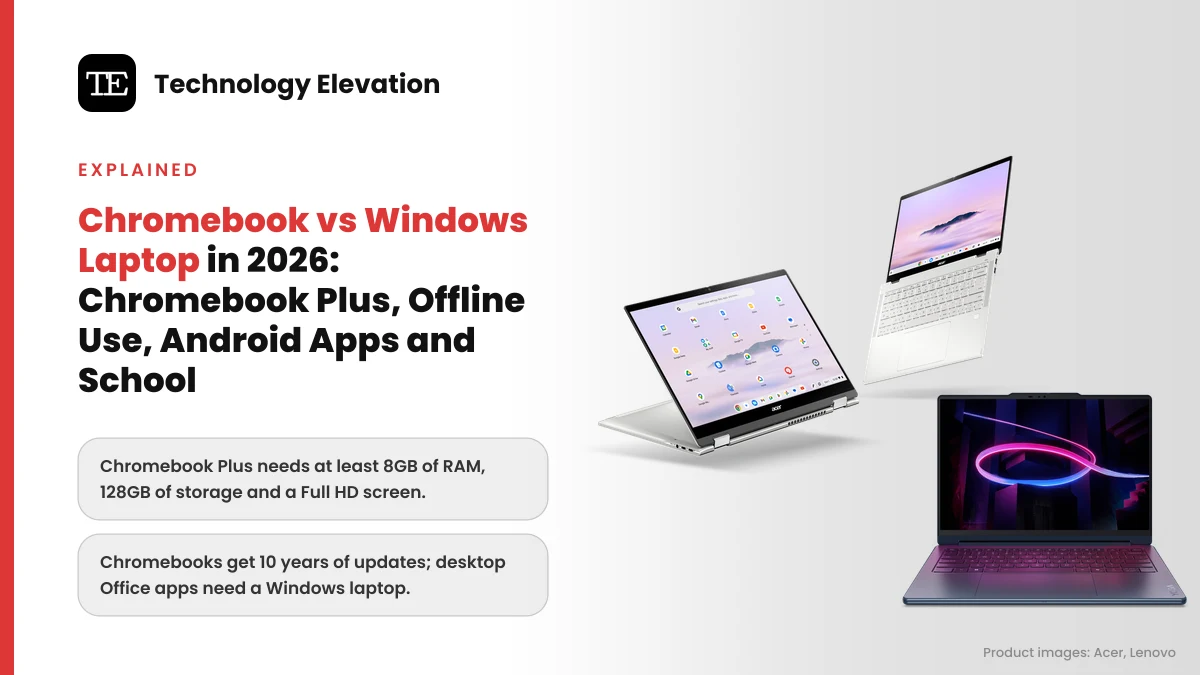
Walk into any middle school classroom and count the laptops. Most of them will be Chromebooks, the same grey clamshells handed out by the district, opened to Google Docs. Then walk into an office and you will see Windows laptops running Excel, Teams and a dozen tools the IT team installed. Both are laptops with a keyboard and a screen, yet they are built around very different ideas.
The Chromebook vs Windows laptop question usually comes up when a parent is buying for a student, or when someone wants a cheap second machine and wonders if a $400 Chromebook can replace a $700 Windows laptop. The honest answer depends on three things: the apps you need, how often you are offline, and how long you plan to keep the machine.
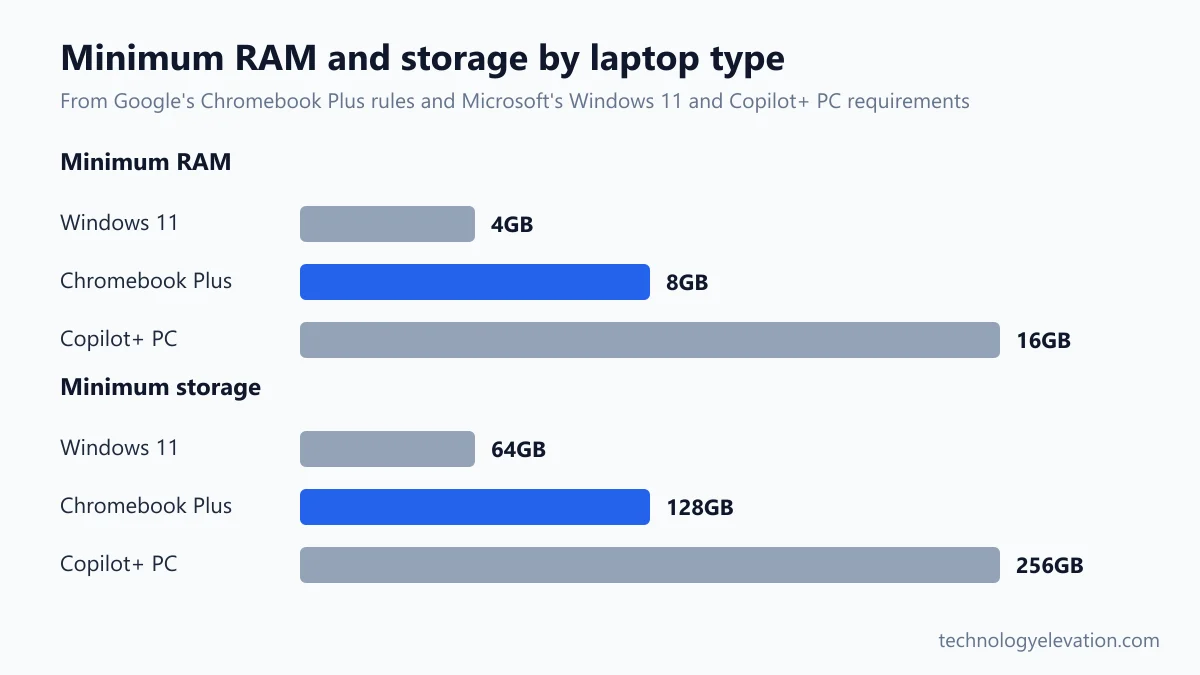
Google has also raised the bar with its Chromebook Plus label. At launch in October 2023, Google said every Chromebook Plus needs at least an Intel Core i3 12th Gen or AMD Ryzen 3 7000 chip, 8GB of RAM and 128GB of storage. That closed much of the speed gap that gave old Chromebooks a bad name.
Below, we compare the two side by side: how each one stores your files, what works without Wi-Fi, where Android apps help, what still needs Windows, and which one fits school, home and work.
Chromebook vs Windows laptop: the short answer
A Chromebook is the better pick if your work lives in a browser, Google Docs and Android apps, and you want low upkeep and long updates. A Windows laptop is the better pick if you need desktop Microsoft Office, PC games, or specialist software a course or job requires.
The main differences, in one list:
- Apps: Chromebooks run web apps, Android apps from Google Play and Linux apps. Windows laptops run almost every desktop program made for PCs.
- Files: a Chromebook expects your files in Google Drive. A Windows laptop keeps files on its own drive and syncs to OneDrive if you want.
- Offline use: both work offline, but a Chromebook needs a little setup first, while a Windows laptop works offline by default.
- Updates: Chromebooks get 10 years of automatic updates from the model’s release. Windows 11 support depends on Microsoft’s hardware rules.
- Price: Google lists Chromebook Plus models from $369, while a Copilot+ PC needs at least 16GB of RAM and 256GB of storage.
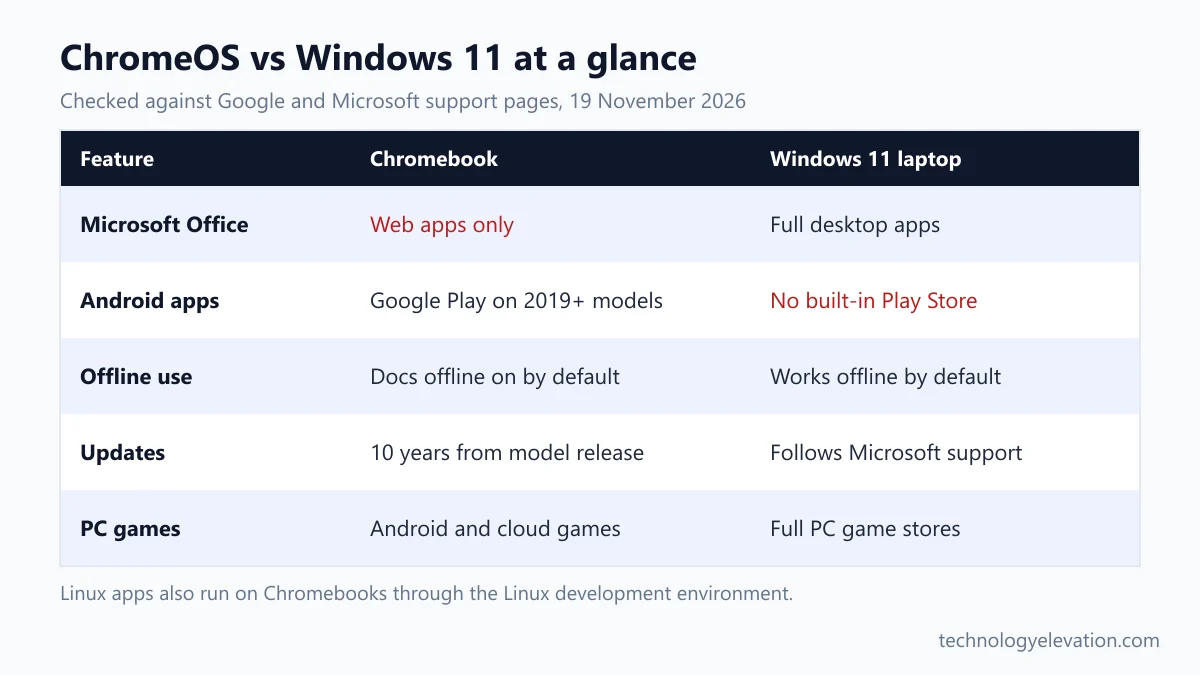
| Feature | Chromebook (ChromeOS) | Windows laptop (Windows 11) |
|---|---|---|
| Minimum RAM | 8GB for Chromebook Plus | 4GB for Windows 11, 16GB for Copilot+ PCs |
| Minimum storage | 128GB for Chromebook Plus | 64GB for Windows 11, 256GB for Copilot+ PCs |
| Microsoft Office | Web versions only | Full desktop apps |
| Android apps | Yes, on models launched in 2019 or later | No built-in Google Play Store |
| Updates | 10 years from platform release | Tied to Microsoft’s support lifecycle |
| School management | Google Admin console | Microsoft management tools |
ChromeOS and Windows 11 differ in where your apps and files live
ChromeOS is built around the Chrome browser and your Google account, so most apps and files live online and sync across devices. Windows 11 is a full desktop system that installs programs locally and stores files on the laptop’s own drive first, with cloud sync as an extra.
On a Chromebook, you sign in with a Google account and your bookmarks, Docs, Sheets and Gmail are already there. Lose the laptop, sign in on a new one, and you are back to work in minutes. That is the main reason schools like them.
The trade-off is storage. Google says each account includes up to 15GB of free space shared across Gmail, Drive and Photos. Accounts created from March 9, 2026 start with 5GB and unlock another 10GB after you verify a phone number. Heavy photo or video users will end up paying for more.
Windows works the other way round. Programs install on the laptop, files sit in your Documents folder, and OneDrive is optional. You get more control, but you also carry more upkeep: drivers, app updates and the odd program that slows startup.
Windows 11 Home also needs a Microsoft account and an internet connection during first setup, according to Microsoft’s Windows 11 specifications page. So neither system is fully account free.
Chromebook Plus sets a higher floor for speed and AI tools
Chromebook Plus is Google’s label for faster Chromebooks. Every model needs at least 8GB of RAM and 128GB of storage, plus a Full HD IPS screen and a 1080p webcam, and it adds Google’s AI features such as Gemini, NotebookLM and Help me read.
Google’s launch rules, from its October 2023 announcement, set these minimums:
- Intel Core i3 12th Gen or above, or AMD Ryzen 3 7000 series or above
- 8GB of RAM or more
- 128GB of storage or more
- Full HD IPS or better display
- 1080p or better webcam with temporal noise reduction (a filter that cleans up grainy video in dim rooms)
Newer models stretch beyond Intel and AMD. Google’s own Chromebook Plus page lists the Acer Chromebook Plus Spin 514 with a MediaTek Kompanio Ultra 910 chip, alongside Intel Core i3, i5 and Core Ultra models.
Prices on that page run from $369 for the ASUS Chromebook Plus CX34 to $799 for the ASUS ExpertBook CX54 Chromebook Plus and the Acer Chromebook Plus Spin 714, based on list prices. Google also lists an offer of 12 months of Google AI Pro with 5TB of storage at no cost on eligible models, with terms attached.
Our advice is simple. Skip the cheapest non-Plus Chromebooks with 4GB of RAM unless they are only for a young child’s homework. The Plus models feel like a real laptop when you have 15 tabs, a video call and a document open at once. If you want a Chromebook that also folds into a tablet, our picks for the best 2-in-1 laptop include two Chromebook Plus convertibles.
A Chromebook works offline, but set it up before you lose Wi-Fi
A Chromebook works offline for Google Docs, Sheets, Slides, Gmail, Google Keep, the photo editor and offline-ready Android apps. Docs offline is switched on automatically on ChromeOS, but Gmail offline and each note or file you need should be prepared while you are still online.
The old joke that a Chromebook is a brick without Wi-Fi is out of date. Google’s support pages say offline access for Docs, Sheets and Slides turns on automatically for ChromeOS users. Still, a long flight is the moment you find out what you forgot.
Before a trip or a day with no signal, do this:
- Open Google Drive, select Settings in the top right, then Settings again, and check that Offline is turned on.
- To keep a specific file ready, open it and select See document status next to the file title, then Turn on.
- Open Gmail at mail.google.com and turn on offline mail. Emails you send offline wait in the Outbox until you reconnect.
- Open your Google Keep notes once while online, so they save to the Chromebook and can be edited offline.
- For extra apps, open the Chrome Web Store, select Apps and tick Runs Offline.
- Download films, shows, playlists or podcasts inside their Android apps if the service allows it.
Music is the catch. Google says the Chromebook version of YouTube Music has no offline playback, so you need the YouTube Music Android app and a YouTube Premium subscription to listen offline.
Windows needs no preparation at all. Programs and files already live on the drive, so Word, Excel or a downloaded film open on a plane just as they do at home. For anyone who travels often or lives with patchy internet, that is a real point in favour of Windows.
Android apps fill many gaps on a Chromebook, but not all of them
Most Chromebooks can install Android apps from Google Play, which adds mobile games, drawing tools, note apps and streaming apps. Google’s Chromium project says all Chromebooks launched in or after 2019 support Android apps unless its device list says otherwise.
To turn on the Play Store, Google’s support page gives these steps:
- Update ChromeOS first.
- Select the time at the bottom right of the screen.
- Select Settings, then Apps, then Manage Google Play preferences.
- In the window that opens, select More.
- Accept the Terms of Service and follow the prompts.
If you cannot see Manage Google Play preferences, that Chromebook does not support Android apps. On a school or work Chromebook, the administrator may block the Play Store entirely, so a student’s district laptop may not behave like a home one.
Android apps are a patch, not a full replacement for desktop software. Some apps are designed for phones and open in a narrow window. Some refuse to install on certain Chromebooks. A few big names have pulled support: Microsoft says the Android versions of Office, Outlook, OneNote and OneDrive are not supported on a Chromebook.
For coders, ChromeOS has one more trick. Open Settings, then About ChromeOS, then Developers, and select Set up next to Linux development environment. Google warns the setup can take 10 minutes or more, and it gives you a Linux terminal for tools like Python and code editors.
Windows laptops still win for Office desktop apps, games and specialist software
Pick Windows if you need desktop Microsoft Office, PC games, Adobe-style creative suites, CAD, accounting software or any program a school or employer names. Microsoft says you cannot install the Windows or Mac desktop versions of Office on a Chromebook, only the web apps.
For a lot of people, the web versions of Word and Excel at microsoft365.com are fine. Typing an essay or a simple budget works well. Power users feel the gap with huge spreadsheets and the add-ins an office relies on. Microsoft’s own Office on a Chromebook support article points Chromebook owners to the web apps only.
Games are the other big divide. A Windows laptop with a decent graphics chip runs PC games from any store, while a Chromebook leans on Android games and cloud gaming services that stream over the internet. If a teenager wants to play from Steam or the Epic Games Store on a laptop, buy Windows.
College courses matter too. Engineering, architecture, film and finance programmes often list Windows software by name. Check the course’s required software before buying. A Chromebook that cannot run the one program a lecturer demands is an expensive mistake in week one.
Windows also covers specs better. You can buy a Windows laptop with 32GB of RAM, a big SSD and a dedicated graphics chip. For how much memory each kind of user needs, our breakdown of how much RAM you need in a laptop applies to both systems.
Chromebooks get 10 years of updates, while Windows support follows Microsoft’s rules
Google gives every Chromebook platform 10 years of automatic updates, counted from the model’s release date, not from the day you buy it. Windows 11 laptops get updates while Microsoft supports that Windows version, and older PCs can be left behind when requirements rise.
Google announced the 10-year policy on September 14, 2023. Chromebooks released from 2021 onwards get it automatically. Older platforms can opt in, though some features may not work on them.
The release date is what trips people up. A clearance Chromebook from 2021 sold this Black Friday has less time left than a 2026 model. To check any Chromebook you already own:
- Select the time at the bottom right, then the Settings gear.
- Select About ChromeOS on the left.
- Select Additional details.
- Under Update schedule, read the date after “This device will get automatic updates until”.
Windows is less predictable. Microsoft ended Windows 10 support on October 14, 2025, and Windows 11 needs TPM 2.0 and a compatible 64-bit processor, so many older PCs could not upgrade. Any Windows laptop sold new in 2026 ships with Windows 11 and meets those rules.
Updates are also less work on a Chromebook. ChromeOS installs them in the background and applies them on restart. Windows updates are automatic too, though a restart prompt has a habit of turning up right before a meeting.
Chromebooks are built for school use, and that cuts both ways
Chromebooks suit school use because they are cheap, start quickly, sync work to Google Classroom and Drive, and can be managed by the hundreds from Google’s Admin console. The catch is that a school-managed Chromebook can block apps, the Play Store and settings at home.
Google sells districts a paid ChromeOS Education Upgrade that lets IT staff manage thousands of devices and set over 500 policies, from content filters to which apps can install. Google also states there have been zero successful reported ransomware attacks on ChromeOS, which matters to districts that have been hit before.
For parents buying a home laptop for a student, the question is what the school uses. If homework goes through Google Classroom and Docs, a Chromebook keeps the same tools at home and in class. Our list of the best Chromebook for students covers sturdy models built for backpacks and young hands.
Older students are a different story. A high schooler taking a coding, design or video class may need Windows software, and college students should read the course list first. Our picks of laptops for college students under $500 include Windows options at Chromebook-like prices.
Accessories work the same on both. USB-C chargers, mice and most Bluetooth headphones connect to either, and the best headphones for Chromebook work just as well on a Windows laptop. A protective sleeve matters more for a child than the operating system does, so a case from our Chromebook cases for students list is money well spent.
How to choose between a Chromebook and a Windows laptop
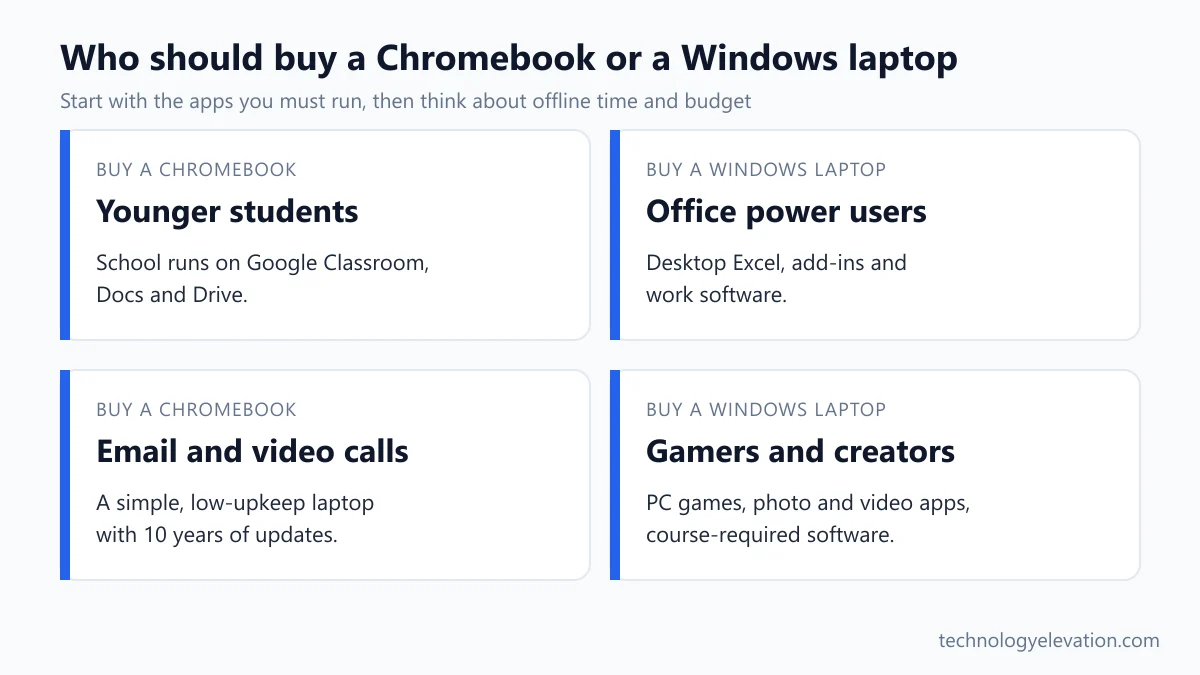
Choose by the apps you must run, then by how often you work offline, then by budget. If every app you need runs in Chrome or on Android, a Chromebook Plus is the cheaper, simpler choice. If even one essential program is Windows-only, buy Windows.
- List the apps you cannot live without. Check whether each one has a web version, an Android app that works on Chromebooks, or only a Windows version.
- Check school or work rules. Ask what the school uses, or which software the course or employer requires.
- Think about offline time. Frequent flyers and people with unreliable internet will find Windows less fussy.
- Set your budget. Under about $500, a Chromebook Plus often feels quicker than a Windows laptop at the same price, because ChromeOS is a lighter system.
- Check the update date. On a Chromebook, confirm the automatic update end date before buying. On Windows, make sure the laptop ships with Windows 11.
- Decide if you want a tablet mode. Both come as 2-in-1s, which helps for note-taking and drawing.
A quick rule of thumb: a Chromebook suits a younger student, a grandparent who mainly emails and video calls, or a second laptop for the kitchen table. A Windows laptop suits a gamer, an office worker, a college student in a technical subject, or anyone who edits photos and video.
If you have narrowed it to a laptop that doubles as a tablet, the best 2-in-1 laptop picks for 2026 compare Surface Pro, Lenovo Yoga, HP and Chromebook Plus convertibles side by side, so you can see both systems at every budget.
Frequently asked questions about Chromebook vs Windows laptops
Is a Chromebook better than a Windows laptop for school?
A Chromebook is usually better for school if the school uses Google Classroom and Docs, because it is cheap, simple and matches the classroom tools. Older students who need Windows-only software for their course should buy a Windows laptop instead.
Can a Chromebook run Microsoft Word and Excel?
A Chromebook can run the web versions of Word, Excel and PowerPoint at microsoft365.com. Microsoft says the desktop versions cannot be installed on a Chromebook, and its Android Office apps are not supported on Chromebooks.
Can you use a Chromebook without Wi-Fi?
Yes, a Chromebook works offline for Google Docs, Sheets, Slides, Gmail, Keep and offline Android apps. Docs offline turns on automatically on ChromeOS, but you should open the files and notes you need while still online.
What is the difference between a Chromebook and a Chromebook Plus?
A Chromebook Plus meets Google’s higher hardware bar: at least 8GB of RAM, 128GB of storage, a Full HD IPS screen and a 1080p webcam. It also adds Google AI features such as Gemini and NotebookLM.
How long will a Chromebook get updates?
Chromebooks get 10 years of automatic updates, counted from when that model was released. You can see the exact end date in Settings, About ChromeOS, Additional details, under Update schedule.
Can a Chromebook run Windows programs?
No, a Chromebook cannot run normal Windows programs. It runs web apps, Android apps from Google Play and Linux apps, which cover many tasks but not Windows-only software or most PC games.
Do Chromebooks need antivirus software?
ChromeOS has its protection built in: verified boot, sandboxing, data encryption and automatic updates, and the device checks itself for tampering at every startup. Google says there have been zero successful reported ransomware attacks on ChromeOS.
Last checked and sources
Last checked on 19 November 2026 by Haris Khan. We compared each claim against Google’s and Microsoft’s own support pages, specifications and announcements, and kept only what they state.
- Google: Chromebook Plus announcement (The Keyword, October 2023) and Chromebook Plus product page
- Google: 10 years of Chromebook updates announcement (September 2023) and ChromeOS Auto Update policy
- Google Chromebook Help: use your Chromebook offline, install Android apps, set up Linux, update your Chromebook
- Google Docs Help: work on Google Docs, Sheets and Slides offline; Google One Help: storage limits
- Chromium project: ChromeOS systems supporting Android apps
- Google for Education: Chromebooks overview and ChromeOS Education Upgrade
- Microsoft: Windows 11 specifications and Copilot+ PC requirements, Windows 10 end of support, Office on a Chromebook support article
We update this guide when Google or Microsoft change their requirements, update policies or app support.


GIPHY App Key not set. Please check settings