

 Haris Khan
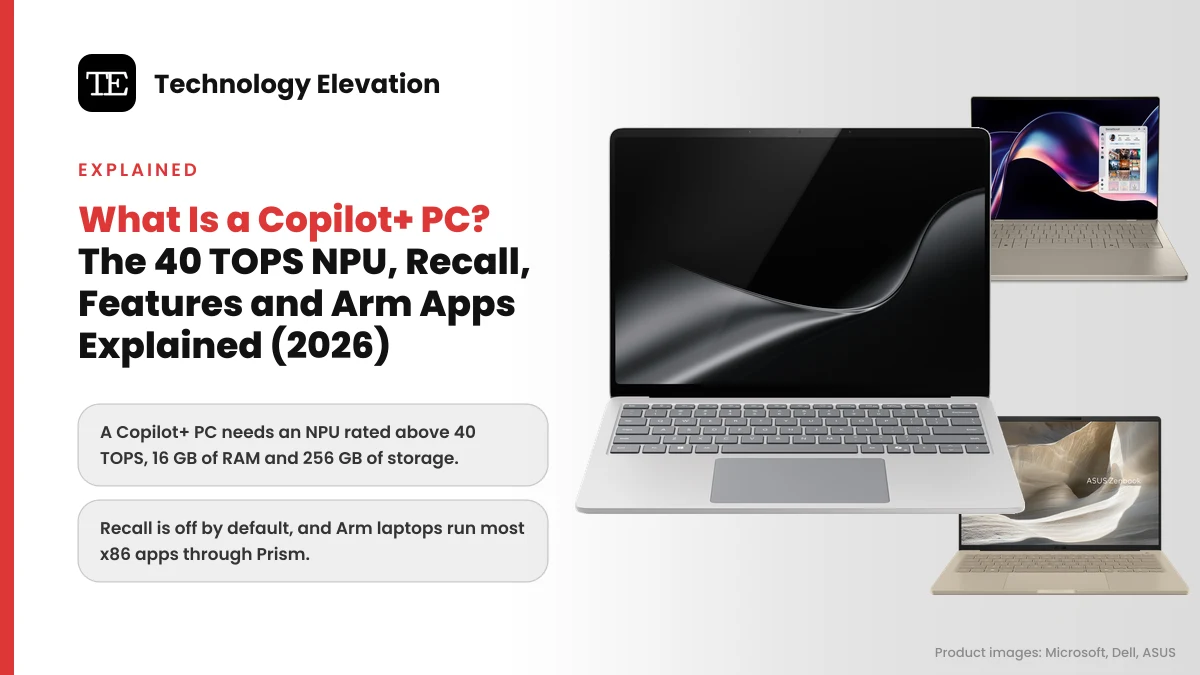
Pick up almost any new Windows laptop this month and you will find a small Copilot+ PC sticker near the trackpad. Plenty of older laptops carry an “AI PC” label too, and the Copilot app runs on every Windows 11 machine. So the sticker clearly means something more specific, and the shop tag rarely says what.
Here is the plain answer to what is a Copilot+ PC: a Windows 11 computer that meets a hardware bar Microsoft sets, built around a dedicated AI chip. Microsoft’s Windows 11 specifications page lists the minimums: an NPU capable of 40+ TOPS, 16 GB of RAM and a 256 GB SSD.
Meet that bar and the laptop unlocks a set of Windows features that run on the device itself, such as Recall, Click to Do and live caption translation. Miss it, even by a little, and those features stay switched off.
Below we explain the NPU and the TOPS number in plain words, list what each feature does, cover the privacy questions around Recall, and spell out what the Arm versions mean for your apps. Every claim is checked against Microsoft’s own pages as of 19 November 2026.
A Copilot+ PC is a Windows 11 PC with a 40+ TOPS NPU, 16 GB of RAM and 256 GB of storage
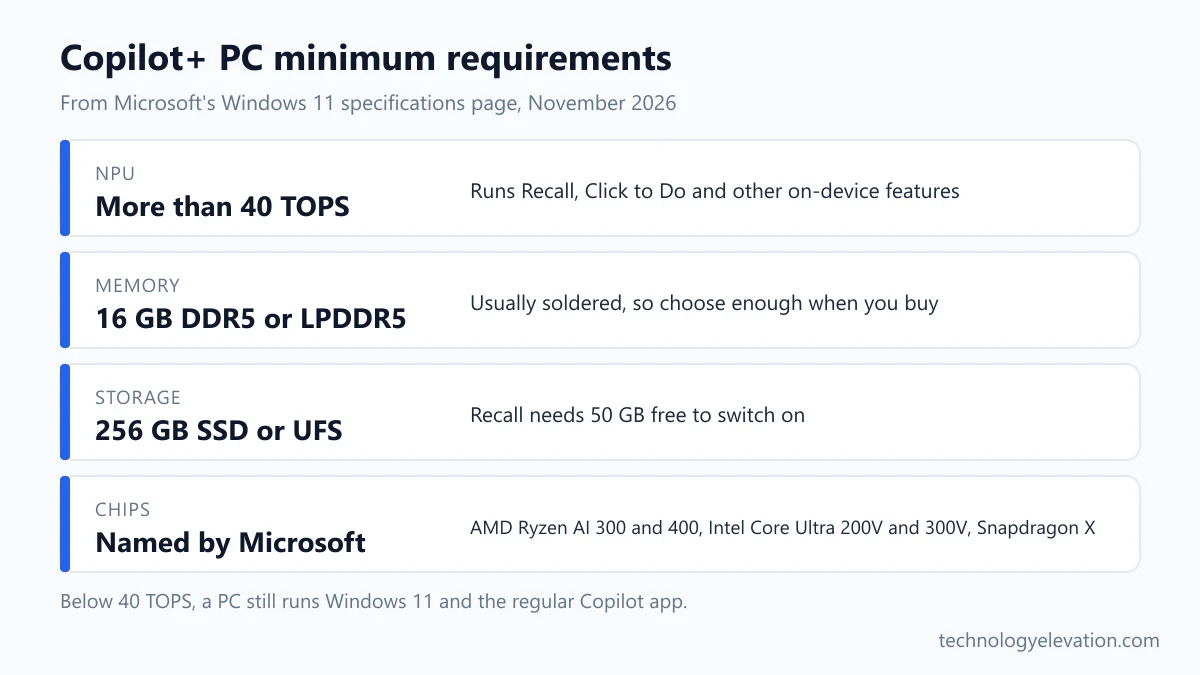
A Copilot+ PC is a Windows 11 laptop or desktop that meets Microsoft’s AI hardware minimums: a processor with an NPU rated at more than 40 TOPS, at least 16 GB of DDR5 or LPDDR5 memory, and at least 256 GB of SSD or UFS storage.
Microsoft’s current minimum requirements read like this:
- Processor: a compatible processor or system on a chip with an NPU capable of 40+ TOPS.
- Chip families named by Microsoft: AMD Ryzen AI 300 and 400 series, Intel Core Ultra 200V and 300V series, and Snapdragon X series.
- Memory: 16 GB of DDR5 or LPDDR5.
- Storage: 256 GB of SSD or UFS.
Microsoft adds that individual features may have extra requirements and that the list may change over time. Recall, for example, also needs Windows Hello and device encryption, which we cover below.
The category is newer than it feels. Microsoft announced Copilot+ PCs on 20 May 2024, the first models went on sale on 18 June 2024 from $999, and every launch machine used Qualcomm’s Snapdragon X Elite or X Plus chips. AMD and Intel laptops joined that September, and they received the Copilot+ features through free Windows updates starting in November 2024.
| Requirement | Copilot+ PC minimum | What it means for you |
|---|---|---|
| NPU | More than 40 TOPS | Runs the on-device AI features |
| RAM | 16 GB DDR5 or LPDDR5 | Usually soldered, so buy enough up front |
| Storage | 256 GB SSD or UFS | Recall alone needs 50 GB free to turn on |
| Operating system | Windows 11 | Features arrive through Windows updates |
The NPU is the chip that makes a PC a Copilot+ PC
An NPU, or neural processing unit, is a part of the processor built only for AI maths. Microsoft says it uses less power and is far more efficient at AI tasks than a CPU or GPU, which leaves those chips free for your other work.
Think of the three chips as specialists. The CPU handles general tasks, like opening apps and running a spreadsheet. The GPU draws graphics and games. The NPU runs AI models, such as the one that blurs your background on a video call, quietly and on little power.
You could run the same AI work on a CPU or GPU. Microsoft’s developer guide explains the trade-off: AI models that target the NPU give better battery life and faster results. On a laptop, lower power draw means the fan stays quiet and the battery lasts longer during a long call.
Windows treats the NPU as a normal hardware resource. On a PC that has one, Task Manager shows an NPU graph on its Performance tab, right next to the CPU, GPU and memory.
One thing the NPU does not do is make games faster. Gaming still leans on the GPU, so a Copilot+ sticker tells you nothing about frame rates. For play on the go, a handheld gaming PC is the better tool.
TOPS measures NPU speed, and 40 is the line Microsoft draws
TOPS stands for trillions of operations per second. Microsoft requires an NPU that can perform more than 40 TOPS for a PC to count as a Copilot+ PC. Below that line, the PC can still run Windows 11 and the regular Copilot app, but not the Copilot+ features.
The number is a peak rating from the chip maker, much like the top speed on a car’s dashboard. Intel, for example, rates the NPU in its Core Ultra 7 258V at 47 TOPS (INT8) on its own specification page, comfortably over the bar.
Be careful with marketing that quotes “total platform TOPS”. Intel advertises up to 120 TOPS for Core Ultra 200V chips, but that figure adds the CPU, GPU and NPU together. Microsoft’s rule is about the NPU alone.
Higher NPU numbers do not unlock extra features on their own. Microsoft ties each Copilot+ feature to the 40 TOPS bar or to a chip family, never to a bigger TOPS figure, and a few features do differ by chip family, as the next table shows.
Copilot+ features run on the device, and some depend on the chip
The main Copilot+ features are Recall, Click to Do, improved Windows search, live caption translation, the full set of Windows Studio Effects, and AI tools in Paint, Photos and Snipping Tool. Microsoft limits a few of them, such as Paint Generative fill, to Snapdragon X Series PCs.
| Feature | What it does | Note from Microsoft |
|---|---|---|
| Recall (preview) | Saves screen snapshots you can search later | Off by default; needs Windows Hello Enhanced Sign-in Security |
| Click to Do | Acts on text or images on your screen | Open it with Windows key + Q or Windows key + click |
| Improved Windows search | Finds files by meaning, not just file name | Works with specific text, image and document formats |
| Live Captions translation | Translates audio into English captions | From over 40 languages, processed on the device |
| Windows Studio Effects | Framing, eye contact and blur on video calls | Portrait light and creative filters on Snapdragon only |
| Paint and Photos tools | Cocreator, Restyle image, Super resolution and more | Generative fill and Relight on Snapdragon only |
Click to Do is the one most people end up using. Press the Windows key and Q, and Windows looks at what is on screen so you can copy text out of a photo, search for an image, or remove an image’s background in Paint. With English set as the default language, a selection of at least 10 words and a Microsoft account, it also offers to summarise or rewrite text. Microsoft says the screen analysis always happens locally.
Live Captions can translate audio from over 40 languages into English, and from 27 languages into Chinese (Simplified). Press Windows key + Ctrl + L to toggle it. All audio processing stays on the PC, which makes it handy on a plane with no Wi-Fi.
Windows Studio Effects add automatic framing, eye contact, background blur and voice focus to video calls. PCs with slower NPUs get a smaller set, and portrait light, creative filters and the teleprompter eye contact option are Snapdragon only. A good camera still matters more than any filter for picture quality.
Some image tools, including Cocreator and Restyle image, need a Microsoft account and an internet connection for part of the work. Microsoft also notes that features vary by device, region and language and can take time to roll out.
Recall is off by default, encrypted and stays on your PC
Recall takes snapshots of your screen every few seconds, so you can later search for something you saw by describing it. Microsoft says saving snapshots is off by default, snapshots are encrypted and processed locally, and Recall can be removed from Windows completely.
Recall caused a privacy row when Microsoft first showed it in 2024, and the company reworked it before release. Microsoft’s Recall support page and its security blog now describe these protections:
- You must opt in. Nothing is saved until you turn on Save snapshots.
- Every time you open Recall or change its settings, Windows Hello asks for your face, fingerprint or PIN.
- Snapshots are encrypted, and Microsoft says the data sits in secure VBS enclaves with keys protected by the TPM chip.
- Microsoft and third parties do not receive your snapshots.
- Sensitive information filtering is on by default and aims to keep passwords and credit card numbers out.
- You can exclude specific apps and websites, and supported browsers filter private browsing.
Recall also has its own hardware list on top of the Copilot+ minimums: a Secured-core PC, Device Encryption or BitLocker, and Windows Hello Enhanced Sign-in Security with at least one biometric option. You need 50 GB of free storage to turn it on, and snapshots pause when free space drops below 25 GB.
Managing it takes a few clicks:
- To turn it on, open Settings, select Privacy & security, then Recall & snapshots, and switch Save snapshots to On.
- To pause it for a while, select the Recall icon in the system tray and choose Pause until tomorrow.
- To remove it entirely, search for Turn Windows features on or off, clear the Recall box and restart. Your saved snapshots are deleted.
On a PC that someone else in the house uses with your account, think twice before you switch it on. Recall is also unavailable on work or school PCs unless the IT admin allows it.
Arm Copilot+ PCs run most Windows apps, but drivers and some games are the catch
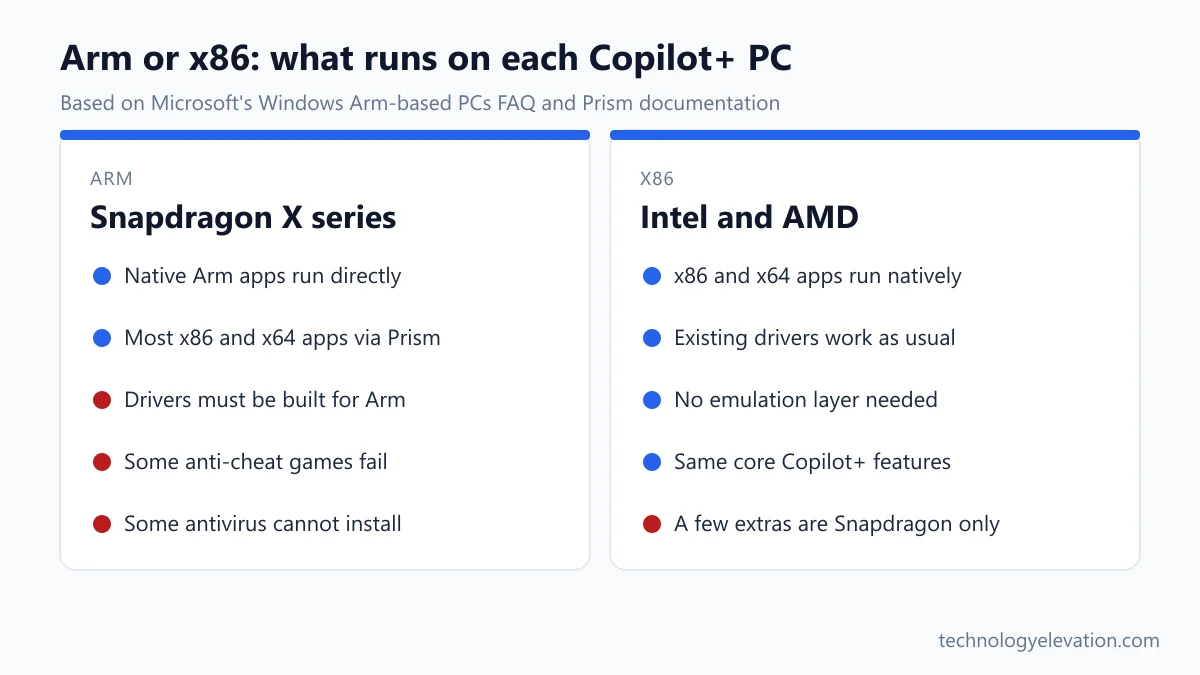
Snapdragon Copilot+ PCs use Arm chips rather than the x86 chips from Intel and AMD. Apps built for Arm run natively, and Windows 11 runs most other apps through an emulator called Prism. Hardware drivers and games with anti-cheat drivers are the main exceptions.
Microsoft says native Arm versions now exist for apps representing 90% of total user minutes. Its sample list includes Microsoft 365, Teams, Chrome, Firefox, Slack, WhatsApp, Spotify, Adobe Photoshop and Premiere, Blender and DaVinci Resolve.
For everything else, Prism steps in. Microsoft’s developer documentation explains that it translates blocks of x86 code into Arm code as the app runs and caches the result, so an app starts faster the next time. Prism ships with Windows 11 version 24H2 and is tuned specifically for Snapdragon chips. You do not install or switch on anything.
The limit is that emulation covers apps only. Microsoft’s Windows Arm-based PCs FAQ lists what can go wrong:
- Drivers for hardware, games and apps work only if they are made for Windows 11 Arm-based PCs.
- Certain games fail, especially those that rely on anti-cheat drivers.
- Some third-party antivirus software cannot be installed.
- Apps that customise the Windows experience might have problems.
- Windows Fax and Scan is not available.
Printers are less of a worry than they used to be: Microsoft says Arm PCs support most printers, including those that support the Mopria standard. If you rely on an old scanner, a specialist USB gadget or a competitive online shooter, an Intel or AMD Copilot+ PC avoids the question entirely. The best Copilot+ PC picks split models by chip family for exactly this reason.
You can tell whether a PC is a Copilot+ PC from its processor and memory
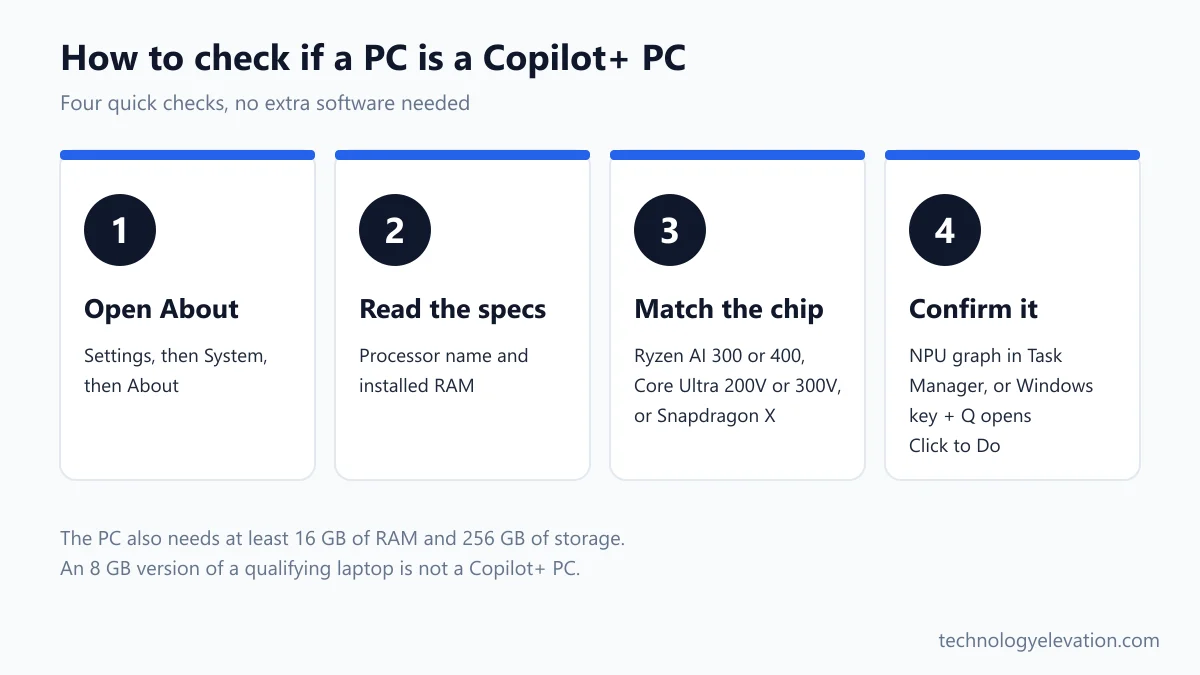
To check whether a PC is a Copilot+ PC, find its processor name and RAM in Settings, then compare them with Microsoft’s list: AMD Ryzen AI 300 or 400, Intel Core Ultra 200V or 300V, or Snapdragon X series, with at least 16 GB of memory.
- Open Settings, select System, then About.
- Under Device specifications, read the processor name and the amount of installed RAM.
- Compare the processor with the chip families on Microsoft’s Copilot+ PC requirements list.
- Open Task Manager and look on the Performance tab for an NPU graph next to the CPU and GPU.
- Press Windows key + Q. If Click to Do opens, the PC has Copilot+ features.
Shopping online is trickier, because listing titles often just say “AI PC”. Look for the exact chip name and the RAM amount in the spec sheet. A laptop with an older Intel Core Ultra chip, or an 8 GB version of a qualifying one, is not a Copilot+ PC even if the box mentions AI.
Watch the RAM in particular, because nearly every Copilot+ laptop solders it to the board. The breakdown of how much RAM you need in a laptop explains when 32 GB is worth paying for.
A Copilot+ PC is worth it if you want on-device AI and a modern laptop anyway
A Copilot+ PC is worth buying if you need a new Windows laptop anyway, because the 16 GB RAM floor and modern chips are good baselines. It is not worth replacing a working laptop just for Recall or Click to Do, since regular Copilot works on any Windows 11 PC.
The hardware rules do buyers a quiet favour. A Copilot+ PC cannot ship with 8 GB of RAM or a tiny 128 GB drive, which used to be the usual traps on cheap Windows laptops.
Microsoft promises all-day battery life for the category, and students and commuters gain the most from that. People with old software or games should lean towards Intel or AMD. If you want the full shortlist with launch prices and NPU ratings, the guide to the best Copilot+ PC in 2026 compares six models across all three chip makers.
If you would rather have a tablet you can type on, several Surface Pro and convertible models are Copilot+ PCs too, and the best 2-in-1 laptop picks cover them. Apple fans have a different route entirely, since Macs do their own on-device AI: compare the MacBook Pro, MacBook Air and MacBook Neo before you decide.
Timing helps, too. Laptop prices drop hard around now, so check the launch price against the Black Friday 2026 tech deals before you pay full price.
Frequently asked questions about Copilot+ PCs
What is the difference between a Copilot+ PC and a regular Windows 11 PC?
A Copilot+ PC has an NPU rated above 40 TOPS, at least 16 GB of RAM and 256 GB of storage. That hardware unlocks on-device features such as Recall, Click to Do and live caption translation, which regular Windows 11 PCs do not get.
Can I use Copilot without a Copilot+ PC?
Yes. The regular Copilot app runs in the cloud and works on any Windows 11 PC. The Copilot+ label covers the extra features that run locally on the NPU, such as Recall and Click to Do.
Can I upgrade my current PC to a Copilot+ PC?
No, not by adding parts or installing software. The 40+ TOPS NPU is built into the processor, so only a PC with a qualifying chip, such as AMD Ryzen AI 300, Intel Core Ultra 200V or Snapdragon X series, can be a Copilot+ PC.
Is Recall turned on by default?
No. Microsoft says saving snapshots for Recall is not enabled by default. You turn it on in Settings under Privacy & security, then Recall & snapshots, and you can pause it or remove it from Windows at any time.
Do Copilot+ PCs need an internet connection for AI features?
Most core features, including Recall, Click to Do’s screen analysis and live caption translation, run on the device. Some image tools such as Cocreator and Restyle image need a Microsoft account and an internet connection, and Click to Do’s web search goes online.
Do all apps work on a Snapdragon Copilot+ PC?
Most do. Native Arm apps run directly, and Windows 11 runs most x86 and x64 apps through the Prism emulator. Hardware drivers, some antivirus tools and games that use anti-cheat drivers may not work unless they have Arm versions.
Last checked and sources
Last checked on 19 November 2026 by Haris Khan. We read Microsoft’s current requirement, support and developer pages for every requirement, feature and menu path, and kept only what they state.
- Microsoft: Windows 11 specifications (Copilot+ PC minimum requirements and feature notes)
- Microsoft Support: Recall, Click to Do, Live Captions translation, Windows Studio Effects, all about NPUs, and the Windows Arm-based PCs FAQ
- Microsoft Learn: Copilot+ PCs developer guide and How emulation works on Arm
- Official Microsoft Blog: Introducing Copilot+ PCs (20 May 2024)
- Windows Experience Blog: Copilot+ PCs with AMD and Intel silicon (September 2024), Recall security and privacy architecture (September 2024), April 2025 Copilot+ PC features update
- Windows Developer Blog: the Arm app ecosystem for Copilot+ PCs (September 2025)
- Intel: Core Ultra 200V launch announcement and Core Ultra 7 258V specifications
We update this guide when Microsoft changes the Copilot+ PC requirements or adds new features.

GIPHY App Key not set. Please check settings