

 Haris Khan
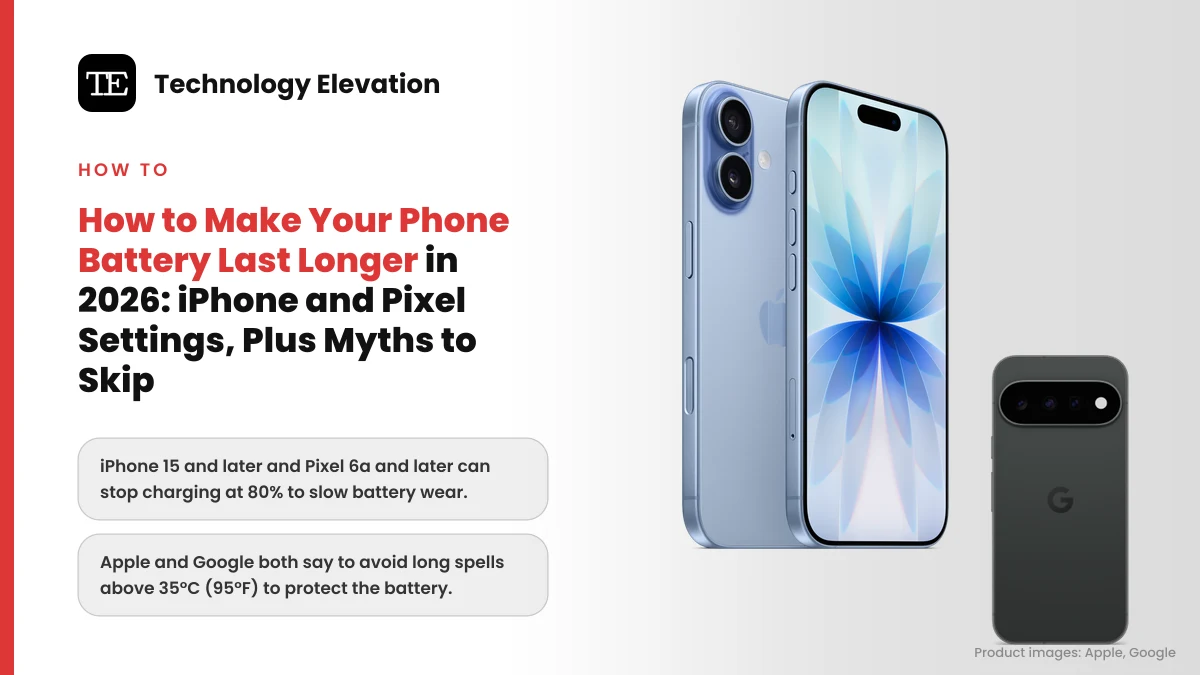
You plug your phone in at midnight, unplug it at seven, and by lunch it is already asking for Low Power Mode. Two years ago the same phone lasted until dinner. Nothing is broken. The battery is simply older, and a few settings are working against it.
Learning how to make phone battery last longer comes down to two separate jobs. One is getting more hours out of today’s charge. The other is slowing the chemical ageing that shrinks the battery month after month. Most advice online mixes the two up, and some of it is decades out of date.
Both Apple and Google now build tools for the second job straight into the settings app. On an iPhone 15 or later, Apple lets you set a charge limit anywhere from 80% to 100% in 5% steps. Pixels have a similar Limit to 80% switch. Neither is turned on for you.
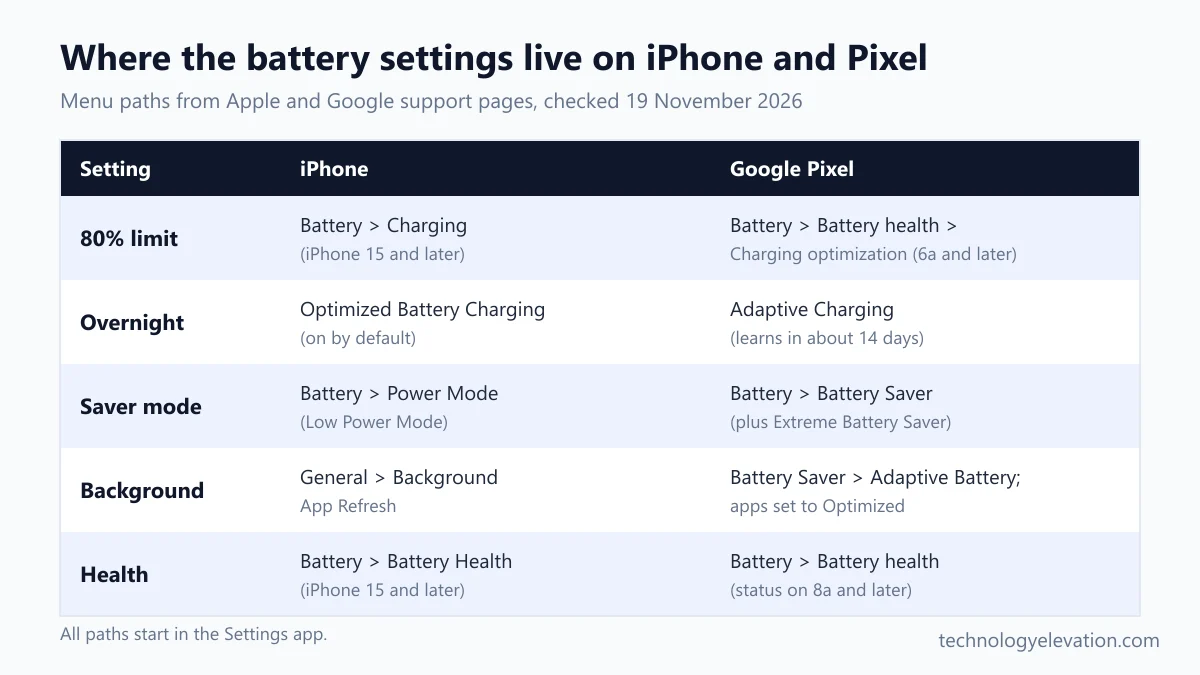
Below are the exact menu paths for iPhone and Pixel, checked against Apple’s and Google’s own support pages on 19 November 2026, plus the old battery myths you can safely ignore.
How to make your phone battery last longer: the eight steps that work
To make your phone battery last longer, cap charging at 80%, keep charging optimization on, use Low Power Mode or Battery Saver on long days, lower screen brightness, limit background apps and location, keep the phone cool and install updates. Skip the myths about closing apps.
- Update the phone’s software, because Apple and Google both list updates as a first battery fix.
- Turn on an 80% charge limit (iPhone 15 and later, Pixel 6a and later) or leave Optimized Battery Charging or Adaptive Charging on.
- Turn on Adaptive Battery on a Pixel, and leave apps set to Optimized.
- Use Low Power Mode on iPhone or Battery Saver on Pixel when you know the day will be long.
- Turn on Auto-Brightness or Adaptive brightness, and shorten the screen timeout.
- Check the battery usage screen and limit the apps that drain power in the background.
- Keep the phone out of heat, especially while it charges.
- Check battery health once in a while, so you know when a replacement makes more sense than new settings.
Steps 2 and 7 protect the battery’s lifespan. Everything else buys you hours today. If you only do one thing, do step 2. It costs you about a fifth of a full charge each day, and if you usually go to bed with 30% left, you will rarely miss it.
Set an 80% charge limit on iPhone in Settings, Battery, Charging
On an iPhone 15 or later, open Settings, tap Battery, then Charging, and pick a limit between 80% and 100%. On an iPhone 14 or earlier, there is no limit slider: go to Settings, Battery, Battery Health & Charging and keep Optimized Battery Charging switched on.
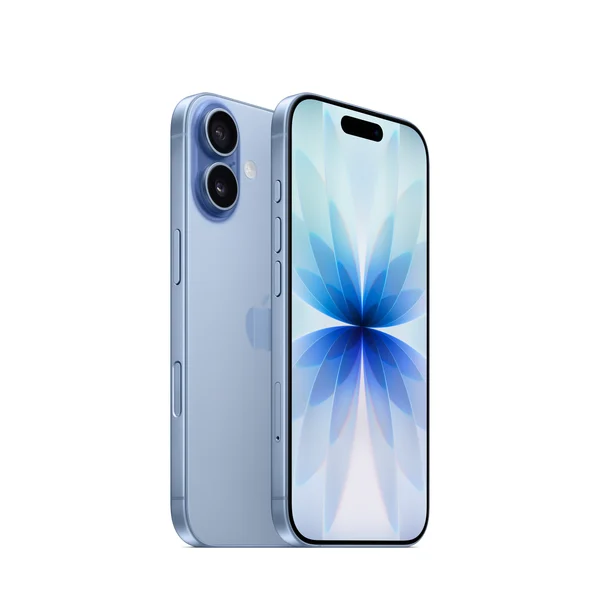
Apple explains why on its charge limit support page: lithium-ion batteries hold less charge as they chemically age, and the charging features are designed to reduce that wear. Sitting at 100% for hours is one of the things that speeds it up.
Apple’s steps for iPhone 15 and later:
- Open the Settings app.
- Tap Battery.
- Tap Charging.
- Choose a limit from 80% to 100%. Optimized Battery Charging is only available when the limit is set to 100%.
With a limit set, the iPhone charges to within a few points of it and stops. If the level drops more than 5% while it is still plugged in, charging starts again. Apple also says the phone will occasionally charge to 100% on its own, to keep its battery level estimate accurate. So a surprise 100% one morning is normal.
Optimized Battery Charging works differently. It learns your routine and, when it expects a long charging session such as overnight, delays charging past 80% so the phone reaches 100% shortly before you unplug. A Lock Screen notification shows when it will finish. If you need a full battery right now, touch and hold that notification and tap Charge Now.
Which one should you pick? If your phone usually still has a third of its charge at bedtime, the 80% limit is the stronger option for lifespan. If you need every percent on busy days, keep 100% with Optimized Battery Charging on. People shopping for a phone that simply lasts longer can compare battery life across the lineup in which iPhone to buy in 2026.
Turn on Limit to 80% and Adaptive Battery on a Google Pixel
On a Pixel, open Settings, then Battery, Battery health, Charging optimization. Turn on Use charging optimization and choose Limit to 80% (Pixel 6a and later) or Adaptive Charging. Then turn on Adaptive Battery under Settings, Battery, Battery Saver, so rarely used apps run less in the background.
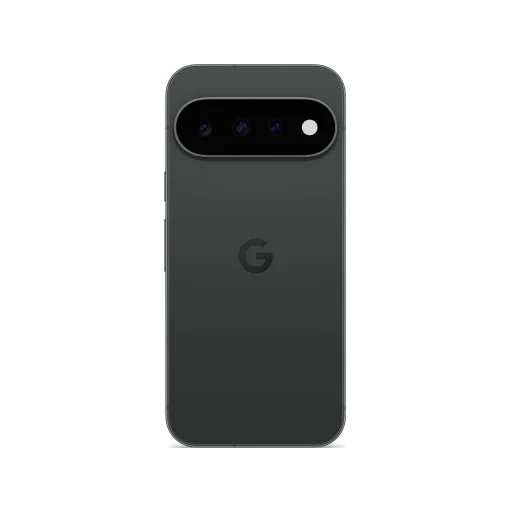
Google’s Pixel battery life support page describes the two charging options this way:
- Limit to 80%: stops charging at 80% to put long-term battery health first. Turn it off on days when you need a full charge.
- Adaptive Charging: learns your habits and finishes charging to 100% shortly before you usually unplug. Google says it needs about 14 days to learn, and it may not kick in when your routine changes, for example while you travel.
One detail surprises people. Even with the 80% limit on, Google says a Pixel needs a full charge at every 10th cycle to keep its capacity readings accurate. To complete it, leave the phone plugged in for at least 30 minutes after it shows 100%.
Adaptive Battery is the other half. Google’s steps: open Settings, tap Battery, then Battery Saver, select Adaptive Battery, expand More, and turn on Use Adaptive Battery. Google warns it may reduce performance and delay some notifications in return for longer battery life. For most people, that trade is invisible.
While you are in settings, check each heavy app under Settings, Apps, See all apps, then the app, App battery usage, Allow background usage. Google recommends leaving it on Optimized. Pixels also protect themselves: on Pixel 3 and later with Android 11 or newer, the phone can cap charging at about 70 to 80% after hours of charging in high heat or several days on the charger. If your next phone will be a Pixel, battery size and charging speed for each model are in which Pixel to buy in 2026.
Low Power Mode and Battery Saver stretch a long day
Low Power Mode on iPhone and Battery Saver on Pixel trade background activity and screen effects for extra hours. Use them on travel days or below 20%. On iPhone 15 and later, find it in Settings, Battery, Power Mode. On a Pixel, tap the Battery Saver tile.
According to Apple, Low Power Mode on iPhone:
- Sets Auto-Lock to 30 seconds and lowers display brightness.
- Turns off some visual effects, automatic downloads, email fetch and Background App Refresh.
- Pauses iCloud Photos for a while.
- Turns itself off once the phone charges to 80% or higher. The battery icon turns yellow while it is on.
On an iPhone 14 or earlier, the switch sits directly in Settings, Battery. On any iPhone you can also tap the battery icon in Control Center, or just ask Siri. Apple adds that on iPhones that support Adaptive Power, with that feature turned on, Low Power Mode switches on by itself when the battery goes below 20%.
Pixel Battery Saver lives in Settings, Battery, Battery Saver. Under Schedule and reminders you can make it turn on at a battery level you choose, and turn off again at 90%. Battery Saver turns on Dark theme, stops location services while the screen is off, and lets apps refresh only when you open them. Extreme Battery Saver (Pixel 3 and later) goes further: it pauses most apps, slows the processor and cuts the screen timeout to 30 seconds. Under Essential apps, you choose which apps keep running.
Low Power Mode is a good habit on flights, too. If you plan to top up from a power bank in the air, the airline rules for power banks decide what you can carry.
The screen and background apps decide how long one charge lasts
The screen and background activity decide how long a single charge lasts. Turn on automatic brightness, shorten the screen timeout, stop apps you rarely open from refreshing in the background, and give location access only while an app is open. Then check the battery usage screen.
Start with the screen, because it is on whenever you use the phone:
- iPhone brightness: Settings, Accessibility, Display & Text Size, then turn on Auto-Brightness.
- Pixel brightness: Settings, Display & touch, Adaptive brightness. Google also suggests Dark theme in the same menu, a short Screen timeout such as 30 seconds, and switching off Always-on Display and Smooth Display (Pixel 4 and later).
Next, find the real culprit. On iPhone, Settings, Battery shows usage by app, including “Background Activity”, which means the app used power while you were not looking at it. On a Pixel, the screen is Settings, Battery, Battery usage, then View by apps.
Once you know which app is hungry, fix that app:
- Background App Refresh (iPhone): Settings, General, Background App Refresh. Turn it off for apps that do not need fresh content the moment you open them.
- Location Services (iPhone): Settings, Privacy & Security, Location Services. Tap an app and choose While Using the App or Never.
- Background usage (Pixel): keep Optimized in each app’s battery settings, and turn off the hotspot and Now Playing song recognition when you do not use them.
Your earbuds have batteries too. The same heat and charge habits apply to them, which is why AirPods battery health drops faster in some pockets than others.
Keeping the phone cool slows battery ageing
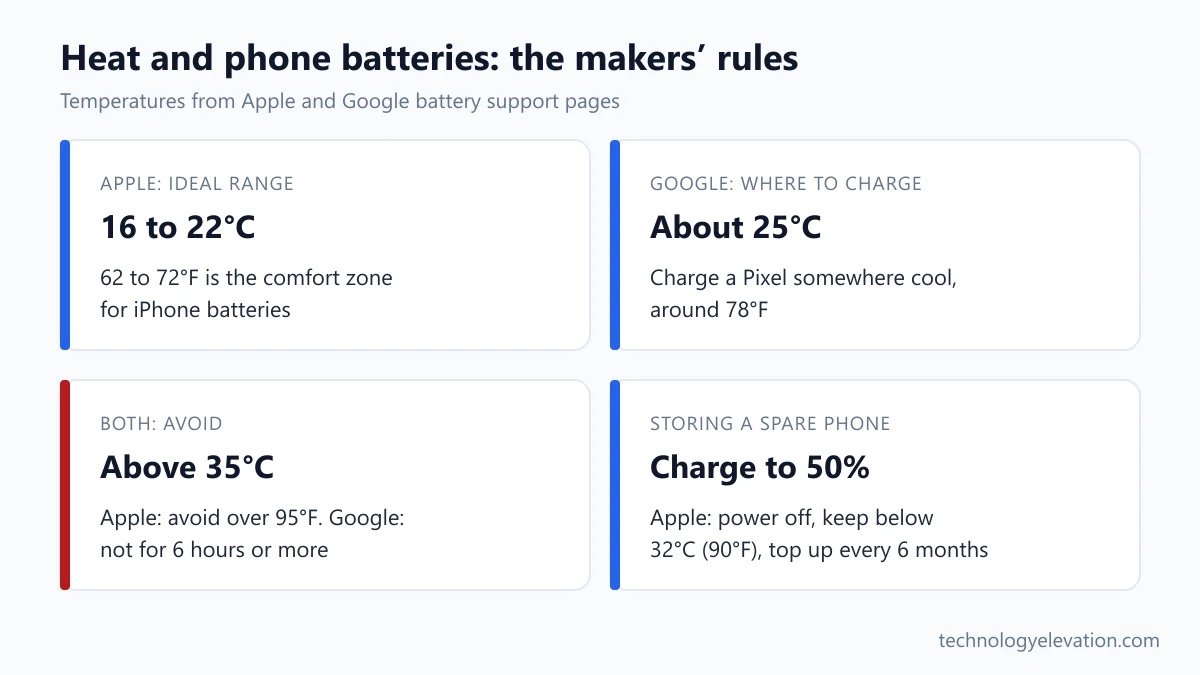
Keeping the phone cool is the simplest way to slow battery ageing. Apple calls 16 to 22°C (62 to 72°F) the ideal comfort zone and says to avoid temperatures above 35°C (95°F). Google says to charge a Pixel somewhere cool, around 25°C (78°F), and to avoid long exposure above 35°C.
A phone on a car dashboard in July is the classic mistake. A phone charging under a pillow, in a thick case, is the quieter one. Apple says some cases trap heat during charging and suggests taking them off if the phone gets hot. Google adds that a phone warms up while it charges, so avoid leaving it on the charger longer than needed.
The temperature rules from both makers:
- Apple’s ideal range: 16 to 22°C (62 to 72°F). Avoid above 35°C (95°F).
- Google: charge at about 25°C (78°F), and avoid 6 hours or more above 35°C (95°F).
- Both iPhone and Pixel can limit charging above 80% on their own when they get too hot.
- Storing a spare phone: charge it to about 50% first. Apple says to power it off and keep it somewhere cool and dry, below 32°C (90°F), and to top it up to 50% every six months.
Wireless charging pads warm a phone too, so the same heat rules apply on the nightstand. Qi2 and MagSafe chargers use magnets to hold the phone in place over the charging coil.
Five battery myths you can skip
Most battery myths come from older nickel batteries or from early smartphones. Modern lithium-ion phones do not need full discharges, closing apps rarely saves power, Wi-Fi is cheaper than cellular data, and overnight charging is fine with optimization switched on. Here is what Apple and Google actually say.
Myth 1: swiping apps closed saves battery
Apple’s support page on closing apps is blunt: you should close an app only if it is unresponsive. Google says force stopping essential apps can stop a Pixel working correctly, and points you to background usage settings instead.
Myth 2: let the battery drain to 0% before charging
Lithium-ion batteries do not have a “memory”. Apple says on its lithium-ion battery page that you can charge whenever you want and there is no need to let the battery discharge 100% first. A charge cycle counts total use, so 75% one day and 25% the next adds up to one cycle.
Myth 3: turn off Wi-Fi to save power
Apple’s advice is the opposite. Wi-Fi uses less power than cellular data, so Apple suggests keeping it on. Turn off the hotspot when you are done with it, but leave Wi-Fi alone.
Myth 4: never charge overnight
Overnight charging is exactly what Optimized Battery Charging and Adaptive Charging are built for. They hold the phone below full until shortly before you usually unplug. Charging overnight in a hot room, or under a pillow, is the real problem.
Myth 5: only the phone maker’s charger is safe
Apple says a comparable third-party USB-C power adapter that supports USB-PD works for fast charging an iPhone. Google recommends a compatible USB-C PD or PPS charger for Pixels. Stick to adapters that list USB-PD support.
Check battery health to see how much capacity is left
Battery health shows how much charge your battery holds compared with when it was new. On iPhone 15 and later, open Settings, Battery, Battery Health. On a Pixel 8a or later, open Settings, Battery, Battery health. Apple and Google both design for about 80% capacity after hundreds of cycles.
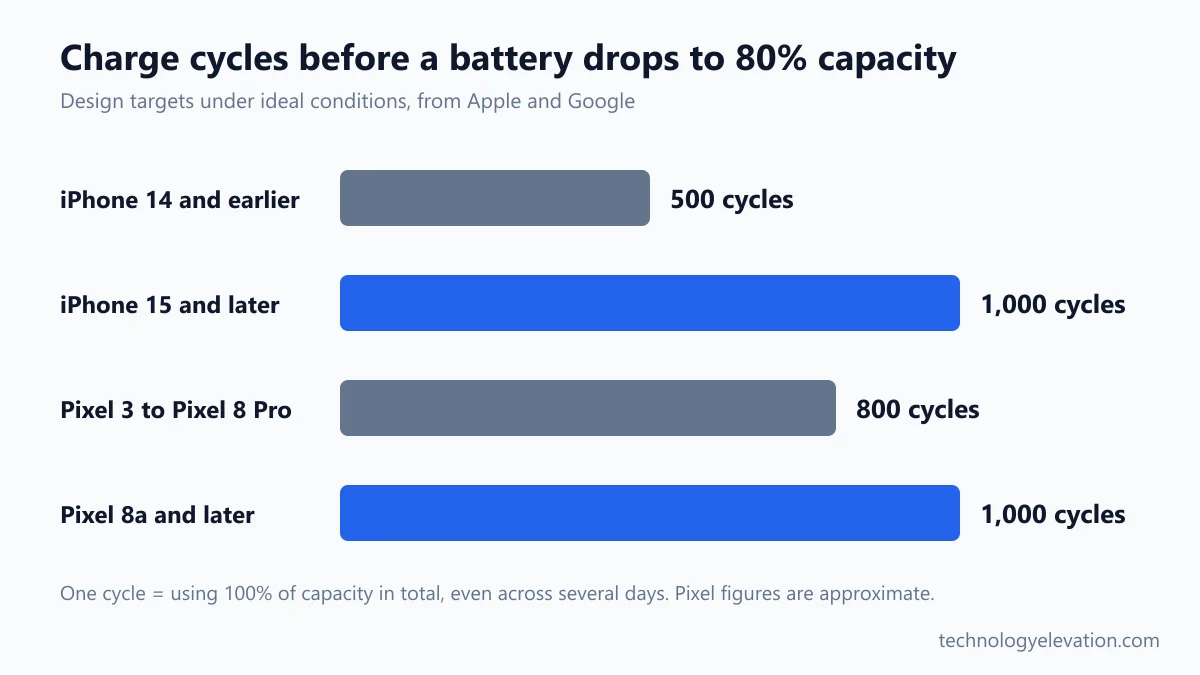
Apple’s iPhone battery and performance page gives the design targets. Batteries in iPhone 14 models and earlier are designed to keep 80% of their original capacity at 500 complete charge cycles under ideal conditions. iPhone 15 models and later double that, to 1,000 cycles. On iPhone 15 and later, the Battery Health screen also shows the cycle count, the manufacture date and whether Apple recommends a replacement. On iPhone 11 to 14, the screen is called Battery Health & Charging.
Google’s numbers are close. Pixel 3 through Pixel 8 Pro, plus the first Pixel Fold, are designed to keep about 80% after roughly 800 cycles. Pixel 8a and later aim for about 1,000. Pixel 8a and later also show a status of Normal or Reduced and a capacity estimate.
Newer Pixels go one step further with Battery Health Assistance. Starting at 200 charge cycles, it lowers the battery’s maximum voltage in stages up to 1,000 cycles, and adjusts charging speed to match. On Pixel 6a through Pixel 9 Pro Fold you can turn it on or off in Settings, Battery, Battery health. On Pixel 9a and later, it is always on.
Older iPhones have their own safety net. After an unexpected shutdown on a worn battery, iOS can manage peak performance to stop it happening again, which can mean slower app launches. Apple paid a settlement over how it first rolled out that feature, the iPhone “Batterygate” investigation.
When a new battery or a new phone makes more sense
Replace the battery when health drops near 80%, Apple’s screen recommends service, or the phone shuts down unexpectedly. Replace the whole phone when the battery is not the only problem, such as slow performance, missing updates or a cracked screen. Settings cannot bring lost capacity back.
A battery replacement is usually the cheaper fix for a phone you otherwise like. Go through the maker’s own service, so you get a genuine part fitted.
If the phone is several years old anyway, a new model starts the clock again, and the latest designs hold up longer. iPhone 15 and later batteries are designed for 1,000 cycles, double the older target. Battery life varies a lot across the 2026 iPhone lineup and the 2026 Pixel lineup, so compare the rated hours before you choose a size.
In between, a small battery pack is the simplest fix for heavy days. The best power banks for iPhone fit in a jacket pocket and work just as well with Android phones over USB-C.
Frequently asked questions about phone battery life
Is it bad to charge your phone to 100%?
Charging to 100% is not harmful once in a while, but keeping a battery full for hours adds wear. That is why iPhones and Pixels offer an 80% limit and overnight optimization. Both phones still charge to 100% occasionally to keep their battery readings accurate.
Should I turn on the 80% charging limit?
Turn it on if your phone usually has charge left at the end of the day. On iPhone 15 and later the limit lives in Settings, Battery, Charging, and on Pixel 6a and later in Settings, Battery, Battery health, Charging optimization. Switch it off on days you need a full battery.
Does closing apps save battery?
Closing apps does not usually save battery. Apple says to close an app only if it is unresponsive, and Google warns that force stopping essential apps can stop a Pixel working correctly. Limit background activity for the apps that drain power instead.
Does dark mode save battery?
Google lists Dark theme as one of its Pixel battery tips, and Battery Saver turns it on automatically. The bigger savings come from lower brightness and a shorter screen timeout, so change those settings first.
How long should a phone battery last?
Apple designs iPhone 15 and later batteries to keep 80% of their original capacity after 1,000 complete charge cycles, and iPhone 14 and earlier after 500. Google targets about 800 cycles on Pixel 3 to Pixel 8 Pro and about 1,000 on Pixel 8a and later.
Is it OK to charge my phone overnight?
Charging overnight is fine when Optimized Battery Charging on iPhone or Adaptive Charging on Pixel is switched on. Both hold the phone below full until shortly before you usually unplug. Keep the phone out of heat, and do not charge it under a pillow.
Does fast charging damage the battery?
Fast charging with a proper charger is part of how both phones are designed to work. Apple says a comparable third-party USB-C adapter that supports USB-PD works, and Google recommends a compatible USB-C PD or PPS charger. Heat, not speed alone, is what to watch.
Last checked and sources
Last checked on 19 November 2026 by Haris Khan. We followed every menu path and figure against Apple’s and Google’s current support pages and kept only what they state.
- Apple Support: About Charge Limit and Optimized Battery Charging on iPhone; iPhone battery and performance; About iPhone 11 and later battery; Use Low Power Mode; Turn Location Services on or off; Close an app; Fast charge your iPhone
- Apple: Batteries, Maximizing Performance; Batteries, Why Lithium-ion
- Google Pixel Help: Get the most life from your Pixel phone battery; Keep Adaptive Battery and battery optimization on; Use Battery Saver; Fix battery drain problem; Understand your Pixel battery
We update this guide when Apple or Google change their battery settings or menus.



GIPHY App Key not set. Please check settings