

 Abdullah Kabeer
Watch someone use a drawing tablet for the first time and you can see the moment it clicks. For the first ten minutes they stare at the screen while their hand moves on a blank pad below it, and every line wobbles. Then the brain catches up, and the lines get confident. Picking the best drawing tablet starts with deciding whether you want to go through that adjustment or skip it.
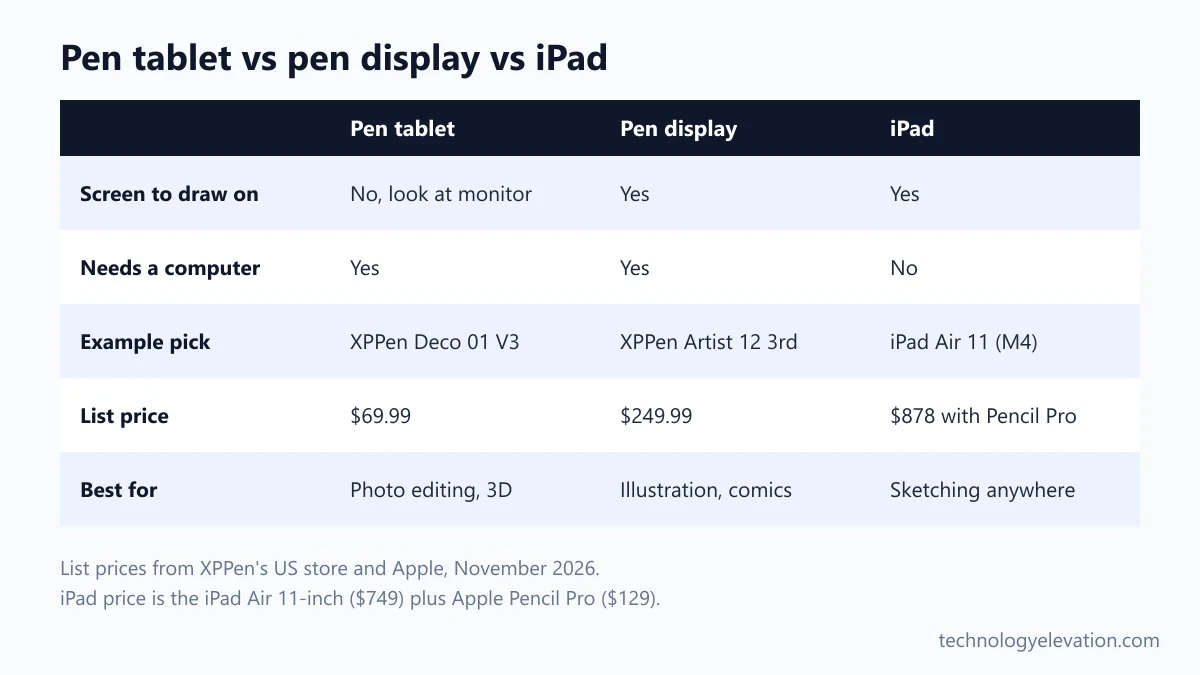
You have three real choices. A pen tablet is a flat pad with no screen, so you draw on your desk and watch your monitor. A pen display is a screen you draw on directly, plugged into a computer. And an iPad with an Apple Pencil is a full computer you draw on, with no cables at all.
Prices span a huge range. XPPen sells a 10 by 6.25 inch pen tablet with a list price of $69.99, while a 24-inch 4K pen display costs more than a good laptop. Even Wacom’s own Intuos Pro pen tablet runs from $249.95 to $499.95 depending on size, so size and screen matter as much as the brand.
We compared the official specs of current Wacom, XPPen and Huion models sold in the US, plus Apple’s iPads, and sorted them by the kind of artist each one suits best.
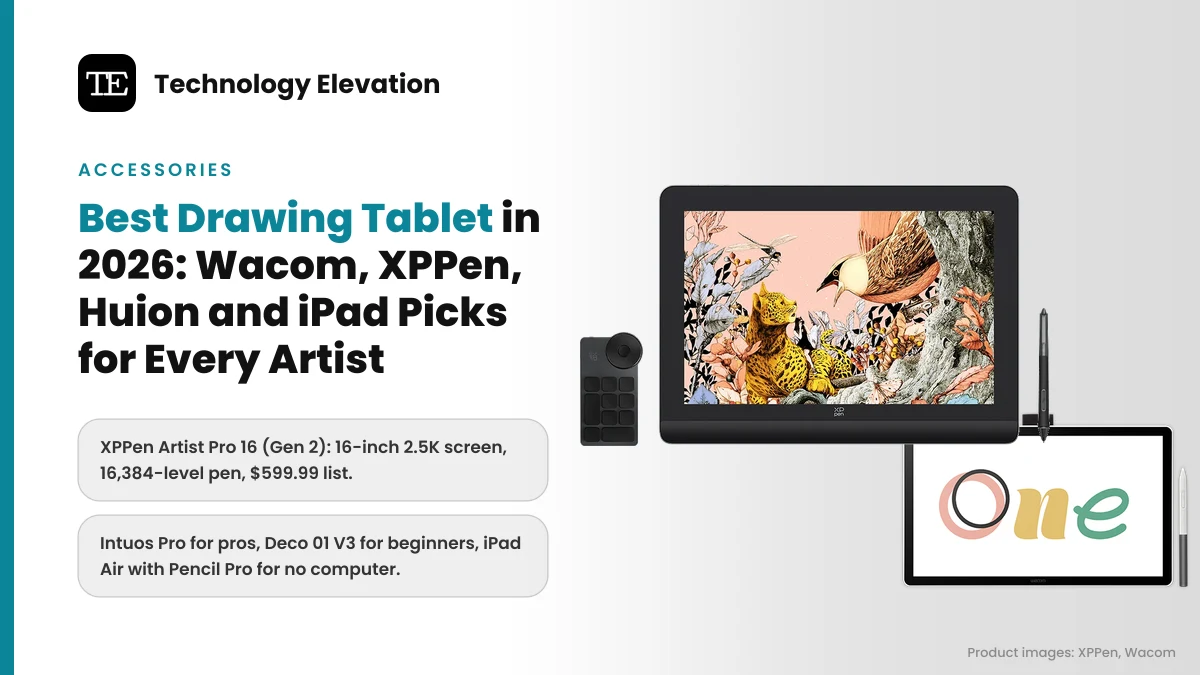
The best drawing tablet for most artists is the XPPen Artist Pro 16 (Gen 2)
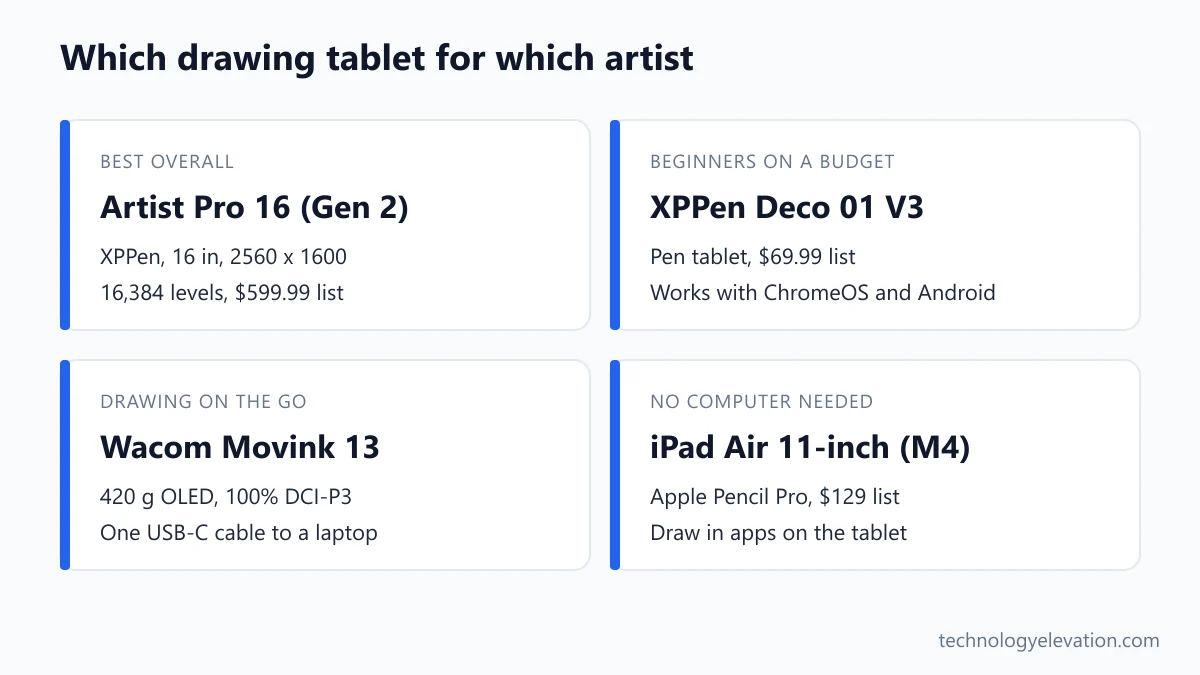
The XPPen Artist Pro 16 (Gen 2) is the best drawing tablet for most artists. It pairs a sharp 16-inch 2560 x 1600 screen with 99% DCI-P3 color coverage, a 16,384-level pen and a wireless shortcut remote, for a $599.99 list price on XPPen’s US store.
Every pick, by the job it does best:
- Best overall: XPPen Artist Pro 16 (Gen 2)
- Best budget pen display: XPPen Artist 12 3rd
- Best portable pen display: Wacom Movink 13
- Best big screen: Huion Kamvas Pro 24 (Gen 3)
- Best pen tablet for professionals: Wacom Intuos Pro (2025)
- Best cheap pen tablet for beginners: XPPen Deco 01 V3
- Best for Chromebooks and students: Wacom One 14
- Best with no computer: Apple iPad Air 11-inch (M4) with Apple Pencil Pro
| Model | Type | Drawing area | Pen pressure | Works with |
|---|---|---|---|---|
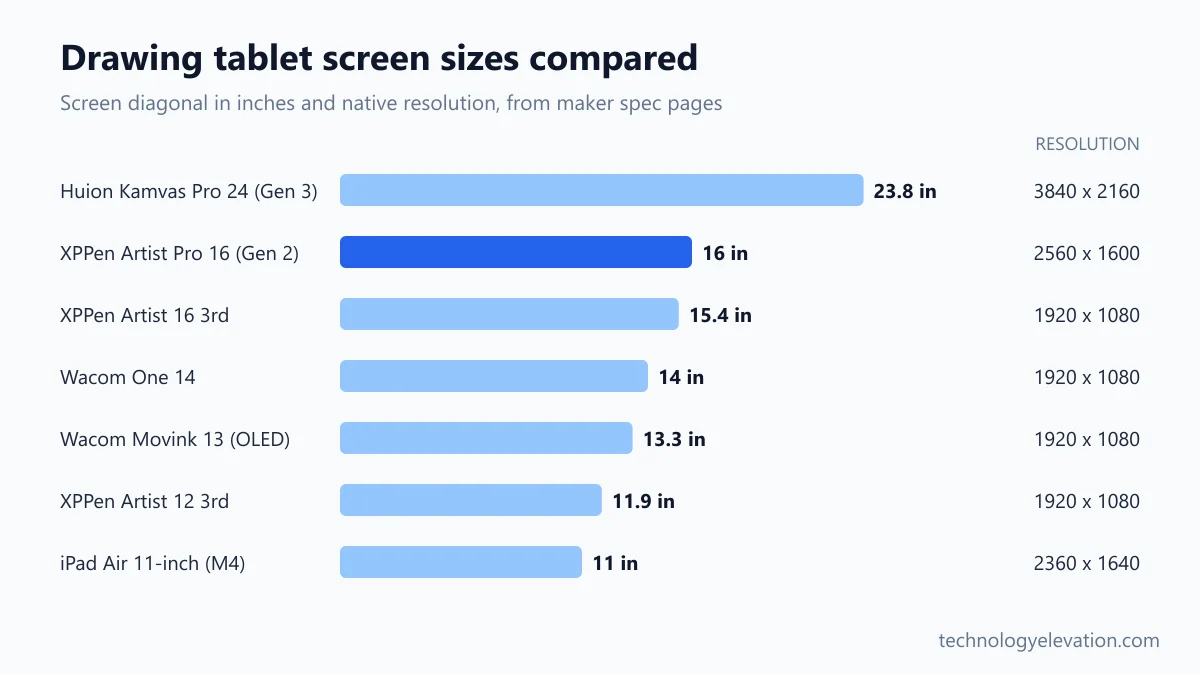
| XPPen Artist Pro 16 (Gen 2) | Pen display | 16 in, 2560 x 1600 | 16,384 levels | Windows, Mac, ChromeOS, Android, Linux |
| XPPen Artist 12 3rd | Pen display | 11.9 in, 1920 x 1080 | 16,384 levels | Windows, Mac, ChromeOS, Android, Linux |
| Wacom Movink 13 | OLED pen display | 13.3 in, 1920 x 1080 | 8,192 levels | Computers with video over USB-C |
| Huion Kamvas Pro 24 (Gen 3) | Pen display | 23.8 in, 3840 x 2160 | 16,384 levels | Windows, Mac, Android, Linux |
| Wacom Intuos Pro (2025) | Pen tablet | 7.4 x 4.1 in to 13.7 x 7.7 in | 8,192 levels | Windows, Mac |
| XPPen Deco 01 V3 | Pen tablet | 10 x 6.25 in | 16,384 levels | Windows, Mac, ChromeOS, Android |
| Wacom One 14 | Pen display | 14 in, 1920 x 1080 | 4,096 levels | Windows, Mac, ChromeOS |
| iPad Air 11-inch (M4) | Tablet computer | 11 in, 2360 x 1640 | Apple Pencil Pro | Works on its own |
XPPen and Huion run sales most weeks, and Black Friday makes that even more true. XPPen’s US store list prices, quoted in each section below, are the ceiling. Treat any discount of 20% or more on an XPPen or Huion display as normal, not as a rare deal.
XPPen Artist Pro 16 (Gen 2): the best drawing tablet overall
The XPPen Artist Pro 16 (Gen 2) wins because it gives you a screen and pen good enough for paid work at a mid-range price. You get a 2.5K 16-inch display with wide color coverage, a 16K pressure pen, 60 degrees of tilt and a separate wireless shortcut remote.
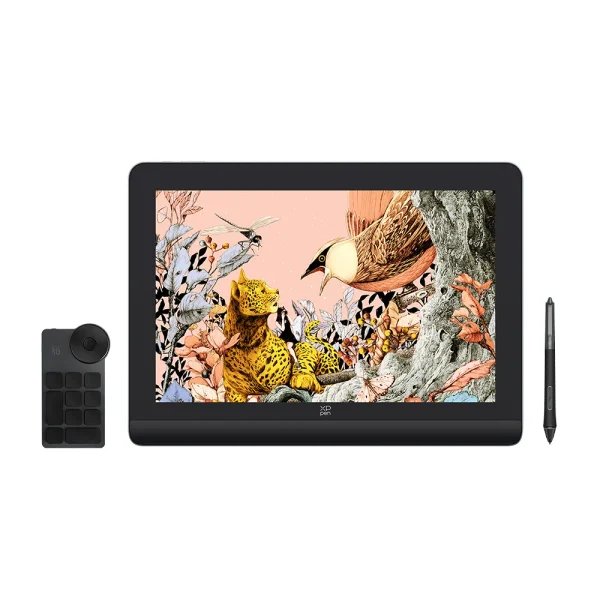
Key specs: 16-inch 2560 x 1600 display (16:10), 99% sRGB, 97% Adobe RGB and 99% DCI-P3 coverage, X3 Pro Smart Chip Stylus with 16,384 pressure levels and 60 degree tilt, one full-featured USB-C port plus one 3-in-1 USB-C port, wireless shortcut remote included. Works with Windows, macOS, Linux, ChromeOS 88 or later and some Android phones. List price: $599.99.
Sixteen inches is the size most illustrators settle on. A 12-inch screen feels cramped once a toolbar and layers panel take their share, and a 22 or 24-inch screen takes over the whole desk. The 16:10 shape helps too, because you gain a little extra height for menus.
Color coverage is the quiet strength. At 99% of DCI-P3, the screen shows the richer reds and greens that phones and modern monitors display, so a piece you color here will look roughly the same when a client opens it on an iPhone.
The wireless remote is better than it sounds. Shortcut keys on the edge of a screen get in the way when you rotate the display or work left-handed. A small remote you can put anywhere on the desk solves both problems.
The catch is cables. A computer with a full-featured USB-C port (one that carries video) needs a single cable. Older laptops and desktops without one need the 3-in-1 cable, which XPPen sells separately. Check your computer’s ports before you order.
Buy the XPPen Artist Pro 16 (Gen 2) now on Amazon
XPPen Artist 12 3rd: the best budget pen display
The XPPen Artist 12 3rd is the cheapest pen display we would actually recommend. For a $249.99 list price, you get an 11.9-inch laminated screen, XPPen’s newest X4 pen with 16,384 pressure levels, eight shortcut keys, two dials and a single USB-C cable.
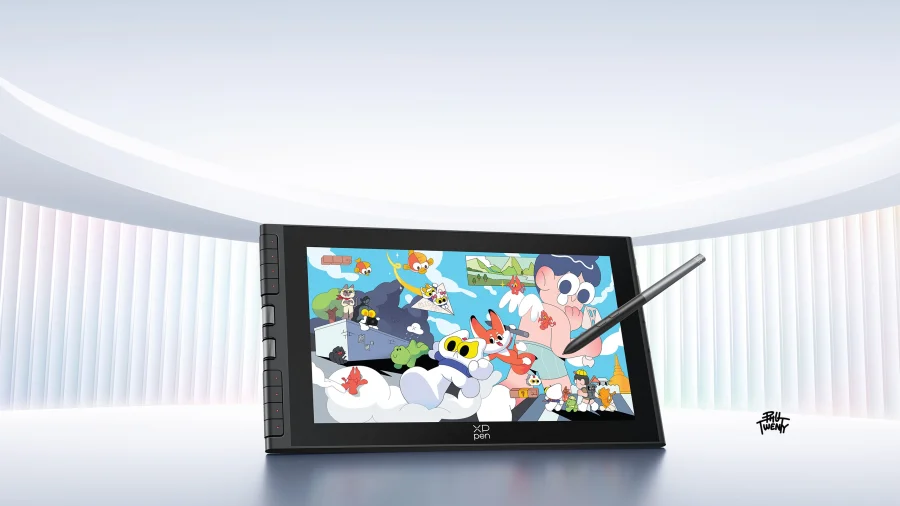
Key specs: 11.9-inch 1920 x 1080 display, 99% sRGB and 97% Adobe RGB coverage, fully laminated anti-glare etched glass, X4 Smart Chip Stylus with 16,384 pressure levels and a 2g activation force, eight shortcut keys and two X-Dials, one USB-C cable for power and data, 719 g. Works with Windows, macOS, Linux, ChromeOS and Android 10 or later.
Most first-time buyers should start here if they already know they want a screen. “Fully laminated” means there is no air gap between the glass and the panel, so the line appears right under the pen tip rather than a hair below it. Cheap displays without lamination feel like drawing through a window.
The X4 pen is the newer of XPPen’s two chips. XPPen says it responds in 30 ms, against 70 ms for the older X3, and it needs just 2g of pressure to start a stroke. Light sketch lines register without you pressing hard.
Twelve inches is small for full illustrations, though. Your hand covers a big part of the screen, and you will zoom in and out a lot. Students and hobbyists who mainly sketch, ink comics or take notes will be fine. Anyone who wants more room can step up to the Artist 16 3rd, which has a 15.4-inch Full HD screen and the same X4 pen for a $399.99 list price.
Buy the XPPen Artist 12 3rd now on Amazon
Wacom Movink 13: the best portable pen display
The Wacom Movink 13 is the best pen display to carry around. Wacom’s first OLED Pro display weighs just 420 g and is 4 mm at its thinnest. Its screen covers 100% of DCI-P3, and it uses Wacom’s studio Pro Pen 3.
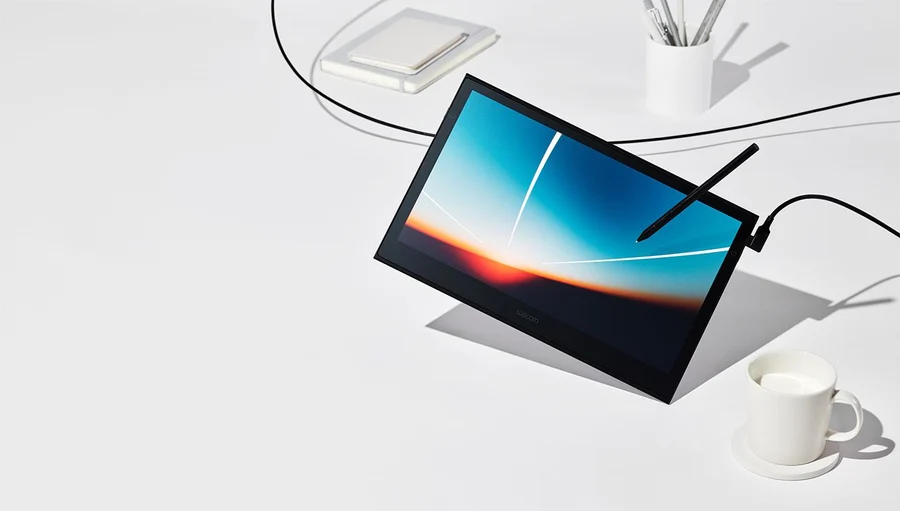
Key specs: 13.3-inch OLED, 1920 x 1080, 100% DCI-P3 and 95% Adobe RGB coverage, Wacom Pro Pen 3 with 8,192 pressure levels, 420 g, 4 mm at its thinnest, two USB-C ports, single-cable connection to a computer with DisplayPort Alt Mode or Thunderbolt 3 or later.
OLED changes how color work feels. Each pixel makes its own light, so black is true black and shadows keep their detail. LCD displays, including most pen displays here, show a faint grey glow in dark areas.
Weight is the other headline. At 420 g, the Movink 13 weighs less than an 11-inch iPad Air, so it slides into a laptop bag next to a MacBook without you noticing. Artists who draw on the train, at a café or between client meetings are the target.
The Pro Pen 3 matters if you already own a Wacom. It is the same pen the Intuos Pro and the 2025 Cintiq line use, with swappable grips and weights, so you can match the feel across a desk tablet and a travel display.
The catch is the connection. The Movink needs a USB-C port that carries video. Most recent MacBooks and many Windows laptops have one, but plenty of desktops do not. If you want an OLED pen display with a bigger, 4K screen, the XPPen Artist Ultra 16 offers a 15.6-inch 4K AMOLED panel at an $899.99 list price, though it weighs 1.53 kg.
Buy the Wacom Movink 13 now on Amazon
Huion Kamvas Pro 24 (Gen 3): the best big-screen pen display
The Huion Kamvas Pro 24 (Gen 3) is the best big-screen drawing display for a studio desk. Its 23.8-inch 4K screen covers 99% of Adobe RGB and 98% of DCI-P3, it adds 10-point touch, and it connects by HDMI, DisplayPort or USB-C.
Key specs: 23.8-inch 3840 x 2160 IPS display, 99% sRGB, 99% Adobe RGB and 98% DCI-P3 coverage, anti-glare etched Canvas Glass 3.0, PW600 and PW600S pens with 16,384 pressure levels and 60 degree tilt, 10-point multi-touch, HDMI 2.0, DisplayPort 1.4 and USB-C inputs, built-in 20 degree stand, VESA 100 x 100 mount, 6.365 kg.
A 24-inch canvas is for people who draw all day. Concept artists, comic pages at full size and animators who need a timeline and a canvas at once get the most from the space. At 4K, text and brush previews stay sharp even when the display sits close to your face.
Huion ships two pens in the range: the standard PW600 and the thinner PW600S. Artists used to a pencil grip tend to prefer the slim one. Both are battery-free, so there is nothing to charge.
The touch layer is useful for pinch-to-zoom and rotating the canvas with your other hand, the way you would on an iPad. You can switch it off if your palm triggers it.
The catch is size. At more than 6 kg and about 59 cm wide, the Kamvas Pro 24 needs a deep desk, and the built-in stand only tilts to 20 degrees. Most owners end up buying a VESA arm. Wacom fans can look at the 2025 Cintiq 24, which has a 2560 x 1440 screen, the Pro Pen 3 and an adjustable stand in the box.
Buy the Huion Kamvas Pro 24 (Gen 3) now on Amazon
Wacom Intuos Pro (2025): the best pen tablet for professionals
The Wacom Intuos Pro (2025) is the best screenless drawing tablet for professional work. Wacom redesigned it in 2025 with a slimmer body, the Pro Pen 3, Bluetooth for up to three devices and a 16:9 drawing area, at launch prices of $249.95, $379.95 and $499.95.
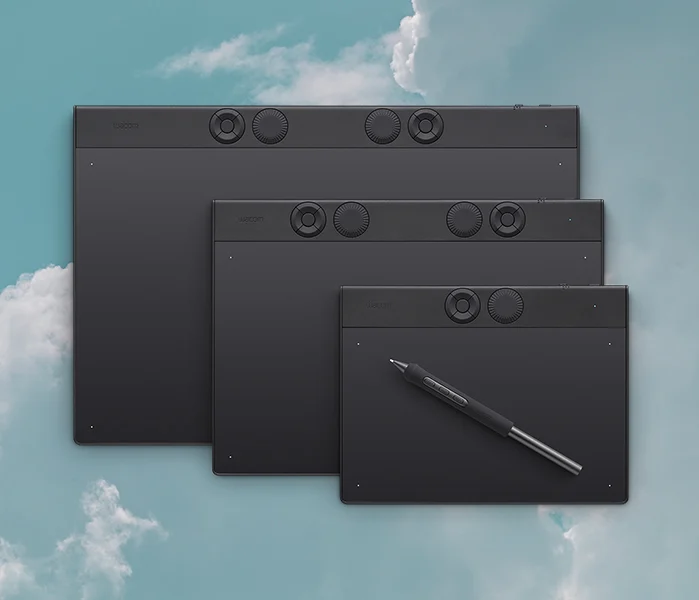
Key specs: three sizes with active areas of 7.4 x 4.1 in (small), 10.4 x 5.8 in (medium) and 13.7 x 7.7 in (large), Wacom Pro Pen 3 with 8,192 pressure levels, 60 degree tilt and three side switches, 5 or 10 ExpressKeys, one or two dials, Bluetooth plus USB-C, at least 16 hours of wireless use, 4 to 7 mm thick, 240 g to 660 g. Windows 10 or later and macOS 13 or later.
Plenty of working illustrators, retouchers and 3D sculptors still prefer a pen tablet to a screen. Your head stays up, your hand never blocks the image, and you keep using your color-calibrated monitor. Photo editors in particular rarely need to see the pen tip on the image.
The 16:9 drawing area is a small but smart change. Most monitors are 16:9, so the tablet now maps to the screen without squashing your strokes or leaving a dead strip at the edge.
Medium is the size most people should buy. Small suits a laptop on a crowded desk, and large suits big monitors and people who draw from the elbow rather than the wrist.
The catch is price. A medium Intuos Pro costs more than XPPen’s Artist 12 3rd pen display. You pay for Wacom’s pen, build and drivers, which many studios standardize on. Hobbyists do not need it. Note that the Intuos Pro lists only Windows and macOS, so it is not the pick for a Chromebook.
Buy the Wacom Intuos Pro (2025) now on Amazon
XPPen Deco 01 V3: the best cheap drawing tablet for beginners
The XPPen Deco 01 V3 is the best cheap drawing tablet for beginners. Its 10 x 6.25 inch drawing area is slightly larger in area than a medium Intuos Pro’s, its battery-free pen has 16,384 pressure levels and 60 degree tilt, and it lists at $69.99.
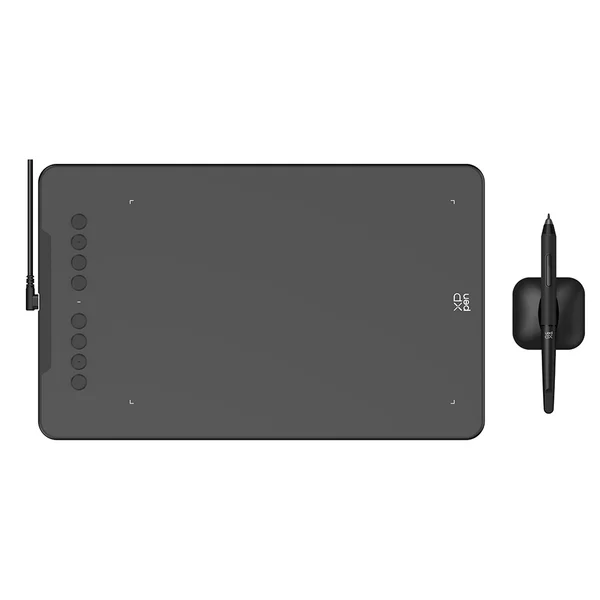
Key specs: 10 x 6.25 inch active area, battery-free EMR pen with 16,384 pressure levels and up to 60 degree tilt, eight customizable shortcut keys, wired USB with a USB-C adapter in the box. Works with Windows, macOS, ChromeOS 88 or later and Android 10 or later.
Pressure levels stopped being a meaningful difference years ago. Any modern tablet senses more pressure steps than your hand can control, so the gap between a $70 tablet and a $500 one comes down to build, pen feel and drivers, not line quality.
Students and kids starting out in Krita, Clip Studio Paint or ibisPaint should begin here. If drawing turns into a serious habit, you lose very little by upgrading a year later, and the Deco becomes a handy travel tablet.
The catch is the learning curve described at the top: you draw on the pad and look at the screen. Most people adapt in a week or two. Some never get comfortable, and those people should spend more on a pen display.
Buy the XPPen Deco 01 V3 now on Amazon
Wacom One 14: the best pen display for Chromebooks and students
The Wacom One 14 is the best pen display for Chromebooks and school use. Wacom lists Chromebook support alongside Windows and macOS, it connects with one USB-C cable, and it works with pens you may already own from Staedtler, LAMY and Dr. Grip.
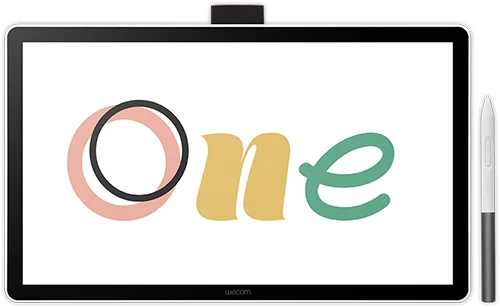
Key specs: 14-inch Full HD IPS display with anti-glare and anti-fingerprint coating, direct bonding to reduce parallax, battery-free Wacom One Standard Pen with 4,096 pressure levels and two buttons, single USB-C connection (DisplayPort Alt Mode or Thunderbolt 3 or 4), 750 g. Windows 10 or later, macOS 13 or later and ChromeOS. Announced September 17, 2025.
Wacom aimed this one squarely at people new to drawing on screen. Direct bonding is Wacom’s term for laminating the glass to the panel, so the line sits under the pen tip.
Third-party pen support is a genuinely useful idea for families and classrooms. A student can use a Staedtler digital pencil that feels like the pencil in their pencil case, and a lost pen is cheap to replace.
The catch is the pen itself. At 4,096 pressure levels, the Wacom One Standard Pen is a step below the other displays here for fine brush control. For a teenager learning to draw, that will not matter. For a commission artist, the Artist Pro 16 (Gen 2) is the better buy.
Buy the Wacom One 14 now on Amazon
iPad Air 11-inch (M4) with Apple Pencil Pro: the best drawing tablet with no computer
The iPad Air 11-inch (M4) with Apple Pencil Pro is the best choice if you want to draw without a computer. Procreate and other iPad apps run on the tablet itself, the Pencil Pro adds pressure, squeeze and barrel roll, and the pair costs $878 at Apple list prices.
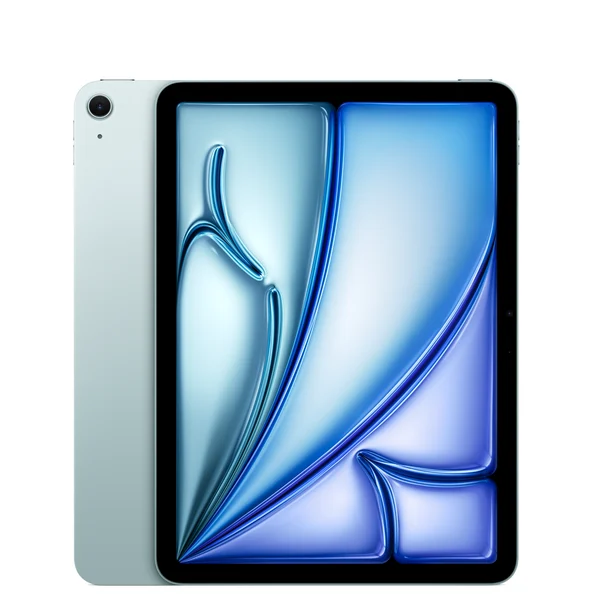
Key specs: 11-inch Liquid Retina display (2360 x 1640), Apple M4 chip with 12GB of memory, 128GB base storage, works with Apple Pencil Pro and Apple Pencil (USB-C). List prices: $749 for the iPad Air 11-inch, $949 for the 13-inch, $129 for the Apple Pencil Pro.
Plenty of professional illustrators now work on an iPad full time. You can sketch on the sofa, finish on a train and export straight to a client, with no cables and no driver updates. For many hobbyists, Procreate is the reason to buy one.
Buy the right Pencil. Apple lists pressure sensitivity for the Apple Pencil Pro but not for the cheaper Apple Pencil (USB-C), which makes the USB-C model a note-taking tool rather than a drawing one. The basic iPad (A16) only works with the USB-C Pencil, so skip it for art. Screen size, chip and Pencil support are what separate the models when you weigh up which iPad to buy in 2026.
The catch is the screen. The iPad Air’s display runs at 60Hz, while the iPad Pro 11-inch (M5), from $1,199, refreshes at up to 120Hz for a line that tracks the Pencil more closely. Artists who will draw every day should consider stretching. Also remember that iPad apps are not desktop apps: if your work depends on full Photoshop, Blender or ZBrush, a pen display on a computer is the better tool.
Buy the iPad Air 11-inch (M4) now on Amazon
Pen tablet, pen display or iPad: how to choose a drawing tablet
Choose a drawing tablet by deciding first whether you want to see the pen tip on the image, then by checking what computer you have. Pen tablets are cheapest, pen displays feel most natural, and an iPad is the only one that works with no computer.
- Decide on a screen. A pen tablet costs $70 to $500 and takes a week or two to get used to. A good pen display costs about $250 and up and feels like drawing on paper.
- Check your ports. Most pen displays run on one cable only if your computer has a USB-C port that carries video (DisplayPort Alt Mode or Thunderbolt). Without one, you need a 3-in-1 cable or HDMI.
- Check your operating system. Chromebook owners need a model that lists ChromeOS, such as the Wacom One 14, XPPen Artist 12 3rd or Deco 01 V3.
- Pick the size for your desk. A 12 to 14-inch display suits a laptop setup, 16 inches suits most desks, and 22 to 24 inches needs a deep desk or a monitor arm.
- Look for lamination. A fully laminated screen puts the line right under the pen tip. Check for the word “laminated” or “direct bonding” on the spec sheet.
- Ignore pressure numbers above 4,096. Pen feel, tilt support and drivers matter more than 8K versus 16K pressure levels.
- Budget for the extras. A stand, a monitor arm, a 3-in-1 cable or a USB-C hub can add $25 to $150.
Your computer matters as much as the tablet. A 4K pen display running Photoshop or Clip Studio Paint pushes a laptop hard, and an underpowered machine makes brushes lag no matter how good the pen is. Artists who also do 3D or rendering work will find the same priorities in the best laptop for interior design. If your laptop has only one USB-C port, a good USB-C hub or docking station keeps the display, a charger and a drive connected at once.
Pen pressure, tilt and color coverage explained in plain words
Pen pressure is how many steps of force the tablet senses, tilt is whether it notices the pen’s angle, and color coverage is how much of a color standard the screen shows. For drawing, tilt and color coverage make a bigger visible difference than pressure numbers.
Pressure levels. Every tablet here senses between 4,096 and 16,384 steps of pressure. More steps sound better on a box, but the human hand cannot reliably control that many. What you feel is the activation force: how lightly you can touch before a line appears. XPPen’s X4 pen starts at 2g and Huion’s PenTech 4.0 pens also start at 2g, which helps light sketching.
Tilt. Tilt lets brushes act like a real pencil on its side, giving broad shading strokes. Every pick here supports tilt of around 60 degrees, but the app has to support it too. Huion notes that tilt works only in some software.
Color coverage. sRGB is the standard for the web, Adobe RGB is the wider standard used in print, and DCI-P3 is the wide standard most phones and modern monitors use. A display that covers 99% of DCI-P3, like the Artist Pro 16 (Gen 2), shows the colors your audience will see on their phones. Print artists should look at Adobe RGB, where the Kamvas Pro 24 (Gen 3) and the XPPen Artist Ultra 16 cover 99%.
Pair a pen display with a separate calibrated monitor if color has to be exact for clients. A dedicated monitor for photo editing gives you a reference screen, and the drawing display becomes your workspace.
Standalone drawing tablets are the newest alternative to the iPad
Standalone Android drawing tablets, such as the Wacom MovinkPad 11 and MovinkPad Pro 14, are the newest alternative to an iPad. They run drawing apps on the tablet itself, with Wacom’s Pro Pen 3 included in the box, so there is no extra pen to buy.
The MovinkPad 11 has an 11.45-inch 2200 x 1440 screen with a 60 or 90Hz refresh rate, a MediaTek Helio G99 chip, 8GB of memory and 128GB of storage, and it weighs 588 g. Wacom rates it for up to 9 hours of use. The MovinkPad Pro 14 steps up to a 14-inch 2880 x 1800 OLED screen at up to 120Hz, running Android 15 and weighing 699 g. XPPen’s answer is the Magic Drawing Pad, which lists at $499.99 on XPPen’s US store.
The appeal is simple: the pen is included, and Android drawing apps such as ibisPaint X and Clip Studio Paint run on them. Wacom even bundles a 180-day ibisPaint X Prime membership with the MovinkPad series. The trade-off is app choice. Procreate, the best-known drawing app on tablets, is not available on Android. If a friend or teacher works in Procreate, the iPad remains the safer pick. Parents choosing for a younger artist should also compare a tablet for kids, which adds parental controls and a tougher case.
Black Friday is a good time to buy a drawing tablet
Black Friday is one of the best times of year to buy a drawing tablet, because drawing tablet makers cut prices hard in late November, and XPPen’s US store is already showing discounts of 20% or more. Compare any deal against the list prices in this guide before you buy.
XPPen’s own store already shows large markdowns this month, with the Artist Pro 16 (Gen 2) and the Artist Ultra 16 both well below list. That makes it easy to be fooled by a “50% off” banner on a price that was rarely charged. Treat Black Friday 2026 tech buying like any other purchase: compare the deal with the list price and the price history, not the banner.
Buying for someone else? A drawing tablet makes a strong gift for a teenager who doodles on everything, and a Deco 01 V3 is cheap enough that it does not matter if they stop using it. Other tech gifts for 2026 pair well with it, such as a pair of headphones for long drawing sessions.
Frequently asked questions about drawing tablets
What is the best drawing tablet for beginners?
The XPPen Deco 01 V3 is the best drawing tablet for beginners on a budget. It lists at $69.99, has a 10 by 6.25 inch drawing area and works with Windows, macOS, ChromeOS and Android. Beginners who want a screen should pick the XPPen Artist 12 3rd.
Is a pen display better than a pen tablet?
A pen display is easier to learn because you draw directly on the image. A pen tablet is cheaper, keeps your posture upright and leaves your monitor unblocked. Many professionals still use pen tablets for photo editing and 3D work.
Is an iPad better than a drawing tablet?
An iPad is better if you want to draw anywhere without a computer and like Procreate. A pen display is better if you need desktop software such as Photoshop, Blender or ZBrush, or want a bigger screen for the money.
Do drawing tablets work with Chromebooks?
Some do. The Wacom One 14, XPPen Artist 12 3rd, XPPen Artist Pro 16 (Gen 2) and XPPen Deco 01 V3 all list ChromeOS support. The Wacom Intuos Pro lists only Windows and macOS.
Do I need a powerful computer for a pen display?
You need a computer that can run your drawing app smoothly at the display’s resolution. A 4K display like the Huion Kamvas Pro 24 (Gen 3) asks more of your graphics chip than a 1080p model. Most pen displays also need a USB-C port that carries video, or a 3-in-1 cable.
Which Apple Pencil is best for drawing?
The Apple Pencil Pro is the best Apple Pencil for drawing. It supports pressure sensitivity, squeeze and barrel roll, and lists at $129. The Apple Pencil (USB-C) does not support pressure sensitivity.
How many pressure levels does a drawing tablet need?
Any tablet with 4,096 pressure levels or more is enough for detailed drawing. Higher numbers such as 8,192 or 16,384 make little visible difference. Activation force, tilt support and pen feel matter more.
Last checked and sources
Last checked on 19 November 2026 by Abdullah Kabeer. We compared current Wacom, XPPen, Huion and Apple drawing devices sold in the US using the makers’ own spec pages, launch announcements and US store list prices, and checked the CPSC recall database for every brand. No pick is under a recall or safety notice.
- Wacom, Intuos Pro announcement with US prices, February 12, 2025, and Intuos Pro spec page
- Wacom, Movink 13, Wacom One 14, Cintiq and MovinkPad spec pages and announcements (2025)
- XPPen, Artist Pro 16 (Gen 2), Artist 12 3rd, Artist 16 3rd, Artist Ultra 16 and Deco 01 V3 spec pages, and XPPen US store list prices (19 November 2026)
- Huion, Kamvas Pro 24 (Gen 3) and Kamvas 16 (Gen 3) spec pages
- Apple, iPad Air and Apple Pencil Pro store pages and Apple Pencil compatibility page
- US Consumer Product Safety Commission recall database (saferproducts.gov), searched for Wacom, XPPen, Huion and Apple Pencil
We update this buying guide when Wacom, XPPen, Huion or Apple launch, discontinue or significantly change a model.
Technology Elevation is reader-supported. As an Amazon Associate, we earn from qualifying purchases. When you buy through links on this page, we may earn a small commission at no extra cost to you.

GIPHY App Key not set. Please check settings