

 Haris Khan
You open the lid, click the browser, and wait. The cursor spins, the fan starts up, and a laptop that felt quick two years ago now takes a full minute to get going. Most of the time nothing is broken. The laptop is just carrying more than it used to: more apps that launch at login, a fuller drive, a backlog of updates and too many open tabs.
Learning how to speed up a slow laptop mostly means clearing that load in the right order. Microsoft’s own list of tips to improve PC performance in Windows names the usual causes plainly: limited storage space, too many startup apps, outdated software and hardware that no longer meets modern needs.
Apple’s support pages point to the same suspects on a Mac. So the fixes below work the same way on both systems, even though the menus have different names.
Every step comes from Microsoft’s and Apple’s current support articles, checked on 19 November 2026 against Windows 11 and macOS 27. None of it needs a paid cleaner app.
How to speed up a slow laptop: the eight steps that fix most slowdowns
To speed up a slow laptop, restart it, stop apps that launch at login, free up storage, install system updates, and close whatever is using the most memory or processor time. On Windows, also run a malware scan. If the laptop still struggles, check whether it simply needs more RAM.
- Close apps and browser tabs you are not using, then restart the laptop.
- Turn off startup apps (Windows) or login items (Mac) you do not need.
- Free up storage space, starting with temporary files, Downloads and the Trash or Recycle Bin.
- Install Windows updates or macOS updates, plus optional driver updates on Windows.
- On Windows, run a Quick scan in Windows Security.
- Open Task Manager (Windows) or Activity Monitor (Mac) and close the process using the most CPU or memory.
- Keep the laptop on a hard, flat surface so it can breathe.
- Check memory use. If it stays high with only your normal apps open, the laptop needs more RAM or a replacement.
Steps 1 to 4 fix most slow laptops. Steps 6 and 8 tell you whether the problem is software you can remove or hardware you have outgrown.
One more thing before you start. Skip the “PC cleaner” and “Mac booster” apps that pop up in ads. Every tool you need is already built in.
Restart the laptop and close what you are not using first
A restart is the fastest fix because it clears apps stuck in memory and finishes pending updates. Close apps and browser tabs you do not need first. On Windows, select Start, Power, then Restart. On a Mac, choose Apple menu, then Restart.
Plenty of people close the lid every evening and never truly restart for weeks. Sleep is convenient, but a laptop that never restarts keeps every leaky app and half-installed update hanging around.
Microsoft’s advice is simple: close any apps or tabs you do not need, and if the laptop is still slow, restart it. After the restart, open only the apps you need and close them when you are done.
Browser tabs deserve a special mention. A browser with dozens of tabs open often sits at the top of the memory list in Task Manager or Activity Monitor. Bookmark the tabs you are saving for later and close the rest.
Startup apps and login items slow down every boot
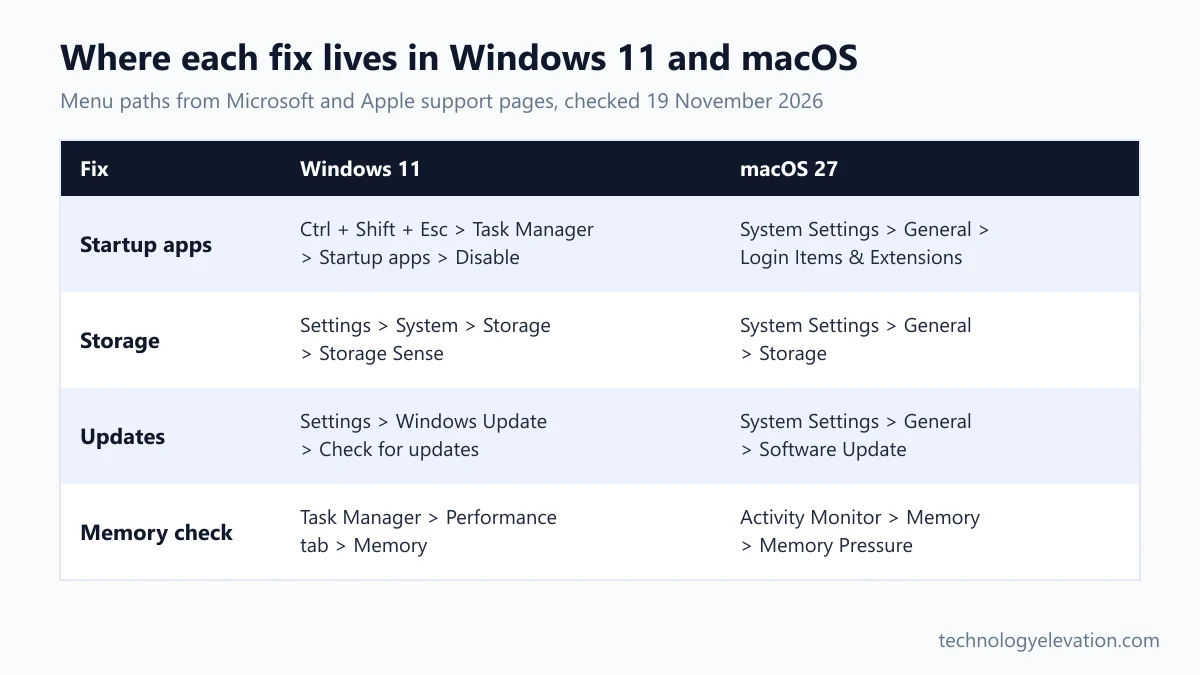
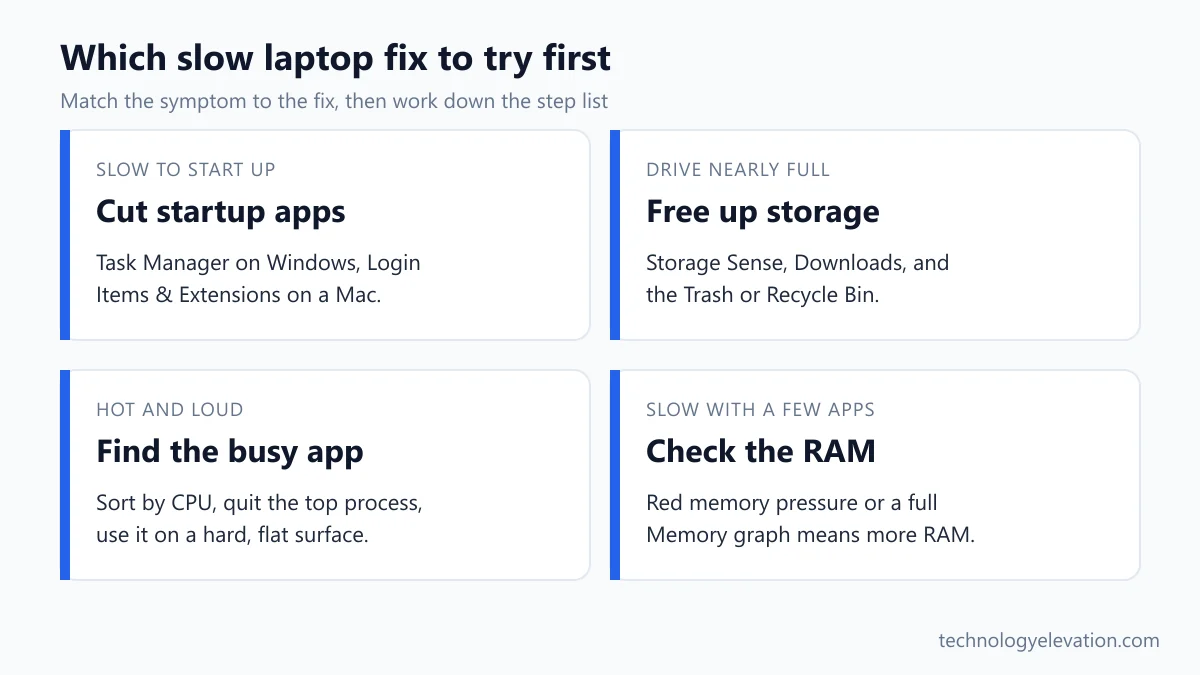
Apps that open automatically when you sign in slow the boot and keep running in the background all day. Turn them off in Task Manager on Windows 11, or in Login Items & Extensions on a Mac. The apps still work; they just wait until you open them.
On Windows 11, Microsoft lists these steps:
- Press Ctrl + Shift + Esc to open Task Manager.
- Select Startup apps from the left-hand menu.
- Right-click each app you do not need at startup, then select Disable.
On a Mac, Apple’s steps are:
- Choose Apple menu > System Settings, then click General in the sidebar.
- Click Login Items & Extensions. You may need to scroll down.
- Under Open at Login, select an item you do not need and click the minus button below the list.
- Under App Background Activity, turn off apps you do not want running tasks while they are closed.
Chat apps, game launchers, cloud storage clients and printer utilities are the usual offenders. Leave your antivirus and anything you rely on for backups alone.
Windows has a second layer too. Some apps run background processes even when you are not using them. Go to Start > Settings > Apps > Installed apps, select More options (…) next to the app, choose Advanced options, and under Background app permissions set “Let this app run in the background” to Never.
A nearly full drive makes a laptop slower
Low storage space slows a laptop and can stop updates from installing. Microsoft says low disk space can reduce system performance. On Windows 11, run Storage Sense and clear temporary files. On a Mac, use the Storage settings and empty the Trash.
On Windows 11, start with Storage Sense, which deletes temporary files and Recycle Bin items you do not need:
- Select Start > Settings > System > Storage.
- Select Storage Sense, then Run Storage sense now.
- Back on the Storage page, select Temporary files, tick the types you want to remove, then select Remove files.
- For a guided clean, open Cleanup recommendations on the same page and review Temporary files, Large or unused files, Files synced to the cloud and Unused apps.
Uninstalling apps frees space and cuts background activity at the same time. Go to Start > Settings > Apps > Installed apps, select More options (…) next to an app, then Uninstall.
On a Mac, choose Apple menu > System Settings, click General, then Storage. The bar at the top shows what is using the space, and the recommendations below it include Store in iCloud, Optimize Storage and Empty Trash automatically, which erases items that have sat in the Trash for more than 30 days.
Apple’s guide to freeing up storage space on Mac adds a few quick wins: delete files in your Downloads folder, remove old iPhone or iPad backups, uninstall apps you no longer use, and empty the Trash, because deleted files do not free space until you do.
Photos and videos are usually the biggest files on any laptop. Moving them to an external drive is the quickest way to win back a large chunk of space, and a fast one from our best portable SSD picks makes those files quick to open later.
| Task | Windows 11 | macOS 27 |
|---|---|---|
| See what fills the drive | Settings > System > Storage | System Settings > General > Storage |
| Clear temporary files | Storage Sense, or Temporary files > Remove files | Cleared automatically when space is needed |
| Remove unused apps | Settings > Apps > Installed apps > Uninstall | Delete the app, or use Storage recommendations |
| Empty deleted files | Empty the Recycle Bin | Empty the Trash, or turn on Empty Trash automatically |
System updates fix bugs that make a laptop sluggish
Updates often include fixes and performance improvements, so install every pending system update. On Windows 11, use Settings > Windows Update > Check for updates, then check optional driver updates. On a Mac, open System Settings > General > Software Update.
On Windows 11, Microsoft’s steps are:
- Select Start > Settings > Windows Update > Check for updates.
- If updates are available, select Download & install.
- For drivers, go to Windows Update > Advanced options > Optional updates, select the ones available, then select Download & install.
On a Mac, choose Apple menu > System Settings, click General in the sidebar, then Software Update. Install what it offers, and let the installation finish without putting the Mac to sleep or closing its lid. Apple recommends backing up first.
Still on Windows 10? Microsoft ended support on 14 October 2025, which means no more free security updates. Speed tweaks will not fix that, so it belongs on the list of reasons to upgrade or replace the laptop.
Windows 11 has four more settings worth changing
Windows 11 adds four fixes Macs do not need: a malware scan, a visual effects setting, a power mode and drive optimisation. None needs extra software. The power mode change is the only one with a real catch, because it uses more battery.
- Malware scan: Start > Settings > Privacy & security > Windows Security > Virus & threat protection, then Quick scan. Malware uses processor and disk time in the background.
- Visual effects: select Start, type “Adjust the appearance and performance of Windows”, open it, and on the Visual Effects tab select Adjust for best performance.
- Power mode: Start > Settings > System > Power & battery, then choose Best performance in the Power mode list. Microsoft warns that it drains a laptop battery faster and can make it run warmer.
- Optimize drives: select Start, type “Defragment and Optimize Drives”, open it, choose the drive and select Optimize.
Use Best performance when the laptop is plugged in at a desk, and switch back before a long day on battery. Turning off app notifications you do not need, under Settings > System > Notifications, gives a small extra gain.
Task Manager and Activity Monitor show what is hogging the laptop
When one app is eating the processor or memory, the whole laptop slows down. Open Task Manager on Windows with Ctrl + Shift + Esc, or Activity Monitor on a Mac, sort by CPU or memory, and quit the process at the top that you do not need.
On Windows, the Processes tab lists everything that is running. Right-click an app you are not using to close it. The Performance tab shows how hard the processor, memory and disk are working overall.
On a Mac, open Activity Monitor (search for it with Spotlight). Click CPU to see which processes use the most processing power. To quit one, select it in the Process Name list and click the stop button at the top left, then choose Quit. Force Quit stops it straight away but can lose unsaved work.
Look for something odd: a browser helper using 80% of the processor on a quiet page, or an app you closed hours ago still running. Those are the processes to stop.
A hot laptop with loud fans usually has a busy process
A laptop that runs hot and loud while doing nothing demanding usually has a runaway process or blocked vents. Apple says to check CPU activity in Activity Monitor when a Mac laptop gets warm during light tasks, and to use it on a stable surface with good ventilation.
Apple’s temperature guidance for Mac laptops is practical: use the laptop where the room is between 50 and 95 degrees F (10 and 35 degrees C), do not use it on a bed, pillow or bedding, and do not put anything over the keyboard or into the vents. If the problem continues, close and reopen the lid or restart.
The same habits help any Windows laptop. A laptop on a duvet is breathing through a blanket. Working at a desk, or raising the back edge on a stand or one of the best laptop cooling pads, gives the fans a clear path for air.
Apple also warns against using third-party temperature apps to diagnose hardware problems. If heat persists after a restart and the fans keep running, book a repair rather than trying fixes from a forum.
How to tell if your laptop needs more RAM
Your laptop needs more RAM if memory use stays high with only your normal apps open. On a Mac, red memory pressure in Activity Monitor means it needs more RAM. On Windows, check the Memory graph on Task Manager’s Performance tab during a typical workday.
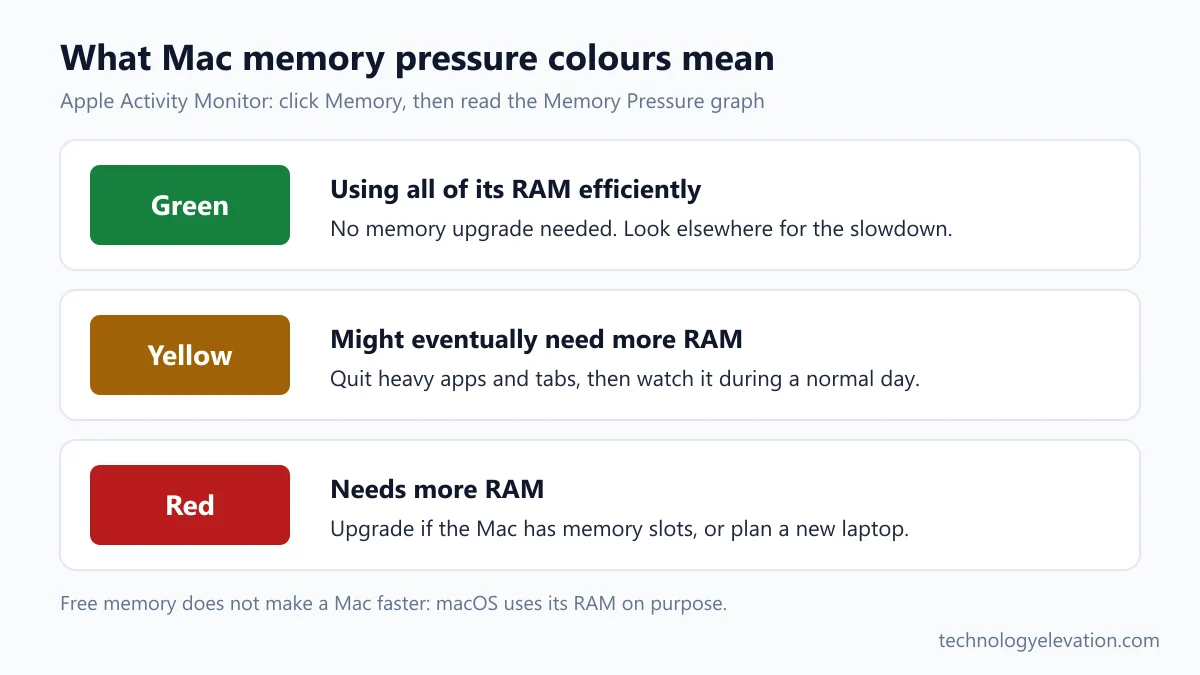
Apple’s Activity Monitor guide to checking RAM reads the Memory Pressure graph in three colours:
- Green: your Mac is using all of its RAM efficiently.
- Yellow: your Mac might eventually need more RAM.
- Red: your Mac needs more RAM.
Apple adds a point worth knowing: free memory does not make a Mac faster, because macOS uses all of the RAM it can on purpose. Watch the pressure colour, not the free number.
The bad news for most modern laptops is that RAM is soldered to the board. On a Mac, hold Option, choose Apple menu > System Information, and click Memory under Hardware. If there is no Memory Slots pane, the memory cannot be upgraded. Many thin Windows laptops are the same, so check the maker’s spec page before buying a memory stick.
For a sense of how much is enough, our breakdown of how much RAM you need in a laptop sets out what 8GB, 16GB and 32GB handle in 2026. Microsoft lists 4GB as the minimum for Windows 11, but that is a floor, not a comfortable amount.
Safe mode on a Mac shows whether startup software is the problem
Safe mode helps you find out whether software that loads as your Mac starts up is causing the slowdown. If the Mac runs noticeably better in safe mode, look hard at your login items and extensions. Safe mode also clears certain system caches.
On a Mac with Apple silicon, Apple’s steps are:
- Choose Apple menu > Shut Down and wait until the screen is black.
- Press and hold the power button until “Loading startup options” appears.
- Select a volume.
- Press and hold the Shift key, then click Continue in Safe Mode.
- Look for “Safe Boot” in the menu bar after you log in.
On an Intel-based Mac, turn it on or restart it, then immediately hold the Shift key until the login window appears. To leave safe mode, restart normally.
Not sure which kind you have? Choose Apple menu > About This Mac. A “Chip” line means Apple silicon, and a “Processor” line means Intel.
A new laptop is the better fix when the hardware has fallen behind
Replace the laptop when it is still slow after every step above, its memory stays maxed out with your normal apps, and the RAM cannot be upgraded. Microsoft itself says older PCs may not improve much and that upgrading the device may be the best long-term solution.
A Windows 10 laptop that cannot move to Windows 11 is the clearest case. It no longer gets free security updates, and no amount of tidying will change that.
When you shop, buy enough memory for the next five years, not the last five. Knowing how much RAM a laptop needs in 2026 saves you from buying the same problem twice, since most new laptops cannot be upgraded later.
If you want a laptop that doubles as a tablet for reading and notes, the best 2-in-1 laptops cover Windows convertibles, detachables and Chromebooks at several prices. Mac users can weigh the current MacBook Air, MacBook Pro and MacBook Neo in our look at which MacBook to buy.
Buying for a home office? A larger screen and a good keyboard matter as much as speed, and the laptops for working from home list weighs both. For drawing, note taking and travel, a 2-in-1 laptop with a pen is worth a look.
Frequently asked questions about speeding up a slow laptop
Why is my laptop so slow all of a sudden?
A sudden slowdown usually comes from an update installing in the background, a nearly full drive, or one app using most of the processor or memory. Restart the laptop, then open Task Manager or Activity Monitor to see which process sits at the top.
Does restarting a laptop make it faster?
Restarting often makes a laptop faster, because it clears apps stuck in memory and finishes pending updates. Microsoft recommends closing unused apps and tabs, then restarting if the PC is still slow. Sleep does not do the same job.
Will more RAM speed up my laptop?
More RAM speeds up a laptop only if it is running out of memory. On a Mac, yellow or red memory pressure in Activity Monitor is the sign. Many laptops have RAM soldered to the board, so check whether yours can be upgraded first.
How much free storage should a laptop have?
Microsoft and Apple do not set one figure. Microsoft says low disk space can slow a PC and stop Windows updates from installing, so clear temporary files, Downloads and the Trash or Recycle Bin whenever space runs low.
Do PC cleaner apps speed up a laptop?
You do not need paid cleaner apps to speed up a laptop. Windows 11 has Storage Sense, Task Manager and Windows Security built in, and macOS has Storage settings and Activity Monitor. Microsoft also offers its own PC Manager app for Windows.
Does Best performance mode drain a laptop battery?
Yes. Microsoft says the Best performance power mode increases power use, drains a laptop battery faster and can make it run warmer. Use it when the laptop is plugged in, and switch back for long stretches on battery.
Last checked and sources
Last checked on 19 November 2026 by Haris Khan. We followed each step against Microsoft’s and Apple’s current support articles for Windows 11 and macOS 27 and kept only what they state.
- Microsoft Support: Tips to improve PC performance in Windows
- Microsoft Support: Free up drive space in Windows
- Microsoft Support: Windows 11 system requirements; Windows 10 support has ended on October 14, 2025
- Apple Support: Free up storage space on Mac; Update macOS on Mac; Keep your Mac laptop within acceptable operating temperatures
- Apple Mac User Guide: Change Login Items & Extensions settings; Optimize storage space; Start up your Mac in safe mode
- Apple Activity Monitor User Guide: View CPU activity; View memory usage; Quit an app or process; Check if your Mac needs more RAM
We update this guide when Microsoft or Apple change their menus or release a new version of Windows or macOS.


GIPHY App Key not set. Please check settings