

 Haris Khan
You raise the phone to film the candles on a birthday cake, and a grey banner slides down instead: “Storage Almost Full.” The camera still opens, but you know the next video might not save. Almost everyone with an iPhone hits that moment, usually at the worst possible time.
Knowing how to free up storage on iPhone comes down to finding what is actually taking the space, then picking the fix that keeps your data. Apple’s own storage support article says the first stop is Settings, General, then iPhone Storage, where the phone lists every app by size and offers its own recommendations.
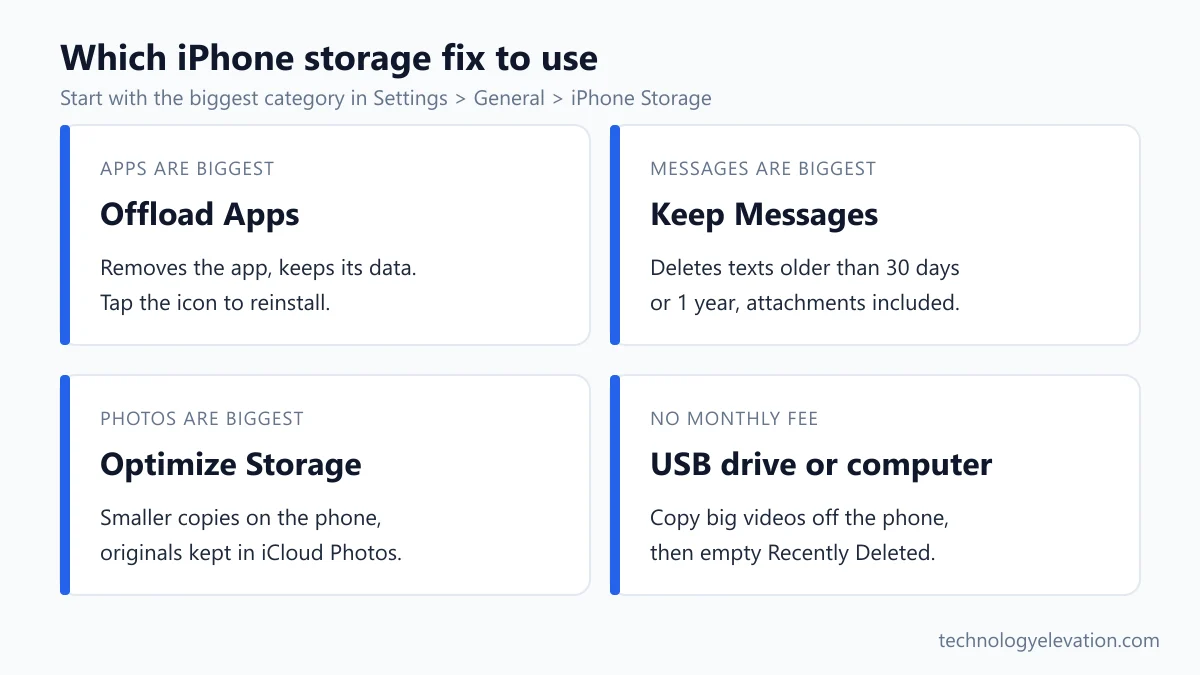
Most of the space usually sits in four places: photos and videos, Messages attachments, apps you forgot about, and downloaded music or shows. Each one has a setting that clears space without deleting anything you care about.
We checked every menu path below against Apple’s iPhone User Guide for iOS 27 on 19 November 2026. If your phone still runs iOS 26 or earlier, one or two names differ slightly, and we point those out.
How to free up storage on iPhone: the eight steps in the right order
To free up storage on iPhone, check Settings, General, iPhone Storage, then offload unused apps, set Messages to delete old conversations, turn on Optimize Storage for iCloud Photos, empty Recently Deleted, remove downloaded media, and only then pay for iCloud+ or move files off the phone.
- Open Settings, tap General, then tap iPhone Storage to see what uses the space.
- Tap Show All under the recommendations and turn on the ones that suit you.
- Offload apps you rarely use, one by one or automatically in Settings, Apps, App Store.
- In Settings, Apps, Messages, tap Keep Messages and choose 30 Days or 1 Year.
- Turn on Optimize Storage for iCloud Photos so the phone keeps smaller copies.
- Empty the Recently Deleted collection in Photos and the Recently Deleted folder in Messages.
- Remove downloaded songs, podcast episodes and offline videos you have already watched.
- If you still need room, upgrade iCloud+ or copy large files to a USB drive or a computer.
The order matters. Steps 1 to 7 cost nothing and keep your data. Step 8 is the only one that costs money or needs extra hardware.
Step 6 surprises people. Deleted photos and messages stay on the phone for 30 days, so a big clear-out frees almost nothing until you empty those folders.
Check iPhone Storage first so you clean the right thing
Go to Settings, tap General, then tap iPhone Storage. The coloured bar at the top shows how much space each category uses, and the list below ranks apps by size. Start with whatever sits at the top, because clearing a small category wastes your time.
Tap any app’s name for detail. Apple notes that cached and temporary data might not count toward an app’s usage, so the number is a guide, not an exact figure.
Apple splits the bar into these categories:
| Category | What Apple counts in it | Main way to shrink it |
|---|---|---|
| Apps | Apps and their content, files in On My iPhone, Safari downloads | Offload or delete apps |
| Photos | Photos and videos in the Photos app | Optimize Storage, empty Recently Deleted |
| Media | Music, videos, podcasts, ringtones, voice memos | Remove downloads |
| Messages | Messages and their attachments | Keep Messages, delete attachments |
| Other and System | Siri voices, fonts, caches, Spotlight index, iOS itself | Mostly managed by iOS |
The recommendations above the list are worth a look. Tap Show All, read each one, then tap Enable to turn it on, or tap the recommendation itself to review what it would delete.
Prefer a bigger screen? On a Mac, open Finder, connect the iPhone and select it in the sidebar. On a Windows PC, use the Apple Devices app. Hovering over the storage bar shows each content type. Apple says to trust the phone’s own figures when the two disagree, because computers lump cached files into “Other”.
Offload Apps removes the app but keeps your documents and data
Offloading an app deletes the app itself but keeps its documents and data on the phone. The icon stays on the Home Screen with a small cloud symbol, and one tap reinstalls it with everything where you left it, as long as the app is still in the App Store.
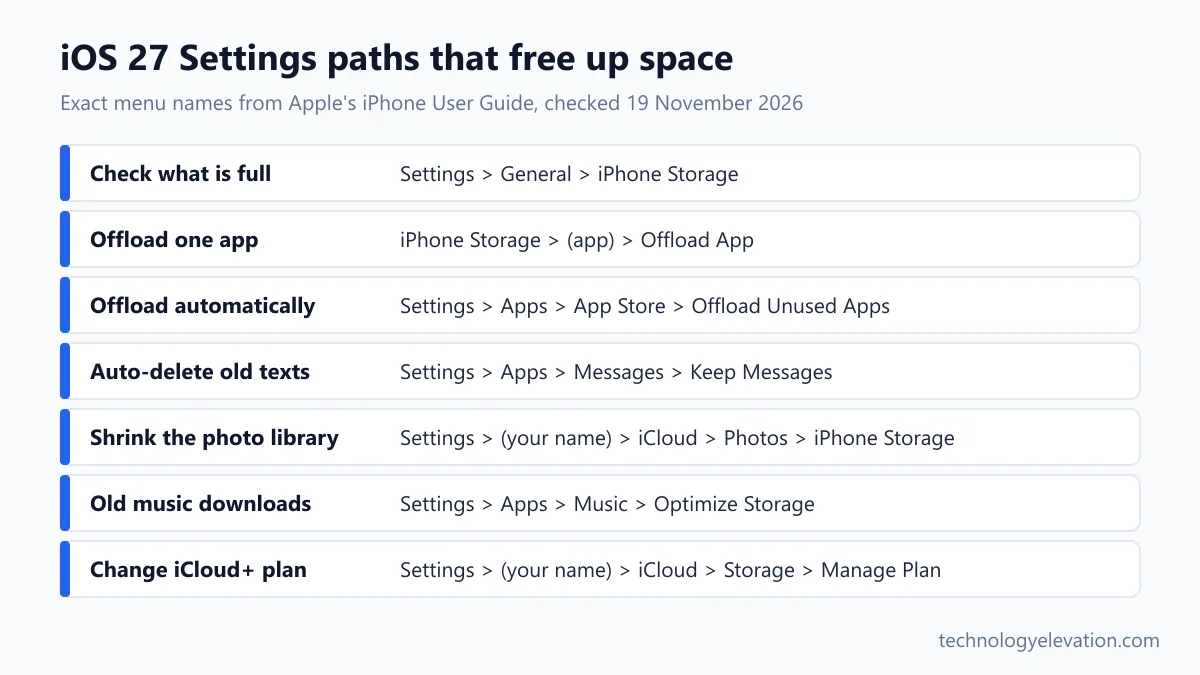
To offload a single app, go to Settings, General, iPhone Storage, tap the app, then tap Offload App. That screen also has Delete App, which removes the app and its data. Pick carefully: a game you deleted may lose its saves, while an offloaded one keeps them.
To let the phone do it for you, open Settings, tap Apps, tap App Store, then turn on Offload Unused Apps, as Apple’s Manage storage on iPhone guide describes. When storage runs low, iOS removes apps you have not used in a while and keeps their data.
Airline, hotel and theme park apps are the classic candidates. You open them twice a year, yet they sit on the phone all year.
Deleting an app outright is quicker for apps you will never open again: touch and hold its icon, tap Remove App, then Delete App. Apple notes that data the app saved to iCloud is not deleted, and that the free space figure can take a moment to update.
Messages attachments are often the biggest hidden space user
Years of group chats full of videos, memes and voice notes add up fast. The fastest fix is Settings, Apps, Messages, Keep Messages, then 30 Days or 1 Year. Conversations and attachments older than that are then removed automatically, on an ongoing basis.
Apple’s warning is worth repeating: any option other than Forever deletes whole conversations, attachments included, once they pass that age. Save the photos you want to keep before you switch it on.
To clear only the heavy files, open a conversation in Messages, tap the contact or group icon at the top, then tap a category such as Photos. Tap Edit, then Select, choose the attachments, and delete them. The rest of the chat stays.
Deleted messages sit in Recently Deleted for up to 30 days. To get the space back now, open the menu at the top of the conversation list, tap Recently Deleted, select the conversations and tap Delete. Apple says this cannot be undone.
If you use Messages in iCloud, deleting on the iPhone also deletes on your iPad and Mac. That is handy for a clean-up, and a problem if the Mac was your archive.
Optimize Storage in iCloud Photos shrinks the library on the phone
Optimize Storage keeps smaller, space-saving versions of your photos and videos on the iPhone while iCloud holds the full-resolution originals. When the phone needs room, iOS shrinks the photos you open least first. You can download any original again over Wi-Fi or cellular.
In iOS 27, go to Settings, tap your name, tap iCloud, then under Saved to iCloud tap Photos. Tap iPhone Storage and choose Optimize Storage. In iOS 26 or earlier, Optimize Storage sits directly on the Photos screen.
The catch is the cloud side. Your full library has to fit in iCloud, and Apple gives every account only 5 GB free. A phone with 80 GB of photos needs a paid plan for this to work.
Apple also points out that iCloud Photos are not duplicated in your iCloud backup, so keep a second copy of the library somewhere else, such as a Mac or an external drive.
Then clear the bin. In Photos, tap Collections, open Recently Deleted below Utilities, tap View Album and unlock the phone. Tap Select, choose the items, then tap Delete. Without this step, deleted photos keep taking space for 30 days.
Moving to a new phone soon? The same iCloud library carries across when you transfer data to a new iPhone, so the clean-up is not wasted.
Downloaded music, podcasts and videos are the easiest wins
Downloads for offline listening and viewing pile up quietly. Apple Music can remove songs you have not played in a while through Settings, Apps, Music, Optimize Storage, and Podcasts lets you remove every downloaded episode at once from Library, Downloaded.
For music, Apple lists three more options. Touch and hold a downloaded item in Music and tap Remove Download. Go to Settings, Apps, Music, Downloaded Music, tap Edit and remove all songs or single artists. Or turn off Sync Library to take Apple Music songs off the phone while they stay in your library on other devices.
For podcasts, open the Podcasts app, tap Library, then Downloaded, open the menu and tap Remove All Downloads. Saved episodes download automatically, so turn off Download When Saving in Settings, Apps, Podcasts if that keeps refilling the phone.
Videos downloaded in the TV app and in other streaming apps for a flight are easy to forget. Apple’s guide suggests reviewing them and removing anything you have already watched. Films are among the largest files a phone holds, so they are worth checking first.
Files is the last stop. Old PDFs, zip files and Safari downloads saved to On My iPhone count under Apps, and you can delete them in the Files app like any other file.
System Data and Other mostly clear themselves
The grey System and Other parts of the bar hold iOS itself, Siri voices, fonts, dictionaries, logs, caches and the Spotlight index. Apple says the iPhone removes cached and temporary files on its own when it needs space, and that you cannot delete them by hand.
Those caches come from streaming. When you watch or play something, the phone keeps a copy so it loads faster next time, then drops it when space runs short. That is why Other can grow and then shrink without you doing anything.
Safari’s cache is the exception you can clear yourself. Its Clear History option removes browsing history, cookies and cached website data for the timeframe you pick. Expect to sign back in to some sites afterwards.
If System Data looks huge after a big update, give it a day of normal use before you panic. Apple’s advice is to free space in the categories you control and let iOS manage the rest.
Resetting the phone and restoring a backup is a last resort, not a storage tip. If you ever go that route, make an iCloud backup before you reset the iPhone.
An iCloud+ plan costs from $0.99 a month in the US
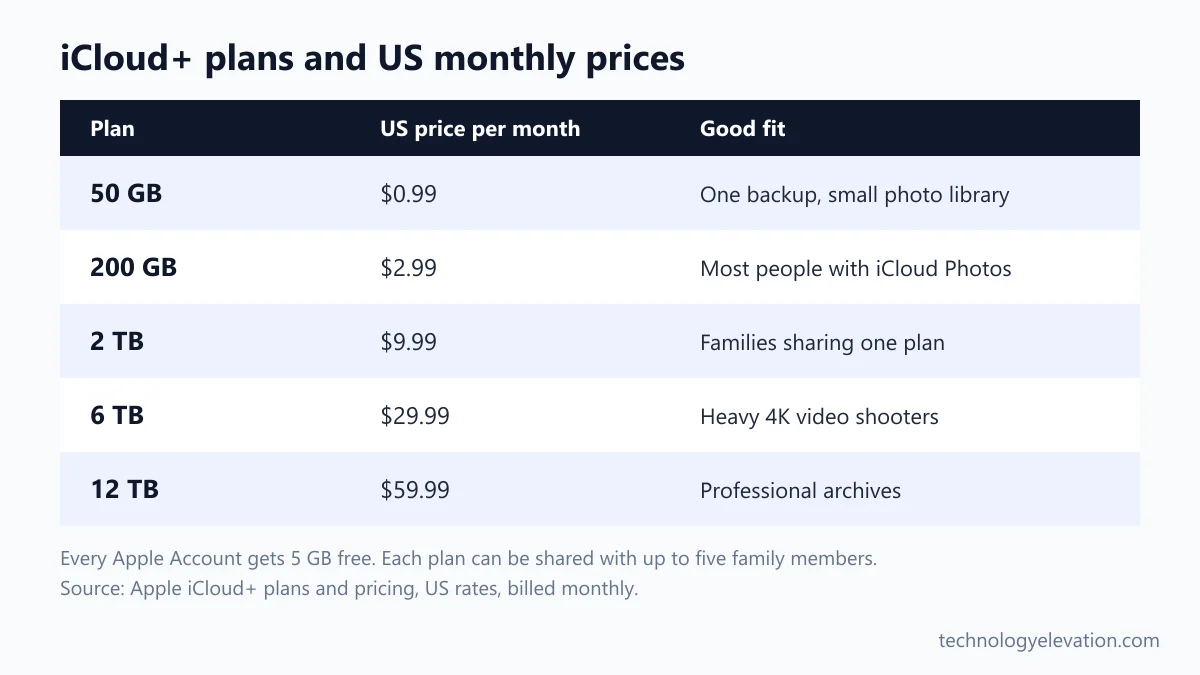
Every Apple Account gets 5 GB of iCloud storage free. In the US, iCloud+ costs $0.99 a month for 50 GB, $2.99 for 200 GB, $9.99 for 2 TB, $29.99 for 6 TB and $59.99 for 12 TB, and every plan can be shared with up to five family members.
| iCloud+ plan | US price per month | Good fit |
|---|---|---|
| 50 GB | $0.99 | One phone’s backup and a small photo library |
| 200 GB | $2.99 | Most single users with iCloud Photos on |
| 2 TB | $9.99 | Families sharing one plan, big 4K video libraries |
| 6 TB | $29.99 | Heavy video shooters and large shared libraries |
| 12 TB | $59.99 | Professional archives |
Prices are Apple’s published US rates on its iCloud+ plans and pricing page, billed monthly. Other countries pay different amounts: the UK 2 TB plan, for example, is £8.99.
To upgrade or change plan, go to Settings, tap your name, tap iCloud, tap Storage, then Manage Plan. Cancelling later drops you back to 5 GB, so download anything that will not fit first.
On its own, extra iCloud space does not free up the phone. It only helps once Optimize Storage for Photos is on, or once you move files to iCloud Drive and let them stay in the cloud.
Plans also bundle extras such as iCloud Private Relay, Hide My Email and HomeKit Secure Video, which can tip the decision if you would use them anyway.
Move big files to a USB drive or a computer instead of paying
If you would rather not pay every month, copy large videos and files to a USB drive or SD card through the Files app, or back up the photo library to a Mac or PC, then delete the originals from the phone and empty Recently Deleted.
Apple says the Files app can open USB drives and SD cards plugged into the charging port. iPhones with USB-C take many drives directly, and Lightning models need an adapter such as the Lightning to USB 3 Camera Adapter. External drives are one of the most useful things USB-C can do on iPhone.
The drive needs a single data partition and a format the iPhone reads: APFS, macOS Extended, exFAT, FAT32 or FAT. Apple adds that external hard drives often need their own power, and a powered USB hub solves that on USB-C models.
A small, fast drive makes this painless. A pocket-size portable SSD also works with a laptop, so one drive covers both.
Other cloud services work too, but check their free tiers before you rely on them. Google, for example, ended unlimited free Google Photos storage years ago.
A bigger iPhone is the real fix when storage keeps running out
If you clear space every few weeks and it fills again, the phone is simply too small for how you use it. Every current iPhone except the iPhone 16 now starts at 256GB, so a phone bought today has double the base storage of many older models.
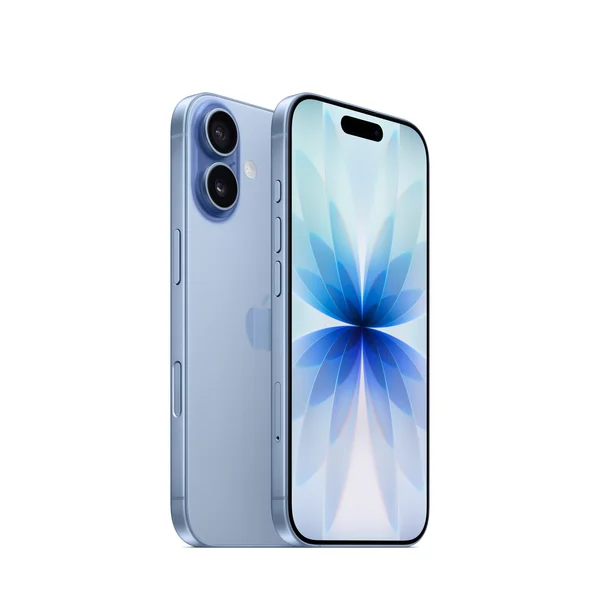
The jump matters most for people who shoot 4K video or keep years of photos on the device. When you decide which iPhone to buy, 256GB suits most people, and 512GB or more makes sense if you shoot a lot of 4K video.
Storage cannot be upgraded after you buy, so it is worth paying for one size up rather than fighting the “Storage Almost Full” banner for three years. A cheaper model with more storage is often a better deal than a Pro with too little.
If you are weighing up the current lineup, the best iPhone for most people starts at 256GB with a 120Hz screen, which covers most photo libraries with room to spare.
Frequently asked questions about freeing up iPhone storage
Does offloading an app delete my data?
No, offloading removes only the app and keeps its documents and data on the iPhone. The icon stays on the Home Screen with a cloud symbol, and tapping it reinstalls the app with your data in place, as long as it is still in the App Store.
Why is my iPhone storage still full after deleting photos?
Deleted photos stay in the Recently Deleted collection for 30 days and keep using space. Open Photos, tap Collections, open Recently Deleted, then select the items and tap Delete to free the space right away.
Can I delete System Data on iPhone?
You cannot delete System Data or Other by hand. Apple says the iPhone removes cached and temporary files itself when it needs more space, so free up the categories you control, such as apps, photos and messages, instead.
How do I stop Messages from using so much storage?
Go to Settings, tap Apps, tap Messages, then tap Keep Messages and choose 30 Days or 1 Year. Older conversations and their attachments are then deleted automatically, so save any photos you want to keep first.
Does buying more iCloud storage free up space on my iPhone?
Not by itself, because iCloud storage and iPhone storage are separate. More iCloud space helps once you turn on Optimize Storage for iCloud Photos, which keeps smaller copies on the phone and the originals in iCloud.
How much iCloud storage is free?
Every Apple Account gets 5 GB of iCloud storage for free. In the US, iCloud+ plans start at $0.99 a month for 50 GB and go up to $59.99 a month for 12 TB, and any plan can be shared with five family members.
Last checked and sources
Last checked on 19 November 2026 by Haris Khan. We followed every menu path against Apple’s current iPhone User Guide for iOS 27 and Apple Support articles, and kept only the steps and prices Apple publishes.
- Apple Support: How to check the storage on your iPhone and iPad
- Apple iPhone User Guide (iOS 27): Manage storage on iPhone; Remove or delete apps; Delete messages and attachments in Messages; Delete or hide photos and videos
- Apple iPhone User Guide (iOS 27): Add music and listen offline; Download, save, and remove podcast episodes; Clear your cache and cookies; Connect external storage devices
- Apple Support: Set up and use iCloud Photos
- Apple Support: iCloud+ plans and pricing; iPhone User Guide: Subscribe to iCloud+
We update this guide when Apple changes the Settings menus, iCloud+ plans or iPhone storage options.


GIPHY App Key not set. Please check settings