

 Haris Khan
Press the power button on a five-year-old desktop with a hard drive and you can hear it work: a faint whir, a few clicks, then a long wait while Windows loads. Swap that drive for a solid state drive and the same machine reaches the desktop before you have finished sitting down. That one change is still the biggest speed upgrade most old computers can get.
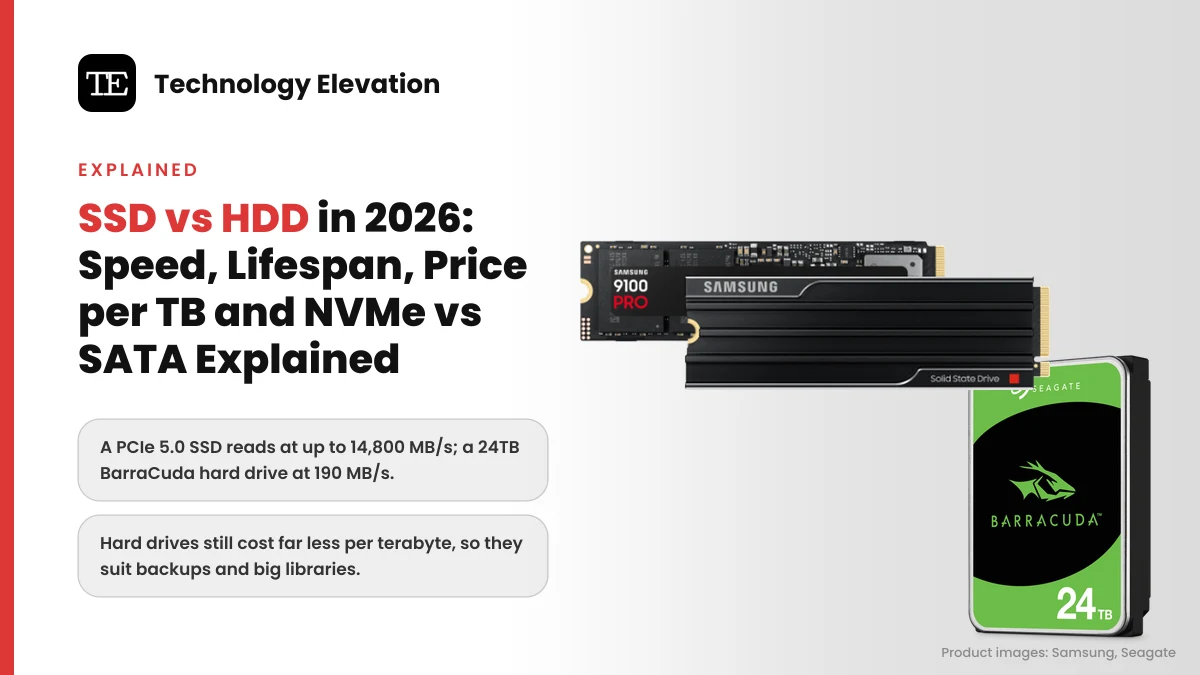
The SSD vs HDD question used to be simple: SSDs were fast and tiny, hard drives were slow and huge. In 2026 both have moved. Samsung’s fastest consumer SSD now reads at up to 14,800 MB/s over PCIe 5.0, while Seagate sells a desktop hard drive that holds 24TB.
Price moved too, and not in the direction buyers hoped. Flash memory got more expensive through 2026, so the gap in cost per terabyte widened again just as people were ready to give up on spinning disks.
Below we explain speed, lifespan, price per TB, the NVMe vs SATA split that confuses most shoppers, and why neither drive counts as a backup on its own. Every figure comes from the makers’ own spec sheets.
SSD vs HDD: an SSD is much faster, a hard drive is cheaper per terabyte
An SSD stores data on flash chips with no moving parts, so it starts programs and loads files many times faster than a hard drive. A hard drive stores data on spinning magnetic platters, which makes it slower but cheaper per terabyte and available in far bigger sizes.
The quick split by job:
- Your main drive (Windows, macOS, apps, games): an SSD, ideally NVMe.
- Upgrading an older laptop with a 2.5-inch bay: a SATA SSD.
- Photo, video and media libraries over 4TB: a hard drive.
- Backups: a hard drive or portable SSD, plus a copy stored somewhere else.
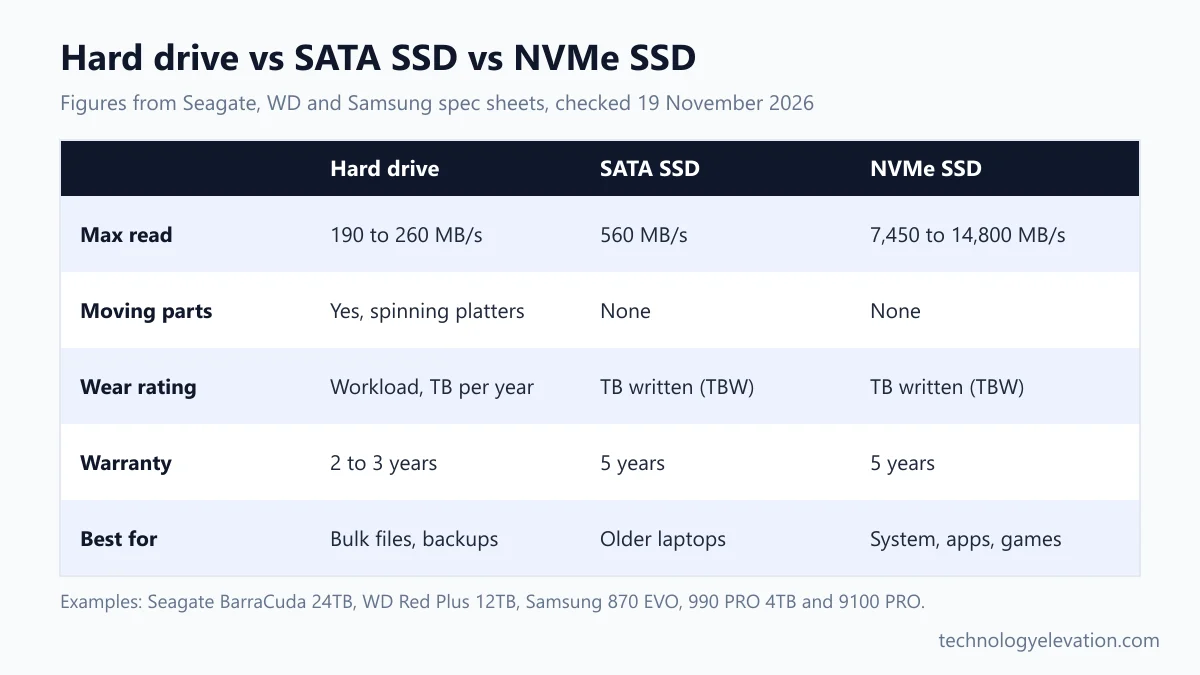
| Drive type | Example | Max sequential read | Moving parts | Warranty |
|---|---|---|---|---|
| Desktop hard drive | Seagate BarraCuda 24TB | 190 MB/s | Yes | 2 years |
| NAS hard drive | WD Red Plus 12TB | Up to 260 MB/s | Yes | 3 years |
| SATA SSD | Samsung 870 EVO | 560 MB/s | No | 5 years |
| NVMe SSD, PCIe 5.0 | Samsung 9100 PRO | 14,800 MB/s | No | 5 years |
Speeds are the makers’ rated maximums. Real copies land below them, especially on hard drives once files get small and scattered.
SSDs feel faster because nothing has to spin or seek
SSDs feel faster mainly because they find data almost instantly. A hard drive has to spin its platter and swing a read head to the right spot for every scattered file, while an SSD just reads the right flash cells. Boot times and game loads depend on it.
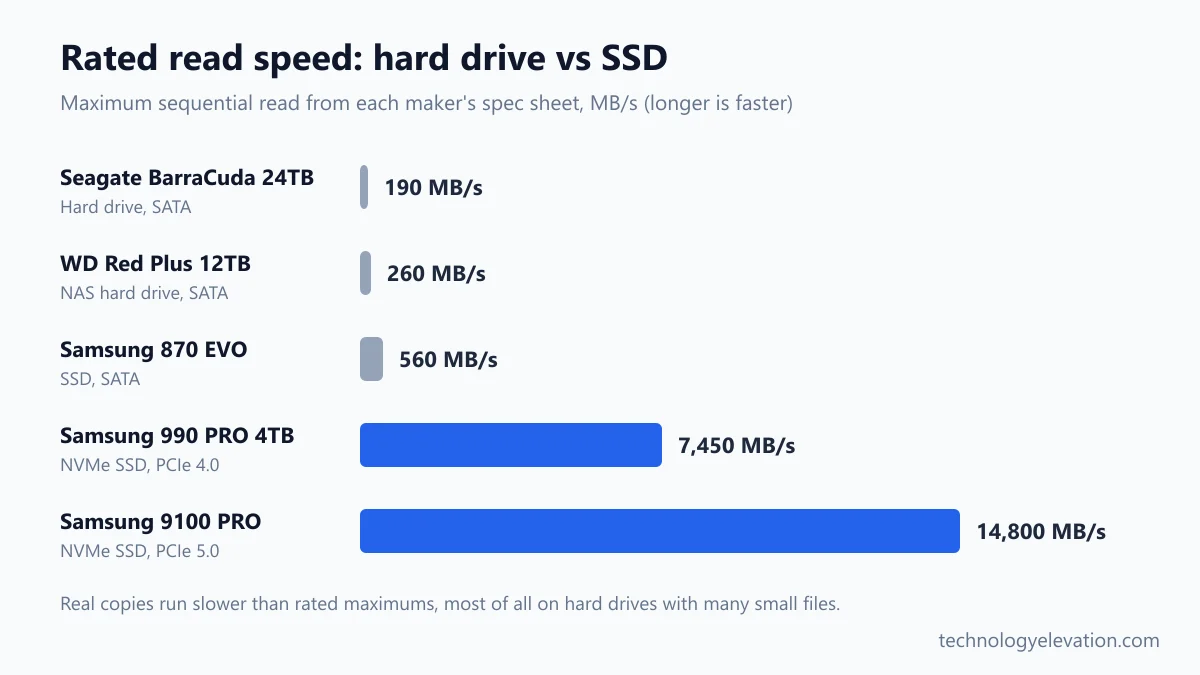
Sequential speed, the number on the box, tells part of the story. Seagate rates the 24TB BarraCuda at 190 MB/s. Samsung rates the SATA 870 EVO at 560 MB/s and the PCIe 5.0 9100 PRO at 14,800 MB/s, about 78 times faster on paper.
Put that in real terms with a 50GB game folder. At those rated speeds, the BarraCuda needs about 4 minutes and 23 seconds to read it, the 870 EVO about 90 seconds, and the 9100 PRO under 4 seconds.
Random access is where hard drives really fall behind. Starting Windows means reading thousands of small files spread all over the drive. Samsung rates the 9100 PRO at up to 2,200K random read IOPS (input/output operations per second). A hard drive’s head physically moves for each of those jumps, so it manages a tiny fraction of that.
That is why a cheap SATA SSD makes an old laptop feel new, even though it is “only” about three times faster than a hard drive in sequential tests. The gap in everyday clicking is far bigger than the box suggests.
NVMe vs SATA: the connection decides the speed, not the word SSD
NVMe and SATA are two ways an SSD talks to your computer. SATA SSDs top out near 560 MB/s because the SATA link maxes out at 6 Gb/s. NVMe SSDs run over PCIe lanes, reaching about 7,450 MB/s on PCIe 4.0 and 14,800 MB/s on PCIe 5.0.
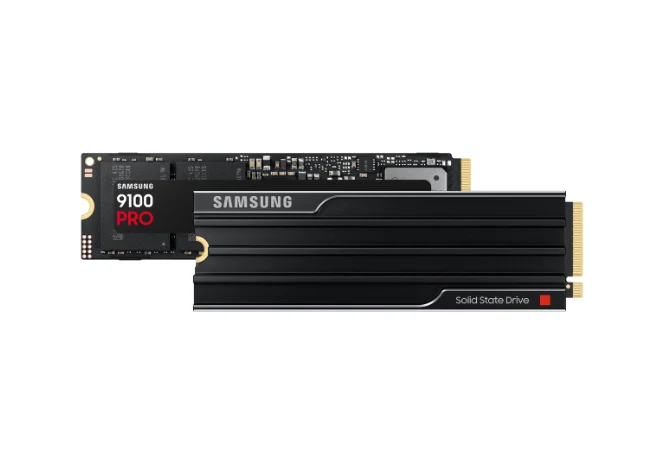
The confusing part is the shape. M.2 is a form factor, a small stick about the size of a stick of gum, and some M.2 drives still use SATA. Check that both the drive and the slot say NVMe or PCIe, or you can end up with a fast drive in a slow slot, or a drive that won’t be detected at all.
PCIe generations matter too. A PCIe 5.0 drive works in a PCIe 4.0 slot, but at PCIe 4.0 speed. Samsung’s own footnote for the 9100 PRO tells buyers to check whether their Intel or AMD system supports PCIe 5.0 before expecting the full 14,800 MB/s.
Consoles have their own rules. Sony asks for a PCIe Gen4 x4 M.2 NVMe SSD between 250GB and 8TB, and recommends 5,500 MB/s or faster. Any drive on a list of the best SSD for PS5 needs to clear that bar, plus fit the slot with a heatsink attached.
For most people, a PCIe 4.0 NVMe drive is the sweet spot. Games and apps rarely load noticeably faster on PCIe 5.0, and PCIe 5.0 drives cost more and run hotter. Save PCIe 5.0 for big video edits and huge file copies.
Lifespan: SSDs wear out by writes, hard drives by moving parts
SSDs and hard drives both last years in normal use, but they wear differently. An SSD’s flash cells wear a little with every write, so makers rate them in terabytes written (TBW). A hard drive wears mechanically, so makers rate yearly workload and expected hours instead.
The SSD numbers are generous. Samsung rates the 2TB 9100 PRO at 1,200 TBW, backed by a five-year warranty. To hit that limit inside five years, you would need to write about 657GB every single day. The 8TB version is rated at 4,800 TBW.
Hard drive ratings look different. Seagate rates the 24TB BarraCuda for 120TB per year of workload, about 2,400 power-on hours a year, and a two-year warranty. WD rates the Red Plus, built for always-on NAS boxes (network storage that sits on your router), at 180TB per year, 1 million hours MTBF and a three-year warranty.
Real-world failure data comes mostly from hard drives. Backblaze, a cloud backup company, tracked more than 350,000 drives in its Q2 2026 Drive Stats report and measured a lifetime annualized failure rate of 1.41%. Put simply, about 1 in 70 drives fails each year.
SSDs have one fragile spot: they don’t love sitting unpowered in a drawer for years. Hard drives hate drops and bumps, especially while running. Either way, treat every drive as something that will eventually fail without warning.
One more hard drive detail matters. Some cheaper models use SMR (shingled magnetic recording), which overlaps tracks like roof tiles to fit more data. Seagate’s 8TB BarraCuda is SMR, spins at 5,400 rpm and is rated for 55TB a year, while the 12TB to 24TB models use CMR and spin at 7,200 rpm. SMR drives slow down badly during long writes, so avoid them for NAS boxes.
Price per TB: hard drives still win, and the gap grew in 2026
Hard drives still cost far less per terabyte than SSDs, which is why every cloud company still buys them by the warehouse. SSD prices rose sharply through 2026, so the gap widened instead of closing, just as more people needed a lot of space for games and 4K video.
The US government’s cybersecurity agency, CISA, puts it plainly in its guide to data backup options: solid state media are more expensive per gigabyte than hard drives and still do not match their capacity.
To compare drives yourself, divide the price by the capacity in terabytes. Samsung’s 9100 PRO launched at $199.99 for 1TB and $549.99 for 4TB. That works out to $200 per TB for the small drive and about $137.50 per TB for the big one, so bigger SSDs usually cost less per terabyte.
Those launch prices are history now. Samsung’s own US store listed the 4TB 9100 PRO at more than double its launch price on 19 November 2026, and Backblaze wrote in September that SSD prices had climbed steeply in under a year. Run the same sum on a large hard drive and you will usually land at a small fraction of any SSD’s cost per terabyte.
Black Friday helps a little, but watch the size. A 1TB SSD often looks like the bargain until you divide by capacity and find the 2TB or 4TB version is cheaper per terabyte.
Hard drives still make sense for bulk storage and NAS boxes
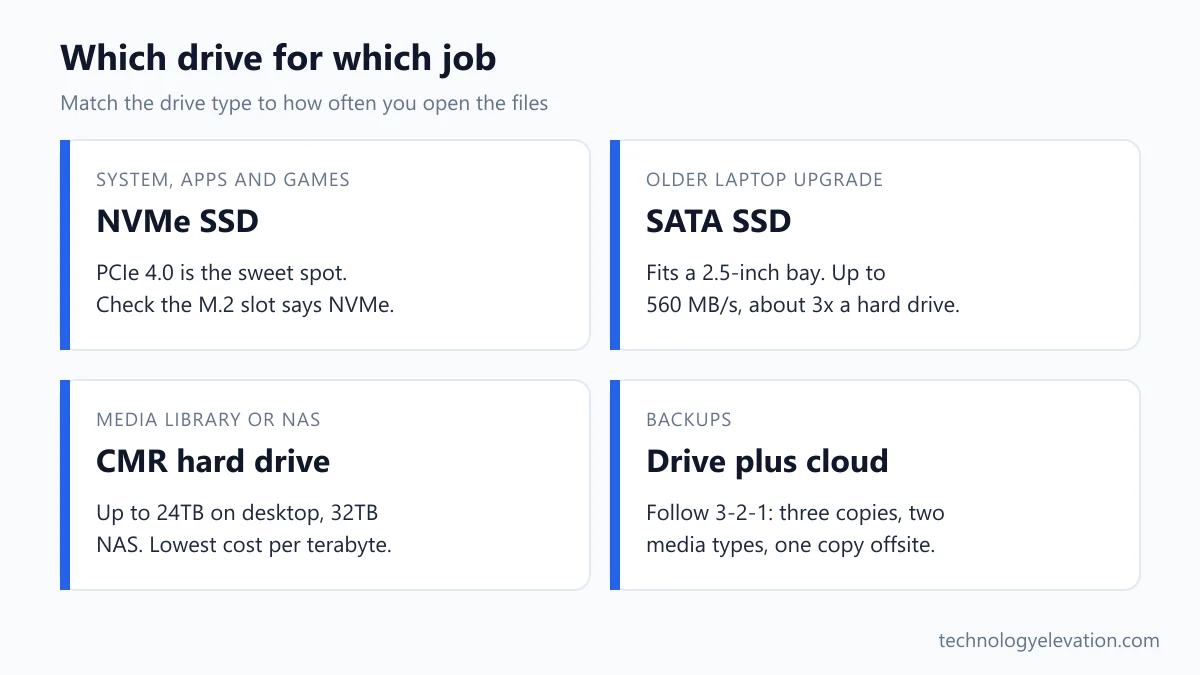
Hard drives still make sense when you need a lot of space and don’t need instant access: media libraries, security camera footage, NAS boxes and local backups. Seagate’s desktop BarraCuda reaches 24TB, and its IronWolf Pro NAS line reaches 32TB.
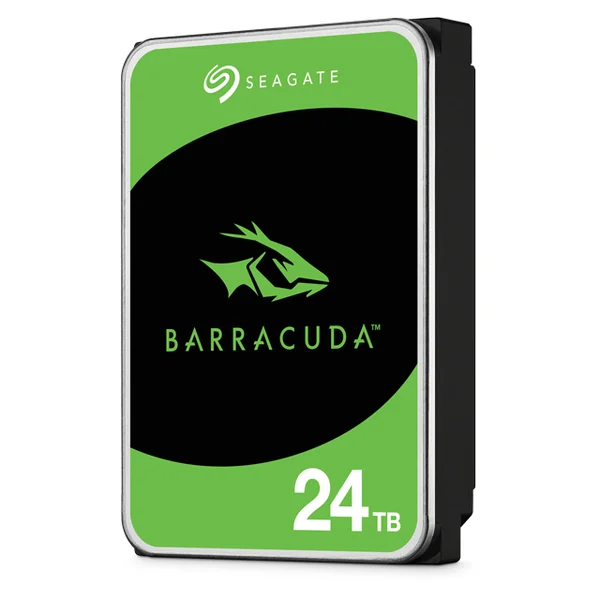
Consumer SSDs top out far lower. Samsung’s biggest 9100 PRO is 8TB, so a 24TB library would need three of them and three free M.2 slots.
Hard drives draw steady power, though. Seagate lists the 24TB BarraCuda at 8.9W typical while working and 6.7W at idle. In a NAS running all day, that adds up over a year, and the drives make an audible hum and click.
Size limits where they fit. A 3.5-inch desktop drive needs a tower bay or an external enclosure with its own power supply. Small computers have no room for one: even the best mini PC models take only M.2 SSDs or built-in storage, so bulk storage there means an external drive or a NAS.
A good split for a home setup: a 1TB or 2TB NVMe SSD inside the computer for the system and apps, and a big hard drive or NAS for everything you keep but rarely open.
The right drive depends on the device you are filling
Laptops, mini PCs, Macs and consoles should all run on an SSD in 2026. Desktop towers can add a hard drive for cheap bulk space. Your device’s slots decide the rest: an M.2 NVMe slot, a 2.5-inch SATA bay, or neither.
- Older laptop with a 2.5-inch bay: a SATA SSD such as the Samsung 870 EVO is the cheapest big speed boost it can get.
- Newer laptop or mini PC: an M.2 NVMe SSD. A mini PC with a spare M.2 slot can take a second SSD later instead of an external drive.
- MacBook: the SSD is chosen at checkout and can’t be upgraded later, so pick the size carefully when deciding which MacBook to buy, and add a portable SSD for overflow.
- Desktop tower: NVMe for the system, plus an optional hard drive for media.
- PS5: a PCIe Gen4 NVMe SSD that meets Sony’s 5,500 MB/s recommendation.
Storage and memory often get mixed up. Your SSD holds files for good, while RAM holds what you are working on right now. If an older laptop still crawls after an SSD upgrade, the next thing to check is how much RAM you need for what you run.
How to choose between an SSD and a hard drive
Choose an SSD for anything you boot from or open every day, and a hard drive for bulk files and backups where cost per terabyte matters most. Then check your slot type, the capacity you need in two years, and the warranty.
- Check which slots or bays your computer has: M.2 NVMe, M.2 SATA, 2.5-inch SATA or 3.5-inch SATA.
- Put the operating system, apps and games on an SSD.
- Pick NVMe if the slot supports it, and PCIe 4.0 unless you edit large video files.
- Size the SSD for two years of growth: 1TB is a sensible floor, 2TB for gamers.
- Use a CMR hard drive for libraries and backups bigger than about 4TB.
- Compare cost per terabyte, not the sticker price.
- Check the warranty length and TBW or workload rating.
- Set up a backup to a second drive before you move any important files.
On Windows, the Defragment and Optimize Drives tool shows whether each drive is a hard disk or a solid state drive. Windows defragments hard drives and trims SSDs on its own schedule, so you never need to defragment an SSD by hand.
Neither an SSD nor a hard drive is a backup on its own
A single drive is never a backup, however fast or new it is. Follow the 3-2-1 rule: keep three copies of important files, on two different types of storage, with one copy stored away from home, such as in the cloud.
CISA’s backup guide sets out exactly that rule. A typical home version: your files on the computer’s SSD, a nightly copy on an external hard drive, and a third copy in a cloud service.
Both big operating systems make the first two copies easy. Apple’s Time Machine backs up a Mac automatically to an external drive, and Windows includes its own backup tools for files and settings.
Hard drives suit backup jobs well because big capacity costs less. A fast portable SSD is the better pick if you carry your backup between home and work, since it shrugs off bumps that can kill a hard drive in a bag.
Don’t wait for a warning. Drives often fail with no sign at all, and a backup made the day after is no use.
Frequently asked questions about SSD vs HDD
Is an SSD better than an HDD?
For your main drive, yes. An SSD boots and loads apps far faster, runs silently and has no moving parts to damage. A hard drive is still better value for bulk storage and backups, because it costs much less per terabyte.
How long does an SSD last compared with a hard drive?
Both usually last several years in home use. SSDs are rated by terabytes written, such as 1,200 TBW for a 2TB Samsung 9100 PRO, which few home users ever reach. Hard drives wear mechanically and usually carry two- or three-year warranties against an SSD’s five.
Is NVMe faster than SATA?
Yes, by a wide margin. SATA SSDs top out near 560 MB/s, while NVMe SSDs reach about 7,450 MB/s on PCIe 4.0 and 14,800 MB/s on PCIe 5.0. Your computer needs an NVMe-capable M.2 slot to use one.
Can I replace my hard drive with an SSD?
Usually, yes. A laptop or desktop with a 2.5-inch SATA bay takes a 2.5-inch SATA SSD in the same spot. Clone the old drive or reinstall the operating system, and keep a backup of your files first.
Should I use an SSD or a hard drive for backups?
A hard drive is the cheaper choice for large backups at home. A portable SSD suits backups you carry around, because it handles knocks better. Either way, keep a third copy somewhere else, such as cloud storage.
Do SSDs need defragmenting?
No, and you should not defragment an SSD manually. Windows trims SSDs automatically instead, which tells the drive which blocks it can clean up. Defragmenting only helps hard drives, where files spread across the platter.
Why are SSDs so expensive in 2026?
SSD prices climbed sharply through 2026, and Backblaze reported a steep rise in under a year. Samsung’s own store listed some SSDs at more than double their launch prices by November. Hard drive prices per terabyte stayed far lower.
Last checked and sources
Last checked on 19 November 2026 by Haris Khan. We compared the makers’ published spec sheets and warranty terms and kept only figures they state.
- Samsung US Newsroom: 9100 PRO launch announcement, speeds, TBW and launch prices
- Samsung US: 870 EVO and 990 PRO product pages
- Seagate: BarraCuda 3.5 HDD data sheet; IronWolf Pro product page
- Western Digital: WD Red Plus product brief
- Sony PlayStation Support: PS5 M.2 SSD requirements
- Backblaze: Drive Stats for Q2 2026; flash storage pricing post, September 2026
- CISA: Data Backup Options
- Microsoft Support: Defragment and Optimize Drives; Apple Support: Time Machine
We update this guide when new drive generations launch or makers change their specs and warranties.


GIPHY App Key not set. Please check settings