

 Haris Khan
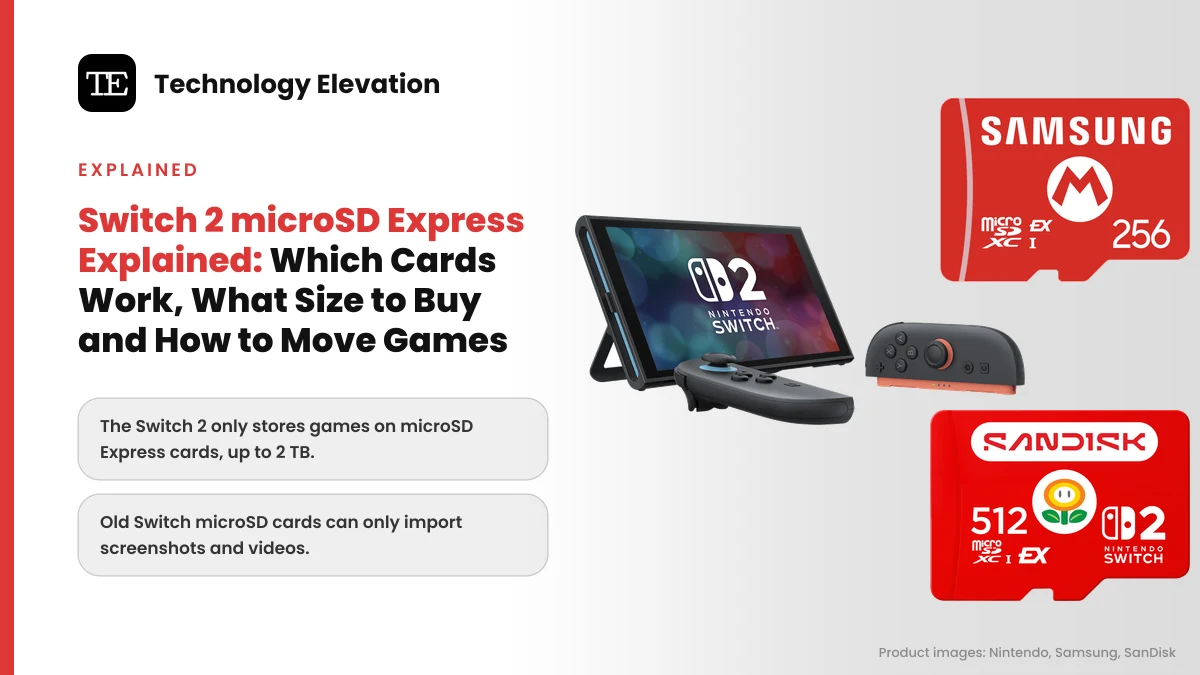
You unwrap a Switch 2, pull the 256 GB microSD card out of your old Switch, push it into the new slot and wait for your games to appear. They never do. The console reads the card, offers to import a few screenshots, and that is all it will do with it.
That moment is why so many new owners end up searching for Switch 2 microSD Express. Nintendo changed the card format for its new console, and the change is strict. Nintendo’s own microSD Express Card FAQ says the Switch 2 “is only compatible with microSD Express cards”, and that older cards cannot be used for games at all.
So the card you already own is not the card you need. Below is what microSD Express actually is, why Nintendo picked it, which cards work and how big to go, plus the exact menu steps for moving games, upgrading to a larger card and fixing a card the console will not read. Every step was checked against Nintendo’s support pages on 19 November 2026.
The Switch 2 only stores games on microSD Express cards
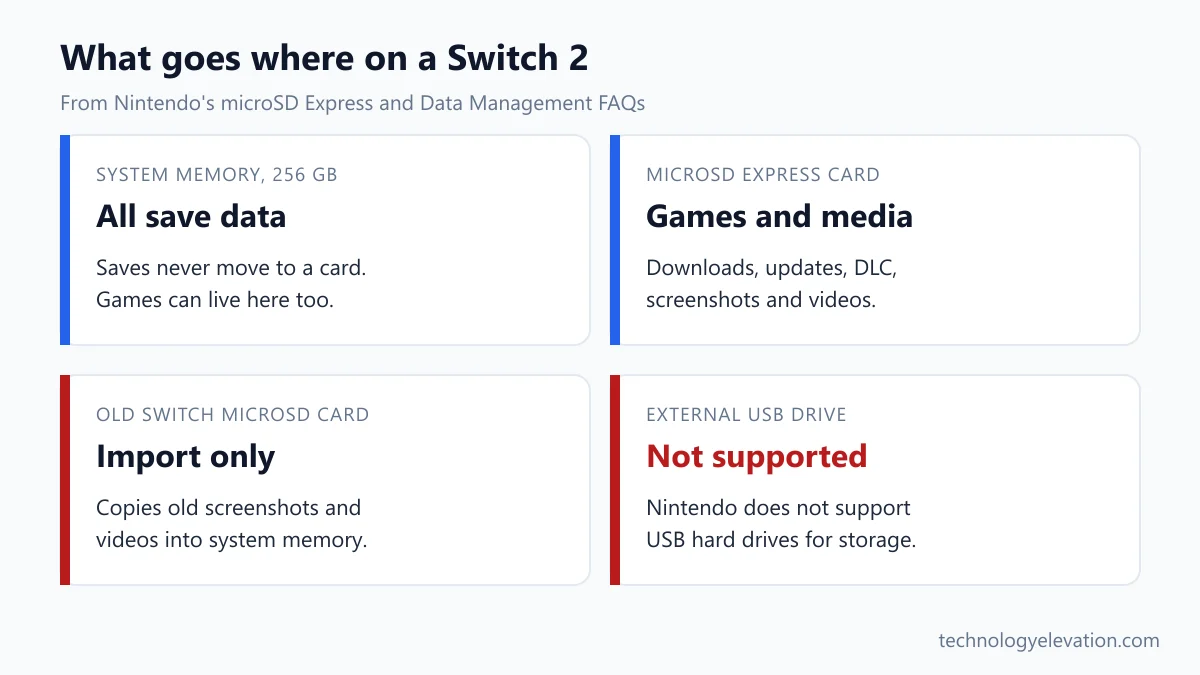
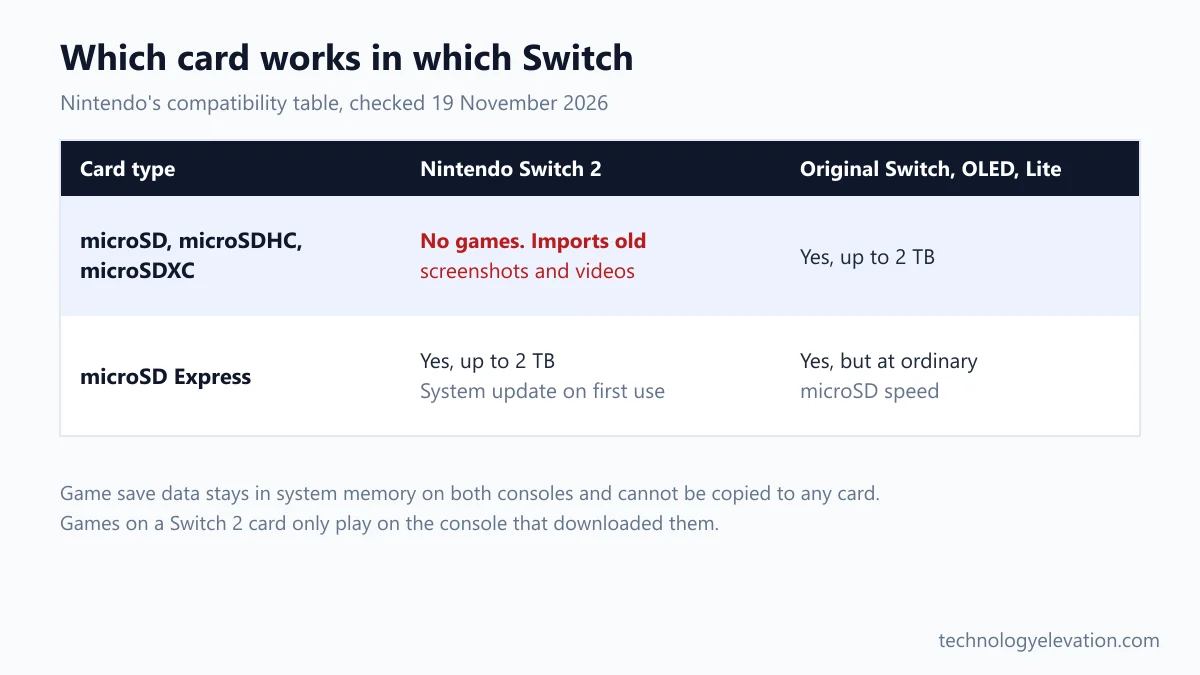
The Nintendo Switch 2 can only save games, updates, DLC, screenshots and videos to a microSD Express card, up to 2 TB. A regular microSD card from the original Switch is limited to one job: importing old screenshots and videos into the console’s system memory.
The key rules, all from Nintendo’s support pages and spec sheet:
- Card type: microSD Express only. Regular microSD, microSDHC and microSDXC cards cannot hold Switch 2 games.
- Maximum size: 2 TB.
- Built-in storage: 256 GB, with part of it reserved for the system.
- In the box: no card. microSD Express cards are sold separately.
- First use: the console needs a system update over the internet the first time you insert a microSD Express card.
- Save data: always stays in system memory. It cannot be copied to any card.
- External USB drives: not supported.
One card per console is Nintendo’s recommendation. Games split across two cards can never be merged back onto one, so buying one bigger card beats juggling two small ones.
Nintendo chose microSD Express because games need the speed
Nintendo says it picked microSD Express because the cards “offer faster access speeds than previous microSD card models”, which it calls necessary “to ensure games will run smoothly.” In plain terms, Switch 2 games load data faster than an ordinary microSD card can deliver it.
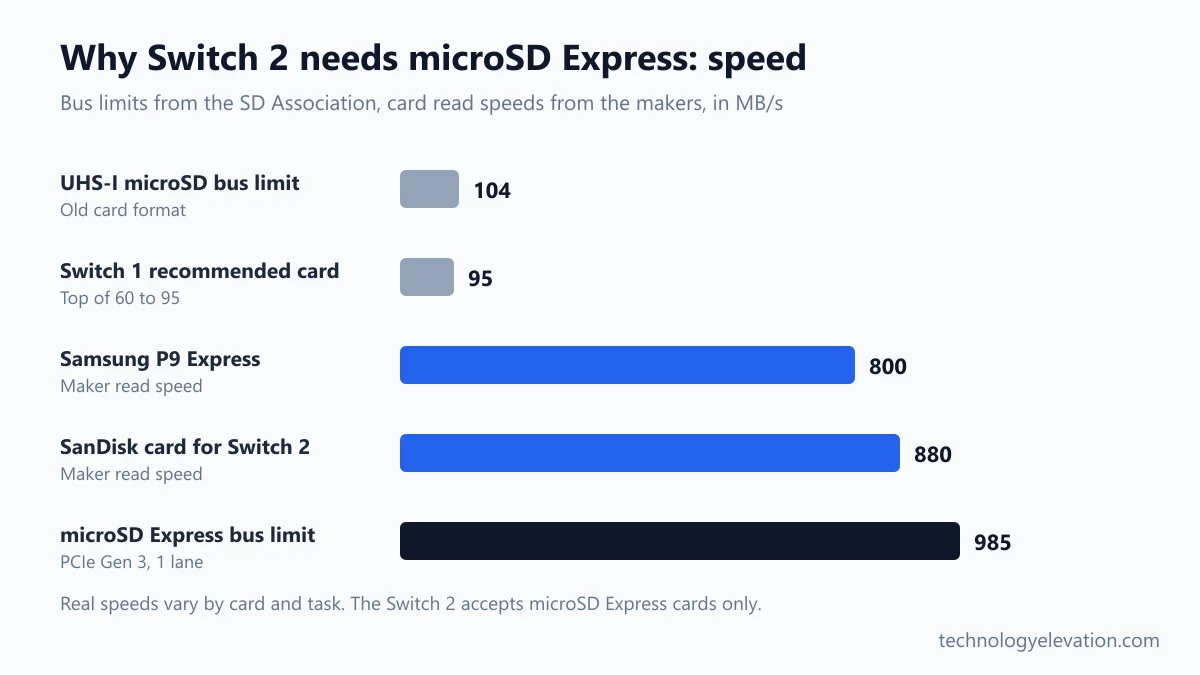
The numbers explain the gap. An ordinary fast microSD card uses a connection called UHS-I. The SD Association’s bus speed table caps UHS-I at 104 MB/s. microSD Express, added in version 7.1 of the SD standard, swaps that for PCIe and NVMe, the same technology inside a laptop SSD, with a ceiling of 985 MB/s.
Real cards sit below those ceilings, but the jump is still huge. For the original Switch, Nintendo recommended UHS-I cards rated at 60 to 95 MB/s. The two big microSD Express makers now quote read speeds of up to 800 MB/s (Samsung P9 Express) and up to 880 MB/s (SanDisk’s Nintendo-licensed card).
Think of it like a motorway on-ramp. The internal storage is the motorway, and an old microSD card is a narrow side road feeding into it. A microSD Express card is closer to a second lane.
Households with a handheld gaming PC or a drawer full of phone cards should check every label before borrowing one. A card that works perfectly in another device is useless in the Switch 2 unless it says microSD Express.
Your old Switch microSD card can only import screenshots and videos
An old microSD card works in the Switch 2 for exactly one task. Insert it and select Import from a Nintendo Switch microSD Card to copy screenshots and videos into system memory. Nintendo says the card cannot be used with the Switch 2 for any other purpose.
Nintendo is blunt about the trap in its compatibility table. A microSD card that has been used in an original Switch will not let you save or load digital games or save data when you put it in a Switch 2. The games on it are not lost, though. Anything you bought digitally can be downloaded again on the new console with the same Nintendo Account.
The format also works the other way round. A microSD Express card is fine in an original Switch, Switch OLED or Switch Lite, but Nintendo notes it will only read and write at ordinary microSD speed in those consoles. That is handy if you plan to pass the old Switch to a younger sibling with a card already inside.
Once your screenshots are safely imported, the old card is free for a phone, a camera or a dash cam.
Any microSD Express card up to 2 TB works, licensed or not
Nintendo says any card up to 2 TB that meets the microSD Express standard works in the Switch 2. Nintendo-licensed cards from Samsung and SanDisk carry Mario-themed artwork and are sold on Nintendo’s own store, but standard microSD Express cards such as Samsung’s P9 Express work too.
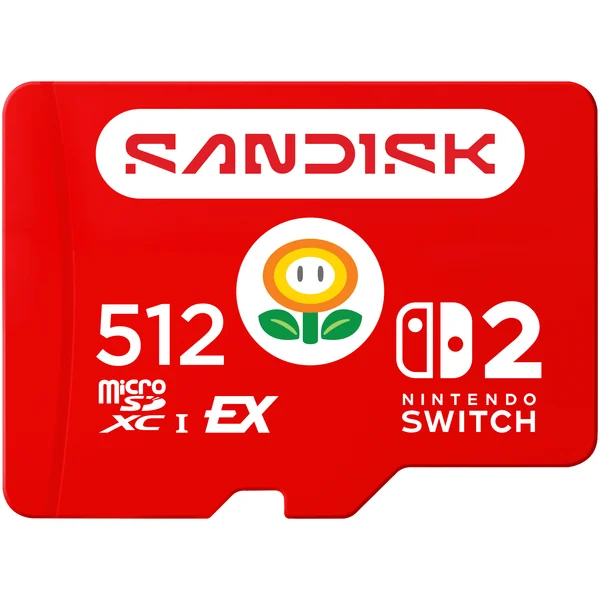
Look for the words “microSD Express” on the packaging. On the cards themselves, both Nintendo-licensed models print a small “EX” mark next to the microSDXC logo. A card that only says UHS-I, U3, V30 or A2 is an ordinary microSD card, however fast it claims to be.
| Card | Capacity | Licensed by Nintendo | Sold by |
|---|---|---|---|
| Samsung microSD Express Card for Nintendo Switch 2 | 256 GB | Yes | Nintendo US store, $59.99 list price |
| SanDisk microSD Express Card for Nintendo Switch 2 | 512 GB | Yes | Nintendo US store, $199.99 list price |
| Samsung P9 Express | 256 GB or 512 GB | No | Samsung and retailers |
SanDisk rates its licensed card at up to 880 MB/s read, and Samsung rates the P9 Express at up to 800 MB/s. Those are best-case figures from the makers, and any of the three is far quicker than the console’s old card format.
The best Nintendo Switch 2 accessories list names the Samsung 256 GB card as the storage upgrade most owners should start with, because it doubles the console’s space for a sensible price.
One warning about bargain listings. A microSD Express card selling for a fraction of the going rate deserves suspicion, because a mislabelled ordinary card will simply be refused by the console. Buy from Nintendo, the card maker or a major retailer that sells the item itself.
256 GB is enough for most players, 512 GB for digital-only homes
A 256 GB card suits most Switch 2 owners, because it doubles the built-in 256 GB. Families who buy most games digitally, or who use game-key cards, should go to 512 GB, since one card is better than two and games cannot be merged later.
Game-key cards are the reason storage matters more on this console. Nintendo describes them as a physical card that works as a “key” to download the full game. You still put the card in the slot to play, but the game data itself lives in system memory or on your microSD Express card, just like a digital purchase.
Save data is the one thing a bigger card never helps with. Nintendo stores every save in system memory, whatever the game. If system memory fills up completely, you free space under System Settings, then Data Management.
A quick rule of thumb:
- Mostly physical game cards: you can wait and see how fast the built-in 256 GB fills.
- A mix of cartridges, downloads and game-key cards: 256 GB.
- Digital only, or several players on one console: 512 GB or larger.
Nintendo says no individual game currently requires extra storage to play. A card is about how many games you keep installed, not about whether a game will run.
How to insert a microSD Express card in the Switch 2
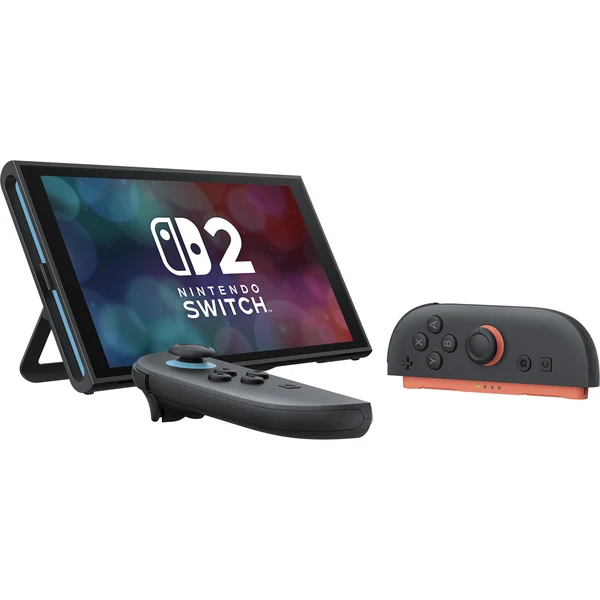
Power off the Switch 2 completely, swing open the adjustable stand on the back, and slide the microSD Express card into the slot with the label facing away from the console. Push gently until it clicks, then turn the console on and accept the system update.
Nintendo’s steps:
- Press and hold the POWER Button for at least three seconds.
- Select Power Options, then Power Off.
- Gently swing the adjustable stand open to show the microSD Express card slot.
- Hold the card with the label facing away from the console.
- Insert the card and gently push down until it clicks into place.
- Turn the console on and connect to the internet so it can install the system update needed for first use.
To remove the card, power off the console the same way, open the stand, push down on the top of the card until it clicks and slide it out. Sleep mode is not the same as powered off, so do not skip step 2.
From now on, the card becomes the default save location for downloadable software. New downloads go there automatically.
How to move games between system memory and the card
To move games on a Switch 2, open System Settings from the HOME Menu, select Data Management, then Move System / microSD Express Card Data. Choose the games, updates or screenshots you want to move and select OK. Save data stays put.
- Select System Settings on the HOME Menu.
- Scroll down and select Data Management.
- Select Move System / microSD Express Card Data.
- Choose the data you want to move, then select OK.
Nintendo adds three catches. Save data and some update data cannot be moved. The tool moves what is already installed, so it is not a way to choose where future data goes. And if you keep playing after a move, new update data may land in the other location anyway.
A sensible split is to keep the one or two games you play daily in system memory and move everything else to the card. Screenshots and video clips can move in either direction too.
Upgrading to a bigger card means copying it on a Windows PC
To upgrade, copy the whole Nintendo folder from the old microSD Express card to a computer, then onto the new card. Nintendo’s guide is written for Windows and warns the copy may not work correctly on other systems, such as a Mac.
You will need both cards and a computer with an SD card slot or a microSD card reader. Format the new card in the Switch 2 first, as Nintendo recommends. Then:
- Power off the Switch 2 and remove the original card.
- Insert the original card into the computer’s slot or card reader.
- Open Windows Explorer and drag the card’s data to the desktop. Copy the entire folder and never change or delete the files inside it.
- Eject the original card and insert the new one.
- Drag the data from the desktop onto the new card, then eject it.
- Insert the new card into the Switch 2 with the label facing away from the console.
- Redownload any software from the Nintendo eShop if needed.
Leave the old card untouched until the new one works. Nintendo also warns that games on a card only play on the console that downloaded them, so a card cannot be swapped between two Switch 2 systems in one house.
Moving from an original Switch is a system transfer, not a card swap
To bring games from an original Switch to a Switch 2, use the System Transfer option during the Switch 2’s first setup. Your digital games then download again onto the new console. The old microSD card’s game data does not carry across.
Nintendo offers two kinds of transfer. Local communication works when both consoles sit side by side. The server option uploads everything first, stores it for up to 1 year, and then wipes the old Switch, which suits a console you are selling or trading in.
Users, Nintendo Accounts, friends, screenshots and videos in system memory, parental controls and Mii data all come across. Digital software downloads after setup, so expect a long download on a slow connection. Nintendo recommends moving as much as possible from the old microSD card into the old console’s system memory first. If that is not possible, the Switch 2 may ask you to insert the old card briefly to bring over screenshots and videos.
Plan the timing for a gift. A transfer is part of first setup, so do it before the console is wrapped or on a quiet evening, not on Christmas morning with an impatient player waiting.
A card the Switch 2 will not read usually needs formatting
If the Switch 2 does not recognise a microSD Express card, power off, remove the card, confirm it really is microSD Express, and check the slot and contacts for dirt. If it still fails, format it under System Settings, System, Formatting Options.
Formatting erases everything on the card. Back up screenshots and videos to a computer first. Downloaded games can be redownloaded with the same Nintendo Account, and save data is safe because it lives in system memory.
- From the HOME Menu, select System Settings.
- Scroll down and select System.
- Select Formatting Options, and enter your Parental Controls PIN if asked.
- Select Format microSD Card, then Continue.
- Select Format. The console restarts.
Replace the card if the console still cannot see it. If several different microSD Express cards all fail, Nintendo says the console itself needs service, and you should send one of the problem cards in with it.
A controller playing up at the same time is a separate fault. A Joy-Con 2 that wanders on its own needs the calibration steps for how to fix controller stick drift, not a new card.
A microSD Express card makes an easy add-on gift
A microSD Express card is one of the most useful extras to give with a Switch 2, because the console ships without one and the old cards in most homes will not work. The licensed Samsung 256 GB card is a safe default for most players.
Pair it with a case that has card slots, so the spare card does not vanish into a sofa cushion. The rest of the Switch 2 accessories worth buying, from controllers to chargers, are listed with their prices. For wider ideas, the gifts for gamers list covers every budget, and families still choosing a system can compare storage and price in the casual gaming console roundup.
Gamers who also need fast storage for a PC or laptop should look at a portable SSD instead. The Switch 2 does not support external USB drives, so that one stays with the computer.
Frequently asked questions about Switch 2 microSD Express cards
Can I use a regular microSD card in the Switch 2?
No. The Switch 2 only saves games and media to microSD Express cards. A regular microSD card can only be used to import screenshots and videos captured on an original Switch.
What is the biggest microSD Express card the Switch 2 supports?
The Switch 2 supports microSD Express cards up to 2 TB. Nintendo says any card that meets the microSD Express standard up to that size will work, not only licensed cards.
Do I need a Nintendo-licensed microSD Express card?
No. Licensed Samsung and SanDisk cards are sold on Nintendo’s store, but Nintendo says any card that meets the microSD Express standard works. Licensed cards mainly add Nintendo artwork and official approval.
Does a microSD Express card come with the Switch 2?
No. microSD Express cards are sold separately. The console has 256 GB of built-in storage, and part of that is reserved for the system.
Can I save game progress to a microSD Express card?
No. Game save data always stays in the Switch 2’s system memory. Nintendo Switch Online members can back up supported saves with Save Data Cloud instead.
Can I use an external hard drive with the Switch 2?
No. Nintendo says external USB hard drives are not currently supported. A microSD Express card is the only way to add storage.
Will a microSD Express card work in my old Switch?
Yes. A microSD Express card works in the original Switch, Switch OLED and Switch Lite. Nintendo says it will only read and write at ordinary microSD speed in those consoles.
Can I swap one microSD Express card between two Switch 2 consoles?
No. Software downloaded to a card on one Switch 2 will not play on a different system. Nintendo recommends using a single card with each console.
Last checked and sources
Last checked on 19 November 2026 by Haris Khan. We checked every rule, menu name and step against Nintendo’s live support articles, took speed limits from the SD Association, and took card speeds and list prices from Samsung, SanDisk and Nintendo’s US store.
- Nintendo, microSD Express Card FAQ (support article 68218)
- Nintendo, microSD Card and microSD Express Card Compatibility with Nintendo Switch 2 and Nintendo Switch (article 68425)
- Nintendo, How to Insert/Remove microSD Express Cards on Nintendo Switch 2 (article 68207)
- Nintendo, How to Move Software Data Between the System Memory and a microSD Express Card on Nintendo Switch 2 (article 68340)
- Nintendo, How to Transfer Data Between microSD Express Cards for Use on Nintendo Switch 2 (article 68529)
- Nintendo, microSD Express Card is Not Recognized in Nintendo Switch 2 (article 68479)
- Nintendo, Nintendo Switch 2 Data Management FAQ (article 68447) and System Transfers to Nintendo Switch 2 (article 68432)
- Nintendo, original Nintendo Switch microSD Card FAQ (article 22481)
- Nintendo, Switch 2 tech specs and US store listings for the Samsung 256 GB and SanDisk 512 GB cards
- SD Association, bus interface speed table (sdcard.org)
- Samsung, P9 Express product page (samsung.com); SanDisk, Nintendo Switch memory cards page (sandisk.com)
We update this guide when Nintendo changes its storage rules or new microSD Express cards launch.


GIPHY App Key not set. Please check settings