

 Haris Khan
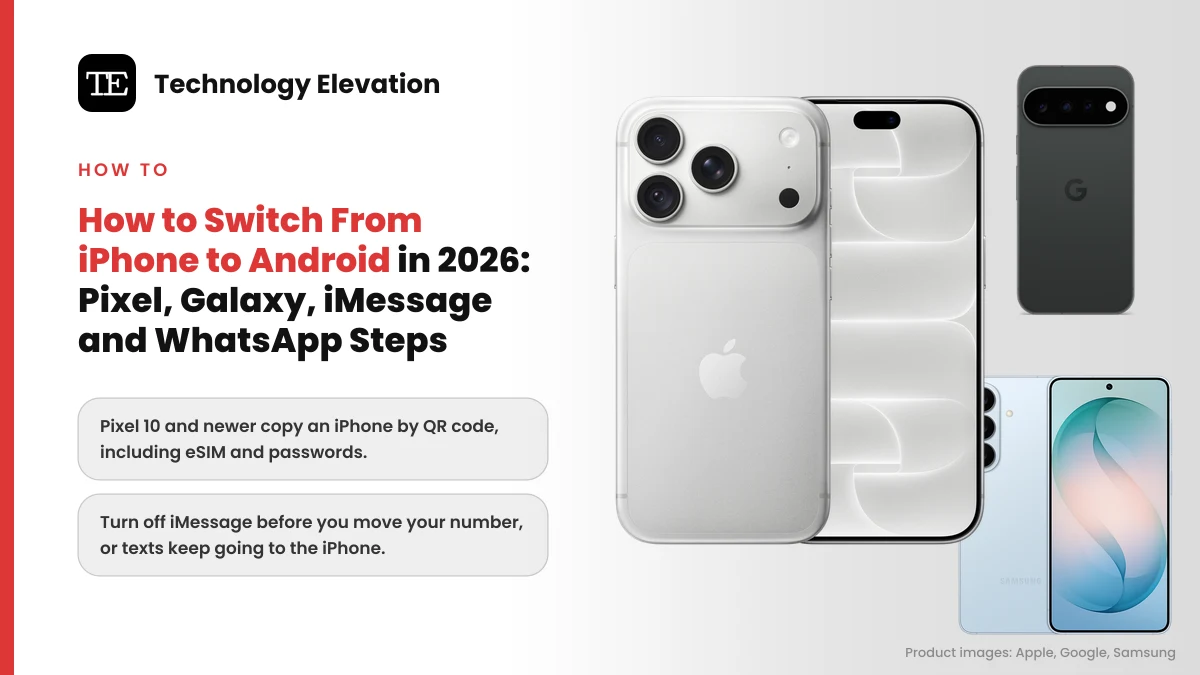
Someone unwraps a new Pixel or Galaxy on Christmas morning, and an iPhone full of photos, chats and a decade of texts sits on the table next to it. The new phone is the easy part. Getting everything off the old one without losing a single message is what people actually worry about.
Knowing how to switch from iPhone to Android is far simpler in late 2026 than it used to be. Google and Samsung both now have an upgraded transfer that starts with a QR code you scan with the iPhone camera, and Google says it can bring across your eSIM, passwords, passkeys and Wi-Fi logins as well as photos and messages.
One step still catches people out. Apple’s own support page tells you to deregister iMessage before you move your number, or texts from iPhone friends can keep going to the old phone instead of the new one.
Below are the official steps for a Pixel and a Galaxy, checked against Google, Samsung, Apple and WhatsApp support pages on 19 November 2026.
How to switch from iPhone to Android: the nine steps in order
To switch from iPhone to Android, charge both phones, update the iPhone and choose to copy from an iPhone during setup. Use Android Switch on a Pixel or Smart Switch on a Galaxy, then move WhatsApp and turn off iMessage and FaceTime.
- Fully charge both phones and keep them side by side on a strong Wi-Fi connection.
- Update the iPhone to the latest version of iOS.
- Turn on the new Android phone and pick your language.
- Choose the option to copy from an iPhone. On a Pixel it is labelled iPhone or iPad.
- Scan the QR code on the new phone with the iPhone camera, or connect the two with your iPhone charging cable if no QR code appears.
- Select the apps and data you want, and leave both phones alone until the copy finishes.
- Transfer your eSIM when prompted, or move your physical SIM card across.
- Move your WhatsApp chats with WhatsApp’s own transfer tool.
- Turn off iMessage and FaceTime on the iPhone, or deregister your number online if the iPhone is already gone.
Step 6 is where most transfers fail. Google’s help page asks you to stay on the iPhone’s data transfer screen while the copy runs, so do not start checking Instagram halfway through.
Step 9 is the one people skip. Do it the same day, not a week later when a friend asks why you never replied.
Google’s Android Switch moves an iPhone onto a Pixel
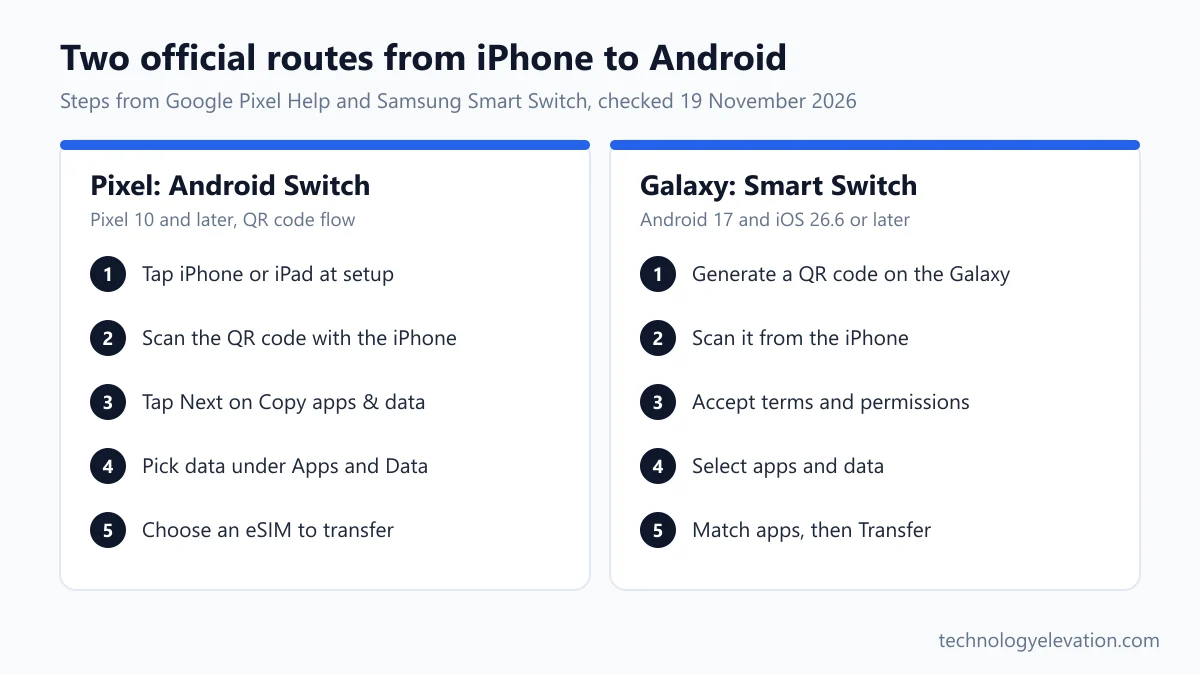
On a Pixel 10 or later, tap iPhone or iPad on the “Setup using another device” screen, then scan the QR code with your iPhone. The Pixel picks Wi-Fi, a cable or both. Pixel 9a and older phones use the classic flow with a cable instead.
Google’s Pixel help page for copying from an iPhone gives the newer flow in three stages:
- Turn on your iPhone and new Pixel phone, and select a language on the Pixel.
- On the “Setup using another device” screen, tap iPhone or iPad.
- Use your iPhone to scan the QR code on the new Pixel.
- Follow the on-screen steps, including setting a screen lock.
- On the “Copy apps & data” screen on the Pixel, tap Next. On the iPhone, under “Apps and Data”, select what you want to transfer.
- When prompted, choose an eSIM to transfer and follow the steps on the iPhone.
You can keep setting up the Pixel while the data copies. Pixel 8 and later phones running Android 17 may get the same upgraded process.
No QR code on the screen? Use the classic flow. First turn off iMessage and FaceTime, then stop the iPhone locking itself with Settings > Display & Brightness > Auto-Lock > Never. On the Pixel, tap Get Started, then iPhone or iPad, join Wi-Fi and sign in to your Google Account.
When the Pixel asks, tap Next, then Copy your data. Plug your iPhone charging cable into the iPhone and the other end into the Pixel (a Quick Switch Adapter goes in between if your cable needs one). Tap Trust on the iPhone. Then tap Copy on the Pixel, or turn off what you do not want first.
Still deciding which model to unwrap? Our comparison of which Pixel to buy in 2026 explains how the Pixel 11 range and the Pixel 10a differ, and why the QR code transfer is built for the Pixel 10 and newer.
Samsung Smart Switch handles the move to a Galaxy
On a Galaxy phone, Smart Switch does the job. The newest version shows a QR code you scan from the iPhone, then lets you pick data, match apps and transfer. Samsung lists four routes from an iPhone: iCloud, cable, PC and wireless.
Samsung’s Smart Switch page lays out the upgraded transfer as seven stages: Generate QR, Scan, Verify connection, Select, Match and transfer, More settings and Transfer. In plain terms:
- On the Galaxy, choose the iPhone or iPad option to create a QR code.
- Scan it with the iPhone, with the two phones side by side.
- Accept the terms and grant Smart Switch the permissions it asks for.
- Choose the apps and data to move.
- Let Smart Switch install the free Android versions of your iPhone apps.
- Adjust any extra settings, then start the transfer.
- Check the finished list in the notification panel or the Smart Switch app.
The upgraded method needs a Galaxy on Android 17 or later and an iPhone on iOS 26.6 or later. With iOS 26.6, Samsung says the iPhone does not need the Smart Switch app at all.
Older Galaxy phones, below One UI 9.0, use the earlier flow: tap Receive on this phone, then iPhone/iPad. A wireless transfer that way needs the Smart Switch app from the App Store on the iPhone and iOS 15 or later. Cable and iCloud transfers work from iOS 12 or later.
Texts deserve a note. Samsung says SMS, MMS and iMessages move only by cable or through a PC, so pick one of those if your message history matters. The Samsung Galaxy phone to buy in 2026 comparison covers which current Galaxy models are worth switching to.
What transfers depends on the method you pick
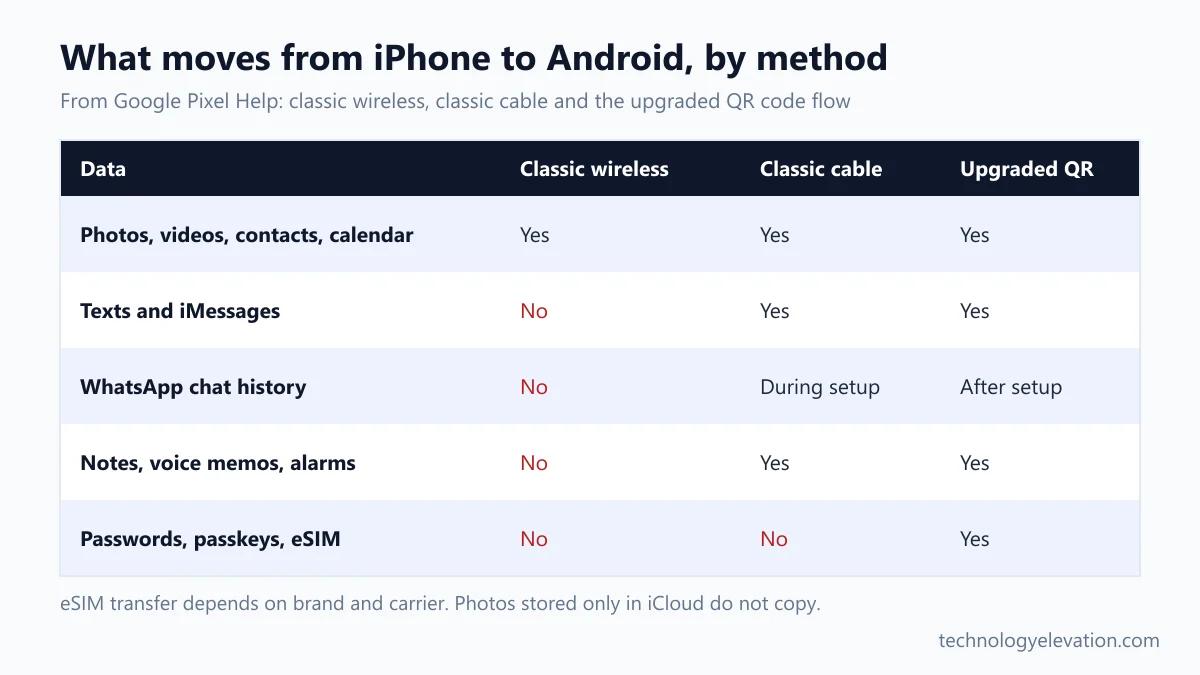
Photos, videos, contacts and calendars move with every method. Texts, iMessages and WhatsApp history need a cable in Google’s classic flow. Only the upgraded QR code process brings across passwords, passkeys, Wi-Fi logins and your eSIM, and eSIM support depends on your carrier.
| Data | Classic wireless (Android Switch app) | Classic cable | Upgraded QR flow |
|---|---|---|---|
| Photos, videos, contacts, calendar | Yes | Yes | Yes |
| Texts and iMessages with attachments | No | Yes | Yes |
| WhatsApp chat history | No | Yes, during setup | Yes, after setup |
| Notes, voice memos, alarms, wallpaper | No | Yes | Yes |
| Passwords, passkeys, Wi-Fi logins, eSIM | No | No | Yes |
The table follows Google’s Pixel help page. The wireless classic option is the weakest by far: photos, contacts and calendar only. If you have a cable, use it.
Free apps that also exist on Google Play are matched and installed for you. Paid subscriptions are different, and Android’s own switching page says to contact the app’s developer to move them.
Turn off iMessage and FaceTime before you move your number
Turn off iMessage and FaceTime on the iPhone before or straight after the switch. On iOS, go to Settings, tap Apps, then Messages and switch off iMessage, then do the same under FaceTime. Without this, texts from iPhone users can keep landing on your old phone.
Apple’s steps, from its deregister page:
- If you already moved the SIM card to the Android phone, put it back in the iPhone.
- Make sure the iPhone is connected to your cellular data network.
- In the Settings app, tap Apps, then Messages, and turn off iMessage.
- Go back to Settings, tap Apps, then FaceTime, and turn off FaceTime.
Already sold or traded in the iPhone? Apple runs a free online iMessage deregistration form. Enter your phone number, then the six-digit code Apple texts you, and the number is removed from iMessage. Apple warns that some Apple devices can take a few hours to notice the change.
Group chats need one extra move. Google’s Messages help page says to start a new group chat, or ask a friend to, so you keep getting messages from friends on iPhones. Your old iMessage group will not follow you.
Day-to-day texting with iPhone friends works fine after that. Android’s switching page notes that RCS, the modern texting standard with typing indicators and full-quality photos, works on both Android and iOS.
WhatsApp chats move in their own step
WhatsApp chats move with WhatsApp’s own transfer, not with the phone’s main copy. On the iPhone, open WhatsApp and go to Chats > Transfer chat history > Transfer to Android, then scan the QR code your new Android phone shows during WhatsApp setup.
The steps on WhatsApp’s help page for moving from iPhone to Android:
- Install the latest WhatsApp on both phones, and keep both on the same stable Wi-Fi.
- On the iPhone, open WhatsApp and go to Chats > Transfer chat history > Transfer to Android.
- When the chats are ready, tap Continue. Tap Allow if WhatsApp asks for camera access, and keep the iPhone unlocked.
- On the Android phone, open WhatsApp and verify your account with the same phone number.
- Tap Allow so the phones can connect, then scan the QR code with the iPhone.
- Tap Join to join the Wi-Fi network and start the transfer, then tap Next on Android when it finishes.
Timing is the trap. WhatsApp says you can only transfer chats before you activate WhatsApp on the new Android phone. Open it there first and start chatting, and you will have to uninstall it, which deletes those new chats, before the old ones can come across.
Your chats, groups, Communities, call history, media and settings all move. Your display name, status updates and peer-to-peer payment messages do not, and WhatsApp Business chats are not supported. Keep the same phone number, too: a transfer to a new number only works if you change the number on the iPhone first.
iCloud photos, Apple passwords and paid apps need extra steps
The phone-to-phone copy only moves what is stored on the iPhone itself. Photos kept only in iCloud, Apple passwords in the classic flow and paid app subscriptions all need a separate step, and Google points to Apple’s own tools for the iCloud part.
- iCloud Photos: Google’s help page says only photos saved on the iPhone transfer. For the rest, it points to Apple’s data and privacy site at privacy.apple.com, which can send a copy of iCloud photos, videos and music playlists to another service.
- Passwords: outside the upgraded flow, Google says Apple passwords do not move on their own. Export them from the iPhone, then import them into Google Password Manager or another password manager.
- Paid apps and subscriptions: contact the developer. An app you bought on the App Store does not become a free download on Google Play.
- Work or school iPhones: Google says you need to remove the organisation account from a managed iPhone before the classic transfer.
Keep the iPhone for a week before you wipe it. Something always turns up missing, usually a two-factor login app or a photo album somebody shared with you.
When you are sure, reset the iPhone and wipe all data before you sell it or hand it on. And if you are moving the other way for someone else in the family, the transfer data to a new iPhone steps use Apple’s Move to iOS app instead.
Apple Watch and AirPods do not move with you in the same way
Apple Watch will not work with an Android phone. Apple says every current model requires an iPhone 11 or later running iOS 26 or later. AirPods do still pair with Android as ordinary Bluetooth earbuds, but you lose several Apple-only features.
The watch is the expensive surprise. If yours is still under a year old, factor that into the switch, because you will need a Wear OS watch such as a Pixel Watch or Galaxy Watch to keep notifications on your wrist. Our roundup of the best Android smartwatch for texting covers watches that can reply to messages.
AirPods are easier. You put the case in pairing mode until the light flashes white, then pick them in the Bluetooth list. The full steps and the features you give up are covered in how to use AirPods with Android. If you would rather start fresh, the best wireless earbuds for Android include models with their own app and quick pairing.
Pick the new phone first, because it decides the transfer tool
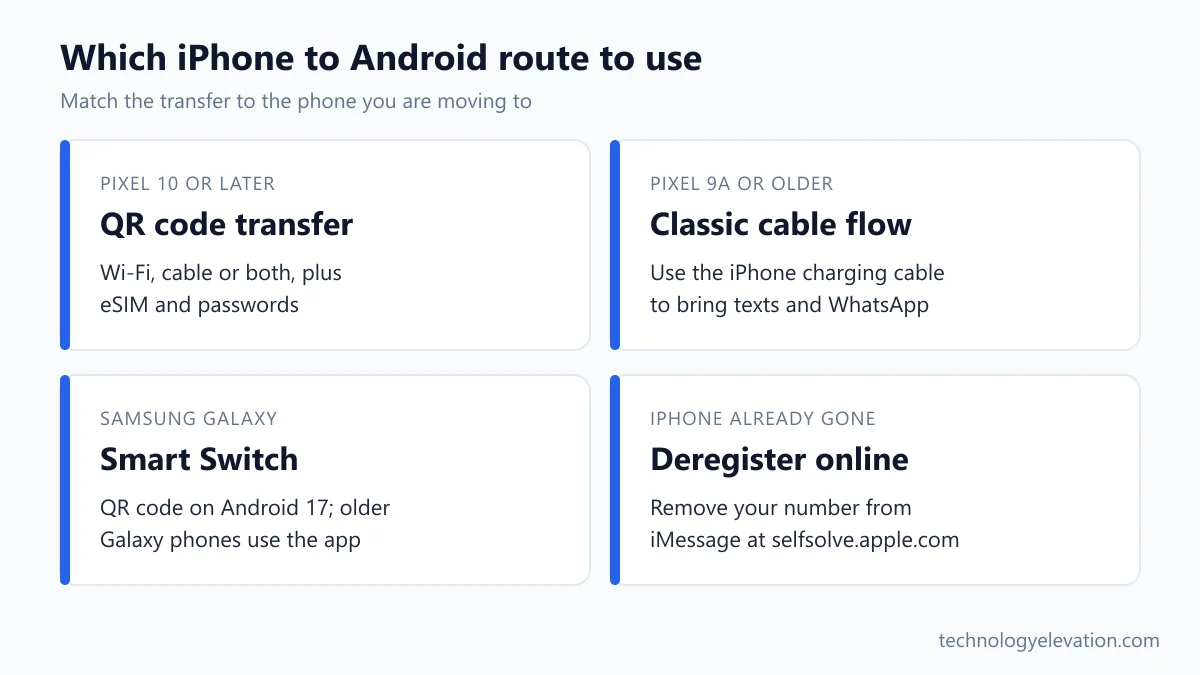
The phone you buy decides how smooth the switch is. A Pixel 10 or newer, or a Galaxy on Android 17, gets the upgraded QR code transfer with eSIM and passwords. Older or cheaper Android phones fall back to the classic cable flow, which still moves texts and WhatsApp.
For most iPhone owners, a recent Pixel is the closest feel to an iPhone: clean software, seven years of updates and Google’s own transfer tool. The full line-up, from the Pixel 10a to the Pro Fold, is in which Pixel phone to buy.
Samsung suits people who want more choice of size and shape, including foldables and the S Pen on the Ultra. The range runs from the Galaxy A17 5G to the Z Fold8 Ultra, and the which Samsung Galaxy phone to buy comparison sets them side by side.
Frequently asked questions about switching from iPhone to Android
Can I switch from iPhone to Android without losing data?
Yes, if you use a cable or the upgraded QR code transfer. Both move photos, contacts, calendars, texts and iMessages. Photos stored only in iCloud and paid app subscriptions need separate steps.
Will my iMessages transfer to Android?
Your existing texts and iMessages with attachments copy across with Google’s cable or upgraded transfer, and with Samsung’s cable or PC method. New iMessages will not reach Android, so turn off iMessage on the iPhone.
How do I move WhatsApp from iPhone to Android?
Open WhatsApp on the iPhone and go to Chats, Transfer chat history, then Transfer to Android. Then verify the same number on the Android phone and scan its QR code. Do this before you activate WhatsApp on the new phone.
Do I need a cable to switch from iPhone to Android?
Not on a Pixel 10 or later, which can transfer over Wi-Fi, by cable or both. On older Pixels the wireless option copies only photos, videos, contacts and calendar, so a cable is needed for texts and WhatsApp.
What if I already gave away my iPhone and texts are missing?
Use Apple’s online form at selfsolve.apple.com/deregister-imessage. Enter your number and the six-digit code Apple texts you, and your number is removed from iMessage. Some Apple devices can take a few hours to catch up.
Can I use an Apple Watch with an Android phone?
No. Apple says Apple Watch requires an iPhone 11 or later running iOS 26 or later. You will need a Wear OS watch, such as a Pixel Watch or Galaxy Watch, after the switch.
Do my apps come with me to Android?
Free apps that are also on Google Play are matched and installed during the transfer. App data depends on each developer, and paid subscriptions have to be moved by contacting the developer.
Last checked and sources
Last checked on 19 November 2026 by Haris Khan. We followed every step against the current Google, Samsung, Apple and WhatsApp support pages and kept only what they state.
- Google Pixel Help: Copy data from an iPhone to a Pixel
- Android: Switch to Android page (android.com), classic and upgraded methods
- Android Help: Switch texting from iMessage to Google Messages
- Samsung US: Smart Switch app page, iPhone to Galaxy methods and requirements
- Apple Support: Deregister iMessage on your iPhone or online; Apple Watch compatibility on apple.com
- WhatsApp Help Center: How to move chats from an iPhone to an Android device, and its transfer troubleshooting page
We update this guide when Google, Samsung, Apple or WhatsApp change their transfer steps.


GIPHY App Key not set. Please check settings