

 Haris Khan
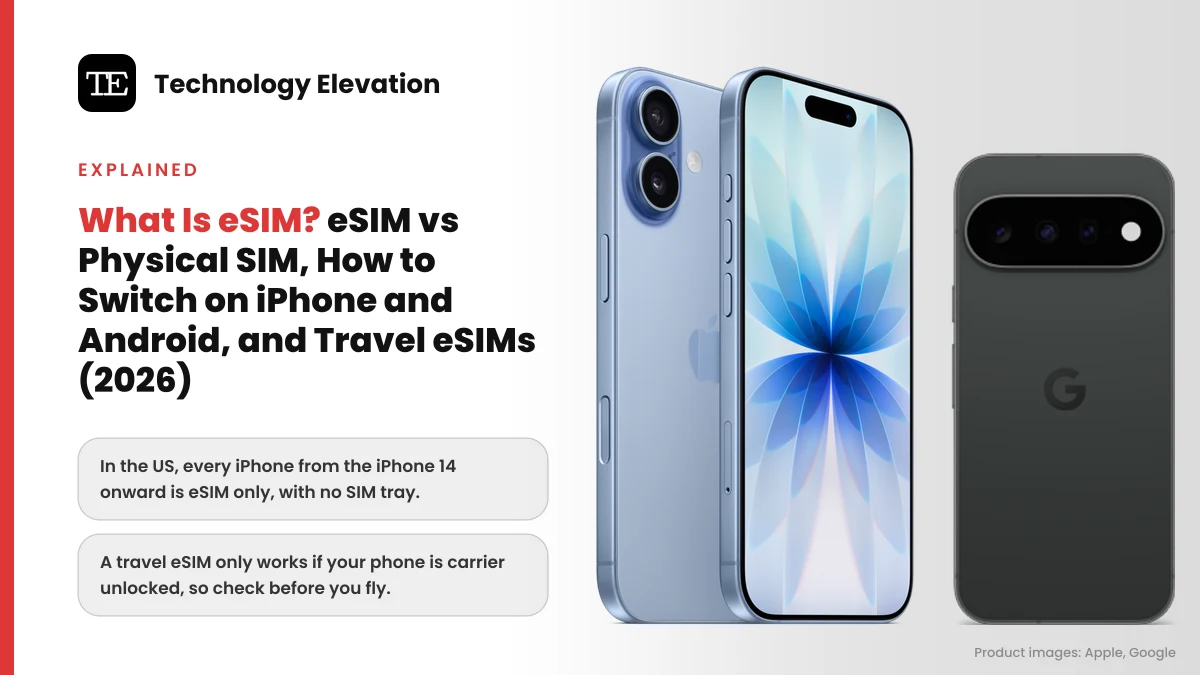
You open the box on a new phone, look for the little SIM tray on the side, and find nothing but smooth metal. No pin hole, no tray, no card. If that has you asking what is eSIM and where your number went, you are not alone, and the answer is less scary than an empty side rail suggests.
Apple made the switch years ago. Its US comparison page states that iPhone 14 models and later are activated with an eSIM and do not support a physical SIM. Google followed with most of the Pixel 10 and Pixel 11 phones it sells in the US.
So the plastic card is on its way out. The good news is that moving a number between phones is now usually faster than it was with a card, as long as you know which menu to open.
Below: what an eSIM actually is, how it compares with a physical SIM, the exact steps to convert or transfer one on iPhone and Pixel, how Verizon, AT&T and T-Mobile fit in, and how a travel eSIM can save you a roaming bill. Every step was checked against Apple, Google and Verizon support pages on 19 November 2026.
What is eSIM: a digital SIM your carrier downloads to the phone
An eSIM (embedded SIM) is a SIM built into your phone that your carrier programs over the internet instead of mailing you a card. It holds the same thing a plastic SIM does: the profile that ties your phone number and plan to that device.
Apple calls it “an industry-standard digital SIM that allows you to activate a cellular plan from your carrier.” Google’s Pixel help describes it the same way, as a digital SIM that lets you activate your cellular network.
Think of it as a slot that stores downloads rather than cards. The chip is soldered inside the phone. What changes from carrier to carrier is the profile on it, and a phone can store several profiles at once.
- What you still get: your same number, the same plan, the same calls, texts and data.
- What you lose: the option to pop the card into another phone yourself.
- What you gain: no tray to lose, no card to damage, and setup over Wi-Fi in a few minutes.
Your carrier may ask for your phone’s EID or IMEI when you set one up. Both live in the phone’s About screen in Settings.
eSIM vs physical SIM: security and convenience favour the eSIM
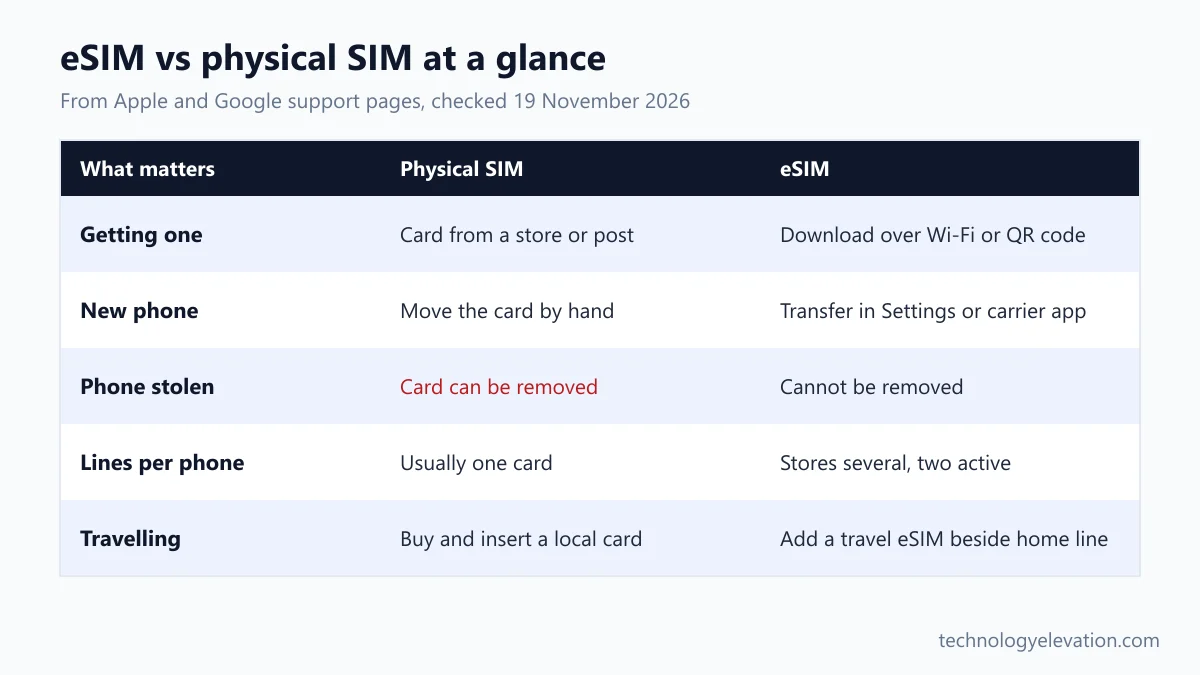
An eSIM beats a physical SIM on security and convenience, while a physical SIM still wins on simplicity when you swap phones often. A thief cannot pull an eSIM out of a stolen phone, and you never wait for a card in the post.
| Point | Physical SIM | eSIM |
|---|---|---|
| How you get it | Card from a store or the post | Downloaded over Wi-Fi, QR code or carrier app |
| Moving to a new phone | Move the card by hand | Transfer in Settings or the carrier app |
| If the phone is stolen | Card can be removed | Cannot be removed |
| Numbers on one phone | Usually one card | Several stored, two active on recent phones |
| Travel plans | Buy and insert a local card | Download a travel eSIM before or after you land |
Apple’s own About eSIM page puts the security point plainly: an eSIM “can’t be removed if your iPhone or iPad is lost or stolen.” That makes a thief’s first trick, taking the SIM out so the phone drops off the network, much harder.
The real catch is the handover. With a card, you can lend your number to a backup phone in ten seconds. With an eSIM, the old phone and the new one, or the carrier, have to agree first.
Which phones are eSIM only in the US in 2026
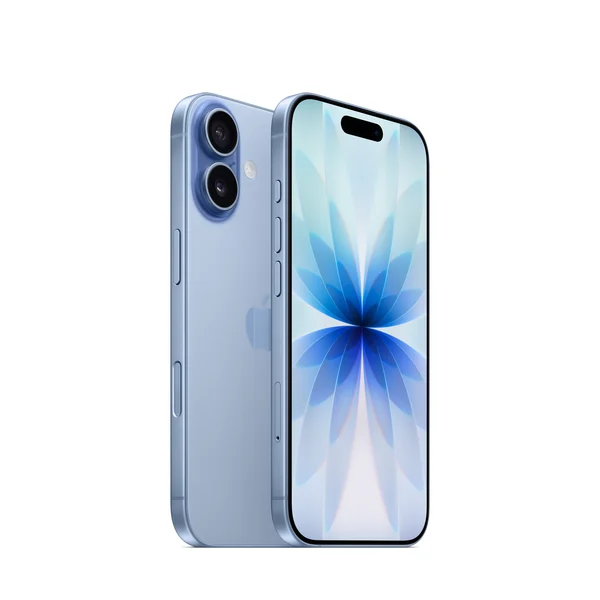
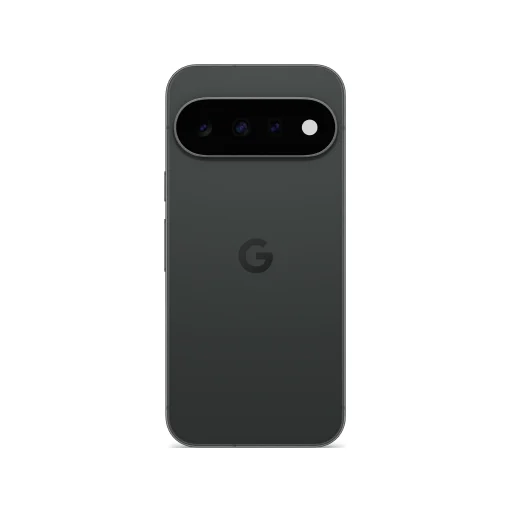
In the US, every iPhone from the iPhone 14 onward is eSIM only. Google’s Pixel 10, 10 Pro, 10 Pro XL and the whole Pixel 11, 11 Pro and 11 Pro XL range are eSIM only too. The Pixel 11 Pro Fold and Pixel 10a still take a nano SIM.
Google’s store lists the Pixel 11, 11 Pro and 11 Pro XL as “Dual eSIM (two active eSIMs; stores 8 or more eSIMs)”. The Pixel 11 Pro Fold and Pixel 10a list “Dual SIM (Single Nano SIM and eSIM)” and ship with a SIM tool in the box.
Apple’s spec line for current iPhones reads almost the same: two active eSIMs, stores eight or more. Outside the US the picture changes. Apple says that in China mainland, for example, only some models support eSIM at all.
If a SIM tray matters to you, check before you buy. The iPhone models on sale this year are all eSIM only in the US, while the Pixel range splits down the middle, which the Pixel phone comparison covers model by model. Samsung buyers can compare the Galaxy S26, Z Fold8 and Z Flip8 before deciding.
How to convert a physical SIM to eSIM on iPhone
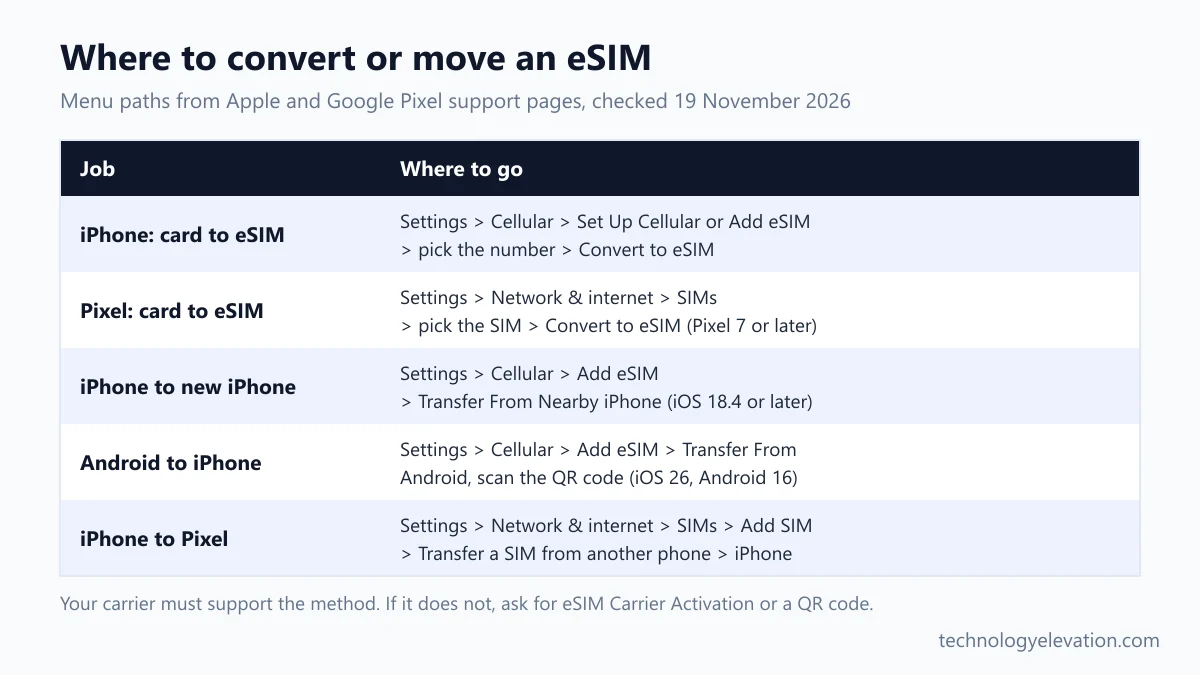
To convert a physical SIM to eSIM on iPhone, open Settings, tap Cellular, tap Set Up Cellular or Add eSIM, choose the number on the physical SIM, then tap Convert to eSIM. Your carrier has to support conversion, and the old card stops working afterwards.
Apple’s iPhone User Guide gives these steps:
- Go to the Settings app.
- Tap Cellular, then tap Set Up Cellular or Add eSIM.
- Choose the phone number with a physical SIM.
- Tap Convert to eSIM.
- Follow the onscreen instructions.
Once the eSIM is active, take the card out and restart the phone. Apple’s eSIM setup page also notes that some carriers convert your SIM automatically during Quick Transfer, so you may never see this screen at all.
Do it on Wi-Fi at home, not in a parking lot. Activation needs a Wi-Fi network or hotspot on most models.
How to convert a physical SIM to eSIM on a Pixel
On a Pixel 7 or later, open Settings, tap Network & internet, then SIMs, select the SIM, scroll down and tap Convert to eSIM. You need Wi-Fi and a carrier that offers eSIM for Pixel. The physical SIM stops working once converted.
Google’s Pixel help page for converting a SIM lists six steps:
- Open the Settings app.
- Tap Network & internet, then SIMs.
- Select the SIM you want to convert.
- Scroll down the SIM settings.
- Tap Convert to eSIM.
- Follow the on-screen instructions.
Google adds a sensible warning: keep the old card until you have confirmed the eSIM works. If you need a physical SIM again later, your carrier has to issue a new one.
Samsung Galaxy phones use different menu names. On a Verizon Galaxy, Verizon’s support page sends you to Settings, Connections, SIM manager, then Add eSIM.
Moving an eSIM to a new iPhone takes a few taps with Quick Transfer
eSIM Quick Transfer moves your number from an old iPhone to a new one without calling the carrier. Both phones need iOS 18.4 or later, the same Apple Account, Bluetooth on, and the old phone unlocked and nearby. Setup offers it automatically.
Missed it during setup? Apple’s steps work later too:
- Open Settings on the new iPhone.
- Tap Cellular.
- Tap Set Up Cellular or Add eSIM.
- Choose the plan to transfer. If no numbers appear, tap Transfer From Nearby iPhone.
- On the old iPhone, tap Transfer, or enter the verification code shown on the new iPhone.
- Wait for the plan to activate. The old phone’s SIM switches off at that moment.
- If a banner says Finish Setting Up Your Carrier’s Cellular Plan, tap it and finish on your carrier’s page.
With iOS 26 or later, you can move more than one number in one go. Quick Transfer is one part of a bigger job, and the full walkthrough for transferring data to a new iPhone covers photos, apps and WhatsApp in the right order.
Carrier support matters here. Apple’s US list for Quick Transfer includes AT&T, T-Mobile USA, Verizon Wireless, Cricket, Xfinity Mobile, Spectrum and Consumer Cellular, among others.
Switching between Android and iPhone now moves the eSIM too
Since iOS 26, some carriers let you move an eSIM straight from Android to iPhone, or from iPhone to a Pixel, using a QR code. Android to iPhone needs an iPhone 11 or later on iOS 26 and an Android phone on Android 16 or later.
Apple’s Android to iPhone eSIM transfer page names AT&T, Cricket, FirstNet, T-Mobile, Verizon and Xfinity Mobile in the US. Connect both phones to Wi-Fi and turn on Bluetooth, then:
- On the iPhone, open Settings and tap Set Up Cellular. If you already have a SIM, go to Cellular and tap Add eSIM.
- Tap Transfer From Android. A QR code appears.
- Scan the code with the Android phone’s camera.
- On the Android phone, select the number and tap Transfer.
- If asked, tap Yes to make it your primary eSIM.
- On the iPhone, tap Done, then OK, and make a test call.
If the camera will not scan, tap Other Options on the iPhone. On the Android phone, go to Settings, Google services, All services, Pair with iPhone or iPad, then Transfer eSIM, and type in the session ID and pairing code.
Going the other way, Google’s Pixel help says to open Settings, Network & internet, SIMs, Add SIM, then Transfer a SIM from another phone, and choose iPhone. For Verizon, AT&T and T-Mobile the iPhone must run iOS 26 or later. Xfinity, Visible and Mint customers use the carrier’s app instead. Picking the phone first? The Pixel 11 vs Pixel 10a choice decides whether you keep a SIM tray at all.
Verizon, AT&T and T-Mobile all support eSIM, with their own apps as backup
All three big US carriers support eSIM activation and eSIM Quick Transfer on iPhone, according to Apple’s carrier list. When the phone’s own transfer fails, the carrier’s app or a QR code from the carrier is the fallback, and Verizon charges nothing for moving a line in its app.
Verizon’s My Verizon app eSIM FAQ spells out its two routes:
- New phone: connect it to Wi-Fi, install My Verizon, sign in, open the Mobile tab, pick the line and choose “Change or replace device on this line or Activate or get SIM.”
- Card to eSIM on the same phone: in the Mobile tab, scroll down and tap Get SIM, then follow the prompts.
Verizon says you need no IMEI, no SIM number and no QR code. On a single-line account, though, the old phone has to approve the move, so do not wipe it first. That one catches people every holiday season.
Smaller carriers vary. Apple’s US list shows Mint Mobile, Visible and Metro by T-Mobile supporting eSIM through other activation methods, such as a QR code or app, rather than Quick Transfer.
Travel eSIMs cut roaming costs, but only on an unlocked phone
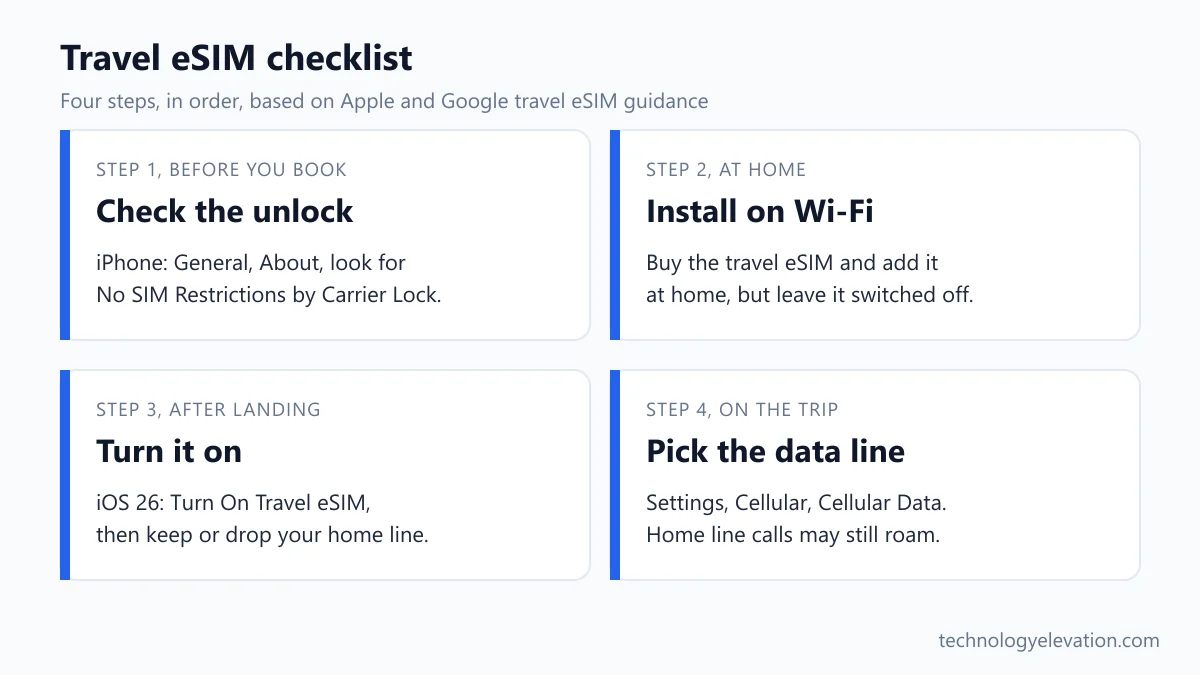
A travel eSIM is a prepaid data plan from a local or worldwide provider that you add beside your home line. Your phone must be carrier unlocked to use one. Check this before the trip, because a locked phone simply refuses the new eSIM.
On iPhone, Apple’s eSIM travel page says to open Settings, tap General, then About, and look for “No SIM Restrictions” next to Carrier Lock. On Verizon, postpaid phones unlock once they are paid off, while prepaid phones stay locked until 365 days of paid, active service.
With iOS 26 or later, the iPhone does the switching for you:
- When you land, tap Turn On Travel eSIM.
- Choose Travel eSIM Only, or Travel eSIM and Current eSIM to keep your home number reachable.
- Tap Continue.
- Turn on Low Data Mode or tap Not Now.
Keep both lines on and the travel eSIM handles data, but calls on your home line may still cost roaming fees. To pick the data line by hand, go to Settings, Cellular, then Cellular Data. Back home, the iPhone should switch the travel line off by itself.
On a Pixel, Google’s advice is the same idea: use a prepaid eSIM from an international carrier and activate it when you arrive. Apple lists worldwide providers such as Airalo, Holafly, Nomad eSIM and Ubigi.
Buy and install the eSIM at home on Wi-Fi, then switch it on after landing. Packing a charger and battery for the trip? Check the power bank airline rules first, and a travel charging station saves fighting over hotel sockets.
Dual SIM with eSIM puts two numbers on one phone
Recent phones can run two lines at once: an iPhone 13 or later can use two eSIMs, and a Pixel 7 or later can too if the carrier allows it. Older eSIM phones pair one physical SIM with one eSIM. Only one line carries cellular data at a time.
Work and personal numbers on one phone is the classic use. A home line plus a travel line is the other. Apple’s dual SIM steps let you label each plan in Settings, Cellular, then Cellular Plan Label, and choose a default number for calls and messages.
Turn on Allow Cellular Data Switching if you want the phone to use whichever line has coverage. Apple notes that without it, you may miss calls on one line while you are on a call on the other.
On a Pixel, add the second line in Settings, Network & internet, SIMs, Add SIM, then Set up an eSIM. Google also lets you require a password before anyone deletes an eSIM, under Security, Advanced, Confirm SIM deletion.
Most eSIM problems come from the old phone or the carrier
When an eSIM will not activate, the cause is usually one of three things: the old phone is off or wiped too early, the carrier does not support the transfer method, or there is no Wi-Fi. Fix those and most transfers finish in minutes.
- No numbers appear to transfer: tap Transfer From Nearby iPhone, keep both phones close, and check Bluetooth.
- Transfer fails on Android: Google says your old phone or eSIM keeps working, so try again before calling the carrier.
- Carrier not supported: ask the carrier for eSIM Carrier Activation or a QR code.
- Selling the old phone: erase it only after the new one makes a test call, and choose to erase the eSIM profile too.
Make one test call on the new phone before you do anything else. Apple’s transfer steps end with one, and it takes ten seconds.
Frequently asked questions about eSIM
What is an eSIM and how does it work?
An eSIM is a digital SIM built into your phone. Your carrier downloads a profile to it over Wi-Fi, through a QR code, an app or a transfer from your old phone, and that profile links your number and plan to the device.
Is eSIM better than a physical SIM?
For most people, yes. An eSIM cannot be removed from a stolen phone, can hold several plans, and sets up without a store visit. A physical SIM is still easier if you swap one number between phones often.
Can I convert my physical SIM to an eSIM?
Yes, if your carrier supports it. On iPhone, go to Settings, Cellular, Set Up Cellular or Add eSIM, then Convert to eSIM. On a Pixel 7 or later, go to Settings, Network & internet, SIMs, then Convert to eSIM.
Can I move an eSIM from Android to iPhone?
Yes, with supported carriers including AT&T, T-Mobile and Verizon. You need an iPhone 11 or later on iOS 26 and an Android phone on Android 16 or later. Tap Transfer From Android on the iPhone and scan its QR code.
Do I need an unlocked phone for a travel eSIM?
Yes. A travel eSIM from another provider only works on a carrier unlocked phone. On iPhone, check Settings, General, About and look for No SIM Restrictions next to Carrier Lock.
How many eSIMs can a phone hold?
Current iPhones and the Pixel 11 range store eight or more eSIMs, with two active at once. Only one line carries cellular data at a time, which you choose in the phone’s settings.
Do new iPhones have a SIM card slot?
Not in the US. Apple says iPhone 14 models and later are activated with an eSIM and do not support a physical SIM. Some models sold in other countries still have a nano SIM tray.
Last checked and sources
Last checked on 19 November 2026 by Haris Khan. We followed each step against the current Apple, Google and Verizon support articles and checked SIM types against Apple’s and Google’s official spec listings. Steps that carriers or phone makers do not publish were left out.
- Apple Support: About eSIM; Set up eSIM on iPhone; Transfer your SIM from Android to iPhone; Use eSIM while traveling internationally; Use Dual SIM on iPhone; Wireless carriers and worldwide service providers that offer eSIM service
- Apple iPhone User Guide: Set up cellular service
- Apple, iPhone comparison page (US SIM footnote)
- Google Pixel Help: Learn more about eSIMs; Convert a physical SIM to an eSIM; Transfer a SIM to a new phone; Set up a new eSIM; How to use dual SIMs on your Google Pixel phone; Get a SIM or eSIM
- Google Store, Pixel 11, Pixel 11 Pro, Pixel 11 Pro Fold and Pixel 10a tech specs
- Verizon: eSIM support overview; My Verizon app eSIM FAQs; Samsung Devices, Download and Activate an eSIM; Device unlocking policy
We update this guide when Apple, Google or the major US carriers change how eSIM setup and transfers work.

GIPHY App Key not set. Please check settings