

 Haris Khan
The wrapping paper is still on the floor, the new iPhone is glowing on the Hello screen, and your old phone shows 14% battery. For a lot of families, Christmas morning is new-phone morning, and the house Wi-Fi is suddenly shared with every other gadget that came out of a box.
Knowing how to transfer data to a new iPhone before you open the box saves most of that stress. Apple gives you four official routes: Quick Start from your old iPhone, an iCloud backup, a Mac or PC backup, and Move to iOS from Android. Apple’s own Quick Start support page warns that the process occupies both phones, so pick a time when you won’t need your old one for several minutes.
Your phone number, your WhatsApp chats and your old phone each need a separate step too. We followed every step below against Apple’s and WhatsApp’s support pages as they read on 19 November 2026, when the newest iPhone software was iOS 27.2.1.
How to transfer data to a new iPhone: the eight steps that work on Christmas morning
To transfer data to a new iPhone, update and back up your old phone first, charge both phones, then turn on the new iPhone next to the old one and follow Quick Start. Move your phone number with eSIM, then move WhatsApp, then erase the old phone.
- The night before, update your old phone in Settings > General > Software Update.
- Back up the old phone to iCloud or to a computer, even if you plan to use Quick Start.
- Make sure you know your Apple Account password and your old phone’s passcode.
- Plug both phones into power and connect the old phone to Wi-Fi with Bluetooth on.
- Turn on the new iPhone and hold it near the unlocked old phone to start Quick Start.
- Transfer your phone number when the new iPhone asks you to activate cellular service.
- Open WhatsApp on the new iPhone and move your chat history.
- Only when everything has arrived, sign out of the old phone and erase it.
Step 2 is the safety net people skip. If the transfer stalls halfway through a family video call, a fresh backup means nothing is lost. And step 8 waits for a reason: erase the old phone before checking photos and two-factor apps on the new one, and there is no way back.
Pick the transfer method that matches the phone you are leaving
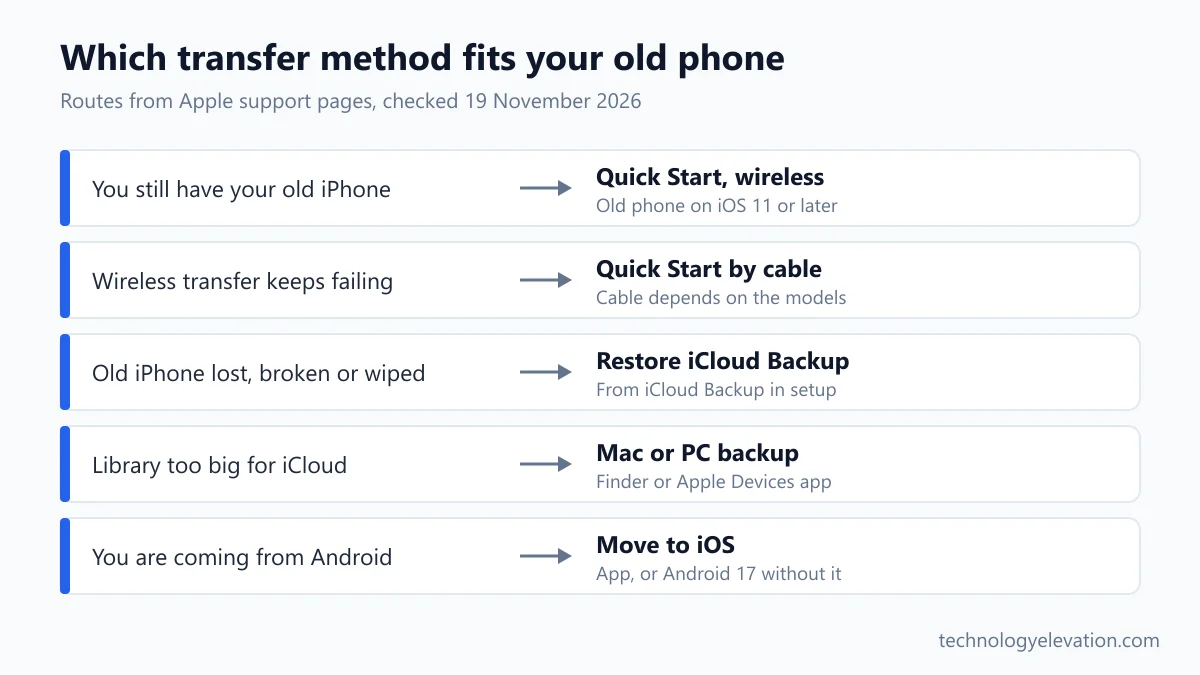
Use Quick Start if your old phone is an iPhone you still have, an iCloud or computer backup if the old phone is lost, broken or already wiped, and Move to iOS if you are coming from Android. Each route copies apps, settings and data during setup.
| Your situation | Best method | What you need |
|---|---|---|
| Old iPhone in hand | Quick Start (wireless or cable) | Old phone on iOS 11 or later, Wi-Fi, Bluetooth |
| Old iPhone lost, broken or wiped | Restore from iCloud Backup | A recent iCloud backup and your Apple Account |
| Huge photo library, slow Wi-Fi | Restore from a Mac or PC backup | Finder on macOS Catalina or later, or the Apple Devices app on Windows 10 or later |
| Coming from Android | Move to iOS | Move to iOS app, or a compatible Android 17 phone without the app |
Quick Start has one choice inside it. Download from iCloud and you can use the new phone straight away while apps arrive in the background. Transfer directly and you wait until both phones finish, which suits an old backup or a full iCloud. Still deciding which handset to give? The best phones list compares current iPhone and Android models.
Quick Start copies an old iPhone to the new one in a single pass
Quick Start is the fastest way to move from one iPhone to another. Turn on the new iPhone, place it next to your unlocked old iPhone, and follow the prompts. Your old phone needs iOS 11 or later, with Wi-Fi connected and Bluetooth turned on.
- Connect the old iPhone to Wi-Fi, turn on Bluetooth, unlock it and go to the Home Screen.
- Turn on the new iPhone and place it near the old one, then follow the onscreen instructions.
- Connect the new iPhone to Wi-Fi or your cellular network.
- Activate your cellular service if asked.
- Set up Face ID or Touch ID.
- Choose how you want to transfer your data: download from iCloud, or transfer directly from your previous iPhone.
- Keep both phones near each other and plugged into power until the migration is complete.
If the setup prompt disappears from your old phone, restart both devices and try again. Apple also suggests checking that recent iCloud changes have synced first: a note typed five minutes ago may not have reached iCloud yet.
Work phones are the exception. If the new iPhone is enrolled in Apple School Manager or Apple Business, Quick Start can’t transfer data to it.
A cable transfer is the wired version of Quick Start
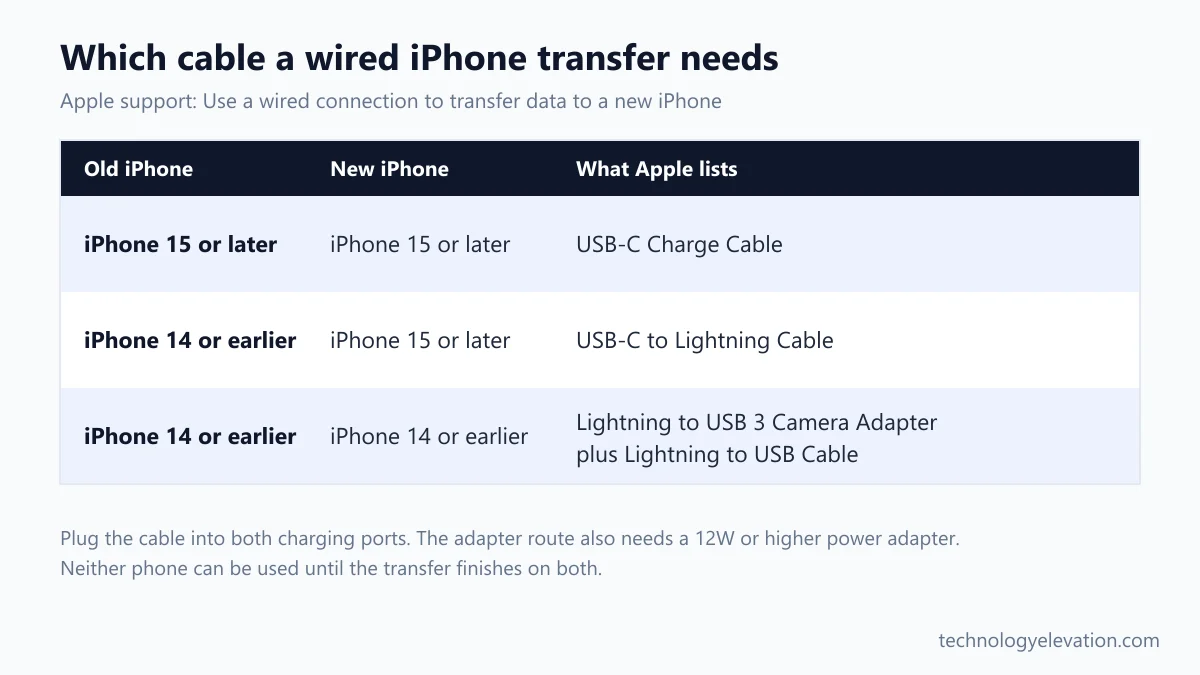
Apple also lets you migrate data by connecting the two iPhones with a cable. Two iPhone 15 or later models use a USB-C Charge Cable, and an iPhone 14 or earlier moving to an iPhone 15 or later uses a USB-C to Lightning Cable, plugged into both charging ports.
Turn on both phones and follow the same onscreen steps as wireless Quick Start. Neither phone can be used until the transfer finishes on both.
Moving between two older Lightning iPhones takes more kit. Apple lists a Lightning to USB 3 Camera Adapter on the old phone, powered through its Lightning port by a 12W or higher power adapter, plus a Lightning to USB Cable running to the new phone.
Charging matters for any method. If the house is short on wall sockets, a battery pack from the best power banks for iPhone keeps the old phone alive, and the Qi2 vs MagSafe differences decide which wireless charger suits the new one afterwards.
An iCloud backup restore works when the old phone is gone
Restore from iCloud Backup when your old iPhone is lost, broken or already erased. On the new iPhone, follow setup to the Transfer Your Apps & Data screen, tap From iCloud Backup, sign in, and choose the newest backup by its date and size.
Make that backup fresh the night before: Settings, your name, iCloud, iCloud Backup, then Back Up Now, staying on Wi-Fi until it finishes.
Short on iCloud storage? Apple gives buyers of a new iPhone temporary iCloud storage for the move:
- On the old iPhone, open Settings and tap General.
- Scroll down and tap Transfer or Reset iPhone.
- Under Prepare for New iPhone, tap Get Started.
- If you see “iCloud Backup is Turned Off,” tap Turn On Backup to Transfer.
- If you’re eligible for free extra storage, tap Continue and wait for the backup to finish.
You then have 21 days to restore that backup to the new phone. Need longer? Tap Keep My Backup Longer in Settings on the old phone for another 21 days. After you restore, the temporary backup is deleted 7 days later.
To restore on the new iPhone:
- Turn on the new iPhone. If you already set it up, erase it first.
- Follow the onscreen steps until you reach Transfer Your Apps & Data.
- Tap From iCloud Backup and sign in to your Apple Account.
- Choose the most recent backup.
- When asked, sign in again to restore your apps and purchases.
- Stay on Wi-Fi and power until the progress bar finishes, then finish setup.
Photos, music and apps keep downloading after setup ends, so leave the phone on Wi-Fi and a charger through lunch.
A Mac or PC backup suits very large libraries
Restore from a computer backup when your phone holds more than your iCloud plan allows. Back up the old iPhone with the Finder on a Mac or the Apple Devices app on Windows, then connect the new iPhone, click Restore Backup and pick the newest backup.
To back up, connect the old iPhone with a cable, select it in the Finder sidebar (macOS Catalina 10.15 or later) or under General in Apple Devices, and click Back Up Now. Tick “Encrypt local backup” first if you want Health and Activity data saved, and write the password down: there is no way to recover the backup without it.
To restore on the new iPhone:
- Open the Finder on a Mac, or the Apple Devices app on a Windows 10 or later PC.
- Connect the new iPhone with a USB cable and select it in the sidebar.
- Click Restore Backup.
- From the Backup menu, choose the most recent backup by date and size.
- Enter the password for your encrypted backup when asked, then click Restore.
- Keep the iPhone connected while it restarts and syncs, then disconnect it.
Move to iOS brings an Android phone’s data across
Switching from Android uses Move to iOS. On the new iPhone, tap Set Up Without Another Apple Device, then From Android and Transfer with App. The Android phone runs the Move to iOS app, enters a code and sends your data over a temporary Wi-Fi network.
- Turn on Wi-Fi on the Android phone and plug both phones into power.
- Turn on the iPhone, follow setup, and tap Set Up Without Another Apple Device.
- On Transfer Your Apps & Data, tap From Android, then Transfer with App.
- On the Android phone, open Move to iOS, tap Continue, read the terms and tap Agree.
- On the iPhone, tap Continue on the Move from Android screen and wait for a six-digit or ten-digit code.
- Enter the code on Android, then tap Connect to join the iPhone’s temporary Wi-Fi network.
- Choose the content to move and tap Continue.
- Leave both phones alone until the loading bar on the iPhone finishes, even if Android says it is done.
Move to iOS carries contacts, message history, camera photos and videos, albums, files, web bookmarks, mail accounts, calendars, call history, Voice Memos, and WhatsApp messages and media. Free apps that exist on both stores can transfer too. Music, books and PDFs have to be moved by hand.
Apple is blunt: open another app or take a call on Android before it finishes, and your content won’t transfer. A USB-C cable between the phones gives a faster transfer. If the Android phone runs a compatible version of Android 17, you can skip the app: tap From Android, then Transfer without App, and scan the QR code on the iPhone with the Android camera. That route can move your eSIM as well.
Already used AirPods with your Android phone? The AirPods with Android walkthrough explains which features were missing there, and they switch on once the earbuds meet an iPhone.
Your phone number moves with eSIM Quick Transfer
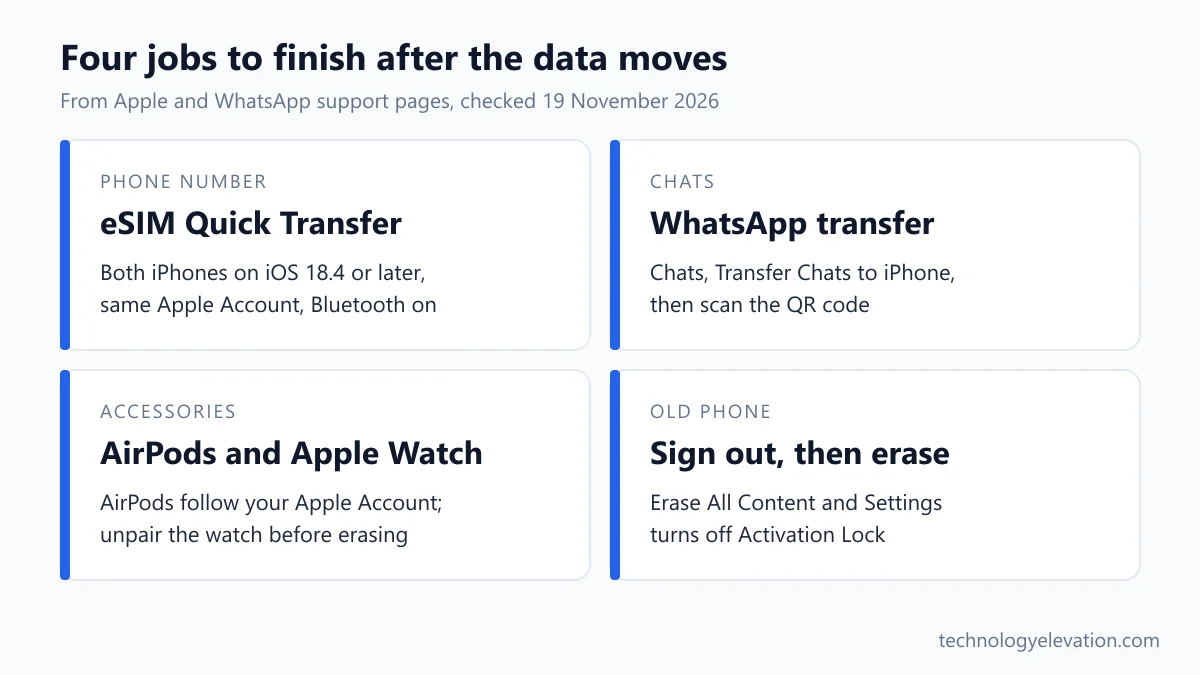
An eSIM is a digital SIM built into your iPhone. If your carrier supports eSIM Quick Transfer, the new iPhone takes your number from the old one during setup or later in Settings, with no call to the carrier. Both phones need iOS 18.4 or later.
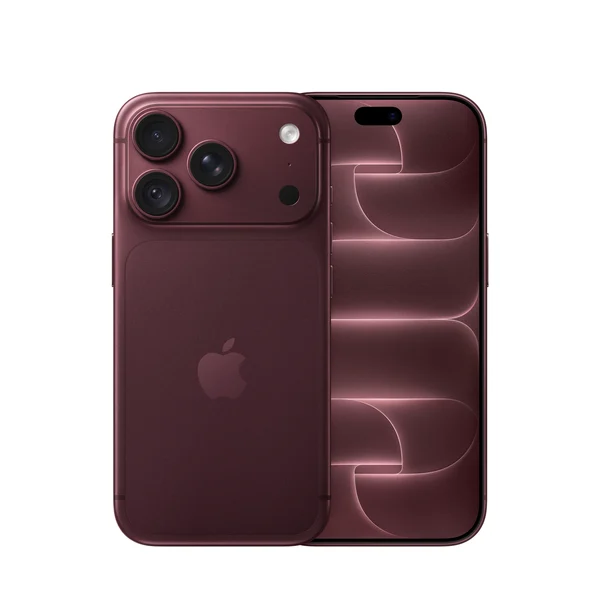
Apple’s eSIM setup page lists what you need: the same Apple Account on both phones, the old phone unlocked with its passcode, and both phones nearby with Bluetooth on. The US models of iPhone 18 Pro and iPhone 18 Pro Max are eSIM-only, with no physical SIM tray.
If you didn’t move the number during setup, do it afterwards:
- Open Settings on the new iPhone and tap Cellular.
- Tap Set Up Cellular or Add eSIM.
- Choose the plan to transfer. If no numbers appear, tap Transfer From Nearby iPhone.
- On the old iPhone, tap Transfer, or enter the code the new iPhone shows.
- Wait for the plan to activate. Your old SIM stops working at that moment.
If a banner says Finish Setting Up Your Carrier’s Cellular Plan, tap it and finish on the carrier’s website. With iOS 26 or later you can move more than one number at once. Coming from Android, contact your carrier for eSIM Carrier Activation or a QR code, unless your carrier and Android maker support the direct transfer that arrived with iOS 26.
WhatsApp chats need their own transfer step
WhatsApp moves chats between iPhones with its own Chat Transfer tool. On the old iPhone, tap your profile picture, then Chats, Transfer Chats to iPhone and Start. On the new iPhone, verify the same phone number, tap Continue, and scan the QR code with the old phone.
- Update iOS and WhatsApp on both phones, and keep them on the same Wi-Fi and plugged in.
- Don’t register WhatsApp on the new iPhone until you start the transfer on the old one.
- On the old iPhone, open WhatsApp, tap your profile picture, then Chats, Transfer Chats to iPhone, then Start.
- On the new iPhone, open WhatsApp, tap Agree & continue and verify your number.
- Tap Continue on Transfer chat history to iPhone and allow local network access.
- Scan the QR code on the new iPhone with the old iPhone’s camera.
- Keep both phones unlocked with WhatsApp open until you see Transfer completed, then tap Next.
Payment messages, call history and media from WhatsApp Channels don’t transfer, and the tool doesn’t work in WhatsApp Business. Leave WhatsApp on the old phone until you have checked the chats on the new one.
The fallback is a WhatsApp iCloud backup: Chats, Chat backup, Back up now on the old phone, then Restore Chat History on the new one with the same Apple Account and number. Don’t tap Skip media restore, because the media can’t come back later.
From Android, the chats come across inside Move to iOS. WhatsApp requires Android 5 or later, iOS 15.5 or later, the same phone number, and an iPhone that is new or freshly reset.
Reconnect AirPods, Apple Watch and the other Christmas gifts
AirPods signed in to your Apple Account connect to the new iPhone automatically once you sign in to iCloud on it. Your Apple Watch backup travels inside your iPhone backup, so a watch can be set up on the new phone after the transfer finishes.
Brand-new AirPods are just as quick: open the case next to the iPhone on the Home Screen and tap Connect. Still choosing a pair? Compare the current models in which AirPods to buy. For the watch, unpair it from the old iPhone before you erase that phone.
A new iPhone also needs a case that fits it, and the Christmas gifts for iPhone users list is a good start for stocking fillers that suit it.
Wipe the old phone properly before you pass it on
Before you sell, trade in or hand down the old iPhone, confirm everything reached the new phone, unpair your Apple Watch, sign out of your Apple Account, then go to Settings > General > Transfer or Reset iPhone > Erase All Content and Settings.
- Make one last backup of the old phone.
- Unpair any Apple Watch and cancel or transfer AppleCare if you have it.
- Open Settings, tap your name, scroll down and tap Sign Out.
- Choose Erase this iPhone, or Sign Out But Don’t Erase.
- In Settings, go to General, then Transfer or Reset iPhone, tap Erase All Content and Settings, enter your passcode and tap Erase iPhone.
- If the phone uses eSIM, choose to erase the device and the eSIM profile.
- Remove the old phone from your Apple Account’s trusted devices.
Erasing turns off Find My and Activation Lock, which is what lets the next owner use the phone. Skip that step and the phone you gave your teenager stays locked to your account.
Trading in? Check Parts and Service History first. A part marked Finish Repair blocks a trade-in until the repair is finished. If Stolen Device Protection is on, changing your password at an Apple Store can bring a one-hour security delay, so know your password before you go.
The older iPhone reset and wipe steps still describe the same idea, though the menu names above are the current ones. If the old phone goes to a family member instead, they can sign in with their own Apple Account after the erase. Planning their upgrade instead? The best phones roundup covers iPhone and Android options side by side.
Frequently asked questions about transferring data to a new iPhone
How long does it take to transfer data to a new iPhone?
Transfer time depends on how much data you have, your network and the connection type, so Apple gives no fixed figure. A direct or cable transfer finishes before you can use either phone, while an iCloud download keeps adding photos and apps in the background.
Can I use my old iPhone while Quick Start is running?
No. Quick Start occupies both devices until the transfer finishes. Apple suggests choosing a time when you won’t need your current phone for several minutes, and keeping both phones next to each other on power.
Can I transfer data to a new iPhone after setup?
Not with Quick Start or a backup restore, because both run during setup. To use them later, erase the new iPhone from Transfer or Reset iPhone in the General settings, then start setup again. Your phone number can still move after setup from the Cellular settings.
Does Quick Start transfer my phone number?
Your number moves separately through eSIM Quick Transfer, which the new iPhone offers when it asks you to activate cellular service. Both phones need iOS 18.4 or later, the same Apple Account and Bluetooth, and your carrier has to support it.
Do WhatsApp chats transfer to a new iPhone automatically?
WhatsApp has its own transfer step. Use Transfer Chats to iPhone in WhatsApp’s Chats settings on the old phone, or restore a WhatsApp iCloud backup on the new one. From Android, WhatsApp messages and media move with Move to iOS.
What if I don’t have enough iCloud storage to back up?
Apple gives temporary iCloud storage to people buying a new iPhone. Open Transfer or Reset iPhone in the General settings and tap Get Started under Prepare for New iPhone. You then have 21 days to restore that backup.
Should I erase my old iPhone right after the transfer?
Wait until you have checked photos, messages, WhatsApp and any two-factor login apps on the new phone. Then sign out of your Apple Account and use Erase All Content and Settings, which also turns off Find My and Activation Lock.
Last checked and sources
Last checked on 19 November 2026 by Haris Khan. We followed each step against Apple’s and WhatsApp’s current support articles and Apple’s iPhone 18 Pro announcement, and kept only what they state.
- Apple Support: Use Quick Start to transfer data to a new iPhone or iPad; Use a wired connection to transfer data to a new iPhone or iPad; Transfer data from your previous iOS or iPadOS device
- Apple Support: Restore your iPhone from a backup; How to back up your iPhone with iCloud, with your Mac and with Windows; What does iCloud back up?; Get temporary iCloud storage when you buy a new iPhone or iPad
- Apple Support: Move from Android to iPhone or iPad; Set up eSIM on iPhone; Connect your AirPods to your iPhone; Update your iPhone; What to do before you sell, give away, or trade in your iPhone or iPad; About iOS 27 Updates
- Apple Newsroom: Apple debuts iPhone 18 Pro and iPhone 18 Pro Max, 9 September 2026
- WhatsApp Help Center: How to transfer your chat history; How to back up and restore your chat history; moving chats from Android to iPhone
We update this guide when Apple or WhatsApp change their transfer steps or menu names.


GIPHY App Key not set. Please check settings