

 Haris Khan
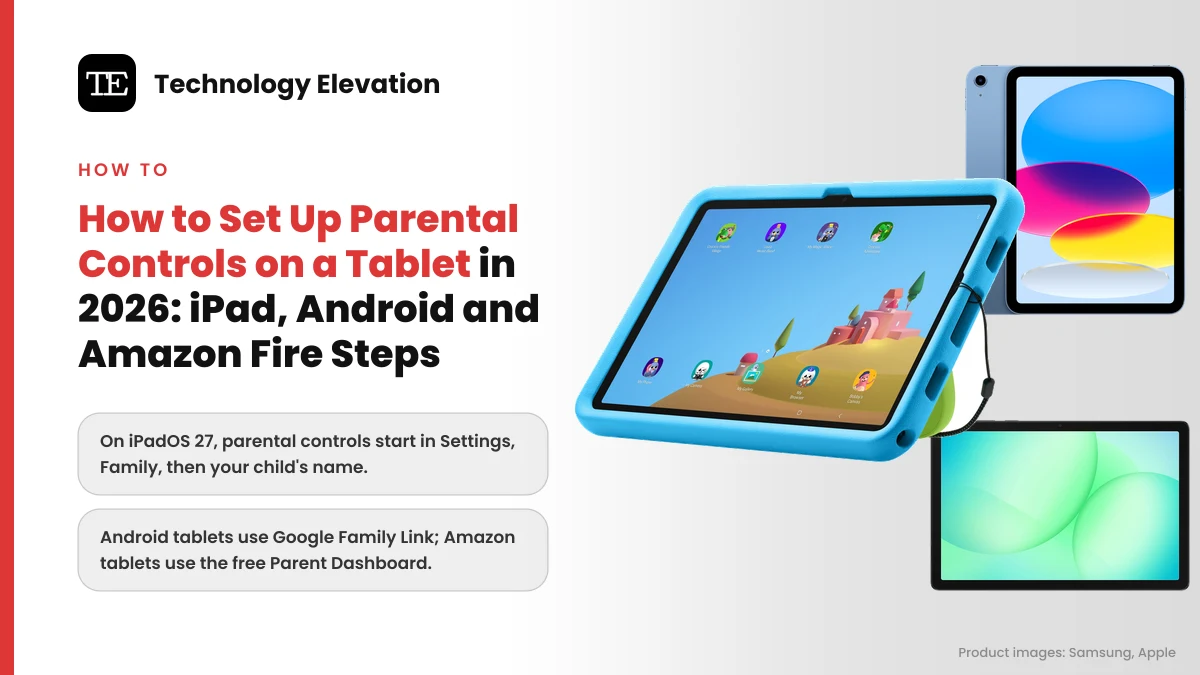
The new tablet comes out of the box on a holiday morning, and within ten minutes it is on YouTube, asking for a password to buy gems in a game. Most parents set the controls after that moment. Setting them before the child ever touches the screen is far easier, and on every major tablet it takes about 15 minutes.
Knowing how to set up parental controls on a tablet got a little harder this autumn, because Apple redesigned its menus. With iPadOS 27, the controls moved out of the old Screen Time screens and into Family settings, and Apple says Ask to Buy and Ask to Browse are on by default for children under 13.
Google and Amazon changed things too. Android 17 added parental controls that work without a Google account on the device, and Amazon’s new Kids Tablets now run Android with Google Play, managed from the Parent Dashboard.
Below are the exact steps for an iPad, an Android or Samsung Galaxy tablet, and an Amazon Fire or Amazon Kids Tablet, using the menu names on each maker’s support pages as of 19 November 2026.
How to set up parental controls on a tablet: five steps for any brand
To set up parental controls on a tablet, give your child their own account, link it to yours, then set content filters, app and purchase approvals, and daily time limits. Finish with a parent passcode or PIN your child does not know, and check the settings from your own phone.
- Create a child account: a Child Account in Apple Family Sharing, a supervised Google Account in Family Link, or a child profile in Amazon Kids.
- Sign in to the tablet with that child account, not your own.
- Set content filters for apps, video and websites by age.
- Turn on approval for downloads and purchases.
- Set a daily time limit and a bedtime or downtime schedule, then lock it all with a parent passcode or PIN.
Step 2 is the one families skip. If the tablet is signed in with a parent’s account, most of these controls simply do not apply, and every purchase goes on your card without a prompt.
Do it all before the gift is wrapped if you can. A tablet that starts locked down is much easier to loosen later than one that starts wide open. If you are still choosing a device, the best tablet for kids depends partly on which of these systems you would rather manage.
iPad parental controls: start from Family in iPadOS 27
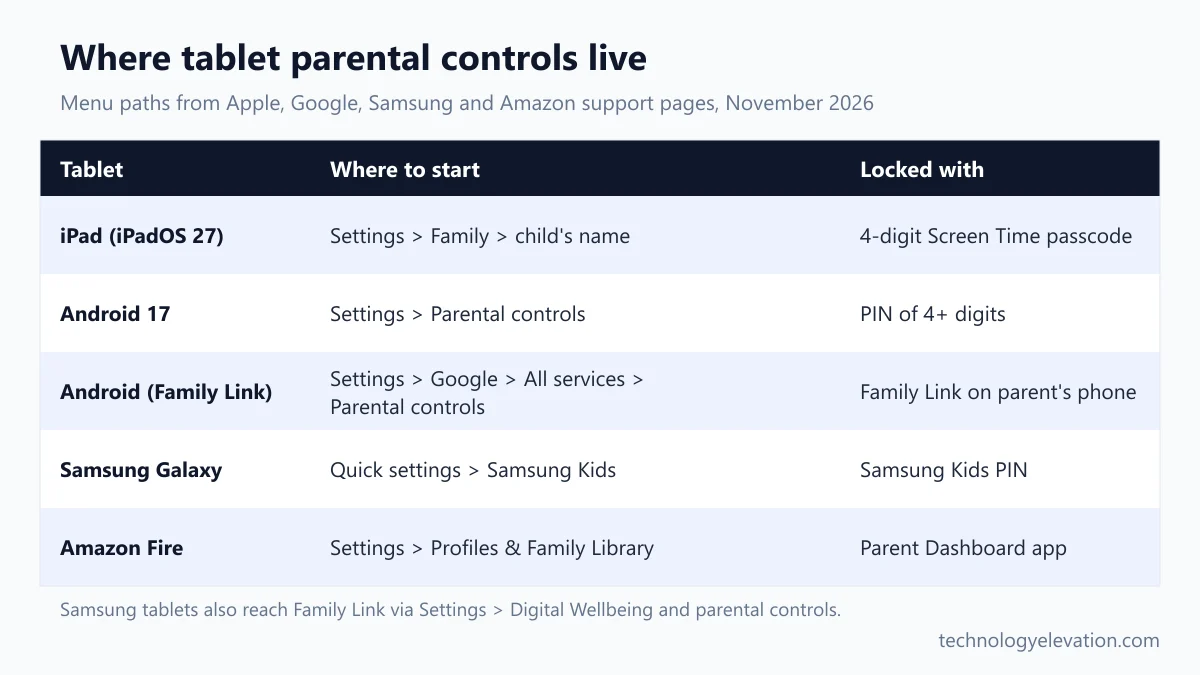
On an iPad running iPadOS 27, open Settings, tap Family, then tap your child’s name and follow the setup. Apple walks you through content, contacts, usage hours, school hours and Time Allowances, then asks you to create a four-digit Screen Time passcode.

Your child needs a Child Account first. Apple says parents must create one for children under 13. On your own iPhone or iPad:
- Open Settings and tap Family. Set up Family Sharing if you have not already.
- Tap Add Member, then Create Child Account, then Continue.
- Enter your child’s name and birthday. Get the birthday right, because Apple sets several defaults by age.
- Use the suggested @icloud.com address, create a password, and follow the onscreen steps.
Then sign the iPad in with that account and set up the controls. Apple’s child safety guide lists the setup in this order:
- Tap Get Started when you are invited to set up parental controls. If you skipped it, open Family Sharing settings and select your child’s name.
- Choose a website setting: Approved Websites Only, Ask to Browse, Limit Adult Websites, or unrestricted. Set age ratings for books, movies, TV shows and music, then tap Continue.
- Choose who your child can talk to. Turn on approval for new contacts in Phone, Messages and FaceTime, and optionally the protection against sensitive images and videos.
- Set Available From and Available Until times for weekdays and weekends.
- Turn on Pause During School Hours and set a Start Time and End Time.
- Set Time Allowances, a total limit across Entertainment, Games and Social Media, then adjust each category.
- Create a four-digit Screen Time passcode your child cannot guess.
Everything can be changed later under Settings, Family, then your child’s name. Apps and Websites holds Ask to Buy (Restrictions, Ask to Buy, then Require Purchase Approval) and web Filtering. Allowed Contacts, Communication Safety, Time Allowances and Screen Time Schedule each have their own row. Content and Privacy Restrictions covers age ratings, Siri and privacy settings.
Some defaults are already on. Apple says Limit Adult Websites and Communication Safety, which blurs nudity and now gore and violence in shared images and video, are on by default for children under 18.
Every iPad in the family needs iPadOS 27 for the new controls
Apple’s catch is that the redesigned controls need every device in your Family Sharing group on version 27 or later, including your own iPhone. To check, open Settings, tap Family, then View Family Devices. Update each one under General, then Software Update.
Older iPads that cannot update are listed under Legacy Devices on the same screen. They keep the older iPadOS 26 Screen Time settings, and you can still manage them on the device with your Screen Time passcode. Parents planning an upgrade can compare current models in which iPad to buy in 2026.
Android tablet parental controls: supervise the account with Google Family Link
On most Android tablets, parental controls come from Google Family Link. Install the Family Link app on your phone, then on the tablet open Settings, tap Google, then All services, and under Kids & Family tap Parental controls. Tap Let’s do this and pick your child’s account.

Google’s requirements are simple but strict. You need a Google Account and must be 18 or older, and your phone must run Android 7.0 or later or iOS 16 or later. Your child must live in the same country, be nearby during setup, and agree to supervision on the tablet.
Once the account is supervised, everything else happens in Family Link on your phone:
- Daily limit: select your child, tap Screen time, then Time limits, and turn on Daily limit. Use Weekly schedule to set each day.
- Block an app: in Screen time, Time limits, App limits, select the app and tap the Allowed toggle so it reads Blocked.
- Content filters: tap Controls, then Google Play, and choose the highest maturity level for Apps & games, Movies and TV. Books has its own explicit content switch.
- Purchase approvals: in Controls, Google Play, under Purchases & download approvals, tap Require approval for and pick All content, Paid content only, In-app purchases only or Never.
Pick All content for a young child. Paid content only sounds safer than it is, because plenty of free games are built around in-app purchases.
Family Link also adds School Time and location sharing for the tablet. Daily limits apply to each Android device separately, so a 2-hour limit means 2 hours on the tablet and 2 more on any other supervised device.
Android 17 tablets also have parental controls built into Settings
On a tablet with Android 17 or later, Google added controls that live on the device itself. Open Settings, tap Parental controls, then Set up Parental controls PIN, and enter a PIN of at least 4 digits. Add a recovery account when asked.
From the same Parental controls screen you get Daily limit, Downtime, App limits, Web content filters and App store filters for Google Play. Google’s Android parental controls page notes that the web filters work only in Chrome and the Google app, and that the controls cannot be turned on if the tablet has a work profile or private space.
Skip the recovery account at your peril. Without one, a forgotten PIN means a full factory reset. To move to Family Link later, tap Get Google Family Link, then Get started, under the same menu.
Samsung Galaxy tablets add Samsung Kids on top of Family Link
Samsung Galaxy tablets use Google Family Link through Settings, then Digital Wellbeing and parental controls, then Parental controls. For younger children, Samsung Kids adds a locked, kid-friendly home screen with its own PIN, screen time schedule, bedtime and a list of allowed apps.
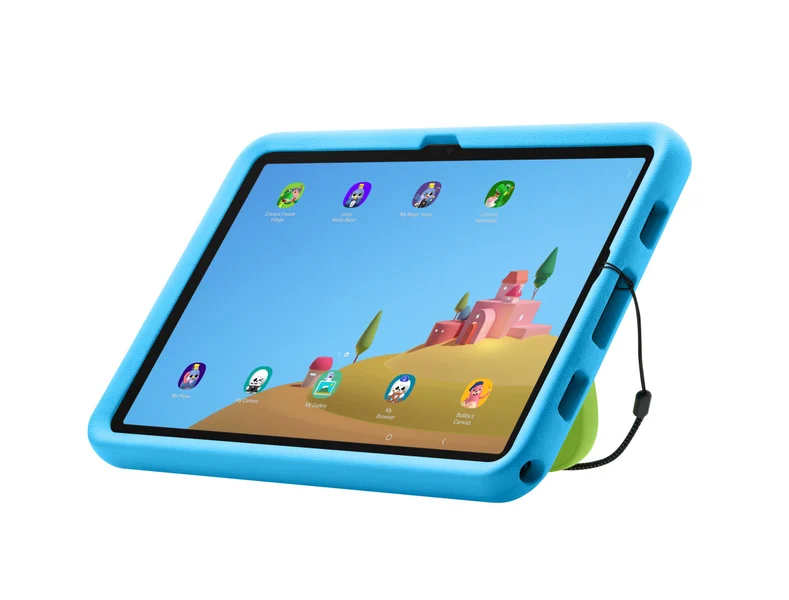
To open Samsung Kids, swipe down from the top of the screen with two fingers, tap the Samsung Kids icon, then tap Continue twice. Set a Samsung Kids PIN when prompted. If the icon is missing from Quick settings, add Kids through the Edit button in that panel.
Inside Samsung Kids, tap More options (the three dots), then Parental controls, and enter your PIN. You can create up to 6 child profiles and set Screen time, Bedtime and Allowed content, which controls the apps, contacts and music your child can reach. Samsung Kids runs on Android 9.0 and later.
The two tools work well together. Samsung Kids keeps a 5-year-old inside a small set of apps, while Family Link handles purchases, time limits and Google Play filters across devices. The Galaxy Tab A11+ Kids Edition ships with Samsung Kids and a setup guide in the box.
Amazon Fire and Amazon Kids Tablets: a child profile plus the Parent Dashboard
On an Amazon Fire tablet, open Settings, select Profiles & Family Library, then Add a child profile, and enter your child’s details. Then manage time limits, content, store access and web browsing from the free Amazon Parent Dashboard app or website on your own phone.
Amazon allows up to 4 child profiles per account, used across compatible devices. The Parent Dashboard is free on the Apple App Store and Google Play, or in any web browser. Sign in with your Amazon account and enter the one-time password Amazon sends.
Amazon’s help pages list everything the Parent Dashboard controls. The two settings to set first:
- Time limits: open the Parent Dashboard, select Time Limits, pick the child profile, then set a Daily Screen Limit, a Schedule, Learn First goals (learning before games and video) or Time by Activity Type, which caps each kind of content separately at up to 12 hours.
- Store approvals: open the Content tab, select the child profile, then Store Access, and switch on In-App Purchase Requests and Store Access. Each request then reaches you by email or text for approval.
Leave Expanded selection off for young children. Amazon says it lets kids see and request apps not made for kids, such as Netflix, Zoom and Minecraft, though mature content stays blocked.
On the tablet itself, the Grownups menu at the top right of a child profile opens settings such as Age Filters, camera access, a maximum volume and a child lock screen PIN that stops siblings switching profiles. Each needs your adult PIN.
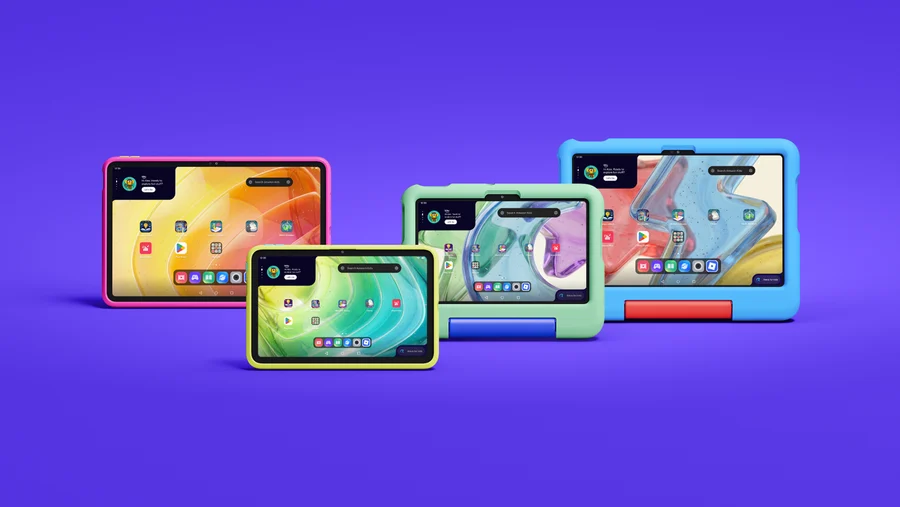
Amazon’s new Kids Tablet 8 and Kids Tablet 11, released in the US on 14 October 2026 at $229.99 and $329.99, run Android with Google Play. The Parent Dashboard comes pre-installed, and Amazon says every download goes through parental approval. You can also pause the tablet remotely from your phone.
Locking a teen’s adult profile on a Fire tablet
For children 13 and older, Amazon offers parental controls on an adult profile instead. Swipe down twice to open Quick Settings, tap the Settings icon, select Profile and Parental Controls, and set Restrict access to current profile to On. Enter a password, then select Finish.
A lock icon at the top of the screen shows the controls are on. Write the password down. Amazon says that if you forget it, the only fix is a factory reset.
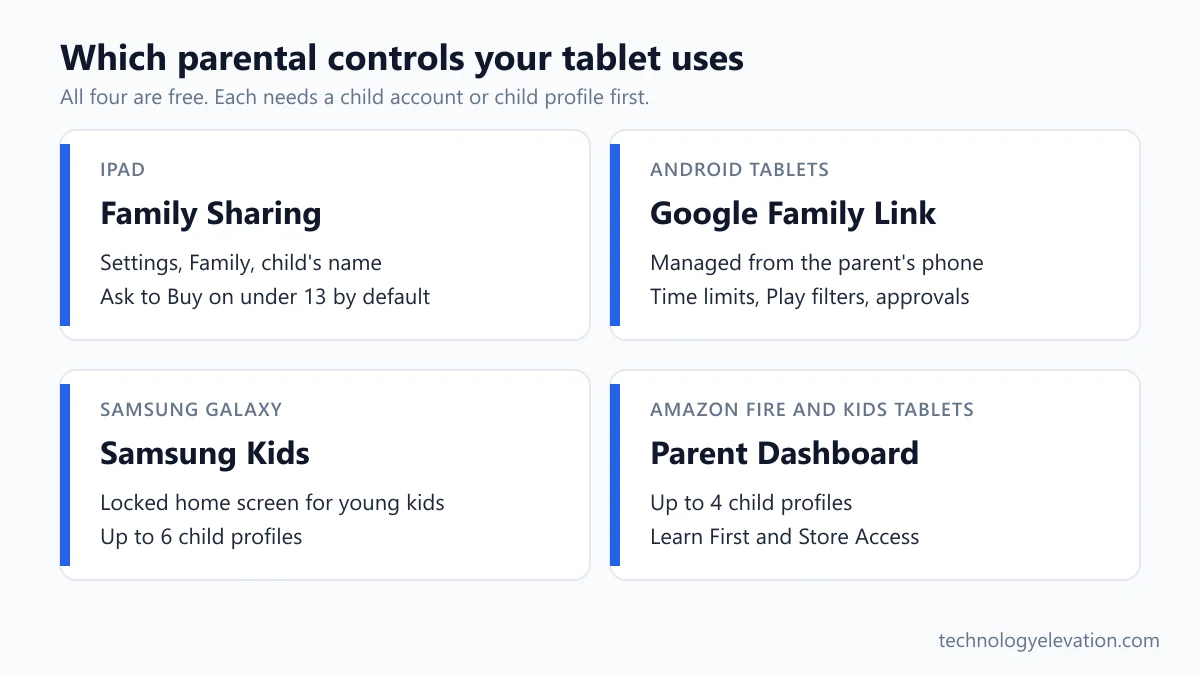
Parental control settings compared across iPad, Android and Amazon
All three systems cover the basics for free: time limits, content filters by age, and approval for downloads and purchases. Apple adds the strongest contact and messaging controls, Google adds location sharing and School Time, and Amazon adds Learn First goals and a curated kids library.
| Control | iPad (iPadOS 27) | Android (Family Link) | Amazon (Parent Dashboard) |
|---|---|---|---|
| Daily time limit | Time Allowances by category | Daily limit | Daily Screen Limit |
| Bedtime or schedule | Screen Time Schedule | Downtime and School Time | Schedule |
| Download and purchase approval | Ask to Buy | Require approval for | Store Access requests |
| Web filtering | Ask to Browse, Limit Adult Websites | Chrome filters | Web browsing controls |
| Parent lock | Four-digit Screen Time passcode | Parent Access Code or PIN | Adult profile PIN |
The table hides one real difference. Apple and Google controls follow the child’s account to their first phone, while Amazon’s controls follow the child profile across Amazon devices such as Fire TV and Echo. If a phone is two years away, that matters more than any single setting.
The parental control settings worth turning on first, by age
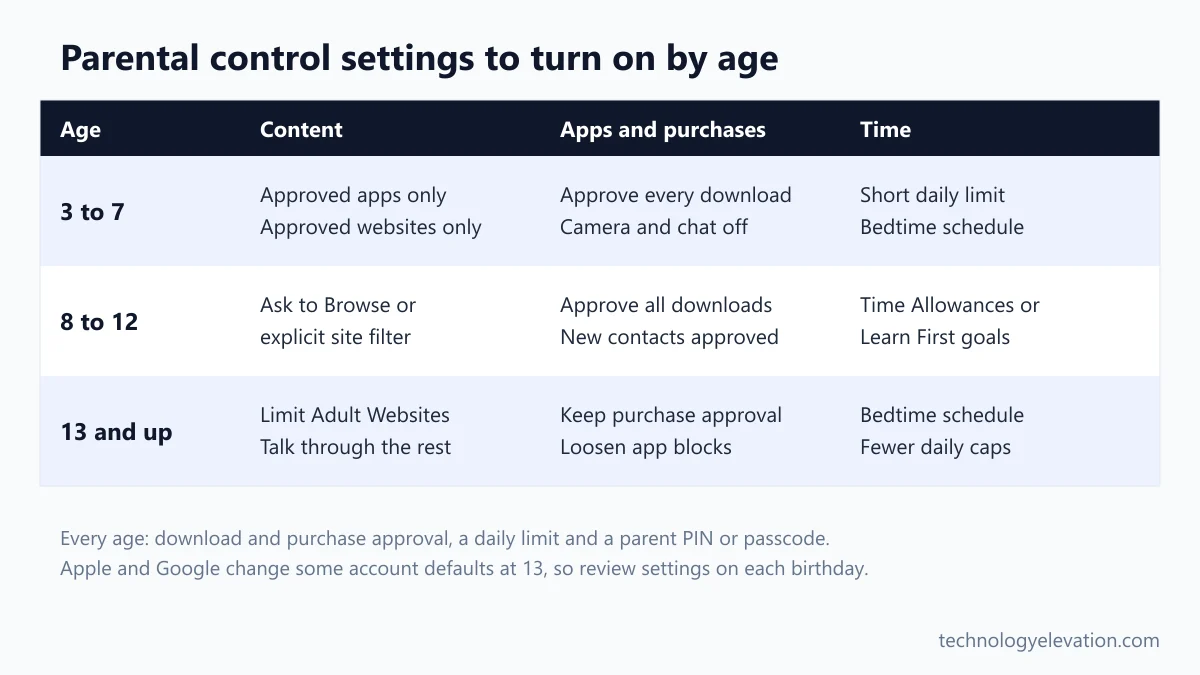
Turn on purchase approval and a daily time limit for every age. Under 8, add an approved-apps-only home screen and approved websites only. From 8 to 12, switch to filtered browsing and contact approval. For teens, keep purchase approval and a bedtime, and loosen the rest.
- Ages 3 to 7: use Samsung Kids, Amazon Kids or Approved Websites Only on an iPad, so the child only sees what you picked. Keep the camera and messaging off.
- Ages 8 to 12: move to Ask to Browse or Chrome’s explicit site filter, turn on contact approval, and set Time Allowances or Learn First goals rather than one flat limit.
- Ages 13 and up: keep download and purchase approval and a bedtime schedule. Talk through the rest, because a teen who feels watched will find the gaps.
Revisit the settings on each birthday. Apple and Google both change some defaults by age, and a limit that fit a 7-year-old will start arguments at 10.
Older kids often want a watch before a phone. If you go that way, a smartwatch for a teenager with its own parental app keeps contact without a full browser on the wrist.
What tablet parental controls still miss
Parental controls are good, not airtight. Android web filters only cover Chrome and the Google app, Google Play approvals only cover Play’s own billing, Amazon cannot block websites linked inside some apps, and a forgotten PIN on Fire or Android 17 can mean a factory reset.
Each system has one gap worth knowing:
- iPad: the new controls only work once every family device runs version 27. A parent iPhone left on iOS 26 holds back the new settings for the whole family.
- Android: other browsers may still show explicit sites, so block any extra browser apps in App limits.
- Amazon: Amazon says it cannot prevent navigation to websites embedded in content, even with web access turned off, and it removes child profiles inactive for more than 18 months.
Home network controls fill some of those gaps. Many routers and mesh systems can pause a device or filter sites for every tablet in the house, and a mesh Wi-Fi system with a parent app does it from one screen.
School devices are a separate case. Family Link cannot manage Google Workspace for Education accounts, so a school-issued Chromebook for students follows the school’s rules, not yours. Shopping for a first tablet this week? Set the controls before wrapping it, and compare the age-by-age options in our kids tablet picks for 2026.
Frequently asked questions about tablet parental controls
How do I put parental controls on my child’s iPad?
Open Settings on your iPad or iPhone, tap Family, then tap your child’s name and follow the setup. Your child needs a Child Account in Family Sharing, and on iPadOS 27 every family device must be updated to version 27 for the new controls.
Can I use Google Family Link on an iPad?
No. Google says iPhones and iPads cannot be supervised with Family Link, although a parent can run the Family Link app on an iPhone or iPad to manage a child’s Android tablet. Use Apple’s Screen Time and Family Sharing for a child’s iPad.
Do tablet parental controls cost money?
No. Apple Screen Time, Google Family Link and the Amazon Parent Dashboard are all free. Amazon Kids+ is an optional paid content library, and its AI Screen Time Assistant is only available with a Kids+ subscription.
What happens if I forget my parental controls PIN?
The fix depends on the tablet. Android 17 lets you reset the PIN through a recovery account, but without one you must factory reset the device. Amazon says a forgotten Fire tablet parental controls password also needs a factory reset.
How many child profiles can an Amazon Fire tablet have?
Amazon allows up to 4 child profiles, which can be used across compatible Amazon devices. Samsung Kids on a Galaxy tablet allows up to 6 child profiles.
Can my child turn off parental controls?
Not without your passcode, PIN or approval. On Android, a supervised child under 18 needs a parent’s approval to stop supervision, and both of you are notified. On an iPad, changes need the four-digit Screen Time passcode.
At what age should I stop using parental controls?
No single age fits every child, but most families loosen controls in the early teens. Apple and Google both treat 13 as a turning point for account defaults, so many parents keep purchase approval and a bedtime past 13 and relax the rest.
Last checked and sources
Last checked on 19 November 2026 by Haris Khan. We followed every step against the makers’ current support articles and kept only the menu names and defaults they state.
- Apple Support: Set up parental controls to manage your child’s iPhone or iPad; Create an Apple Account for your child; Apple Devices for Kids and Families guide (setup, family device updates, what’s new); Apple Newsroom, new child safety features, 14 September 2026
- Google Android Help: Set up parental controls on an Android device
- Google For Families Help: Get started with Family Link; Add and manage supervision; daily limits; managing Google Play apps; purchase approvals
- Samsung US Support: Samsung Kids on your Galaxy phone or tablet; Samsung Newsroom, Galaxy Tab A11+ Kids Edition
- Amazon Customer Service: Create a Child Profile, Child Profile Settings, Set Up Parental Controls, Parent Dashboard, Parent Purchase Approvals, Time Limits and Learn First; About Amazon, Amazon Kids Tablet announcement
We update this guide when Apple, Google, Samsung or Amazon change their parental control menus.
Technology Elevation is reader-supported. As an Amazon Associate, we earn from qualifying purchases. When you buy through links on this page, we may earn a small commission at no extra cost to you.


GIPHY App Key not set. Please check settings